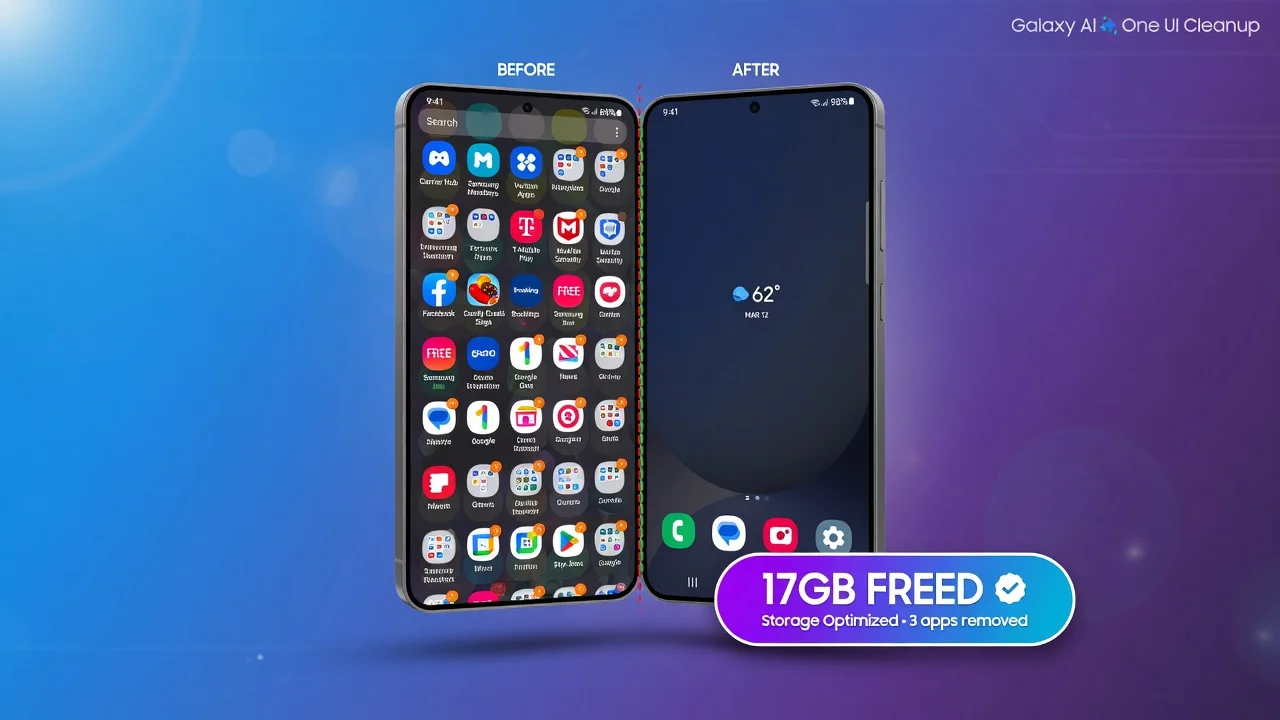
You’ve recently received your new Samsung Galaxy phone and it seems you already have a bunch of applications that you didn’t ask for. If you’re wondering how to remove apps from Samsung phone, you’re not alone. Samsung’s phones are already loaded with bloatware, and Samsung Galaxy S24’s bloatware can consume up to 17GB of storage at the outset.
If you clean it up properly, then you can expect to get 4GB or more and feel the difference in the smoothness of the phone’s operation.
I’ve created this guide and included all the possibilities you could encounter. If you want to remove an app you’ve installed, want to remove the Samsung apps that are pre-installed, or just have some apps that simply don’t budge, this guide helps you with that.
If you have mastered the basics and only want some tips on apps that you can’t delete, go to Section 6. In order to learn about the safe Samsung apps that are predatory in-built, head to Section 7.
Samsung Phone Apps Removal is the easiest method to uninstall Apps from your Samsung phone
Remove Apps from Samsung Galaxy phones quickly through the “Uninstall” button on the long press of the App icon. It’s for any app that you got yourself and it’s a quick process, taking less than 10 seconds.
Here are the steps:
Tap the app you want to uninstall from your home screen or app drawer.Tap the app that you want to delete on your home screen or app drawer.
Hold down the application icon to show a small menu at the top of the screen.
Tap Uninstall from the options shown.
Tap OK to confirm.
You won’t be able to see the app in your screen.
If it’s not on your home screen, swipe down from the top of your screen to open up the app drawer. The icon will be under pressure, press and hold it, then choose Uninstall.
This also applies to Samsung Galaxy devices with Android 14 and most of the previous Android versions. The steps will be the same for the Galaxy S22, S23 and S24.
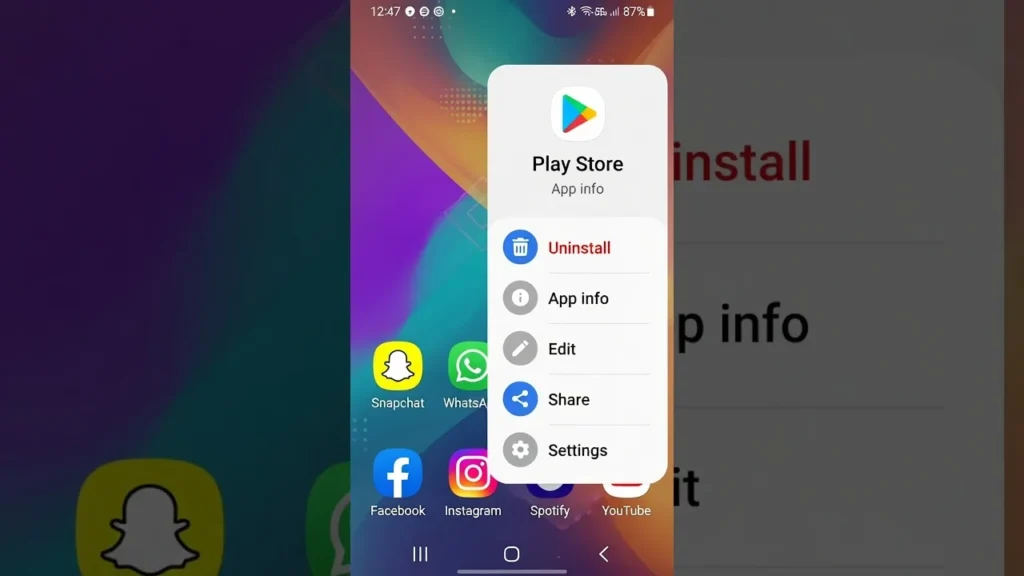
Important to know: Only works for apps that you installed. You may not be able to see the Uninstall option if you press and hold a Samsung app that is already installed. That is another case that will be discussed in Section 6.
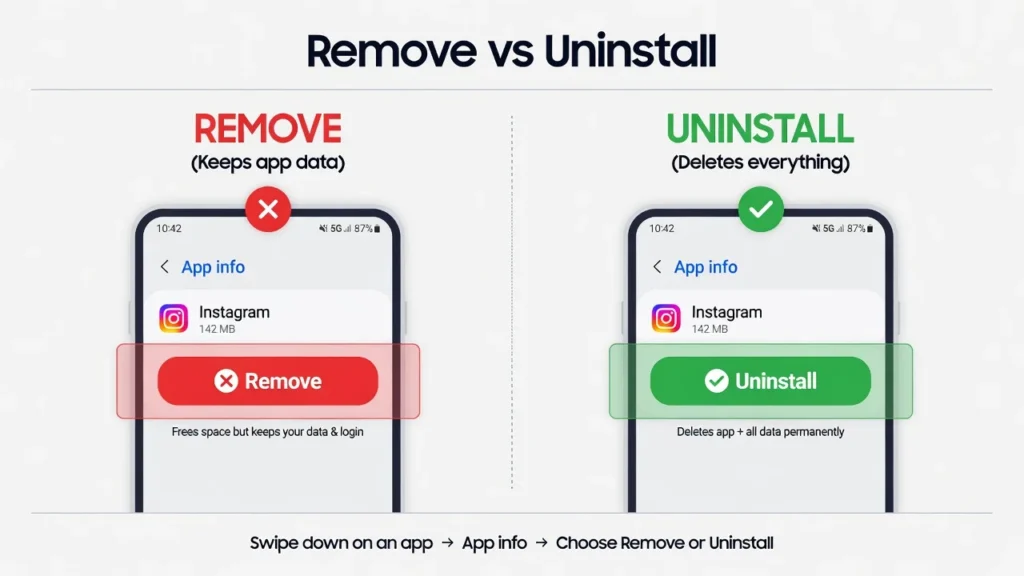
When it comes to uninstalling software, there is a distinct difference between “Remove” and “Uninstall”!
This is the one most frequent error that people commit on Samsung phones. If you long press on an app icon on your home screen, you will see two options Remove and Uninstall. Both of these are different and it’s a reason why so many people believe they deleted an app only to find it in their storage.
Here are what each option does:
| Option | What It Does |
|---|---|
| Remove | Deletes only the shortcut from your home screen. The app stays installed on your phone, still uses storage, and can still run in the background. |
| Uninstall | Completely removes the app from your Samsung phone. The app is gone, your storage is freed, and it stops running entirely. |
Consider Remove as cleaning your desk and Uninstall as putting something in the garbage.
I’ve seen users hit remove from an app they no longer use, feel good about it and then realize that their phone still has the same free space. The app never left. It only went to your home screen and app drawer and you can’t see it as easily there.
When uninstalling this app from your Samsung, be sure to select Uninstall instead of Remove.
The same disorientation is experienced when you see a zipped app icon on your home screen. Others try to remove it by tapping Remove assuming it will handle it, but the file of the underlying app is still present. In Section 10 I will explain how to handle those appropriately.
To remove apps from Samsung phone using settings, follow these steps:
If you want to have more control over what you’re removing, I recommend you use the Settings method. With the long press of home screen, you would just be taken to the long list of installed applications, but here you will get the full list of all installed apps and the amount of space used by each of them after the Samsung phone entry into Settings.
Follow these steps:
Access your Samsung Galaxy’s Settings application.
Tap Apps. at the bottom of the screen.
Use the list, or search bar, to look for the app to delete.
Tap the app name.
At the bottom of the screen click Uninstall.
Tap OK to confirm.
The beauty of this method is the storage information that makes it more useful than the basic long press. Tapping on a single application in the Settings list will give you a clear idea of the amount of space it occupies, which ranges up to 250MB or more for a single application. That visibility allows you to determine whether or not you actually want to delete an app.
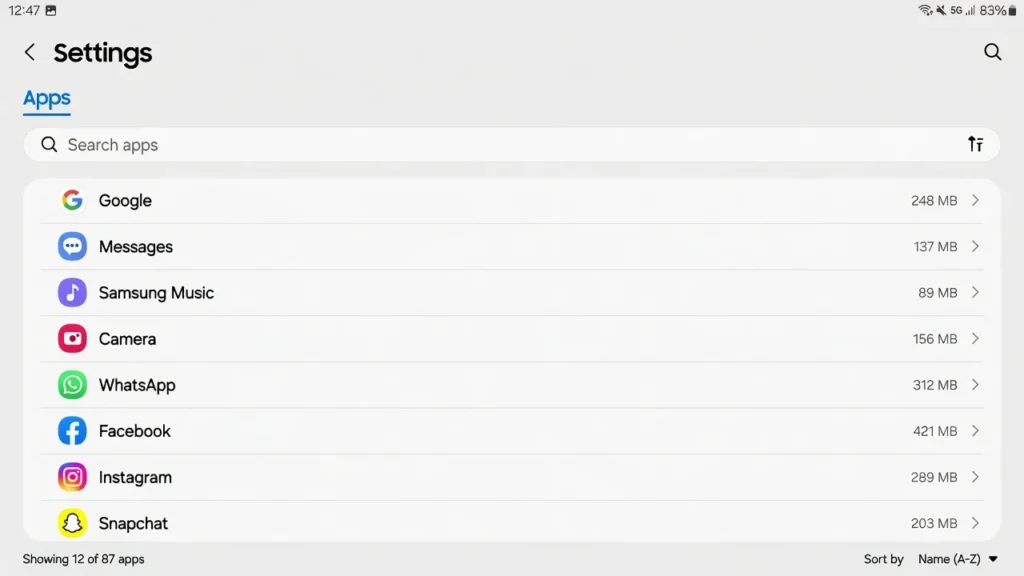
The Settings app also displays all the apps installed on your phone, including those that don’t have an icon on the home screen. It’s also the correct place to look at when you want to manage the apps installed on your device that aren’t on your screen, as well as pre-installed Samsung system apps.
Depending on what Android version you are using, the Settings path may be slightly different, but there is always an Apps section in every modern version of the Samsung’s One UI interface.
This is where you’ll begin if you encounter apps which will not un install the usual way. I’ll return to that later, in the coming sections.
To remove Samsung Applications from the Google Play Store, follow the steps below:
There’s an easy way to manage and remove apps from the Google Play Store, and it’s more trustworthy than most people think. It is particularly effective for devices that don’t have an app on the home screen, or when the phone is experiencing performance issues and the standard methods aren’t working.
How to remove apps from Play Store on Samsung Galaxy phone:
Launch the Google Play Store Application.Go to Google Play Store Application.
Click on your profile picture in the top right-hand corner.
Tap Manage apps and devices.
Tap the Manage tab.
Tap on the app you wish to remove.
Tap Uninstall.
Using the Play Store you can get a clean window of all the third party apps installed on your Samsung device, including forgotten ones. A great method to identify apps that are filling up storage without you understanding it.
Note: This can only be used for apps you’ve installed from the Google Play Store. Applications pre-installed by Samsung or the carrier will not be listed here for deletion. The former will require the Settings method, and the latter, the Disable approach described in Section 6.
I believe this is the safest backup plan – Play Store. A search in the Play Store is generally the very best option to find an application that seems to be missing or if the phone is exhibiting strange behavior.
If you have multiple apps that you need to delete at once, you can use this feature
Use This Samsung Feature A lot of people are not aware of this feature, which is a pity, since it can save a lot of time. To make a batch uninstall, Samsung directly integrates it into the Device Care part of your settings. You can delete multiple apps at once, rather than unloading them one after another.
The use of it is as follows:
Tap Settings on your Samsung Galaxy smartphone.
Tap Device Care (also known as Device Maintenance on older devices).
Tap Storage.
Tap Apps.
Click the boxes by each application you wish to delete.
Click Uninstall and then click OK.
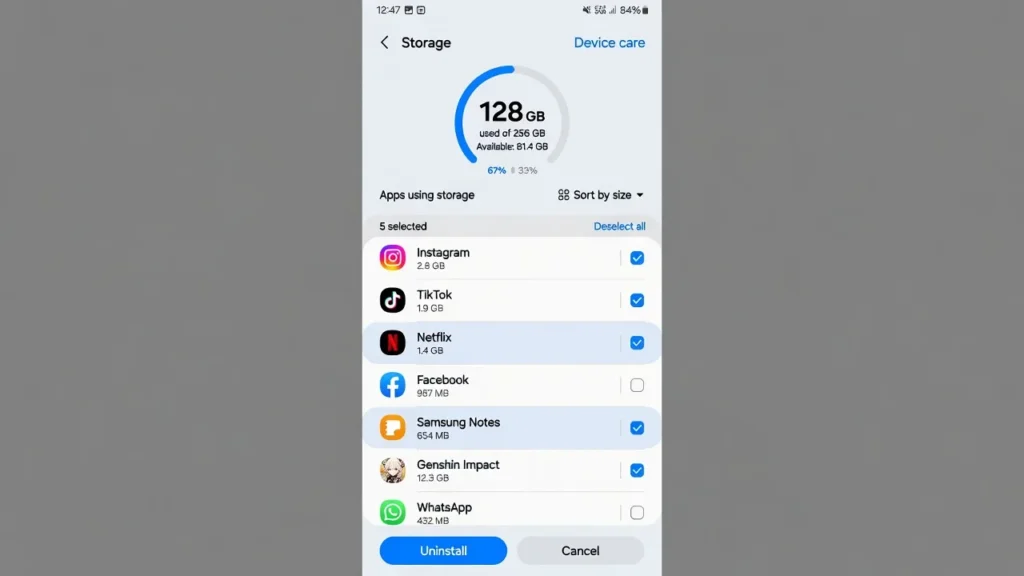
If you’re looking to clean up a phone that has unused applications installed, this is the approach to take. This method can save 13 minutes of individual deletions.
No need to worry about losing something important as only apps installed by the user will be displayed in the Device Care storage view and not system apps. Safe and efficient to clear space in bulk without opening each app one at a time.
When I get a call from a friend about his or her Samsung phone being slow or full, I always suggest they begin here.
Why is it that I can’t delete some of the Apps on my Samsung?
If you long-press on an app and the Uninstall option doesn’t appear, then the app is a system app or an app pre-installed on a protected partition of your Samsung phone’s storage. The storage space that Samsung phones come with is partitioned, with a portion of it reserved for the manufacturer for use in system updates, and users can’t write to or delete anything from it, or uninstall apps from it using regular methods.
Here are two popular types of apps that come into this classification. The first one is those that Samsung installs itself, which are part of the One UI and deemed to be an integral part of the OS. The second is apps that your carrier installed on your device prior to opening it.
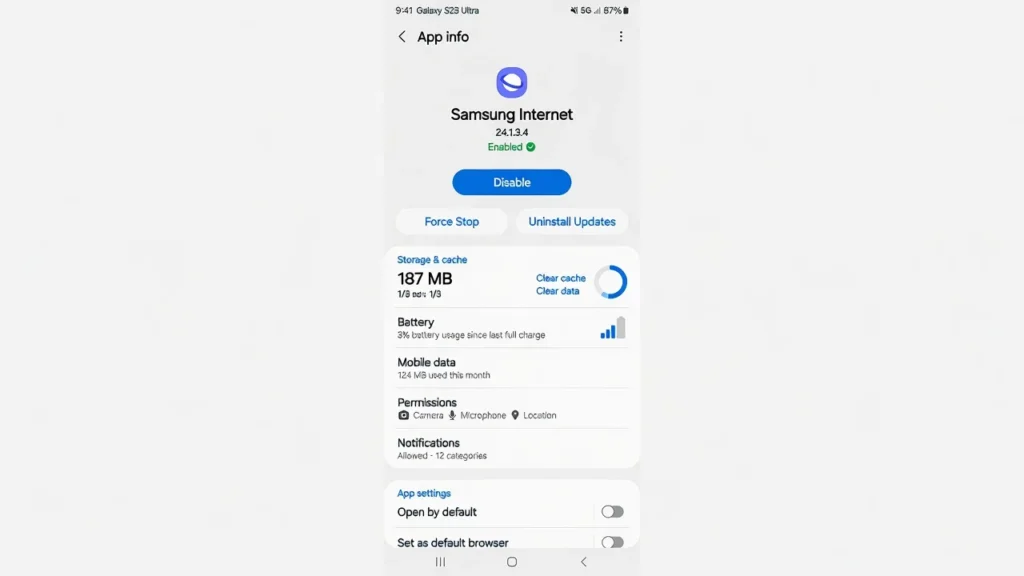
The answer to both problems is to Disable the app instead of Uninstalling. When disabled, they won’t run, be removed from your App Drawer and won’t receive updates. The app remains on the phone but it’s on the sidelines.
Don’t worry, I won’t write that it takes away your regular storage space when you disable a system app. The system apps are installed on a read only partition located outside of the personal storage. Adding up the extra gigabytes won’t appear when you disable them. Instead, you’ll be impressed by how long the battery lasts, and how silent the phone is while you’re using it.Instead, you’ll be surprised at battery life and reduced background noise.
Identifying the difference between Disable and Uninstall on Samsung
Let’s start with a simple comparison, as to what each of these offers exactly:
Uninstall: completely delete the app from your Samsung mobile device. All data in the app’s local storage is erased and the storage consumed by the app is freed up. This is only for user installed apps.
Do not run: The app remains installed but will not start up. In terms of updates, Samsung One UI takes the app out of your app drawer and prevents further updates. The application restores to the most minimal settings it can have at factory default. It can be turned on again at any time using Settings.
For stubborn pre-installed applications, tap Uninstall Updates then Disable. Removing the updates returns the app to the version it came with your phone and will be a lot smaller than it becomes after months of automatic updates. Once disabled, the App will be in its smallest size.
How to remove the apps that can’t be deleted from the carrier?
Samsung smartphones with a carrier lock that are purchased from networks such as Verizon, AT&T, or T-Mobile may have carrier-specific applications preloaded on them. These apps are installed on the system partition, like Samsung apps, and cannot be uninstalled like a regular app.
You can do the same: Disable to prevent it from running, or use Uninstall Updates to minimize its size before you hide it from your app drawer if that doesn’t exist. Disabling carrier apps will have no impact on the amount of storage space used by the user, but will prevent them from running in the background and displaying notifications that you didn’t want.
Which Samsung Bloatware Is Safe to Delete (And What to Leave Alone):
I was surprised at this one when I started researching it long, long ago! Around 17 extra applications may still end up installed in a Galaxy S24 even after removing all the optional apps during the set up process itself. Modern Samsung phones come with a lot of preloaded software and it does indeed impact performance. Once you have cleaned it up you will free up approximately 4GB and will see a substantial difference in how it runs.
The first place to look is the Samsung Folder in your app drawer. Most of Samsung’s removable applications are grouped in that folder, and therefore opening that folder first will give you a good idea of what you’re dealing with.
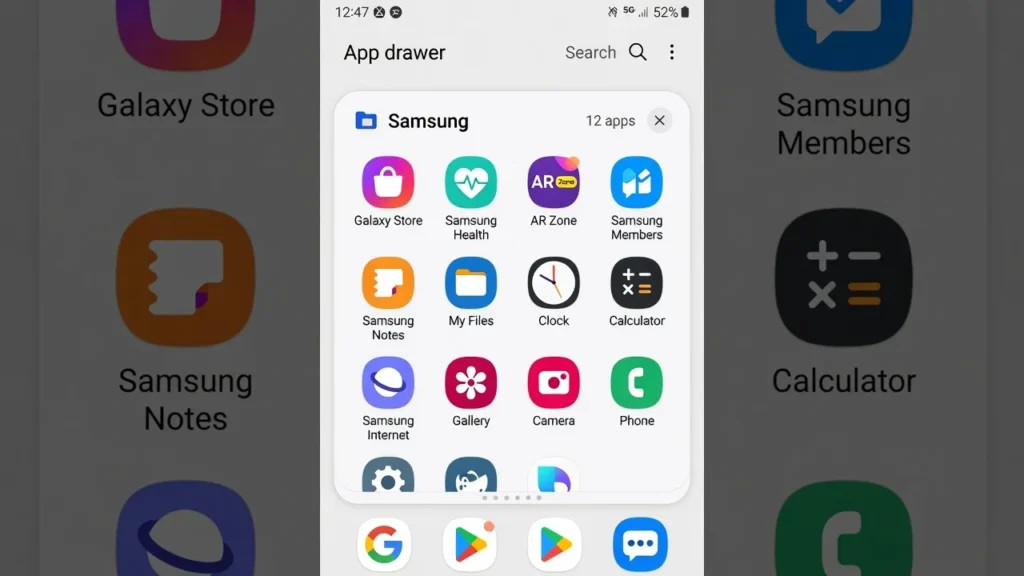
With just a few exceptions, the following applications are safe to remove from most Samsung smartphones
Most of the below apps are safe for deletion on Samsung Galaxy devices. While the availability is a little different from model to model and region to region, most Samsung phones come with most of these.
Samsung Galaxy Shop: It is basically Samsung ads app. It is safe to uninstall as most users will not use it.
Galaxy Wearable: If you have a Samsung smartwatch, then you should keep this one. Galaxy Wearable is merely a space waster for those that don’t own a wearable Samsung device.
Samsung Health: If you are not going to use Samsung’s fitness and health tracking features, there is no need for this app and its background processes. Uninstall it freely.
The AR Zone: This app contains augmented reality elements most people don’t use. There are Samsung models that permit you to remove it and there are Samsung models that do not. Try it and see.
Microsoft Office: Samsung pre-loads Microsoft’s Office applications on its Galaxy phones. While it is safe to remove these apps if you don’t use them often, if you don’t have a subscription to Microsoft 365, then it might be a good idea to keep them. Later it can be re-installed at any time from the Play Store.
Google Photos: It’s reasonable to remove it if you’re not paying for Google Photos, since it now allows for paid subscription storage.
Zedge: Zedge is a ringtone and wallpaper application that is pre-installed on some Samsung phones. If you haven’t installed it, get rid of it right away.
A lot of Samsung Galaxy phones come with two apps per app – Samsung browser and Google Chrome, Samsung Messages and Google Messages, etc. Select the one you like and take out the other one.
There are those apps that you cannot delete but you can disable and that is a good thing to do!
These applications are system level, and will not fully delete, but disabling them will block the background operation, remove push notifications, and in some cases minimize battery use significantly.
Google Assistant: If you are using Google Assistant instead of Bixby, then there is no need to run Bixby. Turn off Bixby Voice and the associated services from Settings.
Android Auto: Android Auto is active without any reason if you do not connect your Samsung Smartphone to a compatible car system. Disable it.
AR Doodle and AR Emoji and Avatar Stickers: These are background processes that you will probably never use. They can be safely disabled, and represent a small but real loss of resources.
Link to Windows: Not useful if you don’t sync Samsung Galaxy with a Windows PC. If you don’t, turn it off.
Microsoft Swiftkey Keyboard: Samsung bundles Swiftkey with Samsung’s Samsung Keyboard. If Samsung Keyboard is functioning perfectly for you, you shouldn’t disable Swiftkey, which is an unnecessary background service.
Samsung Free: News and content app that can be seen when you swipe left on some Samsung home screens. It is not possible to uninstall it on most devices but can be disabled.
Samsung Visit In: This is an excellent one to point out, as nearly everyone doesn’t know about it. Samsung Visit In is a service for location-based marketing that is installed on the Samsung Galaxy phone without being noticeable. Gathers location data for promotions. I would highly recommend that anyone who cares about their privacy disable it.
What You Should Never Delete
There are a couple of apps that look like they are removable, but will create actual issues if they are removed.
My Files: Samsung’s integrated file manager, which is an essential component of One UI. Without it, the ability to access your Downloads, local storage and documents will be a lot more difficult. Most Samsung devices will not allow you to remove it anyway, but don’t try to force it.
Samsung Keyboard: This is the keyboard that is preloaded on Samsung Galaxy devices. If you remove it before installing an alternative you will have nothing to type with.
Device Care: You used this app in Section 5 to batch uninstall apps. It also controls storage, battery optimization and memory. Keep it.
The truth is that apps come back even after you delete them!What is true is that applications reappear after you delete them
One of the most aggravating things that can occur after cleaning your Samsung Galaxy phone. You delete an app – you feel good – and it shows up in the app store several days later as if nothing happened. This is common and there are 3 reasons.
The first is Samsung Galaxy Store behavior. Along with Google Play, Samsung also has the Galaxy Store as a duplicate app-store, which sends push notifications for new phone releases and app deals, including when you’ve turned notifications off. In some instances, Galaxy Store activity is what is subtly reinstalling apps you deleted. The answer is to go to Settings, navigate to Apps, locate Galaxy Store, tap on the Notifications category, and disable all the notifications.
The second reason is the auto-reinstall of carriers. Certain Samsung carrier-locked phones have been configured to allow the carrier to remotely install apps. This is most frequently found with Verizon, AT&T and T-Mobile branded devices. Review the app settings in your carrier app or reach out to your network provider and request that you don’t receive automatic app installs.
The third reason has to do with software updates. Some pre-installed apps may be reset to the factory settings during the software update to Samsung if the company has released a major Android update or a major One UI update. This is probably the reason if the app that you uninstalled continues to show up after the update. It will have to be disabled again after each major update.
If you prefer a longer-term solution, a Shizuku method described in Section 10 is helpful for those system apps that repeatedly show up even when you are blocking them.
Clear away all of the apps from your home screen with this app after giving it a good clean
Once all the apps are gone, there’s one setting to configure to maintain tidygoing in the future. By default Samsung installs all new applications you download to your home screen. Even if you have cleaned up each app and removed them from the App Store, a new app will appear on your home screen when you download it.
Once this has been disabled, it takes about 30 seconds to do so.
Tap and hold on any blank area of your Samsung home screen.
Click on the Settings gear icon in the bottom right corner of the screen.
Tap on Add new apps to Home screen.
Toggle it off.
Then, any new apps you download will be available in your app drawer, but they won’t be added to your home screen automatically. They can be added manually at any time, as you can long press the app icon in the drawer and choose Add to Home screen.
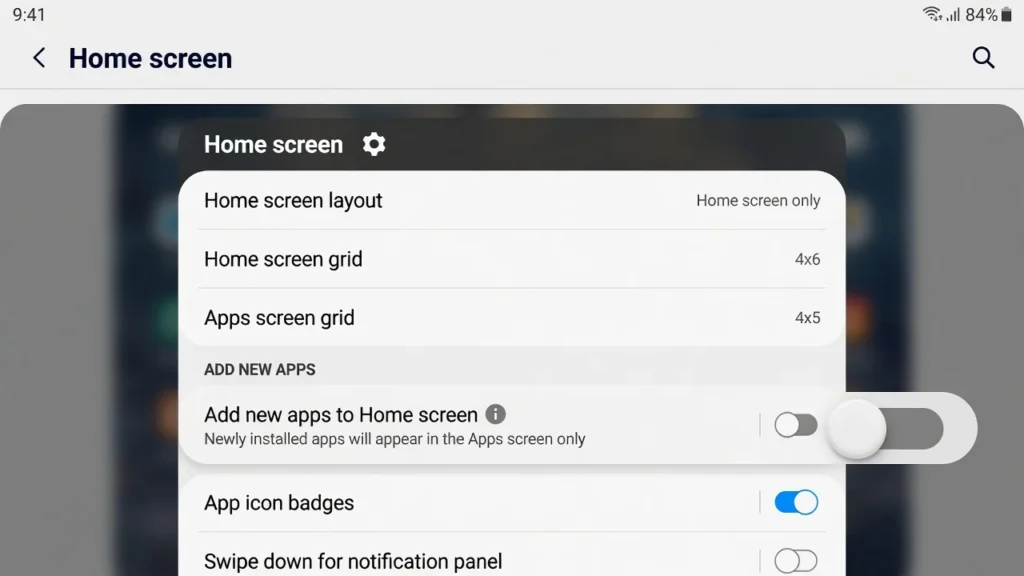
This is different from the distinction between Remove vs Uninstall, which I explained above. Deleting a shortcut from your home screen does not uninstall the program, just omits it from your home screen. Thereby the clutter is not allowed to get back to the well.
You can also change the presentation if you want all of your apps to be on home screen pages instead of having an app drawer. Press and hold a blank area of the home screen, click on Settings, click on Home screen layout, and choose Home screen only. All your apps will be straight on the home screen – it is easier to manage for some people.
on the home screen in an arrangement some people find easier to manage.
If the above techniques don’t seem to be working, you can try these more advanced methods for stubborn system apps
When you’ve tried stopping an app and it doesn’t work, or the app won’t stop even after you try, there are some steps you can take! Up front, these options become increasingly advanced; choose the level you are comfortable with.
To start, try Force Stop.First, try Force Stop (Option A).
Tap the Force Stop button in Settings > Apps > select the app. This will terminate the app right away, but it won’t last long. Samsung’s OS will automatically reboot some applications, particularly the core system apps. I find Force Stop extremely handy for those apps that have a Disable option too as it provides instant results whereas Disable works in the background. If the app won’t be disabled even then, Force Stop will be of no use as the system will restart the app anyway.
Select Hide the App.Click on Hide the App
Hiding an app does not impact the underlying installation, it simply hides the app in the app drawer and home screen.
Navigate to Settings – Apps – find the app – look for a Hide option. Or, long press a blank space on your home screen and select Settings, then Hide apps on Home and Apps screens. Then you can select any app that you wish to hide.
Hidden apps are not visible in the usual locations, and thus are practically unusable. This is the easiest, and safest, route for applications which simply cannot be uninstalled or disabled.
In Samsung, you can hide apps without deleting them.You can hide Apps in Samsung without deleting them.
The Samsung One UI interface has a native hide feature that seamlessly integrates into Galaxy devices. It doesn’t require any third-party app to be used.
Navigate to Settings and select Apps.Select Settings and then select Apps. Find the app you would like to hide, tap on it and scroll down to “Hide”. Then, open your home screen, hold down an unoccupied space, press the Settings gear, and choose Hide apps in Home and Apps screens. Tap the apps you want to hide, and then tap Done.
The app will disappear from the list of apps that you can see. It is still present but not visible while using the computer. To undo this at any time, return to the same Hide apps menu and uncheck it.
Remove system apps without PC (Shizuku Method)
This is the most technical of the options and it is for those who can follow a technical step by step process carefully. The Shizuku method allows you to launch ADB commands directly from your Samsung Galaxy device, without the necessity of using a computer.
The process is as follows:
Download Shizuku from Google Play Store.
Navigate to Developer Options in Settings (may need to enable Developer Options by navigating to Settings > About Phone and tapping Build Number seven times).
Turn on Wireless Debugging in the Developer Options.
Use Wireless Debugging to pair with Open Shizuku.
Install aShell from F-Droid (type aShell fdroid in your browser).
To get the exact package name of the app you want to remove, install Package Manager from the Google Play Store.
In Open aShell, give aShell permission through Shizuku and type in the following command: pm uninstall –user 0 (package name)
This will only delete this app from your user profile. The app still resides on the system partition, but Samsung’s operating system will consider it to be uninstalled for your account. Be careful when removing a system app using this way or it will cause unexpected behavior.
A warning for rooting Samsung Galaxy phones to get deeper access to the system: rooting your Samsung Galaxy phone permanently trips the Samsung Knox security fuse. Once activated, Samsung’s built-in security system renders the warranty null and certain security features will not operate. I don’t suggest you root for the purpose of getting rid of pre-loaded applications, when Disable and Shizuku can handle most cases without affecting the hardware.
If the Shizuku steps seem too difficult, it’s safe to use Disable and Hide and get a clean, functional result.
Frequently Asked Questions
What is the difference between Samsung remove an app and Samsung uninstall an app?
Remove will only take the home screen shortcut off. The app remains fully installed to your Samsung phone and will still consume storage, and can still be backgrounded. Uninstall: Delete the app from your phone for good. Always choose Uninstall and never Remove to completely delete the app.
Can’t remove some apps from Samsung phone?
Pre-installed apps to your Samsung Galaxy phone are those that cannot be deleted and are found on a protected read-only partition. They can’t be deleted from the standard Uninstall option because the operating system does not permit it. This is the practical solution – disable the app.
Will the deletion of an app delete my data as well?
Yes. If you remove an app from your Samsung smartphone, the customized app information and files stored in your phone will be removed. Data associated to your Google account, or backed up to a cloud service like contacts synced to Google, or messages backed up to Google Drive, however, is saved and will reappear once you reinstall the app.
What is the best way to remove several apps from Samsung at the same time?
Tap Settings, Storage, and Apps. Check the box beside each app you wish to uninstall and then tap Uninstall. This batch deletion will delete all selected app(s) at once, and will be quicker than individual app deletion.
If I turn off an application, will I release storage space on my Samsung?
Not in a significant manner. The system apps are stored on a read-only partition that’s separate from your personal partition. These apps will not recover user storage if you disable them. The disabling does make background activity disappear and decreases battery drain. Uninstalling apps you installed is the best way to free up actual storage, as opposed to pre-installed system apps.
Why is the deleted app reappearing on my Samsung device?
There are three reasons for this. App reinstalls could be triggered by notification behaviour, auto-reinstall features might be turned on by your carrier on a locked device, and major Samsung software updates may reinstall pre-installed apps to their original factory settings. The first, and most obvious, remedy is to turn off Galaxy Store notifications in Settings.
Can Samsung apps, such as Bixby or Samsung Free, be turned off?
Yes, the unavailability of these applications is safe. To disable any app and then re-enable it later, you can do so in Settings > Apps in One UI. There is no negative impact on the core functions of your phone by disabling Samsung system apps such as Bixby, Samsung Free, AR Zone etc. If anything is not working the way it should after deactivating the application, then you can re-enable the application by going back to Settings and tapping Enable.
How to get an app back that I accidently removed from Samsung?
Open Google Play store and search the name of the app, then click Install. If the app was one of the Apps installed by Samsung which you disabled but didn’t remove, follow the steps below: In Settings, navigate to Apps, select the app and tap Enable. If you’ve fully uninstalled Samsung-specific apps, consider looking to the Galaxy Store as an alternative app source.