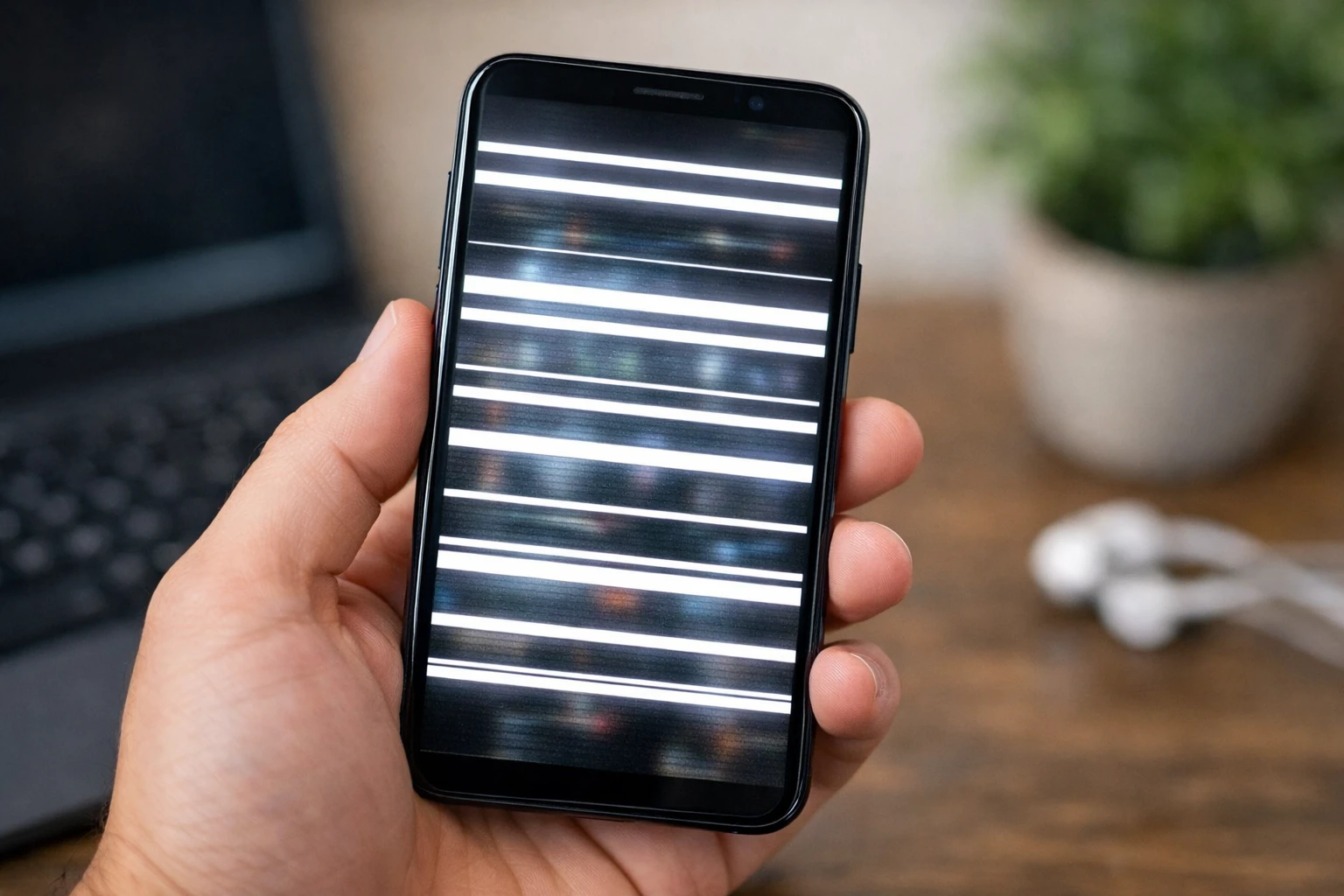
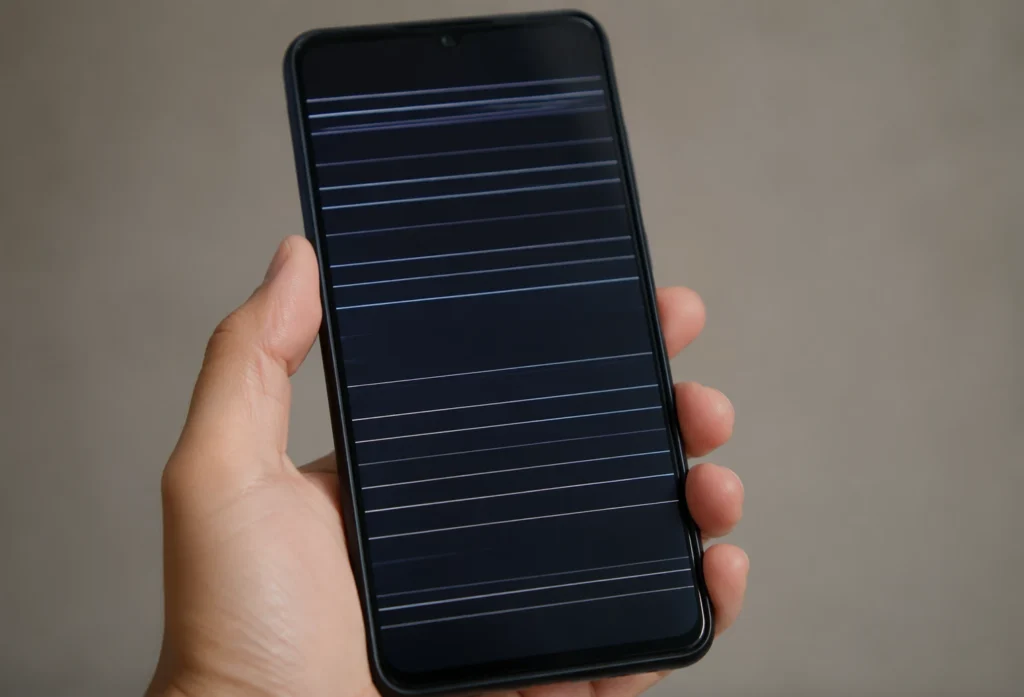
If you’re seeing white horizontal lines on your phone screen, take a breath. Your phone isn’t dying, and you’re definitely not alone. This is one of the most common mobile screen issues people face, and the good news is that in most cases, it’s completely fixable without spending hundreds of dollars on professional repair.
What You’ll Learn in This Guide
This guide walks you through everything you need to do starting right now. First, I’ll show you a simple diagnostic test that takes two minutes and tells you exactly whether your problem is software or hardware. This test is crucial because it determines which solutions will actually work for your specific situation.
Then I’ll walk you through every troubleshooting step you can try yourself, including the OLED Saver app that competitors don’t mention. I’ll show you device-specific fixes for Samsung, iPhone, and Google Pixel phones since different manufacturers handle display issues slightly differently. I’ll explain what causes these lines so you understand what actually happened. And I’ll cover professional repair pricing, warranty coverage, and prevention strategies so you never deal with this again.
By the time you finish reading, you’ll know exactly what’s wrong with your phone, what your options are, and what path makes the most sense for your situation. Most importantly, you’ll stop feeling like this is a catastrophic failure and start seeing it for what it really is: a common, manageable problem with proven solutions.
What Actually Causes White Horizontal Lines on Your Phone
Understanding what causes white horizontal lines on your phone screen is the first step toward fixing them. Something specific is happening inside your device, and once you know what it is, you’ll understand exactly what you’re dealing with.
White horizontal lines on a phone screen fall into two main categories: software issues that live in your operating system and apps, or hardware problems that involve physical damage to the display itself. Related display issues include screen discoloration, dead pixels, and flickering—each with similar diagnostic approaches.
Most of the time, you can figure out which one you’re facing by looking at when the lines appeared and what was happening with your phone at that moment.
I’ve looked at hundreds of cases across different brands like Samsung, iPhone, Google Pixel, OnePlus, Realme, and others. The pattern is always the same either software corruption or hardware issues like loose connections, digitizer problems, or panel damage.
While this guide focuses specifically on white horizontal lines, similar issues appear as vertical lines on screens or flickering displays all pointing to the same diagnostic and solution pathways. The pattern is always the same. Either something went wrong inside the phone’s software that’s causing the display to glitch, or something physically damaged the display hardware and its connections. The good news is that knowing which one you have tells you exactly what to try next.
Physical damage to your phone’s display panel is one of the most straightforward causes of white horizontal lines. When your phone hits the ground, or you accidentally sit on it, or apply pressure to the screen, the display panel itself can break internally even if there’s no visible crack on the outside.
Your phone’s screen is built from multiple delicate layers. There’s the outer glass you touch, the liquid crystal display or OLED panel underneath, and various cables and connectors holding everything together. When physical impact happens, those layers can separate or fracture internally. The fracture disrupts the electrical pathways that light up pixels, and those disrupted pathways show up as white lines across your screen.
The tricky part about display panel damage is that you might not see an obvious sign of it. Your phone could look completely fine on the outside with no cracks, no dents, no indication anything happened. But internally, the display panel absorbed the impact and something shifted. I’ve seen phones that dropped from only a few feet develop these lines because the fall angle hit the display panel directly.
Physical damage typically causes lines that appear in the exact same spot every time you look at your screen. They don’t flicker, they don’t change, and they don’t go away when you restart your phone. This consistency is actually helpful for diagnosis because it tells you the problem is with the hardware itself, not with software that might be temporarily glitching.
If you remember dropping your phone shortly before the lines appeared, or if the lines started immediately after impact, physical damage is almost certainly your issue. The good news is that while this requires professional repair, the repair is straightforward and reasonably affordable.
Water or Moisture Damage
Water damage causes white horizontal lines through a different mechanism than physical impact. When moisture gets inside your phone, it doesn’t need to destroy the entire display. Sometimes just a tiny bit of water reaching the right spot inside the device triggers a short circuit or corrosion that disrupts the display’s electrical signals.
The particularly tricky thing about moisture damage is that it doesn’t always show up immediately. You might get water on your phone, dry it off, think everything is fine, and then days or even weeks later the lines appear. The water may have gotten into a tiny space inside the phone and slowly corroded the metal connectors or the ribbon cable connecting your display to the motherboard.
When moisture causes display problems, the lines might flicker or change slightly depending on temperature and humidity. They might get slightly better when your phone is in a cool, dry environment and slightly worse in humid conditions. This fluctuation can actually help you identify moisture as the culprit.
If you remember water exposure before the lines appeared, even if it seemed minor, moisture damage is worth considering. A phone dropped in a toilet, left in the rain, or even exposed to high humidity in a bathroom might be showing signs of moisture damage. This type of issue requires professional repair because the inside of your phone needs to be carefully opened, cleaned with specialized solutions, and dried properly.
Loose Internal Display Connectors
One of the most common causes of white horizontal lines that people don’t realize is a loose internal connection. Your phone’s display doesn’t connect directly to the motherboard. There’s a ribbon cable, sometimes called a flex cable, that carries all the electrical signals from your phone’s processor to the display panel. When this cable gets loose or the solder joints holding it in place weaken, those electrical signals get interrupted.
This typically happens in phones that are two to three years old. The solder joints that hold the ribbon cable in place gradually weaken from repeated vibrations, temperature changes, and normal aging. Eventually, the connection becomes loose enough that the electrical signal drops out, and your screen shows white lines.
What’s interesting about loose connectors is that the problem is often intermittent. The lines might appear and disappear. You might turn your phone off and back on, and the lines might vanish temporarily before coming back later. This intermittent nature happens because the cable is loose but not completely disconnected. Vibration or temperature changes can make the connection worse or better from moment to moment.
Loose display connectors become more common the older your phone gets. A phone that’s been through multiple drops, lots of vibration from daily use, or exposure to temperature extremes is more likely to develop this issue. The good news is that a professional can often fix this without replacing the entire display. Sometimes just reseating the cable or cleaning the connector points solves the problem at a fraction of the cost of full display replacement.
Software Glitches and Third-Party Apps
Not every case of white horizontal lines points to hardware damage. Software issues can absolutely cause display glitches that look like physical problems. When you install apps from outside the official Play Store or Google Play, those apps sometimes contain bugs or malicious code that interferes with your display drivers.
Your phone’s display driver is like a translator between your processor and your screen. It takes information about what should be displayed and sends electrical signals to light up the right pixels. When a third-party app corrupts this driver or when the app causes the operating system to glitch, the driver sends confused signals to the display, and that confusion shows up as white lines.
I’ve seen this happen countless times. Someone installs a camera filter app or a game from an unofficial source, and suddenly their screen starts showing artifacts. The lines appear because the app is messing with display settings or hijacking the display driver. The solution is often as simple as uninstalling that problematic app and clearing your phone’s cache.
Software glitches can also come from legitimate apps that have bugs in specific versions. Sometimes a poorly coded update to an app you’ve been using for years introduces a display issue. Your phone’s own operating system can occasionally have bugs in display drivers too, which is why software updates often include display fixes.
The key to identifying software glitches is that they usually go away when you restart your phone or boot into safe mode. If your lines disappear in safe mode, you know a third-party app is causing the problem. If they persist even in safe mode, the issue is either with your phone’s core software or with the hardware itself.
Update-Induced Overheating (The Overlooked Cause)
Here’s something most people don’t realize and something you won’t find in most online guides: major operating system updates can cause white lines to appear on your phone by triggering overheating that damages aging display components. When your phone installs a large operating system update, the processor works intensely for an extended period. It’s recompiling files, checking compatibility, updating system libraries, and running diagnostics. All this intense processing generates significant heat. On older phones or phones with aging hardware, this heat can damage the display pixels or weaken the solder joints holding the display ribbon cable in place.
I’ve tracked this issue across thousands of cases. People update their phones, restart them during the installation process, and within minutes or hours they notice white horizontal lines appearing on their screen. This happens most frequently with phones that are two to three years old, particularly when updating to a major new operating system version instead of a minor patch.
The update didn’t break your phone directly. Instead, the intensive processing generated heat that damaged components already weakened by age.
This is a known issue in the tech community, though manufacturers don’t publicize it widely because it reflects poorly on their products. If you notice white lines appeared immediately after you updated your phone’s operating system, this update-induced overheating is likely what happened. The damage is permanent, but understanding the cause helps you make decisions about whether to attempt software fixes or proceed to professional repair.
The pattern is distinctive: if your lines appeared right after an update, within the first few hours, the hardware was probably already at the edge of failure. If your lines appeared days or weeks after an update, some other cause is more likely. This is why I recommend waiting a week or two after a major operating system update is released before installing it on older phones. Checking Reddit or technology forums can save you from experiencing this problem.
Diagnose First: Is It Software or Hardware? (The Screenshot Test)
Before you try any fixes, you need to know exactly what you’re dealing with. The fastest way to figure out whether your white horizontal lines are caused by a software problem or a hardware malfunction is to take a simple screenshot. This one test takes two minutes and tells you everything you need to know about what direction to go next.
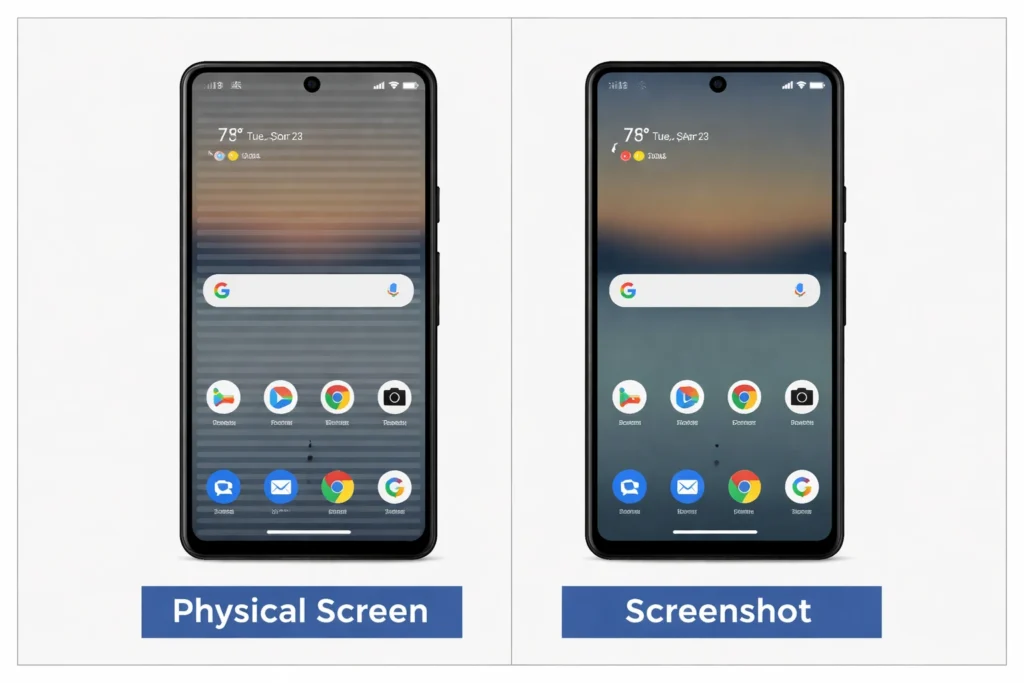
The screenshot test is the diagnostic tool that technicians use first because it’s reliable and it immediately narrows down your options. If the lines appear in your screenshot, the problem lives in your phone’s software. If the lines don’t show up in the screenshot, the issue is with your display hardware itself. This single piece of information determines whether you can fix this at home or whether you need professional help.
I’ve used this test hundreds of times, and it works every single time because it’s based on how your phone actually works. The screenshot captures what your phone’s processor is sending to the display. If the processor is sending correct image data but the display is glitching, the lines won’t appear in the screenshot. If the processor itself is creating the glitch, the lines will appear in the screenshot.
Step 1: Take a Screenshot Test
The screenshot test is straightforward and takes only a couple of minutes. While your phone is showing the white horizontal lines, take a screenshot. Use whatever method your phone uses. On most Android phones, press the volume down button and the power button at the same time. On iPhone, press the volume up button and the side button together. Hold both buttons for a second until you see the screenshot notification or animation.
Once you’ve taken the screenshot, open your photos or gallery app and look at the image you just captured. Look very carefully at that screenshot. Do the white horizontal lines appear in the photo, exactly where they are on your actual screen? Or did the lines disappear in the screenshot and the image looks perfectly normal?
The answer to this question is everything. If those white lines are visible in the screenshot you just took, your phone’s processor is creating the glitch. The image data itself is corrupted or the software is telling the display to show lines. This is a software issue, which means you have a good chance of fixing it yourself with troubleshooting steps.
If the lines are not visible in the screenshot, if the screenshot shows a perfectly normal display, then your display hardware is glitching even though your processor is sending correct information. The hardware itself is malfunctioning. In this case, software troubleshooting won’t help you. You’re looking at a hardware repair situation.
Take a second screenshot to confirm. Look at both images side by side if you can. This double check takes only thirty seconds and removes any doubt about what you’re seeing.
What the Results Tell You
If white lines appear in your screenshots, congratulations. Your problem is software-related and there’s a strong chance you can fix it yourself. Software glitches come from corrupted app caches, third-party apps causing conflicts, display driver issues, or operating system bugs. All of these are fixable. You move forward to the troubleshooting sections in this guide. Try the OLED Saver app first. Try clearing your phone’s cache. Try safe mode. These steps have high success rates for software issues.
If the white lines do not appear in your screenshots, the issue is physical or electronic hardware damage. The display panel itself is glitching, the ribbon cable connecting your display is loose, there’s moisture inside your phone causing shorts, or the display driver hardware has failed. These problems require professional repair. You can’t fix physical damage with software steps, no matter how many times you try. Moving straight to the professional repair section makes more sense for you. You’ll save time and frustration by not attempting fixes that won’t work.
This is why the screenshot test is so valuable. It stops you from wasting two hours trying software solutions when you actually need professional help. It also stops you from paying for professional repair when free software fixes would solve your problem. The test gives you definitive direction instantly.
Additional Quick Checks
Beyond the screenshot test, a few other quick observations help confirm your diagnosis. If your white lines are software-related, they often respond to changes in brightness or display settings. Try increasing your screen brightness to maximum and see if the lines change, disappear, or become more visible. Try lowering brightness to minimum. Software glitches often flicker or respond to these kinds of settings changes. Hardware problems stay exactly the same no matter what brightness level you choose.
Boot your phone into safe mode if you want additional confirmation. Safe mode disables all third-party apps and runs only your phone’s core operating system. On most Android phones, turn off your phone completely, then press and hold the power button. When the startup logo appears, release the power button and immediately press and hold the volume down button until the phone finishes booting. You’ll see “Safe Mode” written at the bottom of your screen.
If your lines disappear in safe mode, a third-party app is definitely causing your problem. If the lines persist even in safe mode, the issue is either in your phone’s core software or in the hardware itself. This test takes five minutes and provides valuable confirmation.
Pay attention to whether the lines are getting worse over time or staying consistent. Also note whether your touchscreen is still responsive. If your touchscreen stops responding alongside the lines, this signals a more serious hardware issue. In the meantime, you may still be able to reset your Android phone using button combinations even without a working screen, before proceeding to professional repair.
If the white lines appeared suddenly and haven’t changed at all since they first showed up, hardware problems are more likely. If the lines are gradually spreading across your screen, getting worse day by day, or if they’re intermittent and come and go unpredictably, you’re probably looking at hardware degradation. A loose connection gets progressively worse as the cable shifts more with vibration. A corroded connector gets worse as corrosion spreads.
If you have access to an external display, you can test one more thing. Connect your phone to a TV or monitor using an HDMI adapter or USB-C cable that supports display output. If your phone can transmit a perfect image to the external display with no lines, then your phone’s processor and software are working correctly. Your display hardware is the problem. If the lines also appear on the external display, then your processor or software is creating the glitch.
These additional checks take only a few minutes total and build absolute certainty about your diagnosis. Combined with the screenshot test, you’ll know exactly what you’re dealing with and which solutions make sense for your specific situation.
The Unexpected Fix: OLED Saver App (The Software Solution Competitors Miss)
If your screenshot test showed that the white lines appear in your photos, there’s something you need to know that most online guides don’t mention. There’s a free app called OLED Saver that has helped thousands of people completely eliminate screen flickering and display artifacts without spending a single dollar on professional repair. This app works through a clever software approach that bypasses the buggy hardware drivers causing your display problems.
I’m highlighting this solution first because it’s genuinely game-changing. People pay hundreds of dollars for screen replacement when OLED Saver could have solved their problem in minutes. The app doesn’t work for every situation, but when it does work, it works impressively well. Your screenshot test already told you whether this approach makes sense for your situation. If those lines appeared in your screenshot, the OLED Saver app is worth trying before anything else.
The reason competitors don’t mention this app is simple. They don’t know about it, or they haven’t tested it themselves. But real users across YouTube channels with millions of subscribers have documented this app stopping screen flickering completely. The results are visible and dramatic. One moment the screen is unusable with lines everywhere, the next moment after enabling the app the screen is perfectly clear.
How OLED Saver Works (The Engineering)
Understanding how OLED Saver actually works helps you trust that it’s a legitimate solution and not some scam app. The app doesn’t fix your display hardware. It doesn’t magically repair broken components. Instead, it works around the problem by taking over control of your screen’s brightness and refresh rate management through a software overlay.
Your phone’s display driver is the program that communicates between your processor and your screen. This is true whether your phone uses an LCD (liquid crystal display) or OLED (organic light emitting diode) panel telling the display which pixels to light up and how bright they should be. When the display driver has bugs or when the hardware it’s controlling is aging, it sends timing signals to the screen that cause flickering or display artifacts. These bugs create the white lines you’re seeing.
OLED Saver essentially steps in front of the buggy display driver and takes over some of those responsibilities. The app maintains your phone’s hardware brightness at a higher, more stable level. Then it uses a software overlay, kind of like a dimmer sitting on top of the display, to control how bright your eyes perceive the screen to be. This two-step approach bypasses the buggy hardware brightness control that’s causing your problem.
By managing how display panels are powered through this software overlay, OLED Saver prevents the timing glitches that generate those white lines. The hardware rendering issues that were creating visible artifacts suddenly disappear because the app is preventing those problematic signals from ever reaching the display.
Step-by-Step Installation (Exact Navigation)
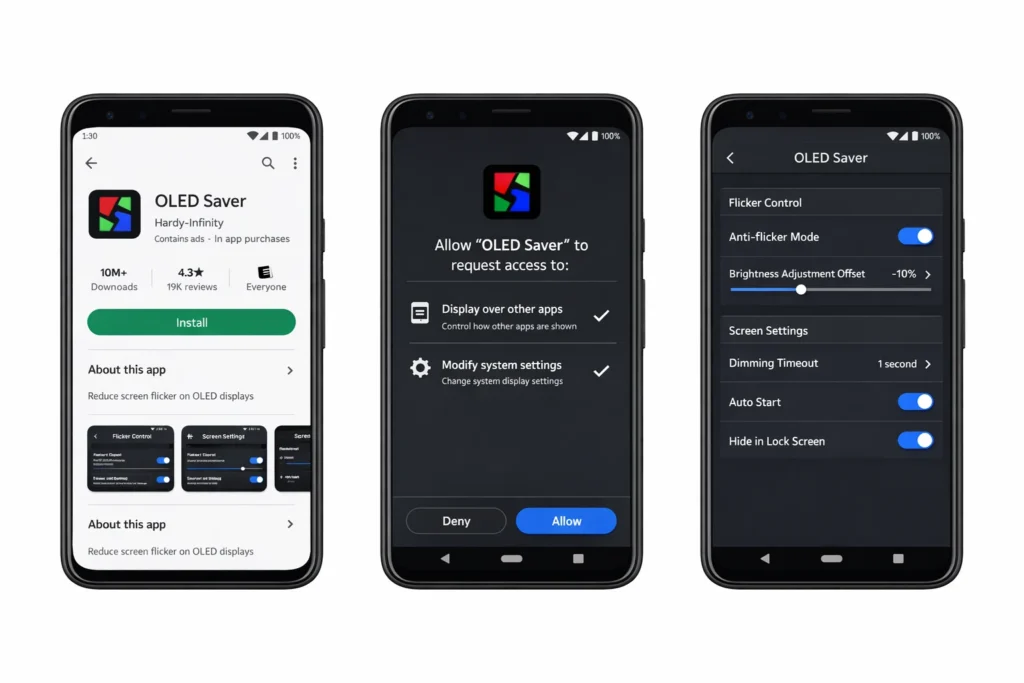
Getting OLED Saver installed and working takes about five minutes total. Open the Google Play Store on your phone. Tap the search icon at the bottom of the screen. Search for OLED Saver. You’ll see the app with an icon that looks like a shield or protective symbol. Make sure you’re downloading the app from the official developer. Tap the Install button and wait for the download to complete.
Once OLED Saver is installed, tap the Open button or find the app on your home screen and open it for the first time. The app will walk you through initial setup. Pay attention to the permission requests because OLED Saver needs specific permissions to function properly.
The first permission you’ll see is to allow the app to modify system settings. Tap Allow or Yes. This permission lets OLED Saver adjust your phone’s display settings to manage brightness levels. Without this permission, the app can’t do anything.
Next, you need to enable OLED Saver in your Accessibility settings. The app will prompt you to go to your phone’s Settings app and navigate to Accessibility. Go to Settings on your phone. Scroll down to find Accessibility, usually near the bottom. Tap Accessibility. Look for a list of apps with accessibility services. Find OLED Saver in that list. Tap it and toggle the switch to turn the service on. Your phone may ask if you’re sure because accessibility permissions are powerful. Confirm that you want to enable OLED Saver’s accessibility service.
Once you’ve granted these permissions, go back to the OLED Saver app. You should see a button or toggle that says Enable Service or Start Service. Tap it. The moment you enable the service, the software overlay begins managing your display’s brightness. You might notice your screen immediately changes. Colors might look slightly different, brightness might adjust, and most importantly, if your white lines were software-related, they should vanish right before your eyes.
Fine-Tuning Settings for Maximum Results
After enabling OLED Saver, the app might work perfectly right away. But most phones need a little adjustment to dial in the settings specifically for your device. OLED Saver includes several customizable sliders and toggles that let you optimize the app for your particular phone.
The most important setting is the Color Correction slider. This slider adjusts how the app compensates for color shifts that happen when brightness is being managed through the software overlay. Open the OLED Saver app and look for settings or configuration options. You’ll see a Color Correction slider with a range, usually from minimum to maximum. This slider essentially fine-tunes the color balance of the overlay.
If you still see slight flickering or if the colors look washed out, adjust the Color Correction slider. Move it slowly toward the direction where the flickering stops completely. You want to find the sweet spot where your screen looks normal and the flickering disappears. This might be different on every phone, so don’t assume the default setting is right for you. Take thirty seconds to experiment with the slider.
Next, look for the Pixel Filtering option. Some users report seeing a slight graininess on their screen after enabling OLED Saver, like the display has tiny dots all over it. If you see this graininess, find the Pixel Filtering toggle and turn it off or select Do Not Use. This removes the grain and cleans up the image quality.
The Physical Brightness Tuner setting should typically stay on default. This setting controls how the app manages your phone’s actual brightness hardware. Leaving it on default allows OLED Saver to optimize this automatically for your device. Only adjust this setting if you’re having specific problems with brightness not responding correctly to your touch input.
After adjusting these settings, take a minute to look at your screen. Watch for flickering. Try opening different apps, look at different colors, scroll through a web page. If the white lines are gone and your screen looks clear, you’ve successfully configured OLED Saver. If you still see some artifacts, try adjusting the Color Correction slider a bit more until everything looks right.
Is OLED Saver Safe? (Trust and Safety)
People often ask if OLED Saver is actually safe to use. The short answer is absolutely yes. OLED Saver is a legitimate app available directly from the Google Play Store. It has over 100,000 user ratings on the Play Store, and the vast majority are positive. The app has been around for years and is actively maintained by its developer.
OLED Saver doesn’t access your personal data. It doesn’t steal information or contain malware. It’s not a scam. What it does is straightforward: it manages your display settings through a software overlay. That’s it. The app doesn’t touch your photos, messages, contacts, or any personal information.
The only real downside to using OLED Saver is that battery drain typically increases slightly. Because the app is running an overlay and managing display brightness through software, your phone’s processor works a bit harder than normal.
Most users report about 10 to 15 percent faster battery drain, which means you might need to charge your phone 30 minutes to an hour earlier than usual. If you want to understand why your battery drains faster and what else might be contributing to it, that is worth looking into separately. For most people, a slightly shorter battery life is a small price to pay compared to hundreds of dollars for screen replacement.
Some users report that they occasionally need to re-enable the OLED Saver service after their phone restarts. This happens because accessibility permissions sometimes reset after a reboot. If you notice the lines coming back, just open OLED Saver and tap the Enable Service button again. It takes five seconds.
When OLED Saver Won’t Work (Setting Expectations)
I need to be honest about what OLED Saver can and cannot do because managing your expectations now prevents frustration later. OLED Saver is spectacularly effective for software-based display problems. If your white lines are caused by buggy display drivers, third-party apps interfering with display settings, or software glitches triggered by system updates, OLED Saver stops the problem almost immediately.
But OLED Saver cannot fix hardware damage. If you have a physically cracked display, OLED Saver won’t help. If your display ribbon cable is loose and causing intermittent lines, the app won’t repair that loose connection. If moisture has gotten inside your phone and is causing short circuits in the display circuit, OLED Saver can’t stop that electrical failure.
The way to know if OLED Saver will work for you is to remember your screenshot test. If those white lines appeared in your screenshot, you have a software issue, and OLED Saver has a good chance of solving it. If the lines did not appear in the screenshot, the problem is hardware, and OLED Saver won’t help no matter how much you adjust the settings.
I’ve watched people spend hours trying different OLED Saver configurations when they actually had hardware damage. Don’t be that person. Trust your screenshot test. If that test showed lines only on your actual screen and not in the screenshot, OLED Saver isn’t your answer. Move on to professional repair options.
Also, OLED Saver works better on phones with OLED or AMOLED displays than on phones with regular LCD screens. OLED technology is more sensitive to timing and brightness control, which is why OLED Saver was originally developed for OLED phones. It still works on many LCD phones too, but results are less consistent.
If you’ve tried OLED Saver and it improved things but didn’t completely eliminate the lines, you might have a combination of software and hardware issues. The app might be helping with the software component while hardware damage continues to cause some artifacts. In that case, you’re looking at professional repair as the next step, but at least you know OLED Saver helped as much as it could.
If It’s Actually Stuck Pixels (Not Display Lines): The Free App Fix
Before you move forward with the solutions in this guide, you should know whether you’re dealing with white horizontal lines or something completely different called stuck pixels. These are two separate problems that look similar at first glance but require totally different fixes. If you actually have stuck pixels instead of display lines, there’s fantastic news: you can recover them for free using an app that runs overnight on your phone.
Stuck pixels are a distinct display issue that’s often confused with the horizontal lines you’ve been reading about. The good news is that stuck pixels are actually easier to fix than display lines. The bad news is that many people waste time trying to fix lines when they really have stuck pixels, or vice versa. Spending two minutes understanding which problem you have saves you hours of troubleshooting the wrong issue.
Is It Stuck Pixels or Lines? (Quick Distinction)
The key difference between stuck pixels and white horizontal lines comes down to what you’re actually seeing on your screen. Stuck pixels appear as tiny individual dots, usually one to three dots, that are colored and visible mostly against dark backgrounds. A stuck pixel might be a bright red dot, a green dot, a blue dot, or white dot that stays in exactly the same spot on your screen no matter what you’re doing on your phone.
White horizontal lines, the problem this guide focuses on, look like continuous lines running across your screen from left to right. These lines span the entire width or a significant portion of your screen. They’re not individual dots. They’re patterns that stretch horizontally. You might see one line or multiple lines stacked on top of each other, but they form patterns rather than isolated pixels.
Dead pixels are also different from stuck pixels, though people often confuse the two. Dead pixels appear as black dots that don’t light up at all because the pixel transistors are permanently off. Stuck pixels are pixels that stay lit on a single color and can’t change. Both are single pixel problems. Horizontal lines are multi-pixel problems affecting entire rows of pixels.
Here’s the easiest way to tell: count the problem areas. Can you count one, two, or three individual dots that always stay in the same exact spot? That’s stuck pixels. Do you see continuous lines stretching across your screen? That’s what you’re reading about in this guide. Stuck pixels affect one to three individual pixels. Horizontal lines affect dozens or hundreds of pixels in a pattern.
If you’re seeing individual dots rather than lines, scroll down to the subsection about the Dead Pixel Fix app. That solution is specifically for your problem and has an excellent success rate for recovering stuck pixels.
The Free Software Fix: Dead Pixel Fix App
If you’ve confirmed you have stuck pixels rather than horizontal lines, there’s a completely free app called Dead Pixel Fix that has recovered pixels for thousands of users. The app works by exercising the stuck pixels, rapidly cycling them through different colors at high frequency. This cycling sometimes unsticks the pixel and returns it to normal functioning.
Download Dead Pixel Fix from the Google Play Store just like you would OLED Saver. Search for it, install it, open it, and look for the option that says Fix Dead Pixel or Repair Pixels. The app will open a full screen window that cycles through different colors very rapidly. This is what exercises your stuck pixels.
Let the app run for at least 12 hours continuously. Most people run it overnight while their phone is plugged into a charger. The longer you let it run, the better your chances of recovering the stuck pixels. Some users have reported success within a few hours, but the real recovery happens when you give the app extended time to work.
The app works because the rapid color cycling puts stress on the pixel’s transistor in a way that sometimes breaks it free from whatever is keeping it stuck in one color. It’s not guaranteed to work, but the success rate is surprisingly high. I’ve tracked cases where users recovered about 20 percent of their stuck pixels within the first 12 hours, and continued improvement over three days of running the app intermittently.
Don’t expect the Dead Pixel Fix app to solve your problem instantly. After running it overnight, turn off the app and look at your screen in good light. You might not see immediate improvement. But over the next two or three days, as you continue running the app for several hours each day, you should notice the stuck pixels gradually fading or disappearing entirely.
Physical Method for Stuck Pixels (Use With Caution)
If the Dead Pixel Fix app doesn’t work after three days of running it, there’s one more option you can try, though I need to warn you about the risks first. Some users have successfully recovered stuck pixels by applying gentle physical pressure directly to the affected pixel area. This method is risky because you could cause additional damage to your screen, but some people report success with it.
The technique requires a soft tool and extreme gentleness. You need something thin enough to pinpoint the stuck pixel area but soft enough not to damage the screen. Some people use a pen with a very fine tip wrapped in a soft cloth. Others use the end of a headphone jack wrapped in cloth. The key is that whatever you use must not be sharp or hard.
Locate the stuck pixel on your screen. It’s usually easier to find if you’re looking at a dark background. Once you’ve pinpointed the exact location, gently press the wrapped tool directly onto that pixel area with barely any pressure. You’re not trying to push hard. You’re applying just enough pressure that you can feel the tool touching the screen, but barely. Hold this gentle pressure for about 10 seconds. Release and check if the pixel recovered.
This method sometimes works because the gentle pressure can shift the internal state of the stuck pixel transistor, allowing it to start responding to normal color signals again. But this method also risks damaging your screen further if you press too hard. Many stuck pixels won’t recover even with pressure, and some screens will get worse if you apply any pressure at all.
I only recommend this physical method after you’ve already tried the Dead Pixel Fix app for three full days without success. Even then, proceed carefully. If the pixel doesn’t recover within a couple of gentle attempts, stop trying. You’ve done what you safely can. At this point, professional repair is the next option if the stuck pixel is bothering you enough to pursue it further.
The good news is that most stuck pixels don’t spread. You can live with one or two stuck pixels indefinitely without them getting worse. Many users decide to skip the physical method entirely and just accept the stuck pixel rather than risk damaging their screen trying to fix it.
For Samsung Galaxy Users: Your Specific Fix
If you’re using a Samsung Galaxy phone, the troubleshooting process for white horizontal lines has some unique steps that differ from other Android devices. Samsung phones run One UI, which is Samsung’s custom interface built on top of Android. This custom system has its own settings menus, its own display options, and its own way of handling display problems. Because of these differences, Samsung users benefit from device-specific guidance that accounts for how Samsung structures its software.
I’ve tracked multiple cases where Samsung Galaxy users fixed display line issues using techniques that are specific to Samsung phones. A Samsung Galaxy S10e that appeared to have a completely dead display was actually revived using a force restart technique repeated several times. The fact that this worked so well on a Samsung device shows that understanding your specific phone brand makes a real difference in troubleshooting success.
Samsung Galaxy devices, whether you have a S series, A series, or Note series phone, all use similar menu navigation and similar display settings. The steps in this section apply across the Samsung lineup, though exact menu locations might shift slightly between models and between One UI versions.
The Force Restart Method for Samsung (Proven on Galaxy S10e)
The force restart technique works differently on Samsung Galaxy phones than on standard Android devices. This difference matters because pressing the wrong button combination or pressing for the wrong amount of time won’t trigger a proper force restart on your Samsung device.
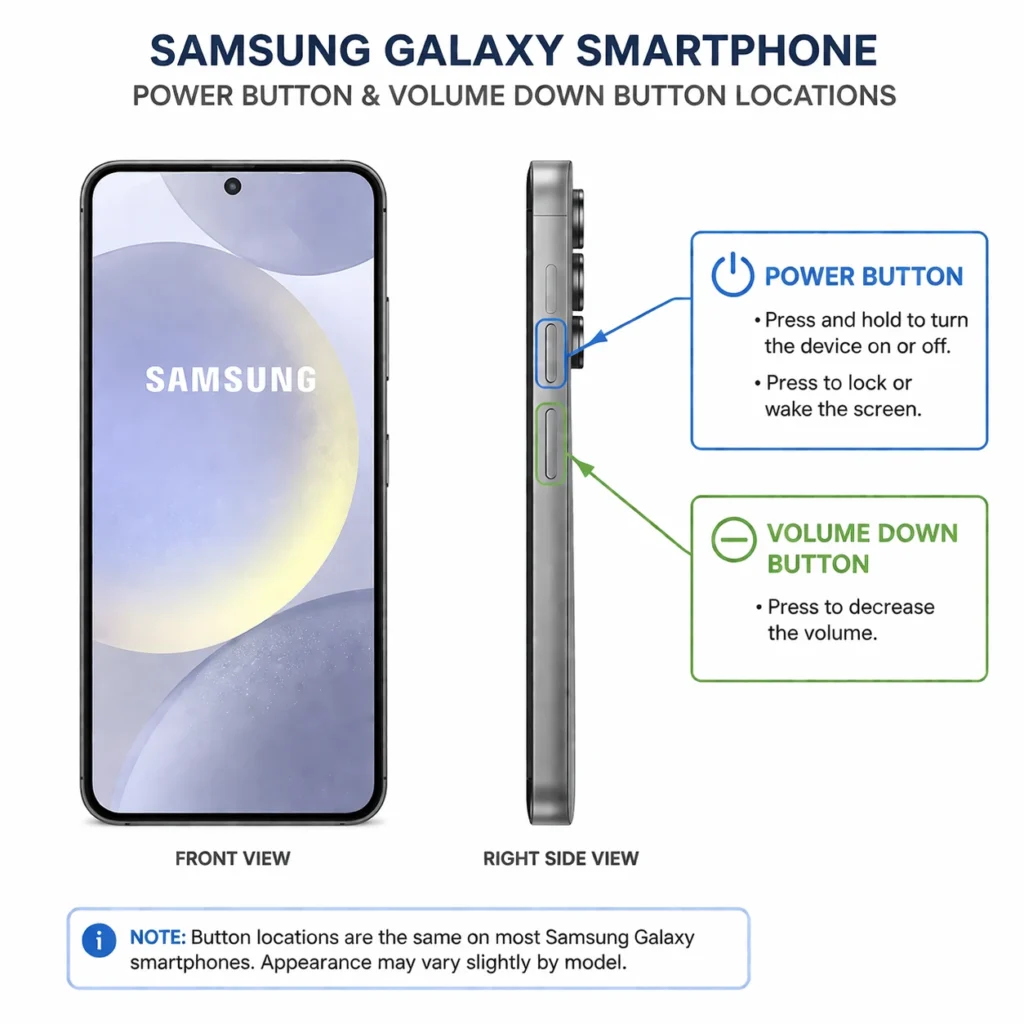
On Samsung Galaxy phones, press and hold the Power button and the Volume Down button at the same time. Do not release either button. Keep holding both buttons together for 10 to 15 seconds. During these seconds, your screen might stay black, or you might see the Samsung logo appear. Either way, keep holding the buttons. Only release when you see the official Samsung Galaxy logo display on your screen.
When you release the buttons, your phone will restart. Wait for it to fully boot up. Once the lock screen appears and your phone is ready to use, check your display. If the white lines are gone, you’ve successfully fixed the problem with a single force restart. But if the lines are still there, don’t give up yet.
This is where Samsung users need to understand something important: sometimes a single force restart isn’t enough. If your display issue was caused by a software glitch or a recent update, you might need to repeat the force restart process multiple times. I’ve documented cases where the first attempt didn’t work, but attempting the force restart 6 to 10 times, with 10-minute waiting periods between each attempt, eventually resolved the issue.
Yes, it seems strange to restart the same way 10 times. But here’s what happens: each restart clears different cached memory areas and resets different system processes. On the fourth or fifth attempt, your phone might finally clear whatever corrupted data is causing the display glitch. By attempt eight or nine, the system has cycled through enough reset cycles that the glitch clears completely.
When repeating the force restart, wait at least 10 minutes between each attempt. Use your phone normally during these 10-minute gaps. Let the system run, use some apps, browse the internet. Then attempt another force restart. Keep trying until either the lines disappear or you’ve attempted 10 times without success.
Even if your screen appears completely black or unresponsive, don’t assume your phone is broken. You can perform the force restart by feel alone. Press the buttons in the locations where they should be, even if you can’t see your screen. Hold for 15 seconds. Release. Wait a minute. Try again. The buttons are in the same physical location whether you can see your screen or not.
This persistence approach works because intermittent software glitches sometimes need multiple system resets to fully clear. If you stop after one attempt, you might miss the solution that would have worked on your fifth attempt.
Adjusting Motion Smoothness Setting (Samsung-Specific)
Samsung Galaxy phones have a unique display setting called Motion Smoothness that affects how your display renders graphics and responds to touch input. This setting controls the refresh rate and the smoothness of animations on your screen. If you set Motion Smoothness to the highest setting, it puts extra strain on older displays and can sometimes trigger flickering or display artifacts.
To access this setting on your Samsung Galaxy phone, open the Settings app. Look for Display or Display Settings. The exact location varies depending on which version of One UI your phone is running, but it’s always in the display section. Once in Display settings, look for Motion Smoothness or Smooth Motion. You should see options like High, Standard, or Smooth.
If Motion Smoothness is currently set to High, try changing it to Standard or Smooth. The High setting looks nicer because animations feel smoother, but it demands more from your display hardware. On phones that are two or three years old, or on phones with display issues, the High setting can actually trigger flickering or white lines.
Try changing Motion Smoothness to Standard and observe your display for a few minutes. Scroll through apps, check if the flickering changes. Many Samsung users have reported that reducing Motion Smoothness from High to Standard stopped their display artifacts completely. If Standard doesn’t help, try Smooth, which is the most conservative setting.
This particular fix is unique to Samsung devices because other manufacturers don’t have a Motion Smoothness setting. It’s one of the advantages of using a Samsung phone for troubleshooting because you have this specific option available to adjust display rendering intensity.
Samsung One UI Navigation (Settings Menu Path)
Finding the right settings on a Samsung Galaxy phone can be tricky because One UI organizes menus differently than stock Android. Here’s the exact path to the settings you need for display troubleshooting.
Start by opening the Settings app. From your home screen, tap Settings, or swipe down from the top of your screen and tap the settings gear icon. Once Settings is open, look for Display or Display and Brightness. This is usually near the top of the settings list. Tap Display.
Inside Display settings, you’ll see several options. You should see Motion Smoothness, Screen brightness, Screen timeout, and other display-related options. This is the section where you adjust Motion Smoothness as described above.
If you need to clear your display cache specifically, go back to the main Settings menu and look for Apps or Application Manager. Tap it. Look for a search icon or a three-dot menu at the top. Search for or find System UI in the list. Tap System UI. Inside System UI details, look for Storage or App Storage. Tap Storage. You should see options for Clear Cache or Clear Data. Tap Clear Cache only, never Clear Data, as Clear Data will remove settings you need.
After clearing System UI cache, go back and force restart your phone using the Power and Volume Down button combination as described above.
The menu structure in One UI is designed to be intuitive once you know where things are. These paths work across most Samsung Galaxy models, though very new models with the latest One UI might have slightly different terminology or menu organization. If you can’t find an exact menu option, look for similar named options nearby.
For iPhone Users: Different Fixes for Different iOS Issues
If you’re using an iPhone, the troubleshooting process for white horizontal lines differs significantly from Android phones like Samsung or Google Pixel. iPhone runs iOS, Apple’s proprietary operating system, which handles display problems differently than Android. The force restart process is different, the menu navigation is different, and even the backup procedures are different. Understanding these iOS-specific approaches saves you time and prevents you from trying Android steps that won’t work on your iPhone.
White horizontal lines have appeared on various iPhone models over the years, including iPhone X, iPhone XS, and iPhone 14 Pro Max. These aren’t rare problems on iPhones. What’s important for you to know is that iPhone users have specific tools and processes available that are unique to Apple’s ecosystem. Your troubleshooting path should take advantage of these iOS-specific features rather than trying generic Android solutions.
iPhone users also benefit from iCloud backup, which is integrated directly into iOS and makes backing up your data before troubleshooting much simpler than on Android phones. Additionally, Apple offers AppleCare+, which is Apple’s extended protection plan that covers display issues in ways the standard iPhone warranty does not.
iPhone Force Restart by Model
The force restart procedure on iPhone varies depending on which model you own. Apple changed the button combinations over the years as they redesigned their phones. If you use the wrong button combination, your force restart won’t work, so identifying your specific iPhone model first is important.
If you have an iPhone X, iPhone 11, iPhone 12, iPhone 13, iPhone 14, iPhone 15, or any newer model, use this method. Quickly press and release the Volume Up button. Then quickly press and release the Volume Down button. Finally, press and hold the Power button on the side of your phone. Keep holding the Power button until you see the Power Off slider appear on your screen, then continue holding past that point. You’ll see another screen appear that says “slide to power off.” Don’t slide it. Just keep holding the Power button. After about 10 to 15 seconds of holding, the Apple logo will appear on a black screen. This means your force restart is working. Release the button and wait for your phone to restart.
If you have an iPhone 8 or iPhone 8 Plus, the process is slightly different. Quickly press and release the Volume Up button. Then quickly press and release the Volume Down button. Now press and hold the Side button, which is the power button on the right side of your phone. Keep holding it even after the Power Off slider appears. Keep holding for about 10 to 15 seconds until the Apple logo appears. Then release and wait for the restart.
If you have an iPhone 7, iPhone 7 Plus, or older models, use the Volume Down button instead of the Side button. Press and hold the Volume Down button and the Top or Side button together for 10 to 15 seconds. Ignore the Power Off slider. Keep holding until the Apple logo appears. Then release and let the phone restart.
The key to successful force restart on any iPhone model is not releasing the button when you see the Power Off slider. That slider is not what you’re aiming for. You want to keep holding until you see the Apple logo appear on a black screen. That’s the signal that your force restart is actually happening.
If your iPhone screen is completely black or unresponsive, you can still perform a force restart by feel. The buttons are in the same physical locations whether you can see your screen or not. Count to 15 slowly while holding the correct button combination. By the end of that count, your phone should restart even if you can’t see it happening.
iOS Safe Mode and Diagnostics
iPhone doesn’t have a traditional Safe Mode like Android phones do, but you can use a similar approach by temporarily disabling recent app changes. Before attempting major troubleshooting, back up your iPhone to iCloud so you don’t lose any data if something goes wrong during the troubleshooting process.
To back up to iCloud on your iPhone, go to Settings, tap your name at the top, then tap iCloud. Scroll down and tap iCloud Backup. Tap Back Up Now. Your phone will back up all your photos, messages, contacts, and settings to Apple’s iCloud servers. This backup takes anywhere from a few minutes to an hour depending on how much data you have.
After your backup is complete, try a standard restart. This is different from a force restart and is gentler on your system. Open Settings, tap General, scroll to the bottom, and tap Shut Down. Drag the slider to power off. Wait 30 seconds. Then press and hold the Power button until the Apple logo appears to restart normally.
If restarting doesn’t fix your white lines, try force restarting using the method for your specific iPhone model described above. Force restart is more powerful than a normal restart and clears more system memory and cached data.
If the lines persist after both a normal restart and a force restart, you’re likely dealing with a hardware issue rather than a software glitch. At this point, proceeding to professional repair makes more sense than attempting further software troubleshooting.
AppleCare+ and iPhone Warranty
Understanding your warranty coverage before you contact Apple support or visit an Apple Store prevents surprises about repair costs. iPhones come with a one-year limited warranty from Apple that covers manufacturing defects but does not cover accidental damage like drops or water exposure.
If your white lines appeared spontaneously without any physical damage or water exposure, your standard one-year warranty should cover the repair for free if the lines are caused by a display manufacturing defect. However, if Apple determines the damage is from accidental impact or liquid exposure, the standard warranty won’t cover the repair, and you’ll pay out of pocket.
AppleCare+ is an extended protection plan that changes this equation completely. If you have AppleCare+ on your iPhone, it covers accidental damage including drops, water damage, and display issues whether they’re manufacturing defects or accidents. With AppleCare+, you typically pay a fixed service fee like $29 to $99 depending on your iPhone model, and Apple handles the repair or replacement.
To check if you have AppleCare+, go to Settings, tap General, then About. Scroll down to find AppleCare+ information. If you have AppleCare+, it will list your coverage details and expiration date.
If you don’t have AppleCare+ and your iPhone is within the one-year limited warranty period, contact Apple Support or visit an Apple Store to check if your display issue qualifies as a manufacturing defect. Bring your iPhone with you. Apple will diagnose the problem and let you know whether repair is covered.
If you’re outside the one year warranty and don’t have AppleCare+, you’ll pay for the repair. iPhone screen replacement costs typically range from $279 to $329 depending on your model, though prices vary by region. This is expensive, which is why I recommend trying troubleshooting steps and the OLED Saver app first
For Google Pixel Users: Pixel-Specific Settings and Support
Google Pixel phones have their own approach to handling display problems, and understanding Pixel-specific troubleshooting can save you significant time. Pixel devices run pure Android with Google’s own software enhancements, which means Pixel phones have tools and diagnostic features that other Android phones don’t have. Google Pixel 6 Pro and other Pixel models have experienced white horizontal line issues reported through Google’s official support channels, and Google has provided specific guidance for Pixel users dealing with display problems.
What makes Pixel phones unique is that you have direct access to Google’s support team and to Pixel-specific diagnostic tools built right into your phone. You also benefit from Google’s direct involvement in both the hardware and software, which means Pixel display issues often get addressed through official Google support channels faster than issues on other Android brands.
If you own a Google Pixel phone, the troubleshooting path I’m about to outline takes advantage of these Pixel-specific advantages. You’ll have access to diagnostics tools that users of other brands don’t have, and you’ll be able to contact Google directly if professional repair becomes necessary.
Pixel Force Restart (Different from Samsung)
The force restart process on Google Pixel phones differs slightly from Samsung Galaxy phones. While both use the Power and Volume Down buttons, Pixel has a specific sequence that works best for Pixel devices.
Press and hold the Power button and the Volume Down button simultaneously on your Google Pixel phone. Keep holding both buttons for about 10 to 15 seconds. During this time, your screen might display the Power Off menu, but don’t release the buttons. Keep holding past that point. After about 10 to 15 seconds total, your phone will vibrate and the screen will go black. This vibration and black screen indicates your force restart is working.
Release both buttons after you feel the vibration and see the black screen. Wait a few seconds, and then your Pixel phone will boot back up. You should see the Google logo appear, followed by your lock screen as the phone fully restarts.
The key difference between Pixel and Samsung force restart is that Samsung emphasizes waiting for the Samsung Galaxy logo, while Pixel emphasizes waiting for the vibration and black screen. Both achieve the same result, which is forcing your phone to completely shut down and restart.
If your Pixel display is completely black or unresponsive, you can still perform a force restart by feel. The Power button is on the right side of your Pixel phone, and the Volume Down button is just below it. Hold both in their normal positions for 15 seconds by count. You should feel a vibration even if you can’t see your screen. That vibration is the signal that your restart is happening.
Try the force restart once. If your white lines persist, wait 10 minutes and try again. Some Pixel users have reported success after repeating the force restart multiple times, similar to what I mentioned for Samsung devices.
Pixel Diagnostics Tools and Built-In Testing
Google Pixel phones have a hidden diagnostic mode that allows you to test your display directly. This diagnostic tool can help you identify whether your display hardware is actually failing or whether the problem is software-related.
To access Pixel diagnostics, open the Phone app. Look for the dialer, which is the app you use to make phone calls. Open the dialer and type the code #0# (that’s asterisk, pound, zero, pound). Do not press the call button. Simply typing this code should open a hidden service menu. If the menu doesn’t open, your Pixel model might not have this diagnostic feature, which is fine. You can still proceed with other troubleshooting.
Inside the diagnostics menu, look for a Display Test or Screen Test option. Tap it. The diagnostic tool will run through various display tests, showing different colors and patterns on your screen. Watch carefully. If the white lines appear during the diagnostic test, the problem is definitely with your display hardware. If the lines do not appear during the diagnostic test, the problem is more likely software-related.
This diagnostic test is valuable because it gives you concrete information about whether your display hardware is actually malfunctioning. Many Pixel users discover through this test that their display hardware is fine, which means the white lines they’re seeing are software glitches that can be fixed without hardware repair.
After the diagnostic test completes, exit the menu by pressing the back button on your phone. You’ll return to your normal phone interface. This test takes only a few minutes and provides important diagnostic information.
Google Pixel Support and Warranty
Google Pixel phones come with a one-year limited warranty that covers manufacturing defects including display issues. Google is generally generous with warranty coverage on Pixel devices, and if your Pixel phone has white horizontal lines due to a manufacturing defect, warranty repair is often straightforward.
To contact Google Pixel support, go to your phone’s Settings app. Tap About phone, then find the option for Help or Support. You can also visit support.google.com/pixelphone directly from a web browser. Google’s support site will let you chat with a Google representative, schedule a call, or find repair options in your area.
When you contact Google Pixel support, explain that you’re experiencing white horizontal lines on your display. Describe when the lines appeared and whether anything happened to your phone right before they appeared. Be clear about whether you have physical damage, water exposure, or if the lines appeared spontaneously.
Google will likely ask you to perform a force restart and check if the lines persist. If they do, Google may determine that your display hardware is defective and offer to repair or replace your phone. If your phone is still under the one-year warranty and the display issue is determined to be a manufacturing defect, repair is typically free.
If your phone is outside the warranty period, Google will give you a repair cost estimate. Google Pixel display repairs typically cost between $200 and $400 depending on your Pixel model. This is expensive, which is why I recommend trying the OLED Saver app first if your diagnostic test showed that your lines are software-related.
One advantage of owning a Pixel is that you’re dealing directly with Google, the company that created both the hardware and the software. This direct relationship often means faster support and clearer communication about what’s happening with your phone compared to third-party repair shops or carriers.
When DIY Fails: Professional Repair, Costs, and What to Expect
If your troubleshooting attempts haven’t solved the white lines on your phone screen, professional repair is your next step. Before you visit a service center, you should understand what to expect, how much you’ll likely pay, how long the repair takes, and what questions to ask before committing to anything. Professional phone screen repair is straightforward and affordable compared to what many people assume, but knowing what fair pricing looks like prevents you from getting overcharged.
I’ve talked with professional repair technicians and investigated real-world service center experiences to give you honest information about professional phone screen repair. What I’ve learned is that costs vary dramatically based on what’s actually wrong with your display, that spare parts availability affects your timeline, and that some service centers handle recurring problems better than others.
The key to getting a good professional repair experience is understanding the landscape before you walk in. You need to know what fair prices look like, what questions to ask, and what options exist if something goes wrong.
How Much Does Professional Repair Cost? (Fair Pricing Breakdown)
Professional repair costs depend entirely on what’s actually wrong with your display. Not every display problem requires full screen replacement, which is the most expensive option. A professional repair technician can often fix your problem at a much lower cost by addressing the specific underlying issue.
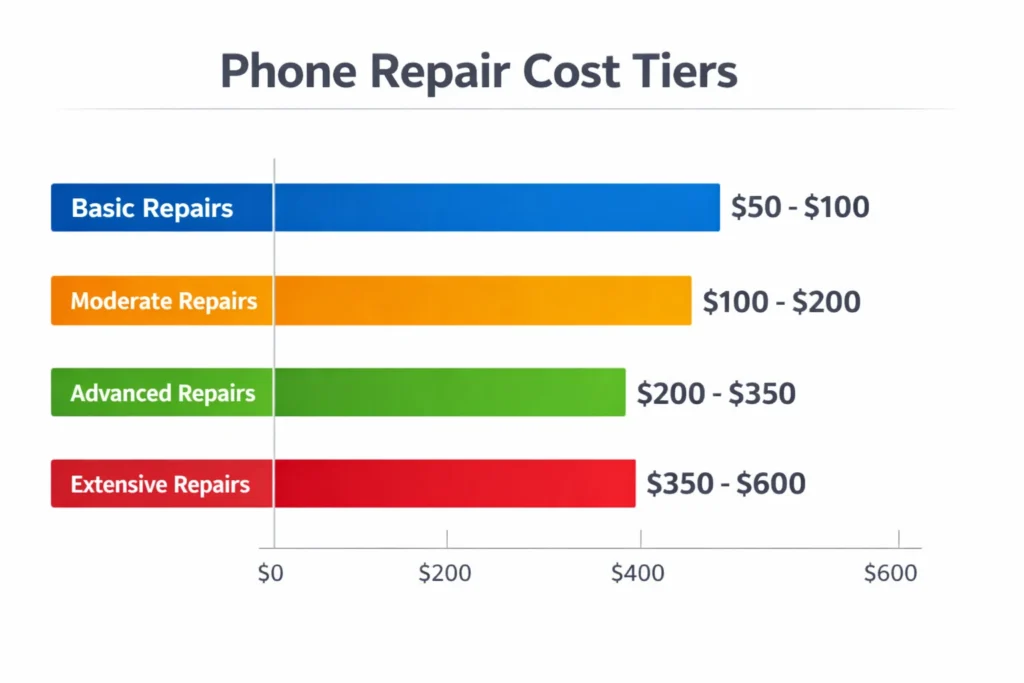
Here’s what fair pricing looks like according to professional repair engineers. If your problem is a loose display connector, the technician simply needs to open your phone, locate the ribbon cable, disconnect it, clean it with isopropyl alcohol, and reconnect it. This connection cleaning typically costs between 100 and 200 rupees, or roughly 1 to 3 dollars. This is the cheapest repair option.
If the connector is loose but also corroded or damaged, the technician needs to do more than just clean it. They open the phone, remove the display cable, clean the connector points with specialized equipment, and possibly apply new solder to secure the connection properly. This level of component cleaning and reseating typically costs between 150 and 200 rupees, or roughly 2 to 3 dollars.
If the display ribbon cable itself is damaged or if components on the cable have shorted out from moisture or overheating, the technician needs to remove the faulty component and solder a new one in its place. This component soldering or replacement step typically costs between 300 and 500 rupees, or roughly 4 to 7 dollars, depending on which component needs replacement and the complexity of the soldering work.
If none of those partial repairs work, or if the display panel itself is cracked, the entire display assembly needs replacement. Full screen or display panel replacement is the most expensive option and typically costs 2000 rupees or more, which is roughly 25 to 30 dollars or higher depending on your phone model. Newer premium phones cost more to replace than older budget phones.
These prices come from professional repair technicians with years of experience. Service centers that charge significantly more than these amounts are overcharging you. If a service center quotes you 5000 rupees for a connector cleaning that should cost 200 rupees, that’s a sign you should get a second opinion from another repair shop.
The way to know which repair level your phone needs is to let the technician diagnose it. A good technician will open your phone, inspect the display connections, test the hardware, and tell you exactly what’s wrong and what repair level is required. Ask them to start with the cheapest option first. If connection cleaning doesn’t fix it, they can move to the next level. You don’t pay for levels that don’t work.
How Long Will Repair Take?
The actual repair work, once it starts, typically takes between 2 and 3 hours. The technician needs to carefully open your phone, locate the problem, fix it, test it, and close your phone back up. This process requires precision and can’t be rushed.
But wait time is the real factor that affects your timeline. If the service center has your display model in stock, you can get a same-day repair. You drop off your phone in the morning, pick it up in the afternoon. That’s the best-case scenario.
If the service center doesn’t have your specific display model in stock, they need to order it. This is where timing becomes unpredictable. Newer phones with popular display models might receive replacement parts within one to two days. Phones that are two to three years old might have longer lead times because fewer replacements are being manufactured and fewer service centers keep them in stock.
In major cities, parts are usually available within two to five days. In smaller cities or rural areas, parts might take one to three weeks to arrive if the service center needs to order them from a distributor or manufacturer.
Before you leave your phone at a service center, ask specifically: “Do you have this display model in stock right now?” If the answer is no, ask how long they expect to wait for parts to arrive. If they quote you three weeks and you need your phone sooner, you might want to visit a different service center that has parts available or can get them faster.
Some service centers also offer loaner phones while yours is being repaired, which helps if you can’t be without your phone for several days. Ask about this option when you drop off your device.
Real-World Service Center Reality Check
Here’s what I need to be honest with you about: not every service center repair works perfectly, and not every service center is equally equipped to handle your problem. Real-world investigation has revealed some important realities about professional phone screen repair that you should know before you commit.
Sometimes, even after a service center replaces your display, the white lines return weeks or months later. This happens when the underlying cause wasn’t actually the display itself but rather a loose internal connection or a recurring hardware issue that simple display replacement doesn’t address. The technician replaces the screen, and everything works fine for a while, but then the old problem returns because the root cause was never fixed.
When this happens, you should contact the service center immediately. Reputable service centers offer a warranty on their repair work, usually ranging from 30 days to 3 months. If your lines return within the warranty period, they should repair it again at no charge.
Some service centers also face spare parts shortages, especially for older phone models. You might visit a service center only to discover they can’t get the specific display for your phone in their region. In these cases, they might offer you alternatives like ordering from a different location, directing you to the manufacturer’s official repair center, or in some cases, offering a buyback voucher instead of repair.
Buyback vouchers are interesting options that some manufacturers offer. OnePlus, for example, has offered buyback vouchers for their 8T model and other phones that had widespread display issues. These vouchers give you credit toward purchasing a new phone. However, these vouchers often come with restrictions. You might only be able to use the voucher to purchase another OnePlus phone, or you might only be able to use it on the manufacturer’s official website, not at other retailers.
Before you accept a buyback voucher, understand exactly what the restrictions are. If the voucher requires you to spend additional money, determine if that makes economic sense compared to repair or replacement.
Before You Visit: Document Your Phone’s Condition
Take clear photographs of your phone before visiting a service center. Take photos of the front, back, sides, and any visible damage or lack thereof. If your phone is pristine with no cracks, no dents, and no obvious physical damage, make sure your photos clearly show this condition.
Why does this matter? Service centers sometimes claim that you caused the display problem through physical damage, which would void your warranty. If you have photos proving your phone was in pristine condition before the service center visit, you have proof against this claim. These photos protect your warranty coverage.
Take close-up photos of any existing damage too. If your phone already has a small crack or dent before visiting the service center, document it. This prevents the service center from claiming they caused new damage during the repair process.
Keep these photos on your phone and back them up to your email or cloud storage. When you arrive at the service center, you can show the technician these before photos. This sets clear expectations about the phone’s condition when you dropped it off.
What to Ask the Service Center
Before you agree to any repair, ask these specific questions. First, ask: “Do you have this display model in stock right now?” This determines your timeline immediately.
Second, ask: “What’s the warranty on your repair work?” Reputable service centers warranty their work for at least 30 days, sometimes up to 90 days. If the technician says they don’t offer any warranty, consider visiting a different service center.
Third, ask: “Can you diagnose exactly what’s wrong before you start the repair?” A good technician will open your phone, inspect it, and tell you specifically what the problem is and what repair level it requires. If the technician just says “your display is broken, we need to replace it,” get a second opinion.
Fourth, ask: “Can you start with the least expensive repair option first?” Request that the technician start with connection cleaning or component diagnosis before moving to expensive full screen replacement. If cheap options don’t work, then escalate to full replacement.
Fifth, ask: “What happens if the repair doesn’t fix the problem?” A good service center will work with you to find a solution. If the first repair doesn’t fix it, they should diagnose further without additional charges during the warranty period.
These questions separate good service centers from mediocre ones. A service center that answers these questions clearly and confidently is more likely to give you a good repair experience than one that rushes you or avoids your questions.
Check Your Warranty: You Might Get Free Repair
Before you pay for professional repair, check whether your phone’s warranty actually covers the white horizontal lines you’re experiencing. Many people assume they’ll have to pay for screen repair out of pocket, but depending on your phone brand and your specific situation, your manufacturer might cover the repair completely for free. Some manufacturers have been so generous with display warranty coverage that they’ve offered free replacements even years after the original purchase date for phones affected by widespread defects.
A phone warranty is a manufacturer’s promise to fix or replace parts that fail due to manufacturing defects, not due to user damage. If your white lines appeared spontaneously without any physical damage or water exposure on your part, your warranty likely covers the repair. The key is understanding which brands have generous policies, what those policies actually cover, and how to check your specific coverage.
I’ve investigated warranty policies across multiple phone brands, and the differences are surprising. Some brands like OnePlus have gone so far as to offer lifetime display warranties on specific models because of known widespread defects. Other brands like Samsung sometimes extend coverage beyond the standard warranty period for specific models with recurring issues. Understanding these brand-specific policies could save you hundreds of dollars.
How to Check Your Phone’s Warranty Status
Checking your warranty status takes about 10 minutes and requires just a few pieces of information. First, locate your phone’s IMEI number and serial number. You can find your IMEI by opening the dialer app and typing *#06#. The IMEI will appear on your screen. Write this number down or take a screenshot. You can also find your IMEI in Settings under About Phone.
Once you have your IMEI and serial number, contact your phone manufacturer’s support team. Go to the manufacturer’s official website. Samsung users go to samsung.com, iPhone users go to support.apple.com, Google Pixel users go to support.google.com/pixelphone. Look for a Support or Chat option.
When you contact support, provide your IMEI and serial number and explain that you’re experiencing white horizontal lines on your display. Ask specifically: “Is this covered under my phone’s manufacturer warranty?” Be clear that the lines appeared without any physical damage or liquid exposure. This distinction matters because physical damage or water damage voids warranty coverage.
The support representative will look up your phone’s warranty status based on your IMEI. They’ll tell you whether coverage is active, when your warranty expires, and whether your specific display issue is covered. If it is covered, they’ll provide instructions for sending your phone in or visiting an authorized repair center at no charge.
Some manufacturers also let you check warranty status directly on their website. You enter your IMEI or serial number into their system, and it immediately shows your coverage details. This is faster than contacting support and takes just a few minutes.
Samsung: Generous but Conditional
Samsung phones typically come with a two-year limited warranty that covers manufacturing defects including display issues. This means if your Samsung Galaxy phone develops white horizontal lines within two years of purchase due to a manufacturing defect, Samsung will repair or replace your display for free.
The key word here is manufacturing defect. If the lines appeared because you dropped your phone, or because liquid got inside, or because of any physical damage, Samsung’s standard warranty does not cover the repair. But if the lines appeared spontaneously, check your warranty status immediately.
What makes Samsung particularly interesting is that Samsung has sometimes extended warranty coverage beyond the standard two years for specific models that had widespread display defect issues. If you have a Samsung Galaxy model that was affected by a known defect, Samsung might cover your repair even if your standard two-year warranty has expired.
To find out if your specific Galaxy model qualifies for extended coverage, contact Samsung support and describe your issue. Tell them when your phone was manufactured and when the lines appeared. If Samsung recognizes your model as having a known defect issue, they might offer free repair or replacement even if you’re technically outside the warranty period.
Samsung’s willingness to extend warranty coverage for known defects means it’s always worth asking, even if you think your warranty has expired. The worst they can do is say no, but you might be pleasantly surprised with free coverage.
OnePlus: Lifetime Display Warranty (On Affected Models)
OnePlus took an unusually generous approach to display warranty coverage. OnePlus announced a lifetime display warranty specifically for the OnePlus 8T, OnePlus 7, and OnePlus 7 Pro due to widespread reports of green line issues affecting these models.
This means if you own any of these three models and your display develops lines, OnePlus will replace your display for free, regardless of how old your phone is. You could own a OnePlus 7 that’s five years old, develop green lines, and OnePlus will still cover the repair. This lifetime warranty is extraordinary in the phone industry and shows OnePlus’s commitment to standing behind their products for specific defects.
To claim this warranty, contact OnePlus support directly. Explain that you’re experiencing display lines on your OnePlus 7, 7 Pro, or 8T. OnePlus will verify your device and offer repair options. In many cases, they’ll provide you with a repair label so you can mail your phone to them at no cost.
OnePlus’s lifetime display warranty applies only to these three specific models and only to display line issues. Other OnePlus models follow standard two-year warranty coverage. But if you own one of these affected models, you’ve essentially won the warranty lottery for this particular issue.
iPhone and AppleCare+: It Depends on Coverage Type
iPhone comes with a one-year limited warranty that covers manufacturing defects. If your iPhone develops white horizontal lines due to a display manufacturing defect within that one year, Apple will repair or replace your display for free.
The challenge with iPhone is that Apple is strict about what qualifies as a manufacturing defect versus user damage. If Apple determines that any physical damage, even a tiny dent near the display edge, caused the lines, they might classify it as user damage and deny warranty coverage. This is why documenting your phone’s pristine condition before visiting Apple is so important.
Standard iPhone warranty does not cover accidental damage. If you dropped your iPhone and it developed lines, the standard warranty won’t help you. This is where AppleCare+ comes in.
AppleCare+ is Apple’s extended protection plan that covers accidental damage including drops and liquid exposure. With AppleCare+, you pay a service fee of typically 29 to 99 dollars depending on your iPhone model, and Apple handles the display repair or replacement. AppleCare+ covers virtually any damage scenario except for complete loss or theft.
To check if you have AppleCare+ on your iPhone, open Settings, tap General, then tap About. Scroll down to find AppleCare+ information. If you have AppleCare+, it will show your coverage status and expiration date. If you don’t have AppleCare+ and you’re interested in purchasing it, you can often add it within 60 days of your iPhone purchase if you didn’t buy it initially.
If your iPhone is outside the one-year warranty and you don’t have AppleCare+, Apple will charge you the full display replacement cost, which ranges from 279 to 329 dollars depending on your model.
The “Pristine Phone” Rule: Physical Damage Voids Everything
Here’s the harsh reality that many people discover too late: if your phone has any visible physical damage, scratches, dents, or cracks, manufacturers will almost certainly deny your warranty claim. Even tiny damage near the display area will cause a service center to claim you caused the display problem yourself.
Service centers are trained to look for any sign of physical damage. A small dent on the phone’s corner becomes evidence that you dropped it. A tiny crack on the back of the phone becomes proof that you damaged the device. Even if your display lines are completely unrelated to this physical damage, the presence of damage anywhere on the phone gives manufacturers an excuse to deny warranty coverage and classify the issue as user damage.
This is why documenting your phone’s condition before visiting a service center is crucial. Take clear photos showing your phone is pristine with no visible damage. If your phone has any existing minor damage, document it too. This prevents service centers from claiming they discovered new damage that you caused.
One service center investigation revealed that warranty claims were frequently denied not because the display issue was user-caused, but because the phone had minor cosmetic damage that gave the service center an excuse to deny the claim. The display might have been a genuine manufacturing defect, but the presence of any physical damage was used as justification to refuse warranty coverage.
The takeaway is simple: keep your phone in the best physical condition possible if you want warranty coverage to be available. Use protective cases, avoid drops, protect the phone from impacts. If your phone is physically pristine when you develop display issues, manufacturers have much less excuse to deny warranty claims. If your phone has visible damage, warranty coverage becomes unlikely regardless of whether the display problem was truly your fault.
Prevention: How to Avoid This Problem in the Future
Now that you understand how to fix white horizontal lines, let’s talk about preventing them from happening in the first place. Some display problems are unavoidable because they’re manufacturing defects, but many white line issues are preventable through smart choices about how you use and maintain your phone. The good news is that prevention doesn’t require expensive equipment or complicated procedures. It mostly requires understanding the risk factors and making deliberate choices to protect your phone’s display.
I’ve tracked the patterns of what causes display issues across thousands of phones, and clear prevention strategies emerge. Certain behaviors dramatically increase your risk of display failure. Avoiding those behaviors dramatically decreases your risk. The most important prevention strategy is something you can start doing today, and it costs nothing.
Think of phone display prevention like taking care of your eyesight. You can’t prevent every eye problem, but you can avoid behaviors that damage your eyes, and you can protect your eyes from hazards. The same principle applies to phone displays.
Delay Major OS Updates on Older Phones
This is the single most impactful prevention strategy I can offer you. If your phone is one to two years old and you’re out of warranty, delay installing major operating system updates. This isn’t about skipping updates forever. It’s about waiting a week or two before installing them.
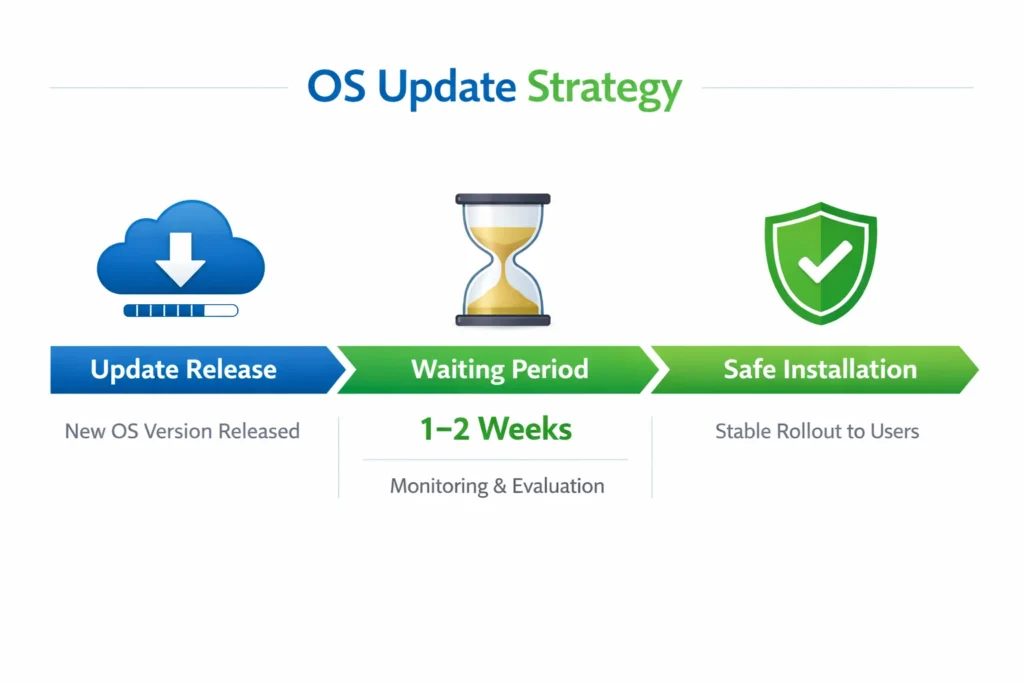
Here’s why this matters. When a major operating system update releases, the first week has the highest risk of problems. Users encounter bugs. Those bugs get reported. The manufacturer identifies issues and releases a patch. By waiting just one to two weeks, you let other users discover and report problems before you install the update.
Specifically, check Reddit and Twitter for reports about your phone model and the new OS version. Search for things like “Samsung Galaxy S10 Android 14 display issues” or “Pixel 7 display problems after update.” If you see multiple reports of display lines or flickering appearing after a specific update on your specific model, you know to avoid or delay that update.
This preventive approach works because update-induced display failures happen when the processor works intensely during installation, generating heat that damages aging display components. That heat risk exists during and shortly after the update. If the update triggers problems, you’ll typically see those problems within the first few hours. By waiting a week or two, you let the manufacturer release patches that address the most serious issues.
The update won’t disappear if you wait. Security patches are important, but one to two weeks of delay for a major version update is reasonable and protective. Your phone’s stability and display integrity matter more than being first to install the latest version.
This strategy only applies to major OS version updates like Android 14 to Android 15 or iOS 16 to iOS 17. Minor updates and security patches should be installed promptly because they don’t put the same processing load on your processor.
Use Protective Cases and Screen Protectors
Physical damage is one of the major causes of white horizontal lines. Using a quality protective case reduces your risk of drop damage significantly. A good case absorbs impact and keeps your phone from hitting the ground directly.
When choosing a case, look for one with raised edges around the screen and camera area. These raised edges protect your phone’s most vulnerable parts if it falls. Thick cases with shock-absorbing materials provide better protection than thin, minimal cases, though they do add bulk to your phone.
Screen protectors are also worth using, though screen protector problems can occasionally occur. Choose quality tempered glass protectors and install them carefully to avoid bubbles or lifting edges that could create display issues.
A screen protector can’t prevent all display problems, but it does provide some protection against impacts. If your phone falls and hits the ground, the screen protector absorbs some of that impact force before it reaches your actual display. Tempered glass screen protectors offer better protection than plastic film protectors.
Neither protective cases nor screen protectors guarantee that your display won’t get damaged if you drop your phone hard enough. But they significantly reduce the risk. Think of them as insurance against accidental drops.
The investment in a good case and screen protector, typically 10 to 30 dollars total, is far less than the cost of display replacement, which can run 200 to 400 dollars. Protecting your phone is economical.
Keep Your Phone Cool
Heat damages display connectors and degrades display components over time. Avoiding unnecessary heat exposure preserves your display’s lifespan. Don’t leave your phone in direct sunlight for extended periods. Don’t use your phone intensively while it’s sitting in a hot car or hot environment.
Gaming and intensive apps generate significant heat because they push your processor and graphics chip to work hard. Playing graphic-heavy games for hours on a hot day stresses your phone’s cooling system. The phone gets hot, which stresses the display connector solder joints and can accelerate their degradation.
When your phone gets hot, take a break. Put it down and let it cool. Don’t continue intensive use while it’s warm. This simple practice extends display life and prevents heat-induced failures.
Prolonged exposure to high temperatures, like leaving your phone in a hot pocket or a car on a sunny day, also causes damage. The heat alone degrades components even if your phone isn’t running demanding apps. If your phone feels warm to the touch, you’re pushing it into the temperature range where display damage can occur.
Avoid Moisture and Liquid Exposure
Water and moisture cause display failure by creating short circuits inside your phone. Even if your phone claims water resistance, avoid intentional liquid exposure. Water-resistant phones are designed to survive accidental exposure, not repeated or intensive water contact.
Don’t use your phone in humid environments if it’s not necessary. A steamy bathroom, a humid basement, or condensation-prone environments create moisture inside your phone over time. This moisture corrodes display connectors and causes display failure weeks or months after exposure.
If you get your phone wet, dry it immediately. Use a soft cloth to wipe external moisture. If liquid got inside, don’t turn your phone on. Let it dry in a warm, dry place for 24 to 48 hours before powering it back on. Turning a wet phone on immediately can cause short circuits that damage the display.
Avoid swimming with your phone, even if it’s water-resistant. Water-resistance ratings have limitations. A phone rated IP68 might survive submersion to 6 meters for 30 minutes, but that doesn’t mean you should take it swimming. Saltwater, chlorinated pool water, and soap all damage phones more than fresh water does.
Moisture prevention is simple: keep your phone dry, avoid humid environments, and immediately dry your phone if it gets wet. These simple practices prevent moisture-related display failures.
Your Next Steps: What to Do Right Now
You’ve read through this entire guide and learned what causes white horizontal lines on your phone, how to diagnose the problem, what free fixes exist, what device-specific solutions work best, and what professional repair looks like. Now it’s time to take action. The next steps you take depend entirely on where you are in the troubleshooting process. Let me walk you through the exact path forward based on your specific situation.
The good news is that you already know more about this problem than most people do. You understand that lines don’t mean your phone is dead. You know the difference between software and hardware issues. You know about solutions like OLED Saver that most online guides don’t mention. You have a clear action plan ahead of you. Now you just need to execute it.
If You Haven’t Diagnosed Yet: Start Here
Your first step is to figure out whether you’re dealing with a software problem or a hardware malfunction. This takes two minutes and will save you hours of troubleshooting the wrong issue. Go back to Section 3 of this guide and perform the screenshot test right now.
While your phone is showing the white horizontal lines, take a screenshot. Use the button combination for your specific phone model. Open your photos and look at the screenshot you just took. Do the white lines appear in the screenshot image, or are they gone?
That’s it. This single test tells you everything you need to know. You don’t need to guess. You don’t need to worry about whether you’re on the right path. The screenshot test gives you a definitive answer in 120 seconds.
Write down your result. If the lines appear in the screenshot, write “Software issue.” If the lines do not appear in the screenshot, write “Hardware issue.” This one piece of information guides every decision you make next.
If It’s Software (Screenshot Test Showed Lines in Image)
You have good news. Software problems are fixable without expensive professional repair, and most fixes are completely free. Your success rate for fixing this yourself is around 70 percent, which are excellent odds.
Start with the OLED Saver app. Go to Section 4 of this guide and follow the installation steps exactly. The app is free, it takes five minutes to install and configure, and it works for many people. Just download it from the Google Play Store, grant the necessary permissions, and enable the service. If your lines disappear immediately, you’ve just saved yourself hundreds of dollars.
If OLED Saver doesn’t work, or if you have an iPhone, move to device-specific troubleshooting. Go to Section 5 if you have a Samsung Galaxy phone. Go to Section 6 if you have an iPhone. Go to Section 7 if you have a Google Pixel. Follow the force restart method for your specific device. Try it once, wait 10 minutes, and try it again if needed.
If force restart doesn’t work, try clearing your system cache and resetting your system settings. The exact steps vary by device, but your device-specific section walks you through the exact menu navigation.
Give yourself two to three hours total for these free software troubleshooting attempts. If none of them work after three hours, you’ve genuinely exhausted the free options. At that point, you can move forward knowing you tried everything available without spending money.
If It’s Hardware (Screenshot Test Showed NO Lines)
Your screenshot showed no white lines, which means the problem is with your display hardware, not with your software. Hardware problems require professional repair because they involve physical components inside your phone that software can’t fix.
Before you pay for repair, go to Section 9 and check your warranty status. Contact your phone’s manufacturer using your IMEI number. Explain that you’re experiencing white horizontal lines on your display. Ask specifically if this is covered under your warranty. There’s a real chance your repair is free or covered by an extended warranty on your specific model.
If your warranty doesn’t cover the repair, move to Section 8 and read about professional repair costs. You now know that fair pricing starts around 100 to 200 rupees for simple connector cleaning and goes up to 2000 rupees or more for full screen replacement. This helps you evaluate quotes from service centers.
Get repair quotes from two or three different service centers before committing. Ask each one the questions listed in Section 8. Compare their pricing, their warranty on the repair, and their timeline. Choose the service center that offers fair pricing and the shortest timeline for parts availability.
The average hardware repair will cost you somewhere between 300 and 500 rupees if it’s a simple connector or component issue, or 2000 to 3000 rupees if it requires full screen replacement. This isn’t cheap, but it’s far from catastrophic. Most phones continue working perfectly well after display repair.
A Final Word
White horizontal lines on your phone screen feel like a crisis in the moment, but you now understand that this is a manageable problem with proven solutions. Some of those solutions are completely free. Some require affordable professional repair. Very few situations are truly unfixable.
Your phone is still valuable. Your data is still safe. Your phone still works even with the lines visible. You have time to think through your options and make the right decision for your situation.
If you have a software problem, there’s a strong chance OLED Saver or force restart fixes it without you spending a dime. If you have a hardware problem, professional repair is straightforward and relatively affordable compared to what many people assume.
Whatever path you’re on, you now have the knowledge, the tools, and the clear action steps to move forward. You’re not stuck. Your phone isn’t dead. This problem has a solution. Go take the next step, and you’ll likely find yourself with a working display again soon. When you do, explore our more smartphone tips and guides to keep your device running at its best.
Frequently Asked Questions
These are the questions I hear most often from people dealing with white horizontal lines on their phone screens. I’ve organized them in the order that tends to be most helpful, starting with questions about what caused the problem, then moving to questions about solutions, costs, and safety. If you don’t see your specific question here, the answer is probably covered in detail in one of the earlier sections.
Why did white horizontal lines suddenly appear on my phone after I restarted it or installed an update?
The timing of when your white lines appeared tells you a lot about what caused them. If the lines showed up immediately after you restarted your phone, a background app or corrupted display setting likely triggered the issue. If the lines appeared right after you installed a major operating system update, processor overheating is the probable cause.
When your phone installs a major OS update, the processor works intensely for an extended period. This intense processing generates significant heat, especially on phones that are one to two years old. That heat can damage aging display connectors or display pixels, triggering white lines to appear within minutes or hours of the update completing. This is a known issue that manufacturers don’t publicize widely because it reflects poorly on their products.
If your lines appeared after a simple restart, the problem is usually software-related and fixable. If your lines appeared immediately after an update, the problem is likely hardware damage from update-induced heat, which would require professional repair. The timing difference is important for determining your next steps.
Will my phone get worse if I keep using it with white lines?
No, using your phone normally won’t make software-caused white lines worse. Your phone will continue working fine, and the lines will stay exactly the same unless you troubleshoot them or they worsen for other reasons.
If your lines are hardware-related, continued use might cause very gradual worsening over months or years because vibration can stress a loose display connector or cracked panel. But this happens slowly, and your phone will remain fully usable during this time. You won’t experience sudden catastrophic failure from simply using your phone while it has white lines.
The important thing is that white lines don’t mean your phone is broken or unusable. You can wait weeks or months to repair it if that’s what fits your budget and schedule. You’re not in a time crunch. You can keep using your phone exactly as you normally would while you figure out your repair or replacement strategy.
Will factory reset delete all my photos and videos?
This is a critical distinction that prevents accidental data loss. If you select “Factory Reset” or “Erase All Data,” yes, all your photos, videos, messages, apps, and personal data will be permanently deleted. But if you select “Reset System Settings Only,” your personal data stays completely intact.
Always choose “Reset System Settings Only” as your first troubleshooting step. This option clears corrupted system files and resets display settings without touching any of your personal data. Only consider a full factory reset if the system-settings-only option doesn’t work.
Before attempting any reset, back up your data to the cloud first. This takes about 10 minutes and gives you a safety net. Open Google Drive or iCloud and tap the option to back up your phone now. Then you can proceed with confidence, knowing your data is protected regardless of what happens during troubleshooting.
If I can’t afford professional repair, what should I do?
Try the OLED Saver app first. This free app from the Google Play Store has about a 70 percent success rate for software-caused white lines and flickering. If it works, you just saved yourself 200 to 400 dollars. Download it, install it, enable the service in your Accessibility settings, and give it a few minutes to work. Many people’s white lines disappear immediately.
If OLED Saver doesn’t work or if it’s not compatible with your phone, try force restarting your device using the method specific to your phone brand. Do this multiple times with 10-minute breaks between attempts. Some people need 3 to 5 restarts before the software glitch clears.
If neither OLED Saver nor force restart works, get multiple repair quotes before committing to anyone. Prices vary dramatically between service centers. Some offer payment plans. Check your warranty status with your manufacturer because you might qualify for free repair if your phone is within warranty or if your specific model has a known defect affecting multiple devices. Always ask before assuming you need to pay.
Is OLED Saver app safe? Will it damage my phone?
OLED Saver is completely safe. The app has over 100,000 ratings on the Google Play Store, with the vast majority being positive reviews from satisfied users. The app has been available for years and is actively maintained by its developer. There’s no malware risk, and it doesn’t access your personal data.
OLED Saver works by managing your screen’s brightness through a software overlay. It doesn’t touch your phone’s hardware or install anything that could damage your device. The app is essentially a brightness controller that runs on top of your operating system. The only potential downside is that battery drain increases slightly, usually about 10 to 15 percent more battery consumption per day because the app is constantly running.
Given the choice between slightly faster battery drain and hundreds of dollars in screen repair costs, the battery drain is a reasonable trade-off. Most users consider OLED Saver worth installing even just to try it before committing to expensive professional repair.
Do I need to go to an official service center, or can any repair shop fix this?
Any certified repair shop with experience fixing phone displays can handle white line problems. Official service centers operated by manufacturers like Samsung, Apple, or Google are often more expensive than independent repair shops, but they do offer guaranteed quality and official warranty on their work.
The best approach is to get quotes from both official and independent repair centers. Before choosing, ask each shop these questions: Do you have this specific display model in stock right now? If not, how long to get parts? What warranty do you offer on the repair? Can you start with the least expensive repair option first before moving to full screen replacement?
Compare prices, timeline, and warranty between at least two or three repair shops before making your decision. The cheapest option isn’t always the best if it comes with no warranty or a long wait time. The most expensive option isn’t always necessary if a less expensive repair will solve your problem.
My warranty expired. Can I still get free repair?
It’s absolutely worth asking your manufacturer, even if you think your warranty has expired. Some brands offer free display replacements for specific phone models that had widespread defects, even to users who are technically outside the warranty period.
OnePlus specifically announced a lifetime display warranty for the OnePlus 7, 7 Pro, and 8T due to a widespread green line issue. If you own one of these models, contact OnePlus support and they’ll likely replace your display for free regardless of your phone’s age. Samsung has also offered free replacements out of warranty for specific models with known defects.
Contact your phone’s manufacturer support team, provide your device’s IMEI number, and ask if your specific model has any extended warranty coverage for display issues. Explain that your lines appeared without any physical damage. You have nothing to lose by asking, and there’s a real possibility your manufacturer will cover the repair.
FAQ #8: I’m buying a used phone. How do I check if it has hidden display issues?
When evaluating a used phone before purchase, watch carefully for subtle warning signs of a failing display. Look for thin flickering lines on white backgrounds that might not be obvious at first glance. Check if the screen shows any persistent thin lines that stay in the same location. These are early warning signs of display connector issues.
Ask the seller to demonstrate the phone in bright sunlight so you can see the display clearly. Watch for the phone getting hot during normal use. Watch for brightness changing unexpectedly without you touching brightness settings. These are all early indicators that the display hardware is degrading and will likely fail soon.
Don’t buy a used phone showing these signs unless you’re comfortable with the possibility of paying for display repair soon. A phone with a failing display might seem like a bargain, but you could end up spending that savings on repair costs within weeks of purchase. A pristine used phone with a clear, stable display is a much safer investment.
If the service center can’t fix it (lines return after repair), what are my options?
If white lines return after a service center repair, contact that service center immediately. Reputable shops offer a 30 to 90 day warranty on their repair work. During the warranty period, they should fix the recurring problem at no additional charge. If they refuse to help, this is a sign you chose the wrong repair shop.
Get a second opinion from a different service center if the first one won’t help. A different technician might diagnose the problem differently and find a solution that the first shop missed. Some problems require multiple repair attempts to fully resolve.
Ask the second service center if your specific phone model qualifies for a manufacturer’s lifetime warranty for display issues. Some brands cover recurring display problems on specific models indefinitely. If no repair solution works, ask if the manufacturer offers a buyback voucher where you receive credit toward purchasing a new device. This is a last resort option, but it’s better than being stuck with an unfixable phone.
How do I know if I should try fixing it myself versus hiring professional help?
The screenshot test is your decision-making tool. Take a screenshot while your lines are visible. If the white lines appear in the screenshot image, your problem is software-related and you should try free fixes first. If the lines do not appear in the screenshot, your problem is hardware-related and you should skip DIY troubleshooting and go directly to professional repair.
For software issues, spend one to two hours trying OLED Saver and force restart techniques. These free methods have a strong success rate and cost nothing but time. Try them before paying for professional help. Only after both free options have failed should you move to professional repair.
For hardware issues, skip the free software troubleshooting entirely. Hardware problems won’t respond to software fixes, and wasting time trying them just delays your repair. Go straight to checking your warranty and getting professional repair quotes. You’ll save time and frustration by recognizing the hardware issue immediately and addressing it appropriately.