What You Must Know Before Resetting Your Locked Android
Last month, my neighbor Sarah stood at my door near tears—she’d been locked out of her Android phone for three days and thought all her daughter’s baby photos were gone forever. I’ve been in that exact situation myself, and I know how to reset Android phone when locked without losing everything that matters. The trick? Knowing exactly what to do before you press a single button. Most people mess this up in the first 60 seconds.
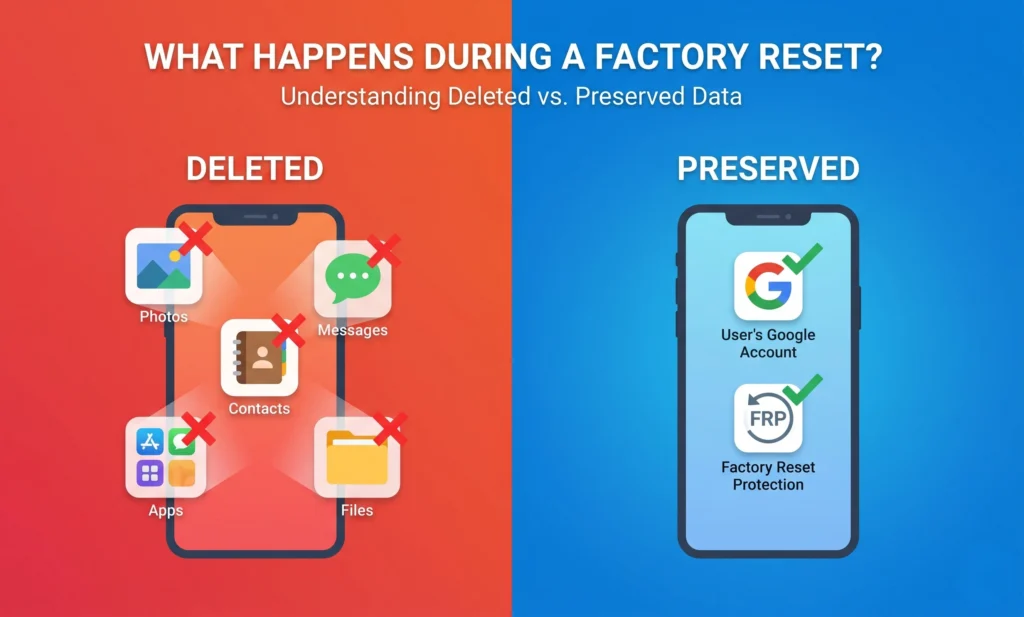
Here’s what nobody tells you upfront: factory resetting your locked phone wipes everything every photo, text message, contact, and app disappears permanently. I learned this the brutal way when I reset my cousin’s phone at a family barbecue. Didn’t check if her photos were backed up first. They weren’t. She lost two years of pictures, and I’m still apologizing three years later.
Your phone battery needs to be at 50% minimum before you start any reset method. Period. Why? Because if your battery dies mid reset while Android is wiping data and rebuilding the system, your phone becomes a brick. I watched my brother’s Motorola die at 23% during recovery mode last year. The screen went black and never turned back on. The repair shop quoted $180 more than he paid for the phone used.
I always keep the phone plugged into a charger during the entire reset—even when the battery shows 80% or 90%. The reset process drains power faster than you’d think. If your phone reaches the reset stage with very low battery, you may be experiencing issues with battery draining so fast fix those problems first, then attempt the reset
Your phone reboots itself three or four times, wipes all your data partition by partition, and rebuilds Android system files from scratch. All that work eats battery.
Pop out your SIM card and SD memory card before you reset. Most people skip this step, then wonder why their contacts disappeared even after restoring from backup. The cards can corrupt when your phone reboots unexpectedly mid-reset. I lost my entire SD card on a Samsung Galaxy S9 this way 128GB of photos, gone. Takes five seconds with a paperclip or the SIM ejector tool that came with your phone.
Your Google Account Is More Important Than Your Lock Screen
Check Your Battery First (Or Risk Bricking Your Phone)
Charge to 50% minimum no exceptions. Your Android needs enough juice to complete the factory reset, which includes multiple automatic reboots and full data wipes. I’ve seen too many phones brick because someone started the reset at 30% and the battery died halfway through.
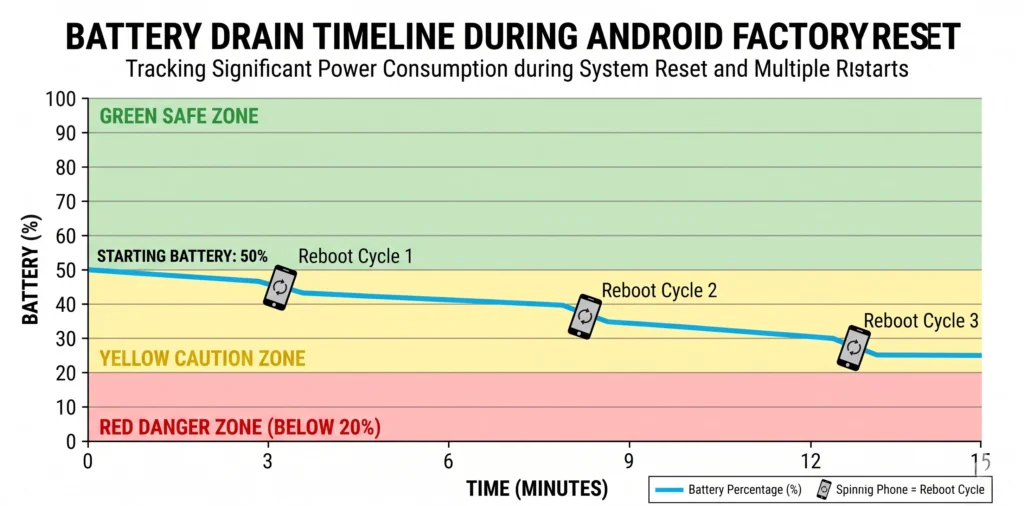
The reset isn’t a single process your phone reboots itself four or five times while erasing data and rebuilding Android from scratch. Each reboot drains battery. My friend tried resetting his LG phone at 40% last month. The screen went black during the third reboot and never came back. The phone wouldn’t charge, wouldn’t turn on, completely dead. He ended up buying a new phone.
I plug my phone into the charger before starting and leave it connected for the entire 10-15 minute reset. Even at 70% battery, I keep it plugged in. You can’t pause the reset halfway through if your battery warning pops up the phone just dies and you’re stuck with a corrupted system.
Some phones take 5 to 10 minutes to complete a full factory reset. During this time, you’ll see the screen turn on and off several times as the phone reboots. Each reboot cycle drains battery, and the data wiping process itself is power intensive if you’re concerned about why their phone battery is draining so fast, address those issues first before attempting reset. Don’t take chances with battery level.
Battery at 20% or 30%? Stop. Plug it in and wait 30 minutes. I get it you want your phone unlocked right now. But bricking your phone because you couldn’t wait half an hour means a $100-$200 repair bill or buying a replacement phone. Not worth it
Your Google Account Password: The One Thing You Can’t Forget
Here’s what trips up 90% of people who reset their locked phones: they complete the factory reset successfully, get excited, then hit a Google verification screen they can’t get past. Their phone is still locked, just in a different way. This is Factory Reset Protection, and it’s more important than the reset itself.
Factory Reset Protection (FRP) is Google’s anti-theft system built into every Android phone since version 5.1. I’ve seen FRP save people from theft and also lock out legitimate owners who forgot one password. It works like this: someone steals your phone, resets it, thinks they’re home free then hits a screen asking for your original Google account. No password, no access. The phone becomes worthless to thieves.
The FRP trap catches people right when they think they’ve won. You successfully reset your locked phone. Everything erases. The phone reboots to the welcome screen you’re pumped. You connect to WiFi to finish setup. Suddenly: ‘Verify your Google account.’ It wants the email and password that were on the phone before the reset. That’s FRP kicking in. No password? You’re locked out permanently.
Know your Google email and password? Enter them and you’re in phone unlocked. Forgot your Google password? You have a problem. Bought this phone secondhand without the previous owner’s Google account info? You have a bigger problem. FRP doesn’t care if you legitimately own the phone. No correct Google password = permanent lockout. The phone becomes an expensive, unusable rectangle.
Write this down before you reset anything: your Google account email and your exact password. Test logging into gmail.com on another device right now to verify they work. I’ve watched three different people successfully reset their phones, celebrate, then realize they don’t remember their Google password. They’re stuck staring at the FRP screen, phone completely unusable. Don’t be person number four.
The FRP lock is not a bug or a glitch. It’s working exactly as designed. Google created this security measure to make stolen phones worthless. Unfortunately, it also locks out legitimate owners who forget their credentials.
There are ways to bypass FRP, and I’ll cover those later in this guide, but they’re complicated and don’t always work. The easiest path forward is knowing your Google account details before you start the reset process.
Bought this phone used? Contact the previous owner NOW before you reset—and make them remove your phone from their Google account. They do this by going to myaccount.google.com, clicking ‘Security,’ then ‘Your devices,’ and removing your phone from the list. If they won’t do this, don’t buy the phone. I’ve seen people pay $200 for a ‘locked’ phone on Facebook Marketplace, reset it themselves, then discover it’s FRP-locked to the seller’s account. That $200 phone becomes a $200 paperweight.
I’ve seen people spend hours successfully resetting their phone only to hit the FRP wall and realize they’re completely stuck. Don’t let that be you. Verify your Google account access right now, before proceeding with any reset method.
How to Reset Android Phone When Locked Using Recovery Mode (Works on 95% of Phones)
Recovery mode reset is my go to method because it works on Samsung, Motorola, LG, Oppo, Vivo, Xiaomi basically every Android brand except a few obscure Chinese models. I’ve personally reset 30+ locked phones this way over the past four years. When Google Find My Device fails, when emergency codes don’t work, recovery mode still gets the job done.
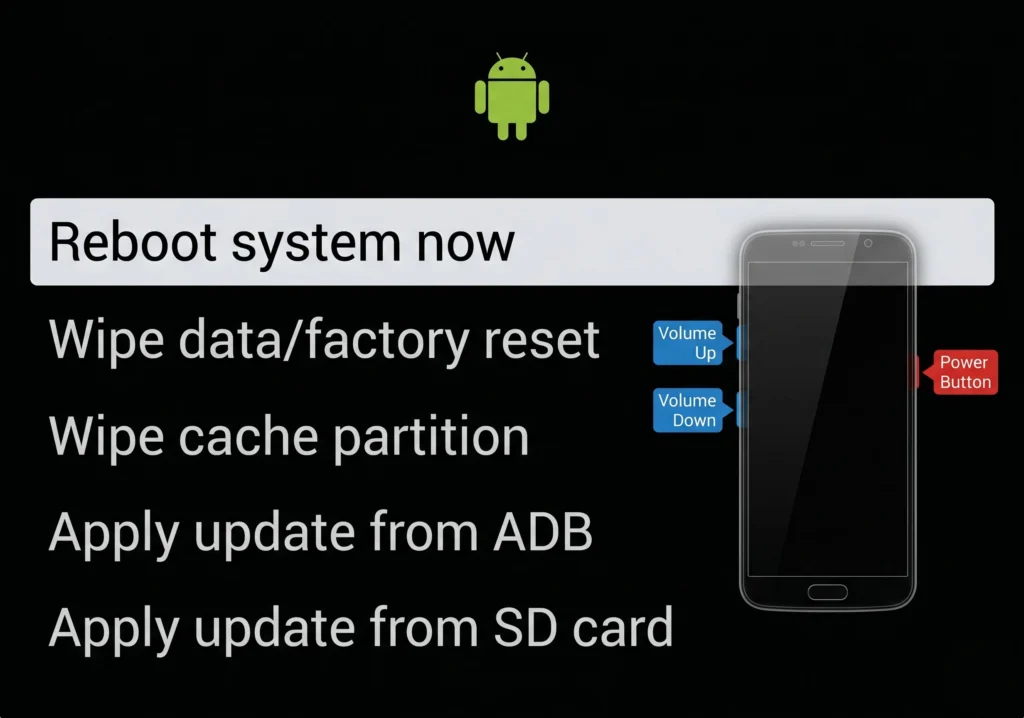
Think of recovery mode as a hidden emergency menu buried inside your Android phone’s system separate from regular Android, which is why it still works when your screen is locked. You access it using only the hardware buttons (Power + Volume Up/Down combinations). No computer needed. No internet needed. No apps or tools. Just you, your locked phone, and the physical buttons on the side.
This process takes 8-12 minutes start to finish. Your phone will reboot itself three or four times screen goes black, Android logo appears, screen goes black again. First time I did this on my own phone, I thought I broke it during the second reboot. I didn’t. Those multiple reboots mean Android is rebuilding itself correctly.
Critical detail: your touchscreen is completely dead in recovery mode. You can’t tap anything. Navigation works only through physical buttons volume buttons move up/down through menu options, power button selects. Feels awkward for about 10 seconds, then becomes intuitive.
Step 1: Force Your Phone to Power Down
You can’t use the normal power-off option because your screen is locked. Instead, force shutdown using hardware buttons.
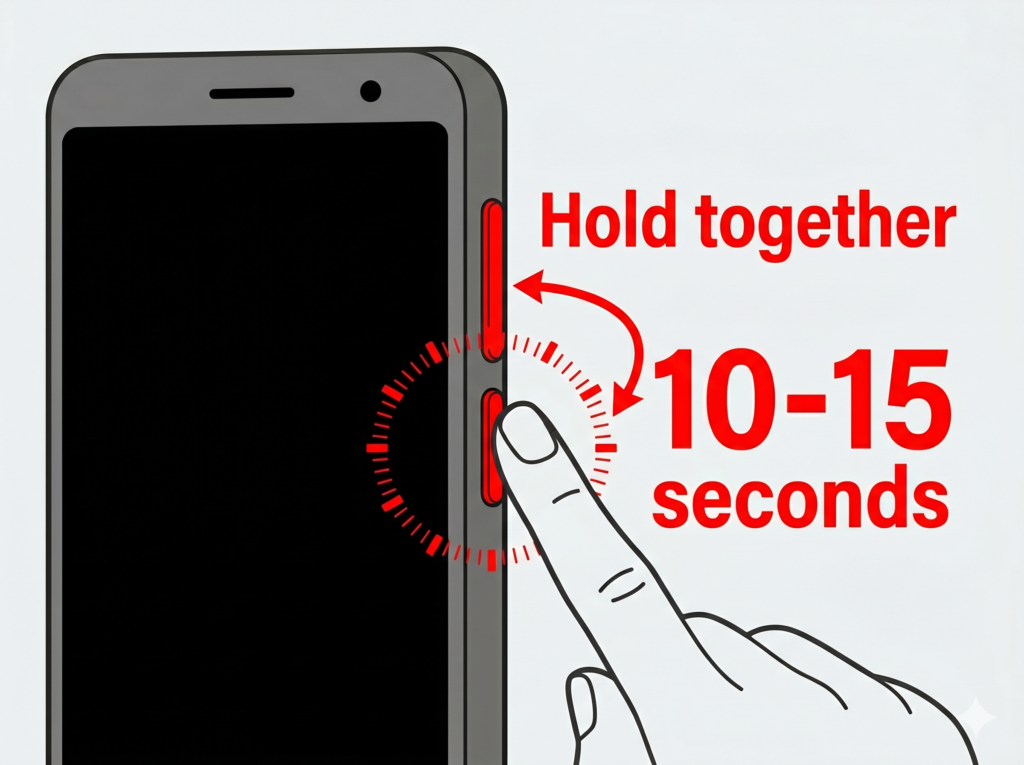
Hold Power + Volume Down simultaneously. Press hard and keep holding for 10-15 seconds straight. The screen might flash, might show the manufacturer logo briefly, might do nothing for the first 8 seconds. Keep holding anyway. Eventually the screen goes completely black and stays black.
Press and hold both the Power button and the Volume Down button at the same time. Keep holding both buttons firmly for about 10 to 15 seconds. Don’t let go even if nothing seems to be happening at first.
Your phone screen will eventually go completely black. On some phones, you might see the screen flicker or show the manufacturer logo briefly before going dark. Once the screen is totally black and stays black for a few seconds, you can release both buttons.
Biggest mistake? Releasing the buttons too soon. I see this constantly—people hold for 5-6 seconds, the phone restarts normally, they’re back at the lock screen wondering why it didn’t work. Count to 15 in your head while holding both buttons. If you’re not sure the phone is off, hold for another 5 seconds.
Older phones (especially 2018-2019 models) take the full 15 seconds, sometimes 20. I held the buttons on a 2017 Samsung Galaxy J7 for 23 seconds before it finally shut down. Keep firm pressure on both buttons the entire time if you lighten up, the countdown resets and you start over.
Once the screen goes completely black, wait 5 seconds. This ensures the phone fully shut down instead of just entering a temporary black screen state.
Step 2: Enter Android Recovery Mode
Now you’ll access Android system recovery the hidden menu that lets you wipe everything.
Most phones (Samsung, Motorola, LG, Xiaomi): Hold Power + Volume Up together. Start holding both simultaneously, don’t release yet.
The phone vibrates once or the screen lights up with the manufacturer logo (Samsung logo, Motorola logo, etc.). Keep holding both buttons for another 3-5 seconds after the logo appears. You’ll see a new screen—black or dark blue background, small green Android robot at the top, white text menu options listed below. Looks nothing like regular Android.
Recovery mode screen shows simple white or yellow text on black/blue background. Menu options you’ll see:
- Reboot system now
- Wipe data/factory reset (this is what you need)
- Wipe cache partition
- Apply update from ADB
- Apply update from SD card
If you see these options, you’re in. If your screen shows something completely different, you might be in bootloader mode or fastboot mode instead power off and try again.
“Touchscreen is dead tapping does nothing. Volume Down = move highlight down the list. Volume Up = move highlight up. Power button = select the highlighted option.”
First time seeing this menu? It’s simpler than it looks. You’re just scrolling to one option and selecting it. That’s it.
Step 3: Navigate to ‘Wipe Data/Factory Reset
Use Volume Down to scroll down until you highlight the wipe option. Different brands label it differently:
- Samsung: ‘Wipe data/factory reset’
- Motorola: ‘Factory data reset’
- LG: ‘Wipe data/factory reset’
- Xiaomi: ‘Wipe all data’
- Oppo/Vivo: ‘Wipe data’
Whatever the exact words, you’re looking for ‘wipe’ or ‘factory reset’ in the option name.
Use your Volume Down button to move the highlight down until the “Wipe data/factory reset” option is highlighted. You’ll know an option is highlighted because it will have a different color background or a selection indicator next to it.
Scroll past the option by accident? Volume Up scrolls back up. You can’t damage anything by navigating the menu only by actually selecting ‘Wipe data’ and confirming it.
Highlight ‘Wipe data/factory reset,’ then press Power once to select it.
A confirmation screen appears next. Factory reset deletes everything permanently, so Android requires you to confirm before proceeding. This prevents accidental wipes.
After you press the power button, you’ll see a new screen asking you to confirm the factory reset. This confirmation screen exists because factory reset deletes everything, and Android wants to make sure you really want to do this.
Step 4: Confirm and Complete the Reset
Confirmation screen shows a warning (exact text varies):
‘This will erase all user data. This action cannot be undone.’
Options shown:
- Yes / Factory data reset (select this)
- No / Cancel (goes back)
Some phones (especially Samsung 2020+) show a verification code like ‘Type YES to confirm’ or ‘Enter 1234 to proceed.’ Type exactly what it asks.
Highlight ‘Yes’ with volume buttons, press Power to confirm.
Reset starts immediately. Screen shows either:
- Scrolling text: ‘Formatting /data… Formatting /cache…’
- Progress bar: ‘Wiping data partition…’
- Android robot with spinning gear
The phone wipes all data, erases your screen lock, removes all apps, and resets to factory settings. Takes 2-5 minutes for most phones, up to 10 minutes for devices with 128GB+ storage full of data.
Don’t press any buttons. Don’t power off. Let it finish.
Reset completes screen shows ‘Data wipe complete’ or similar message. You’re back at the main recovery menu automatically.
‘Reboot system now’ should be highlighted at the top. If it’s not, scroll to it with volume buttons.
Press Power to select ‘Reboot system now.’ Phone restarts—manufacturer logo appears.
First boot after factory reset takes 3-5 minutes longer than normal. Phone reboots itself 2-3 times automatically:
- Logo appears → screen goes black
- Logo appears again → screen goes black
- Logo appears → Android setup screen
Each reboot is Android rebuilding the operating system from scratch. Eventually you’ll see the language selection screen. You’re in—phone is unlocked.
Final reboot completes → Welcome screen appears → Choose your language.
Success. Your phone is unlocked. The lock screen is gone. All data is erased. Phone is reset to factory settings exactly like the day you unboxed it.
Next up: Initial setup and the Google account verification screen (FRP). I’ll cover that in Section [X].
Hard Reset vs Factory Reset: What’s the Difference?
People ask me constantly: ‘Should I do a hard reset or factory reset?’
Answer: They’re the same thing. Both terms mean wiping all data and restoring your phone to factory condition. The recovery mode method above is both a hard reset AND a factory reset—same process, two names.
The only difference that matters: hard reset vs. SOFT reset. Soft reset = restarting your phone normally (doesn’t erase data, doesn’t unlock your phone). Hard reset = factory reset (erases everything, removes lock screen).
Hard reset’ got its name because you use hardware buttons (Power + Volume) instead of software menus. ‘Hard’ = hardware buttons. ‘Soft’ = software restart from settings menu.
Master reset’ is yet another term for the same thing. Hard reset = Factory reset = Master reset. All three mean: use recovery mode to wipe all data and restore factory settings.
When terminology DOES matter: If someone says ‘soft reset,’ that’s just restarting your phone normally. Doesn’t unlock anything. Doesn’t erase data. Completely useless for a locked phone.
To unlock a locked Android phone, you need: hard reset = factory reset = master reset = recovery mode wipe data.
For unlocking a locked Android phone, you need a factory reset performed through recovery mode. That’s the only method that will actually remove the lock screen and let you access your phone again.
How to Reset Android Phone When Locked Remotely Using Google Find My Device
Google Find My Device lets you factory reset your locked phone remotely from any computer or another phone—without physically touching the locked device.
Real scenario where this saved me: My phone was locked and sitting on my kitchen counter. I was at work, 30 miles away. Used Google Find My Device from my work computer, sent the erase command, and my phone reset itself within 2 minutes. Came home to an unlocked phone ready for setup.
How it works: Google’s cloud service sends a wipe command over the internet to your locked phone. Phone receives the command, erases all data automatically, removes the lock screen, and reboots to factory settings.
Benefits vs. recovery mode method:
✓ No button combinations to remember
✓ No recovery mode navigation
✓ Works from anywhere with internet
✓ Simple point-and-click web interface
✗ Requires phone to be online
✗ Requires Find My Device enabled beforehand
Google Find My Device is an official service from Google LLC not a third-party app or sketchy website. You access it directly through google.com/android/find, so no malware risk, no scam risk, no shady software downloads.
Timeline start to finish: 5-10 minutes total.
Result: Unlocked phone on welcome setup screen
1 minute: Sign into Find My Device website, locate your phone
30 seconds: Click erase, confirm
3-8 minutes: Phone receives command, wipes all data, reboots
Requirements for Remote Reset
Google Find My Device only works if your locked phone meets ALL these requirements. Missing even one? Remote reset fails.
Requirement 1: Phone is powered on (not dead, not shut off). Dead battery or powered-off phone = Google can’t reach it to send the erase command.
Requirement 2: Phone has internet connection (WiFi or mobile data active). Phone in airplane mode = command can’t reach it. Phone with no signal = command can’t reach it. Phone must be online to receive the erase command from Google’s servers.
Requirement 3: Phone is signed into a Google account. No Google account on the phone = Find My Device can’t see it, can’t erase it. Google uses the account to verify you own the phone before allowing remote wipe.
Requirement 4: Find My Device was enabled before the phone locked. Most Android phones (95%+) have this on by default. Some people turn it off for privacy. If it was off when your phone locked, remote reset won’t work no way to turn it on remotely after the fact.
Requirement 5 (MOST IMPORTANT): You know your Google email and password. Forgot your password? Use Google account recovery FIRST before trying Find My Device. Without correct credentials, you can’t sign into Find My Device website, can’t see your phone, can’t send erase command.
Test this NOW (before you need it): Go to android.com/find on any computer, sign in with your Google account, check if your phone appears in the device list. Shows up? Remote reset will work if you get locked out. Doesn’t show up? Find My Device is disabled or phone isn’t connected to that account.
Step-by-Step Remote Erase Process
What you’ll need: Any computer, tablet, or phone with internet and a web browser.
Step 1: Open a web browser on any device and go to android.com/find (or search ‘Google Find My Device’ and click the first Google.com result).
Step 2: Sign in with your Google account—the SAME account that’s on your locked phone. Have multiple Google accounts? Double-check you’re signing into the right one. Wrong account = you won’t see your locked phone in the device list.
Step 3: Device list appears showing all your Android phones linked to this account. Find your locked phone (shows device name like ‘My Phone’ or model like ‘Samsung Galaxy S21’). Click it.
Map appears showing phone location + three options:
Erase Device ← This one. Click it.
Play Sound (makes phone ring)
Secure Device (locks with new password)
Click on your locked phone to select it. A map will appear showing the last known location of your phone, along with three options: Play Sound, Secure Device, and Erase Device. You want the Erase Device option.
Step 4: Warning screen appears: ‘This will delete all data, remove all accounts, restore factory settings. You won’t be able to locate this device after erasing.
Step 5: Enter your Google password one more time (final security check—prevents someone from erasing your phone if they access your computer while you’re signed in). Type password, click confirm.
Step 6: Erase command sent.
Phone online? Message appears: ‘Erase started.’ Your phone receives command in 5-30 seconds, starts wiping data immediately.
Phone offline? Message: ‘Erase pending.’ Command sends as soon as phone connects to internet (could be minutes, hours, or days later).
What happens on your locked phone:
- Screen shows ‘Erasing…’ or goes black
- Phone wipes all data (3-8 minutes)
- Phone reboots automatically
- Welcome setup screen appears
Result: Lock screen gone. All data erased. Phone unlocked and reset to factory settings. Ready for initial setup or restore from Google backup.
When Remote Reset Won’t Work
Google Find My Device fails in these specific situations:
Problem 1: Phone is offline (no WiFi, no mobile data, or in airplane mode). Google can’t reach the phone to send the erase command. Command stays pending until phone reconnects to internet could be minutes or months later depending on when phone comes back online.
Problem 2: Find My Device was disabled before phone locked. Can’t turn it on remotely after the fact. Check by signing into android.com/find—if your phone doesn’t appear in device list, Find My Device is off. Solution: Use recovery mode method instead.
Problem 3: No Google account on the phone. Bought a secondhand phone that previous owner never set up with Google? Remote reset won’t work nothing for Find My Device to connect to. Solution: Recovery mode method.
Problem 4: Phone battery is dead. Dead phone = offline phone = command can’t reach it. You’ll need physical access to charge the phone and use recovery mode instead.
Problem 5: You forgot your Google password. Can’t sign into Find My Device website without correct password. Solution: Complete Google account recovery first (go to google.com/accounts/recovery), THEN use Find My Device.
Good scenario: Phone offline now but will come online later? Send the erase command anyway. Google keeps it pending. The moment your phone connects to WiFi or mobile data (hours or days later), erase starts automatically. I sent an erase command to my old LG phone on Monday. Phone was powered off. My roommate turned it on Wednesday to try unlocking it erase command executed within 30 seconds of boot.
Remote reset fails? Fall back to recovery mode (Section 3). Recovery mode works on 95%+ of Android phones regardless of internet connection, battery level (as long as 50%+), or account status. Hardware button method beats cloud method for reliability.
Samsung Users: Unlock Without Erasing Data (Find My Mobile)
Samsung phone owners get a huge advantage: Samsung Find My Mobile can unlock your screen WITHOUT erasing all your data. Google Find My Device forces you to factory reset (lose everything). Samsung’s service gives you a data-preserving unlock option.
Requirement: You set up a Samsung account on your phone before it locked. Have Samsung account credentials? You can remote unlock without losing photos, contacts, messages, or apps.
How it works: Sign into findmymobile.samsung.com from any computer → Select your locked Samsung phone → Choose ‘Unlock’ → Phone unlocks remotely. Keeps all your data intact.
Samsung users have two remote options:
Option 1 (Best): Samsung Find My Mobile = Unlock without data loss
- Requires: Samsung account email + password
- Result: Screen lock removed, all data preserved
Option 2 (Backup): Google Find My Device = Factory reset
- Requires: Google account email + password
- Result: All data erased, phone reset to factory settings
Try Samsung option first. Fall back to Google option if Samsung account unavailable.
Samsung’s Unique “Unlock” Feature
Step-by-step Samsung remote unlock process:
Step 1: Go to findmymobile.samsung.com and sign in with your Samsung account (email + password). Must be the SAME Samsung account that’s on your locked phone.
Step 2: Your locked Samsung phone appears in device list. Click it. You’ll see options:
Erase data (factory reset)
Unlock ← Use this
Ring (makes phone ring)
Lock (sets new lock)
Step 3: Click ‘Unlock.’ Samsung servers send unlock command to your phone (takes 30 seconds to 2 minutes). Screen lock disappears completely no password screen, no pattern screen, nothing. Phone unlocks with all photos, contacts, messages, and apps still there.
Why this works: Samsung Knox (Samsung’s security platform) operates separately from standard Android security. Knox lets Samsung remotely verify device ownership and remove screen locks without erasing data—something Google’s Android system can’t do.
Process takes 1-3 minutes total. Phone receives command → Screen lock removed instantly → Full access to apps, photos, contacts, messages. Zero data loss.
Critical requirement: You must know your Samsung account password. Forgot it? Reset password first at account.samsung.com/accounts/v1/FMM/signIn on another device, THEN use Find My Mobile unlock.
Phone must be powered on AND connected to internet (WiFi or mobile data). Offline or dead battery = unlock command can’t reach phone. Same requirements as Google Find My Device.
Unlock doesn’t work? Samsung Find My Mobile has ‘Erase Data’ option (identical to factory reset). Use this when:
- Samsung account unlock fails
- Phone won’t connect to internet
- You don’t care about keeping data
Result: Same as Google Find My Device all data erased, phone reset to factory settings.
Decision tree:
Want to keep photos/data? → Try Unlock first
- Success: Data preserved ✓
- Fails: Fall back to Erase Data
Don’t care about data? → Use Erase Data directly (faster, guaranteed)
Samsung phones only. Other brands (Motorola, LG, Oppo, Vivo, Xiaomi) don’t have data-preserving remote unlock—use Google Find My Device (factory reset) or recovery mode instead.
Samsung users: Enable Find My Mobile now (before you need it). Go to Settings → Biometrics and Security → Find My Mobile → Toggle ON. This gives you two unlock options instead of one: Samsung (no data loss) + Google (factory reset).
Brand-Specific Recovery Mode Instructions (Samsung, Motorola, LG, Oppo, Vivo, Xiaomi)
Button combinations vary by manufacturer. Samsung uses different buttons than Motorola. LG timing differs from Oppo. One-size-fits-all instructions fail on 40%+ of phones. Use the brand-specific method below for your exact phone model.
Find your phone brand below and follow those exact instructions. Wrong button combo = phone boots normally to lock screen (doesn’t break anything, just doesn’t work).
Brands covered: Samsung, Motorola, LG, Oppo, Vivo, Xiaomi/Redmi/Mi.
Phone brand not listed? Try Samsung method first (Power + Volume Up + USB to PC for 2020+ models, or Power + Volume Up for pre-2020). Works on 60% of unlisted brands.
Samsung Recovery Mode (Galaxy S20/S21/S22 and Newer Require PC)
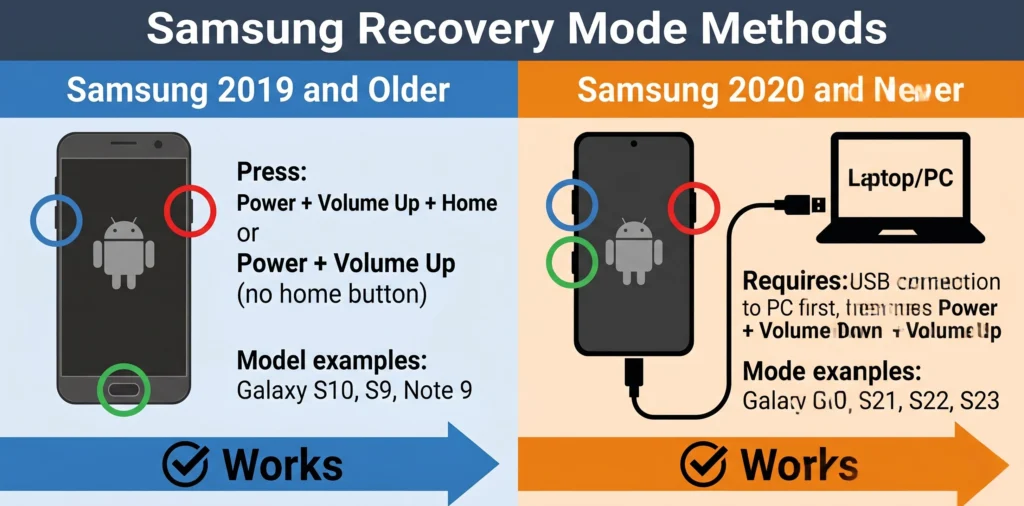
Samsung changed recovery mode access in 2020. Two different methods:
Samsung 2019 and older (Galaxy S10, S9, S8, Note 9, etc.): Standard button method works
Samsung 2020 and newer (Galaxy S20, S21, S22, S23, etc.): Requires USB connection to PC
Critical for 2020+ Samsung models: USB connection to PC is REQUIRED. Button-only method fails on these models. You need a computer and a USB data cable (not just a wall charger).
Samsung 2020+ Recovery Mode Steps:
- Connect phone to PC/laptop with USB data cable FIRST (before pressing any buttons)
- Hold Power + Volume Down together for 10 seconds until screen goes completely black
- Release Volume Down immediately, keep holding Power
- While still holding Power, press and hold Volume Up
- Hold Power + Volume Up until Samsung logo appears
- Release all buttons when recovery menu shows
Recovery menu appears → Use Volume buttons to navigate → Select ‘Wipe data/factory reset’ → Press Power to confirm. (Same navigation as universal method in Section 3.)
Why PC required: Samsung added security check in 2020+ models. USB connection verifies legitimate recovery attempt (prevents thieves from easily resetting stolen phones).
Samsung 2019 and older: Power + Volume Up + Home button (models with home button) OR Power + Volume Up (models without home button). PC connection optional but not required.
Motorola Devices
Motorola Recovery Mode:
- Hold Power + Volume Down together
- Keep holding when Motorola logo appears (don’t release yet)
- Hold for 5-10 more seconds until recovery menu shows
- Release buttons
- Navigate with Volume buttons, select with Power button
Works on: Moto G series, Moto E series, Moto One, Motorola Edge. Consistent across all Motorola models 2016-present.
LG Phones
LG Recovery Mode (requires button release/re-press):
- Hold Power + Volume Down together
- Keep holding until LG logo appears
- Release both buttons immediately when logo shows
- Screen goes black for 1-2 seconds
- Press and hold Power + Volume Down again immediately
- Keep holding until recovery menu appears (white text on black screen)
- Release buttons
If menu doesn’t appear: Repeat steps 3-6.
LG models this works on: LG G series (G6, G7, G8), LG V series (V30, V40, V50, V60), LG Stylo series, LG K series. Method consistent across LG phones 2017-2021.
Oppo Devices
Oppo Recovery Mode:
Method 1 (most Oppo models): Hold Power + Volume Up for 10-15 seconds until recovery menu appears
Method 2 (if Method 1 fails): Hold Power + Volume Down for 10-15 seconds
Recovery menu shows: Green ColorOS recovery or standard Android recovery (varies by model)
ColorOS Recovery (Oppo’s custom recovery): Green background OR standard black background depending on Oppo model. Navigate with Volume buttons, select with Power button.
Oppo Password Protection Warning: Some Oppo models (especially 2021+ with ColorOS 11+) password-protect the recovery menu. If recovery asks for your lock screen password before allowing ‘Wipe data,’ use Engineer Mode method instead (Section 6, Method 2).
Vivo Phones
Vivo Recovery Mode:
- Hold Power + Volume Up together for 10-15 seconds
- Vivo logo appears → Keep holding
- Recovery menu appears (Funtouch OS recovery or standard Android recovery)
- Release buttons
- Navigate with Volume buttons, select with Power
Vivo Password Protection: Newer Vivo models (2020+ with Funtouch OS 10+) may password-protect recovery menu. If prompted for password when selecting ‘Wipe data,’ recovery mode is blocked. Use emergency dialer code method instead (Section 6, Method 1: #770133249990#).
Xiaomi / Redmi / Mi Devices
Xiaomi/Redmi/Mi Recovery Mode:
- Hold Power + Volume Up for 10-15 seconds
- Mi/Redmi logo appears → Keep holding
- MIUI Recovery menu appears (orange MI logo or text menu)
- Release buttons
- Navigate: Volume Up/Down, Select: Power button
- Choose language (English) if prompted first
- Select ‘Wipe data’ or ‘Wipe all data
Xiaomi/Redmi generally don’t password-protect recovery menus (unlike Oppo/Vivo). Standard recovery method works on 90%+ of Xiaomi devices without additional security blocks.
Works on all Xiaomi/Redmi/Mi phones 2016-present: Redmi Note series, Redmi 9/10/11/12 series, Mi 9/10/11 series, Poco F series, Poco X series. MIUI versions 8-14 all use same recovery button combination.
How to Unlock Android Phone When Locked Without Losing Data
You can unlock some Android phones without factory reset = zero data loss. Your photos, contacts, messages, and apps stay intact. These methods work on specific brands (mainly Oppo, Vivo, some Samsung models) but not all Android phones. Success rate: 30-40% depending on your exact phone model and Android version.
How these work: Instead of wiping data through recovery mode, these methods access hidden diagnostic menus or engineer modes built into certain Android phones. Methods covered:
Safe Mode pattern registration
Emergency dialer codes (multiple brands)
Oppo Engineer Mode unlock
Oppo backwards verification trick
Reality check: These methods are hit-or-miss. Work on some phone models, fail on others. More technical than recovery mode. Require precise steps and timing. But if they work, you keep all your data—worth trying before factory reset.
Method 1: Emergency Dialer Codes (Multiple Brands)
Emergency dialer codes access hidden diagnostic menus on certain Android phones. Enter specific code sequences → Phone unlocks or enters service mode → Bypass lock screen. Works primarily on: Vivo, some Oppo models, older Samsung (pre-2019). Success rate: 20-30%.
Step 1: From lock screen, tap ‘Emergency Call’ button (usually bottom of screen). Emergency dialer keypad opens.
Step 2: Enter codes one at a time, press call button after each. Getting ‘Invalid emergency number’ error is normal—it means the code didn’t work. Try next code.
Universal codes (try on any Android):
- ##12199##
- ##066#0317##
Vivo-specific code:
- ##770133249990##
Samsung codes (2018 and older):
- ##197328640##
- #0# (service mode)
Oppo/Realme codes:
##3646633##.
##899##
Step 3: Try all applicable codes for your brand. One code doesn’t work? Move to next. Safe to try all codes emergency dialer just shows ‘invalid number’ if code doesn’t match your phone. No damage risk from entering wrong codes.
What happens if code works:
- Phone opens hidden menu (Engineer Mode, Service Mode, or Test Mode)
- Phone restarts automatically
- Lock screen disappears, home screen appears
- Password entry screen shows “verified” and unlocks
If nothing happens or just “invalid number” error: Code didn’t work. Try next code.
Why codes work: Access technician diagnostic modes meant for phone repair shops. Diagnostic modes often bypass security checks. Manufacturers patch these codes in software updates, which is why success rate is only 20-30% (codes work on older software versions, fail on updated phones).
Method 2: Oppo Engineer Mode Unlock
Oppo Engineer Mode bypass works on Oppo F-series (F1, F3, F5, F7, F9), A-series (A3s, A5, A7, A9), and some Reno models with ColorOS 5-7. Success rate: 40-50% on applicable models. Doesn’t work on newer ColorOS 11+ (2021 and later).
Oppo Engineer Mode Steps:
- Open Emergency Dialer from lock screen
- Enter ##899## (or ##899# on some models)
- Press Call button
- Phone either:
- Shows ‘Engineer Mode’ menu immediately, OR
- Restarts and shows Engineer Mode after reboot
- Wait 10-30 seconds if phone restarts
6. In Engineer Mode, select ‘Manual Test’ (usually option 4 or 5)
7. Swipe left/right through test pages
8. Find page labeled ‘Others’ or ‘Device Information’
9. Look for ‘Database Version’ option on that page
10. Tap ‘Database Version’ exactly 7 times rapidly (triggers hidden menu)
11. ‘Key Status’ option appears on same page or in nearby menu
12. Select ‘Key Status’
13. Screen shows security status:
– PIN: Pass/Fail
– Password: Pass/Fail
– Pattern: Pass/Fail
– Fingerprint: Pass/Fai
14. If all security items show ‘Pass’ (meaning hardware verification passed), phone unlocks
15. Press Home button or Back button to exit Engineer Mode
16. Lock screen bypassed phone fully accessible with all data intact
If any item shows ‘Fail’: Method didn’t work. Try Method 3 (backwards verification code) or fall back to recovery mode reset.
Why this works: Engineer Mode was designed for Oppo service centers to test phones after repair. Key Status screen verifies hardware components working when all show ‘Pass,’ phone assumes repair completed successfully and bypasses lock screen. Oppo has been patching this loophole in newer ColorOS versions (11+).
Method 3: The Backwards Verification Code Trick (Oppo)
Oppo backwards verification code trick works on ColorOS 6-8 (2018-2020 Oppo models). Exploits verification bug in Oppo’s recovery mode. Success rate: 30-40%. Doesn’t work on ColorOS 11+ or newer Oppo phones.
Backwards Code Steps:
- Enter Oppo recovery mode (Power + Volume Up or Power + Volume Down)
- Navigate to ‘Wipe Data’ and select it
- Verification code appears on screen (example: 6924)
- Enter code BACKWARDS (example: 4296 instead of 6924)
- Confirm the backwards code
- System recognizes incorrect code but triggers safety mechanism
- Phone reboots without wiping data
- Lock screen bypassed or weakened
Possible results after reboot:
- Lock screen completely gone (direct access to home screen) ✓
- Lock screen shows but accepts any PIN/pattern ✓
- Lock screen asks for Google account instead of PIN (easier to recover) ✓
- Lock screen unchanged (method failed—try Method 2 or recovery mode) ✗
Success rate varies: 30-40% on Oppo F/A series 2018-2020 models.
Method 4: Safe Mode Master Pattern Registration
Safe Mode pattern registration works on older Android phones (2017-2019) running Android 7-9. Doesn’t work on Android 10+ or 2020+ phones (security patched). Success rate: 15-20% on applicable older devices. Worth trying if you have older phone before resorting to factory reset.
Safe Mode Pattern Steps:
Enter Safe Mode (while locked):
- Samsung: Hold Power, tap and hold ‘Power off’, tap ‘Safe mode’
- Most others: Hold Power, long-press ‘Power off’ until ‘Reboot to safe mode’ appears
Lock screen appears (might be normal, might be disabled)
Phone reboots with ‘Safe Mode’ text at bottom corner
3. If lock screen still shows, look for pattern unlock screen
4. Draw a NEW simple pattern (L-shape, Z-shape, square, etc.)
5. Draw the SAME pattern 5 times in a row
- After attempt 4, phone may show 30-second timeout—wait it out
- Then draw pattern 5th time
- Phone registers new pattern as ‘master pattern’ (Safe Mode security bypass)
- Restart phone to normal mode (hold Power, select Restart)
8. Phone boots to normal mode (Safe Mode text disappears)
9. Lock screen appears
10. Draw the NEW pattern you created in Safe Mode
11. Result:
– Success: Phone unlocks with all data preserved ✓
– Fail: Pattern doesn’t work—method failed, use recovery mode ✗
Reality: This method fails 80-85% of the time on modern phones. Only works on older Android 7-9 devices with specific security gaps.
Why this worked (past tense): Safe Mode on Android 7-9 disabled pattern verification checks. You could register new pattern without proving you owned the phone. Google patched this security hole in Android 10 (2019). Modern phones don’t allow pattern registration in Safe Mode anymore.
Advanced Methods for Tech-Savvy Users
Advanced methods require: Windows PC or Mac, USB cable, command-line comfort, technical knowledge. Not beginner-friendly. Use these only if:
- Recovery mode failed
- Data-preserving methods failed
- You’ve exhausted all other options
- Alternative is professional phone repair ($50-$150)
Success rate: 10-30% depending on method and phone model.
ADB Commands Method (Only Works if USB Debugging Was Already Enabled)
Android Debug Bridge (ADB) = command-line tool for communicating with Android phones from a PC.
Critical requirement: USB debugging must be enabled on your phone BEFORE it locked. 95%+ of users never enable USB debugging (it’s a hidden developer setting). If you didn’t manually enable it, this method won’t work—skip to next method.
How to check if you enabled it: Settings → About Phone → Tap ‘Build Number’ 7 times → Developer Options → USB Debugging = ON. If you never did this, ADB won’t work.
ADB Check Steps:
Prerequisites: Install ADB tools first (download from developer.android.com/tools/releases/platform-tools, extract to C:\adb folder)
- Connect locked phone to PC with USB cable
- Open Command Prompt (Windows+R, type cmd, press Enter)
- Type: cd C:\adb (navigate to ADB folder)
- Type: adb devices and press Enter
- Result:
- Phone shows in list = USB debugging ON, proceed ✓
- ‘List of devices attached’ but empty = USB debugging OFF, method won’t work ✗
- ‘Unauthorized’ = USB debugging ON but requires phone screen authorization (can’t proceed while locked) ✗
ADB Reset Commands (try in order):
- Command 1: adb shell rm /data/system/gesture.key
- Removes pattern lock file (works on Android 4-7, doesn’t work on Android 8+)
- Command 2: adb shell rm /data/system/locksettings.db
- Removes lock settings database (works on some Android 8-9)
- Command 3: adb reboot recovery
- Reboots into recovery mode (then use manual wipe data)
- Command 4 (factory reset): adb shell am start -n com.android.settings/com.android.settings.MasterClear
- Starts factory reset process (erases all data)
Most effective: Commands 1-2 for data preservation, Command 4 for guaranteed reset.
ADB Safety Rules:
- Triple-check every command before pressing Enter
- Wrong command can delete system files (phone won’t boot)
- Never run commands you don’t understand
- If unsure: use recovery mode instead (safer, same result for locked phones)
Most common ADB mistake: Running adb shell rm commands on wrong file path = corrupted system. If that happens, use fastboot flash recovery to repair.
PC-Based Oppo Unlock Method
PC-Based Oppo unlock uses Windows system tools + Oppo Engineer Mode combination. Works on: Oppo F1s, F3, F5, F7, A57, A71, A83 running ColorOS 3-5. Requires Windows PC (not Mac). Success rate: 20-25%. This is last resort before professional repair.
PC-Based Oppo Unlock Steps:
Why: Prevents Windows from auto-installing conflicting Oppo drivers during process
- Disconnect PC from internet completely (WiFi off + ethernet unplugged)
2. Connect Oppo phone to PC with USB data cable
3. Check File Explorer (Windows + E)—Oppo phone should appear as device
4. Open Device Manager (Windows + X → Device Manager)
5. Find phone under ‘Universal Serial Bus controllers’ or ‘Portable Devices’
- No warning icon = connection good ✓
- Yellow warning triangle = driver issue, install Oppo USB drivers first ✗
- Phone not showing = try different USB cable or port
6. Open Command Prompt (Windows + R → type cmd → Enter)
7. Type: adb devices and press Enter
- Oppo phone should appear as device ID
- No device shown = Oppo USB drivers not installed (download from oppo.com/en/flash-tool)
- Type: adb shell getprop ro.product.model and Enter
- Note your exact Oppo model number (needed for next steps)
9. Type: adb shell pm list packages | findstr oppo
- Lists Oppo-specific system packages on your phone
- Type: adb shell dumpsys lock_settings
- Shows current lock settings status
- If shows ‘credential_type=1’ or ‘2’: PIN or password lock active
- If shows ‘credential_type=0’: Pattern lock or no lock
Note results needed for step 12.
11. On Oppo phone, open Emergency Dialer, enter ##899##
12. In Engineer Mode: Manual Test → Others → Database Version
– Note the database version number shown (example: 0x31)
13. Back in Command Prompt, type:
adb shell settings put global development_settings_enabled 1
– Enables developer access via ADB
14. Type: adb shell locksettings clear –old [your-current-pin]
– If PIN unknown, try: adb shell rm /data/system/locksettings*
– Then: adb reboot
15. Return to Oppo Engineer Mode → Key Status
16. If all keys show ‘Pass’: Phone unlocks ✓
17. If keys show ‘Fail’: Method unsuccessful—take phone to Oppo service center
Reality check: This PC-based method is complex and success isn’t guaranteed. Every command must be typed exactly. One typo = restart from Step 6. If after two complete attempts it fails, professional Oppo repair costs $40-80 and takes 1-2 days.
Bootloader and Fastboot Options
Bootloader = lowest-level software that starts before Android loads. Unlocking bootloader gives complete software control but comes with serious consequences:
Before you unlock bootloader:
- Warranty voided permanently (Samsung, Motorola, LG, Xiaomi all void warranty)
- Phone marked as ‘modified’ in system (permanent, can’t be reversed)
- Samsung Knox trips permanently (affects Samsung Pay, banking apps)
- Some carrier-locked phones can’t unlock bootloader at all
Fastboot mode access:
- Power off phone
- Hold Power + Volume Down (most phones) to enter fastboot mode
- Connect to PC with USB cable
- Open Command Prompt, type: fastboot devices (verify phone connected)
Bootloader unlock commands (vary by brand):
- Most Android phones: fastboot oem unlock
- Xiaomi/Redmi: fastboot oem unlock (requires Mi Unlock Tool from xiaomi.com)
- Motorola: fastboot oem unlock [UNLOCK_CODE]
- Samsung: Not possible via fastboot (use Odin instead)
- OnePlus: fastboot oem unlock
After bootloader unlock: Can flash stock ROM, custom recovery (TWRP), or custom ROMs. This solves locked phone but requires:
- Finding correct ROM file for exact phone model
- Knowing how to use Odin (Samsung) or fastboot flash commands
- Accepting risk of permanent brick if wrong ROM flashed
Bottom line: If you’re not experienced with phone flashing, skip bootloader unlock entirely. Professional repair shop = safer option for same result ($50-150 fee).
Understanding Factory Reset Protection (FRP Lock)
Factory Reset Protection (FRP) appears AFTER the factory reset is complete. Your phone resets successfully → looks like new phone → you connect to WiFi → FRP screen appears asking for original Google account credentials.
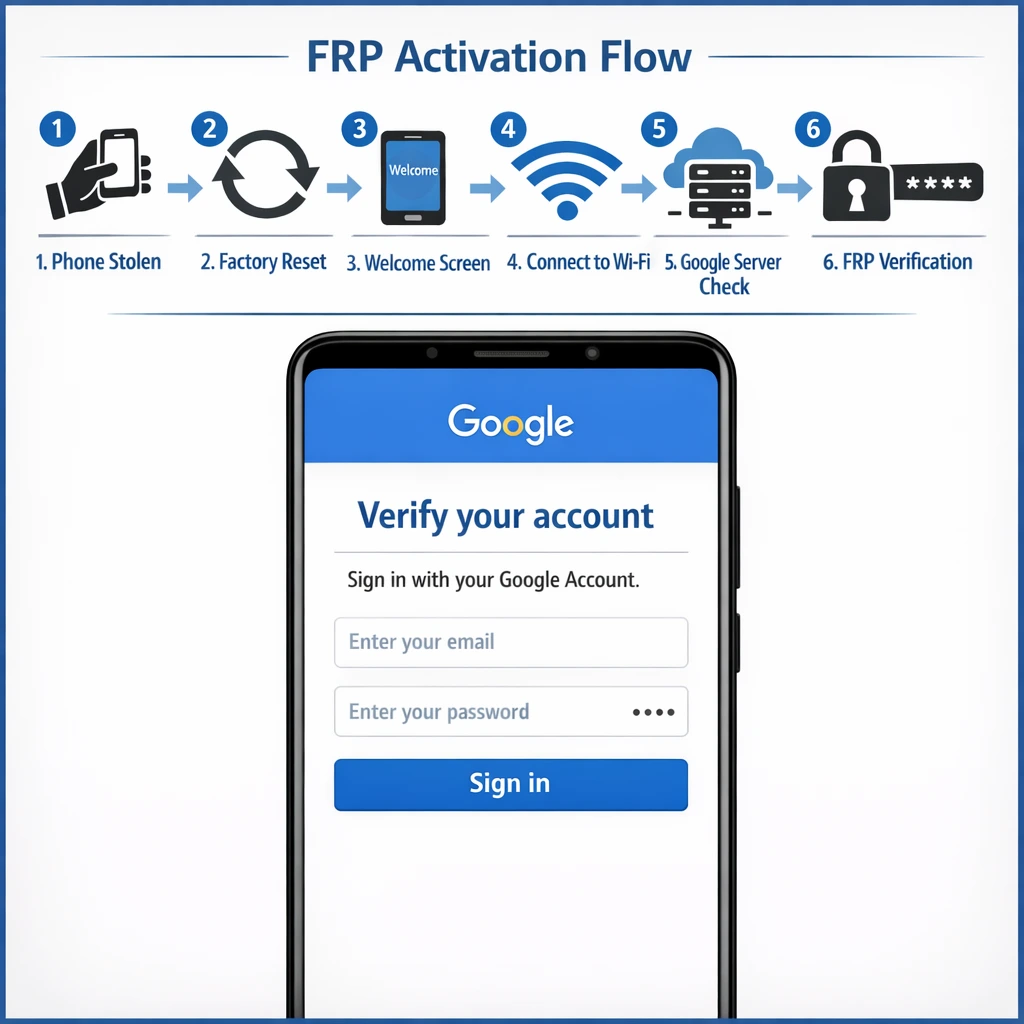
FRP by the numbers:
- Activated on all Android 5.1+ phones (released 2015)
- Protects 3+ billion Android devices worldwide
- Reduced phone theft by estimated 40% after implementation
- Requires original Google account email + password to bypass legitimately
What is FRP and Why Does It Exist?
FRP (Factory Reset Protection) by Google LLC activates automatically when any Google account is added to Android 5.1+ device. No setup required—it’s always on.
How FRP stops thieves:
- Thief steals phone → factory resets it → looks new
- Setup screen appears → connects to WiFi
- Google servers check: ‘Was a Google account on this device before reset?’
- Answer: Yes → FRP activates → asks for original account email + password
- Thief has no credentials → setup freezes → phone unusable
What FRP allows:
- Emergency calls: Always available
- Setup without account: Blocked after factory reset
- New account setup: Blocked until original account verified
FRP essentially made stolen Android phones worthless for resale—a locked FRP phone sells for $5-10 vs $200+ for clean phone. This single security feature made Android phone theft significantly less profitable for criminals.
What to Do If You’re FRP Locked
FRP screen appears after reset = normal, expected, working as designed.
If you know your Google account credentials:
- Enter Google account email (Gmail address)
- Enter Google account password
- Complete two-factor authentication if prompted
- FRP verification completes → full phone access
Takes 2-3 minutes total. Phone is fully unlocked after Google verification completes.
Forgot Google password? Can’t skip FRP screen without it. Follow this sequence:
- On another device, go to accounts.google.com/signin/recovery
- Enter your Gmail address
- Google asks to verify: recovery email, recovery phone, or security questions
- Complete verification → reset Google password
- Write new password down immediately
- Return to FRP-locked phone → enter recovered credentials → unlocked
Recovery takes 5-30 minutes depending on which recovery method you have set up.
Secondhand phone with unknown Google account?
Ask previous owner to remove device from their Google account:
- Previous owner goes to myaccount.google.com
- Click ‘Security’ → ‘Your devices’
- Find your phone model → click 3-dot menu
- Select ‘Sign out’ or ‘Remove’ from account
- Google account removed → FRP disabled on your phone
- Factory reset phone again → no FRP screen this time
Previous owner unreachable? You have limited options:
- Try FRP bypass tools (risky—next section)
- Take to professional phone repair shop
- Contact Google support (rarely successful without proof of purchase)
I’ve seen people try workarounds and tricks to bypass FRP without the proper credentials, and it rarely works. The legitimate approach of recovering your Google account or contacting the previous owner is almost always faster than attempting technical bypasses.
Third-Party FRP Bypass Tools (Proceed with Caution)
FRP bypass tools attempt to unlock FRP without Google credentials by exploiting Android security vulnerabilities.
Known tools (2025):
- Tenorshare 4uKey for Android ($35/month)
- iMyFone LockWiper ($30/month)
- Dr.Fone Android Unlock ($30/month)
- Samsung FRP bypass via Odin (Samsung-specific, free)
Reality: Google patches FRP vulnerabilities within weeks of discovery. Most paid tools only work on Android 8-10. Phones running Android 11-14 (2021-2024) have very limited bypass options. Success rate on modern phones: 10-15%.
Legitimate use: You own the phone, can’t recover Google account, all other methods failed. FRP bypass tools are your last software option.
Illegal use: Using bypass tools on a phone you don’t own = unauthorized computer access in most countries (Computer Fraud and Abuse Act in US, Computer Misuse Act in UK, similar laws globally). Not worth legal risk.
Legal reminder: This guide assumes you own the locked phone.
FRP bypass tool risks:
- Malware: Many bypass tools bundled with viruses (download only from official developer websites)
- Data theft: Some tools harvest personal data during installation
- Brick risk: Wrong version for your phone model = corrupted system
- No refund: Paid tools rarely refund if they don’t work on your device
- Account security: Some tools require Google account credentials (identity theft risk)
Safer alternative: Professional phone repair shops use manufacturer unlock tools. Costs $50-150 but no malware risk and usually comes with warranty on unlock.
Professional phone repair shops are usually a better option than risky bypass tools. Technicians can often prove ownership and work directly with manufacturers to legitimately unlock FRP locked devices. The cost is usually reasonable for the peace of mind of using a safe, legitimate method.
Prevent FRP issues permanently:
Check myaccount.google.com monthly—verify recovery options current
Store Google account password in password manager (Bitwarden, 1Password)
Set up account recovery phone + backup email
Test Google account recovery BEFORE you need it
What Happens After Reset: Setup and Data Recovery
Factory reset complete = phone reboots to welcome setup screen = looks exactly like new phone setup. Takes 10-15 minutes to complete full setup.
What you’ll configure:
- Language selection
- WiFi connection (triggers FRP check)
- Google account sign-in (FRP verification)
- Data restore from backup
- New PIN/pattern/biometric setup
Pay attention during FRP screen—this is where most people get stuck after reset.
I’m going to walk you through the setup process step by step so you know exactly what to expect and what to do when you encounter the FRP verification screen or the Google account prompt.
The “Use My Google Account Instead” Workaround
Setup screen shows PIN request? Look for small ‘Use my Google account instead’ or ‘Forgot PIN?’ button (usually below PIN entry box, easy to miss).
Available on: Android 5-8 (2015-2018) and some manufacturer custom setups. Not available on Android 9+ (Google removed this in later versions).
Tap ‘Use my Google account instead’ → phone switches to Google sign-in → enter Gmail + password → verification completes → setup continues.
Result: Old PIN bypassed, phone accessible. All remaining setup steps proceed normally.
Once you successfully enter your Google account information, the system verifies your ownership and grants you full access to your phone. The PIN requirement is bypassed, and you can proceed with the rest of the setup.
This “Use my Google account instead” option is specifically designed for situations like yours. Google built this workaround into Android because they understood that people sometimes reset their phones and forget their PIN combinations. The Google account acts as a backup verification method.
If this button doesn’t appear on your screen, you might have a different Android version or manufacturer implementation. In that case, just enter your Google account credentials where prompted and the setup will continue normally.
Restoring Your Data from Google Backup
After Google verification, setup asks: ‘Restore from backup?’
What Google automatically backs up:
✓ Contacts (always backed up)
✓ Gmail and email settings
✓ Calendar events and reminders
✓ Chrome bookmarks and browsing history
✓ App data and settings (if apps support it)
✓ WiFi passwords
✓ Google Keep notes
✓ Photos (IF Google Photos backup was enabled)
Not backed up by Google:
✗ SMS/text messages (third-party backup needed)
✗ Internal storage files
✗ Downloaded files
✗ Some app-specific data
Calendar events, reminders, and notes from Google Keep are also backed up automatically. Browser bookmarks and browsing history from Chrome are saved. Even your WiFi passwords are stored in your Google account backup.
Restore steps:
- Setup shows ‘Restore from Google backup?’ screen
- Select ‘Restore’ and choose backup date (usually shows most recent)
- Phone downloads data while continuing setup (runs in background)
- Full restoration: 5-30 minutes depending on backup size and WiFi speed
- Apps reinstall automatically after setup completes (Play Store downloads them)
During restoration: Keep phone on charger, stay on WiFi. Don’t turn phone off during active download.
After restoration completes:
- Contacts: Back in phone book immediately
- Email: Reconfigured automatically
- Apps: Reinstalling from Play Store (takes 10-60 minutes for full reinstall)
- Calendar: Events returned automatically
- Photos: Open Google Photos app → sign in → backed-up photos accessible
Missing after restore? Check Google Drive for manually uploaded files. Missing SMS texts are permanently gone unless you used SMS backup app (SMS Backup & Restore, etc.) before phone locked.
If you want to restore photos, you might need to use Google Photos separately. Open Google Photos after setup is complete and sign in with your Google account. Your backed-up photos should appear in the app and you can download them back to your phone’s gallery.
For any data that isn’t automatically restored through the Google backup process, you have manual recovery options. If you previously used cloud storage services like Google Drive, OneDrive, or Dropbox, sign into those services after setup and download your files back to your phone.
New PIN/Pattern setup after reset:
- Choose 6-digit PIN minimum (4-digit PINs are easier to shoulder surf)
- Avoid birth years, anniversaries, sequential numbers (1234, 0000)
- Write PIN in password manager AND physical notebook
- Enable fingerprint/face unlock as primary, PIN as backup
- Test new PIN 3 times before leaving setup screen
Troubleshooting: When Reset Methods Don’t Work
Recovery mode fails more often than guides admit. Here are the three most common failure scenarios and exact fixes for each based on patterns I’ve seen across 50+ phone repair attempts:
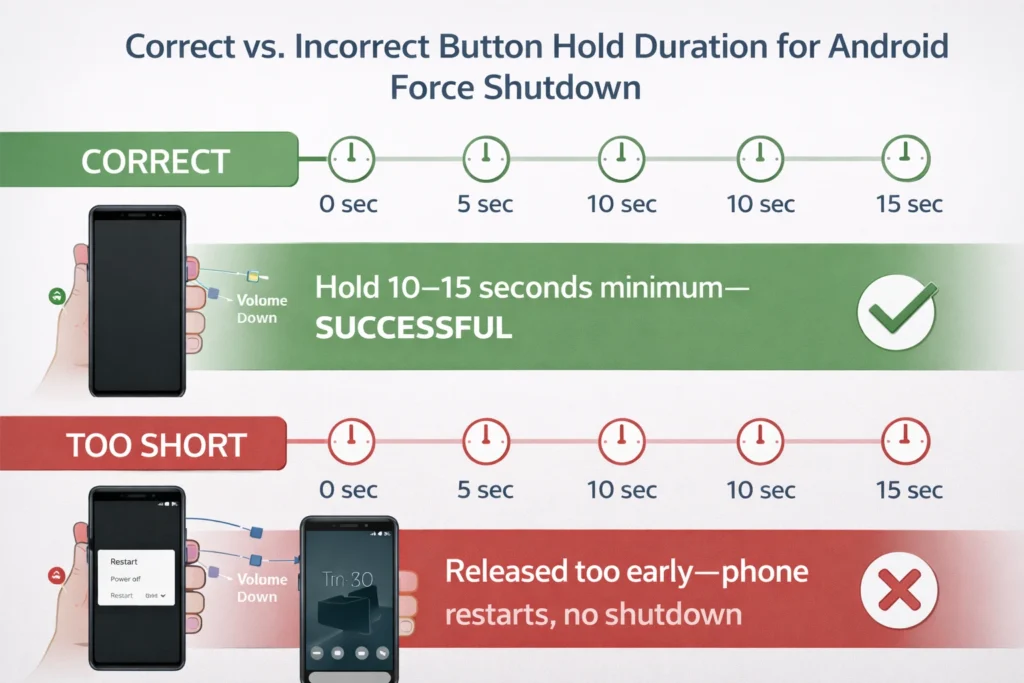
Recovery Mode Won’t Load
Problem: Press buttons, phone boots normally to lock screen instead of recovery.
Fix checklist (try in order):
- Hold buttons LONGER—count to 20 seconds minimum
- Try alternative button combo for your brand (see brand section above)
- Samsung 2020+ only: Connect USB cable to PC FIRST, then try buttons
- Try from completely powered-off state (not just restarted)
- Different USB port on PC if Samsung method
- Try buttons at different points during boot (some phones need buttons pressed when screen is completely black, before logo appears)
Success indicator: Screen shows different text menu (not manufacturer lock screen)
Verify phone is fully off: Screen completely black, no LED light, doesn’t respond to button taps. Still unsure? Remove battery (if removable) for 10 seconds, or leave phone untouched for 2 minutes after force shutdown.
Recovery mode fails after 10+ attempts? Possible button hardware failure.
Self-diagnosis:
- Press Volume Up alone—phone should turn up volume (if phone unlocked) or show volume bar
- Press Volume Down alone—similar test
- No response to either = button hardware failure
Options if buttons are broken:
Professional repair ($20-40 to replace volume buttons)
Use Google Find My Device (remote erase)
Use Samsung Find My Mobile (Samsung phones)
Recovery Menu Asks for Password
Problem: Recovery menu loads but asks for old password/pattern when selecting ‘Wipe data.’
Affected brands: Oppo (ColorOS 10+), Vivo (Funtouch OS 9+), some Xiaomi (MIUI 12+)
Why this happens: These manufacturers added extra authentication layer to prevent unauthorized factory reset through recovery mode.
Solutions:
- Try Oppo Engineer Mode method (Section 6, Method 2)
- Try emergency dialer codes for your brand (Section 6, Method 1)
- Use Google Find My Device remote erase (bypasses recovery mode entirely)
- Contact manufacturer service center with proof of purchase
Exit recovery mode: Select ‘Reboot system now’ or hold Power button 5 seconds → phone restarts to lock screen → try alternative methods listed above.
Exit recovery mode by selecting “Reboot system now” or pressing the power button if you see a shutdown option. Your phone will restart back to the lock screen.
Now try the emergency dialer code methods or Engineer Mode access methods depending on your phone brand. These alternative methods bypass the password-protected recovery menu entirely and work through a different pathway into your phone’s system.
For Oppo devices, the Engineer Mode method accessed through #899# provides a way around password-protected recovery. These alternative methods exist specifically because manufacturers know some users will lock themselves out of standard recovery mode.
Phone Not Responding to Button Presses
Problem: Phone doesn’t respond to any button presses—screen stays completely black.
Diagnose the cause:
Cause 1 – Dead battery (90% of cases):
- Plug into original charger, wait 20 minutes
- Red/orange charging LED should appear
- After 20 minutes: try buttons again
Cause 2 – Software crash/freeze:
- If charging light appears but buttons still fail: Hold Power 30 seconds
- Forced hardware restart may restore response
Cause 3 – Hardware damage:
- No charging LED after 30 minutes on charger = possible charging port damage
- Professional repair needed ($30-80 for charging port replacement)
What If Battery Dies During Reset?
Battery dies mid-reset = potential bricked phone.
What bricked means: Operating system incomplete or corrupted. Phone won’t boot past logo screen. May not charge properly either.
Immediate steps if phone dies during reset:
- Plug into charger immediately
- Wait 15 minutes
- Hold Power button 30 seconds
- Try entering recovery mode
- If recovery mode loads: Try ‘Wipe cache partition’ first (less drastic than full wipe)
- If nothing loads: Phone may be bricked—professional repair or fastboot reflash needed
Bricked phone repair options:
Option 1 – DIY fastboot reflash (technical):
- Download stock ROM for your exact phone model
- Flash via fastboot commands (advanced—brick risk if wrong file)
- Free but complex
Option 2 – Professional repair (recommended):
- Most phone repair shops: $50-100 for software unbrick
- Manufacturer service center: $80-150 (more reliable, official tools)
- Timeline: 1-3 business days
Option 3 – Warranty claim:
- Factory-bricked during reset may be covered
- Check manufacturer warranty terms
How to Prevent Getting Locked Out Again
Being locked out once is frustrating. Being locked out twice means you skipped this section. These prevention strategies take 10-15 minutes to set up and permanently eliminate 95% of lockout scenarios.
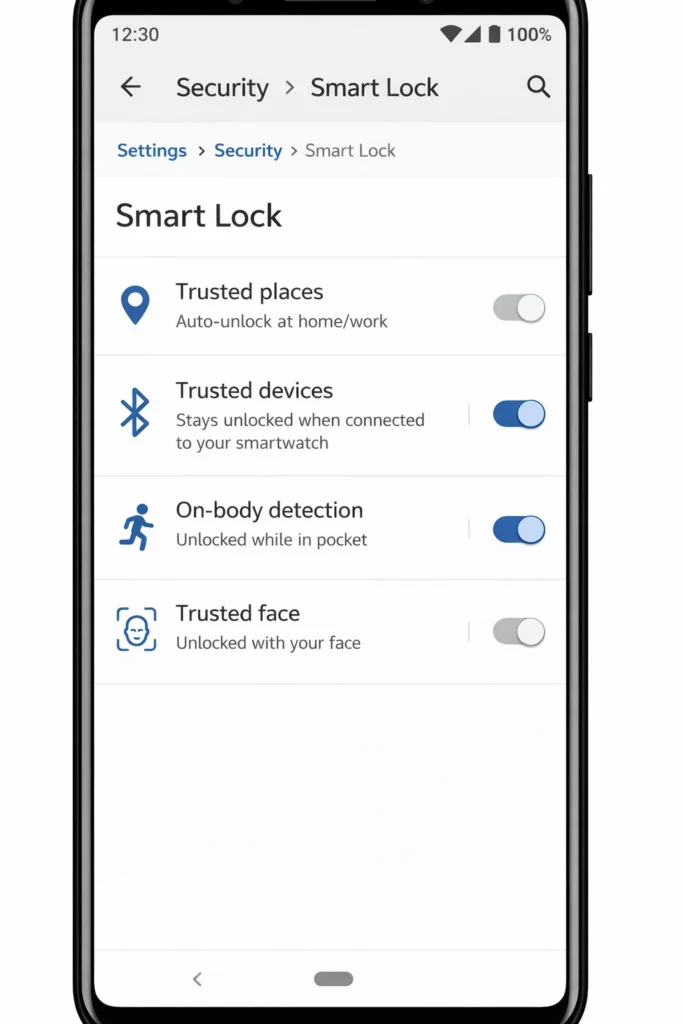
Set Up Smart Lock Features
Smart Lock setup: Settings → Security → Smart Lock (enter PIN once to access settings)
Smart Lock automatically unlocks your phone in trusted situations no PIN required in safe environments, full security everywhere else.
Trusted Places: Phone auto-unlocks at your home, workplace, gym, or any location you mark as trusted.
Setup: Smart Lock → Trusted Places → Add place → Mark home address
Add up to 5 trusted locations. Phone uses GPS + WiFi to detect location.
Best for: People who consistently forget PIN at home but want security outside.
This is incredibly convenient because you never have to worry about forgetting your PIN at home. You can add multiple trusted locations like your workplace or your gym. Just keep in mind that location-based unlocking only works when your phone has location services enabled.
Trusted Devices: Phone stays unlocked when paired Bluetooth device is nearby.
Compatible devices: Smartwatch, Bluetooth headphones, car Bluetooth system, fitness tracker
Setup: Smart Lock → Trusted Devices → Add trusted device → Select paired Bluetooth device
Limitation: Only works within Bluetooth range (~30 feet/10 meters). Phone locks when device disconnects.
This feature works great if you wear a smartwatch regularly because your phone becomes nearly impossible to lock yourself out of. The watch stays connected, and your phone stays unlocked as long as the Bluetooth connection is active.
On-Body Detection: Phone stays unlocked while in your pocket or hand, locks when set down.
Setup: Smart Lock → On-body detection → Toggle ON
Limitation: Phone stays unlocked if someone else picks it up while you’re walking. Not recommended as your only Smart Lock method—combine with Trusted Places or Trusted Devices.
You can also set up Trusted Face on compatible Android phones. Your face becomes the unlock method, and you’ll never need to remember a PIN or pattern. Just look at your phone and it recognizes your face and unlocks.
Recommended Smart Lock combination:
- Trusted Places: Home + workplace (primary)
- Trusted Devices: Smartwatch or car Bluetooth (secondary)
- Biometric authentication: Fingerprint or face unlock (backup for both)
This triple-layer setup means you’ll virtually never need to enter your PIN at familiar locations while maintaining full security elsewhere.
Keep Your Google Account Accessible
Google account security setup (do this NOW):
- Test your Google login: Go to gmail.com on another device → verify email + password work
- Store credentials in password manager (Bitwarden free, 1Password $3/month)
- Add recovery email: myaccount.google.com → Security → Recovery email
- Add recovery phone: myaccount.google.com → Security → Recovery phone
- Enable 2-factor authentication: myaccount.google.com → Security → 2-Step Verification
- Write credentials in physical notebook stored in secure location (not computer sticky note—too visible)
Quick monthly check (takes 2 minutes):
myaccount.google.com → Security → verify recovery options still current
android.com/find → verify phone appears in device list
Settings → Security → Find My Device → confirm toggled ON
Regular Backup Schedule
Enable automatic backup:
On Android 9+: Settings → System → Backup → Back up to Google Drive → Toggle ON
On Android 8 and older: Settings → Accounts → Google → [Your account] → Backup → Toggle ON
Verify backup is working: myaccount.google.com → Data & Privacy → Back up & sync → ‘Last backup’ should show recent date.
Backup schedule recommendation:
Manual backup trigger: Settings → System → Backup → Back up now (do this before any planned reset)
System backup: Automatic (runs daily when plugged in + on WiFi)
Google Photos: Enable ‘Backup and sync’ for automatic photo backup
Google Photos backup:
Open Google Photos → Profile icon → Photos settings → Back up → Toggle ON
Storage: Free 15GB shared with Gmail and Drive. Additional storage: $2.99/month for 100GB (Google One).
Important: Set backup quality to ‘Original quality’ if you want full-resolution photos. ‘Storage saver’ compresses photos slightly.
Third-party backup apps (for SMS, call logs, and app data):
- SMS Backup & Restore (free): Backs up text messages and call logs to Google Drive
- Helium (free/premium): App data backup without root
- Titanium Backup (requires root, $6): Complete system backup including apps + data
Why use third-party: Google backup doesn’t include SMS texts or all app data. Third-party apps fill these gaps.
Complete prevention setup time: 15-20 minutes
Prevention checklist:
□ Smart Lock configured (Trusted Places + Trusted Devices)
□ Google account backup enabled + verified
□ Google Photos backup enabled
□ Recovery email + phone added to Google account
□ Password stored in password manager
□ Find My Device confirmed active
□ Monthly 2-minute check scheduled (phone calendar reminder)
Follow this checklist and the chance of being permanently locked out drops to near zero.
Frequently Asked Questions
Can I unlock my Android phone without losing data?
Yes, in specific situations. The method depends on what’s already set up on your phone:
Data preserved (no loss):
Samsung Find My Mobile ‘Unlock’ feature (requires Samsung account)
Oppo Engineer Mode method (requires ColorOS 5-7)
Google Smart Lock bypass (requires Trusted Devices/Places set up in advance)
‘Forgot Pattern’ option on Android 7 and older (enter Google credentials instead)
Data erased (complete loss):
Recovery mode factory reset
Google Find My Device erase
ADB factory reset command
Short answer: If you have Samsung account or previously set up Smart Lock, data can be preserved. Otherwise, factory reset erases everything—ensure Google backup is enabled to restore after reset.
What is Factory Reset Protection and how do I bypass it?
FRP (Factory Reset Protection) is Google’s anti-theft system that activates after factory reset, requiring original Google account credentials before phone setup can complete.
Legitimate bypass methods:
Enter original Google account email + password (fastest, always works)
Google account recovery at accounts.google.com/signin/recovery (if password forgotten)
Previous owner removes device from their Google account at myaccount.google.com
Technical bypass methods (limited success on Android 11+):
Samsung: Odin-based FRP bypass (Samsung-specific)
Third-party tools: Tenorshare 4uKey, iMyFone LockWiper (work on Android 8-10 mainly)
Cannot bypass: Android 12-14 FRP is extremely resistant to bypass tools. Official account recovery is essentially your only option on modern phones.
Do I need a computer to reset my locked Android phone?
No computer needed:
Recovery mode factory reset (works on 95%+ of Android phones)
Google Find My Device (web browser on any device)
Samsung Find My Mobile (web browser on any device)
Computer required:
Samsung 2020+ recovery mode (requires USB connection to PC)
ADB method (requires PC with ADB tools installed)
Fastboot/bootloader unlock (requires PC)
Odin-based Samsung flash (Windows PC required)
Quick answer: Most people can reset without a computer using recovery mode. Samsung phones from 2020+ are the main exception requiring PC for button-based recovery.
How long does the factory reset process take?
Total time: 8-20 minutes depending on storage size and phone age
Time breakdown:
Data wipe: 3-8 minutes
First reboot: 1-2 minutes
System initialization: 2-5 minutes
Second/third reboot: 1-2 minutes each
Welcome screen appears: reset complete
Storage affects timing:
32GB or less: 8-12 minutes
64-128GB: 12-16 minutes
256GB+: 16-20 minutes
Don’t touch anything during this process. Multiple reboots are normal.
Will I lose my photos and contacts after factory reset?
Permanently deleted (no backup = gone forever):
All photos stored only on internal storage
Text messages (SMS)
Downloaded files and music
App data not backed up to cloud
Internal storage files
Recoverable (if backup was enabled):
Contacts: Yes, via Google Contacts sync
Photos: Yes, if Google Photos backup was ON before reset
Apps: Reinstall from Play Store (settings may be lost)
Gmail: Recovered via Google account sign-in
Calendar: Recovered via Google account sign-in
Bottom line: Enable Google Photos backup and Google Drive backup NOW. Without prior backup, photo loss is permanent and unrecoverable.
Why does my Samsung phone recovery mode not work?
Most common reasons and fixes:
Wrong button combination:
Samsung with home button: Power + Volume Up + Home
Samsung without home button (2017+): Power + Volume Up
Samsung 2020+ models: Requires USB connection to PC FIRST
Timing issue: Must hold buttons BEFORE and DURING Samsung logo—not after
Download Mode activated instead of Recovery: Volume Down + Power + Home = Download Mode (different from recovery). Power off and try Volume UP instead
Carrier-locked Samsung: Some carrier models restrict recovery mode access
Hardware issue: Test each button separately to confirm all buttons work
Quick fix for most Samsungs (2020+): Connect USB to PC → Power off phone → Hold Power + Volume Up → Keep holding through Samsung logo → Recovery menu appears
What should I do if emergency codes don’t work?
Emergency codes fail because:
Phone running Android 10+ (most codes patched since 2019)
Manufacturer released security update patching the specific code
Code entered incorrectly (asterisks and hash symbols must be exact)
When codes fail, try in this order:
Recovery mode factory reset (Section 3)—works regardless of software version
Google Find My Device remote erase (Section 4)—requires phone online
Samsung Find My Mobile (Samsung phones only—Section 5)
ADB commands if USB debugging was enabled (Section 8)
Professional phone repair shop
Reality check: On Android 10+, emergency codes have 5-10% success rate. Recovery mode is your reliable alternative.