
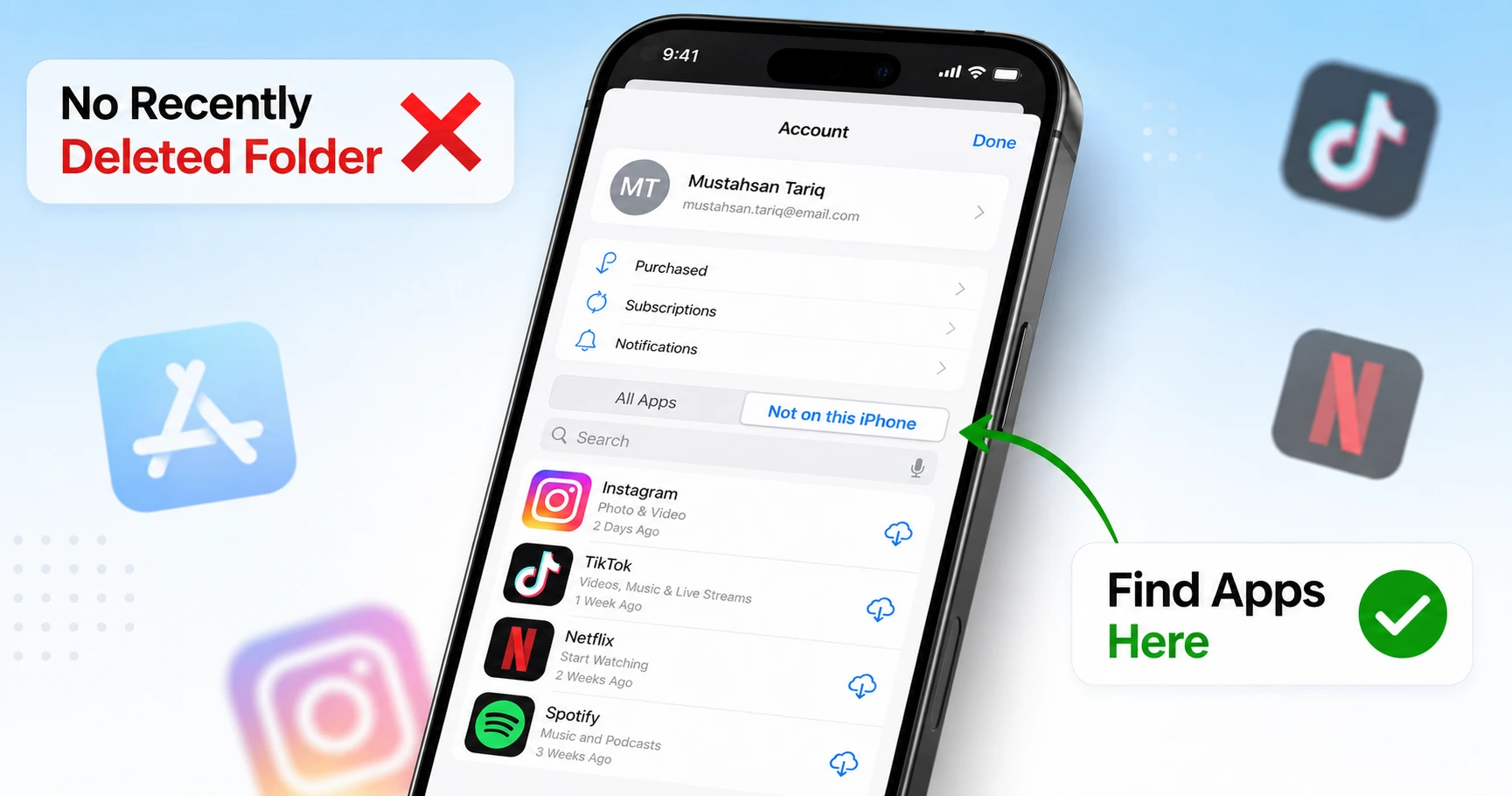
How to Find Recently Deleted Apps on iPhone: There’s No ‘Recently Deleted’ Folder (Here’s What to Do)
there’s no Recently Deleted Apps folder on iPhone. Not in Settings, not in the App Store, nowhere
I know that feels wrong. You’ve got Recently Deleted for photos. You’ve got it for notes and files. So when an app icon goes missing, the first place you look is Settings, expecting to find some kind of Recently Deleted Apps section sitting there waiting for you.
It’s not there.
When you delete an app on iPhone, iOS removes it instantly. There’s no 30-day safety net like you get with photos or files. Apps get zero grace period. The moment you confirm that deletion, the app and most of its data are gone from your device.
Apple doesn’t keep a holding area for deleted apps. They just don’t track it that way.
Now, if you’ve been checking your battery settings and spotted something called “Recently Deleted Apps,” that’s not a recovery tool either. That label just means an app used battery power in the last 10 days before you removed it. iOS keeps the battery usage stat but replaces the app name with that generic label once the app is gone. It’s a log entry, not a folder you can pull apps back from.
This catches almost everyone off guard because the iPhone experience is so consistent everywhere else. Files deleted? Check Recently Deleted. Photos gone? Same thing. But apps work differently, and Apple has never explained why.
That said, deleted apps aren’t completely lost.
There is a way to see every app you’ve ever installed on your iPhone and get most of them back, even if you deleted them months or years ago. It’s just not where you’d expect, and it’s definitely not a Recently Deleted folder.
First, Check If Your App Is Actually Deleted (or Just Hidden)
Before you assume the app is gone, check if iPhone just moved it somewhere you’re not looking. This happens more than you’d think.
Sometimes an app isn’t deleted at all. You might have accidentally removed the app icon from your home screen while the actual app is still installed on your iPhone. Or the app could be sitting in one of the hidden areas iOS created over the years. Either way, the app is still there and you don’t need to redownload anything.
The fastest way to check is the iPhone App Library. Swipe left across your home screen pages until you can’t swipe anymore. That last screen is the App Library, and it holds every app installed on your device, even the ones not showing on your home screen.
Once you’re in the App Library, look at the top left folder labeled “Recently Added.” That folder shows apps you’ve installed recently. If the app you think you deleted is sitting right there, you didn’t delete it. You just removed the icon.
To get the app back on your home screen, press and hold the app icon until it lifts off the screen. Then drag it left toward your home screen pages and drop it wherever you want. Done.
If you don’t see the app in Recently Added, try the search bar at the top of the App Library. Type the app name. If it shows up in the search results, the app is still installed. Tap it to open, or long press and choose “Add to Home Screen.”
Use Spotlight Search to Find Hidden Apps
Here’s an even faster check. Swipe down from the middle of your home screen to open Spotlight Search. Type the name of the app you’re looking for.
If the app appears in the search results, it’s still on your iPhone. Tap it to open. If nothing shows up, then the app really is deleted and you’ll need to redownload it from the App Store.
This method takes about five seconds and saves you from digging through the App Library categories if you already know the app name.
Check iOS 18’s Biometric Hidden Folder
If you’re running iOS 18 or later, iPhone added a new Hidden folder inside the App Library that requires Face ID or Touch ID to open. Apps you’ve intentionally hidden end up in there, locked behind biometric authentication.
Most people forget this folder exists.
Scroll to the bottom of your App Library screen and look for a folder called “Hidden.” Tap it. Your iPhone will ask for Face ID, Touch ID, or your passcode. Once you unlock it, you’ll see every app you’ve hidden from your home screen and App Library.
If the missing app is in there, long press the app icon and select “Don’t Require Face ID” or move it back to your home screen. The app was never deleted. You just locked it away and forgot about it.
And if the app isn’t in the App Library, Spotlight Search, or the Hidden folder, then yeah, it’s actually deleted. That’s when you move to the next step.
How to Find Deleted Apps Using App Store Purchase History (The Official Method)
This is where Apple actually keeps track of your deleted apps. Not in a Recently Deleted folder, but in your App Store purchase history.
Every app you’ve ever downloaded on your iPhone, whether free or paid, stays permanently linked to your Apple ID. Apple doesn’t delete that record. The purchase history goes back as far as when you first created your Apple ID, sometimes years or even a decade depending on how long you’ve had your account.
The App Store purchase history is tied to your Apple ID, not to your specific iPhone. That means if you’ve owned multiple iPhones or iPads over the years and signed into them with the same Apple ID, every app you downloaded on any of those devices shows up in this list. Even apps you installed once on an old iPhone 6 and never thought about again.
This is the official Apple method for finding deleted apps, and it’s the one that actually works.
Step-by-Step: Finding Your Deleted Apps
Here’s exactly how to get to your deleted apps.
- Open the App Store on your iPhone.
- Tap your profile icon in the top right corner. That’s the little circle with either your photo or your initials inside it.
- You’ll see two ways to get to deleted apps from here. The faster route is to tap “Apps” if you see that option. If you don’t see Apps listed, tap “Purchased” instead.
- If you went through Purchased, you’ll see another screen. Tap “My Purchases” to continue.
- Now look at the top of the screen. You’ll see two tabs: “All” and “Not on this iPhone.” Tap “Not on this iPhone.”
That second tab is what you want. The “Not on this iPhone” list shows every app that’s linked to your Apple ID but isn’t currently installed on the device you’re holding. That includes apps you deleted yesterday, last month, or three years ago.
Scroll through the list and look for the app you deleted. When you find the app, you’ll see a cloud icon with a downward arrow next to it. Tap that cloud icon and the app will start downloading back onto your iPhone. You don’t get charged again, even if it was a paid app. Once you’ve paid for an app under your Apple ID, you own it permanently.
The app will reappear on your home screen or in your App Library once the download finishes.
What “Not on this iPhone” Actually Shows
This list can get long if you’ve had your Apple ID for a while. And I mean really long.
The “Not on this iPhone” section includes every single app you’ve ever installed across all devices signed into your Apple ID. That iPad you had in 2015? Those apps are in here. That old iPhone you gave to your kid? Those apps too. Free apps, paid apps, apps you used once and forgot about, apps you deleted on purpose, apps that disappeared during an iOS update. All of them.
The App Store doesn’t organize this list by deletion date. Apps show up in the order you originally downloaded them, which is why finding a recently deleted app can mean scrolling past hundreds of old apps you don’t even recognize anymore. There’s a search bar at the top if you remember the app name. Use it. Scrolling through the entire list looking for one app icon is a waste of time when you can just type the name and jump straight to the app.
And one more thing. If an app was removed from the App Store entirely by its developer or by Apple, it will still appear in your purchase history. But you won’t be able to download the app anymore. The cloud icon won’t be there. Once an app is pulled from the App Store, it’s gone for good, even if you owned it before.
Why Your “Recently Deleted” App Might Not Be at the Top of the List
The “Not on this iPhone” list doesn’t work the way you think it does. And this trips up almost everyone.
You’d expect recently deleted apps to show up at the top of the list, right? That makes sense. You just deleted something, so it should be fresh, sitting right there waiting for you.
Nope.
Apple sorts that list by the date you originally downloaded each app, not by the date you deleted each app. So if you downloaded an app three years ago and deleted it yesterday, that app is buried somewhere in the middle of a list that might have hundreds of entries. The app you deleted five minutes ago could be sitting between apps from 2019 that you forgot even existed.
Apple doesn’t track when you delete apps. There’s no deletion timestamp. No log. No system record anywhere on your iPhone that says “this app was removed on this date at this time.” Apple tracks when you downloaded apps because that’s part of your purchase history, but deletion? That’s not recorded.
This catches people off guard because it goes against how everything else works on iPhone. Photos show recently deleted items at the top. Files do the same thing. Even your email puts the newest stuff first. But the App Store purchase history doesn’t follow that pattern, and there’s no setting to change the sort order.
I’ve seen people scroll for ten minutes looking for an app they deleted that morning, passing right over the app icon multiple times because they’re only looking at the top of the list. The app is there. Just not where they expect.
Use the Search Bar to Skip the Scroll
Stop scrolling and use the search bar instead. Seriously.
If you remember the app name, even just part of it, type that into the search bar at the top of the “Not on this iPhone” screen. The App Store will filter the list instantly and show you exactly what you’re looking for without making you scroll through three hundred app icons.
This is the fastest way to find a recently deleted app when the list is long. Typing a name takes three seconds. Scrolling through an entire app download history from the last eight years does not.
And if you don’t remember the exact name but remember what the app icon looked like or what category the app was in, scroll slowly and look at the icons visually. Your brain recognizes images faster than you can read text. You’ll spot a familiar app icon even if you can’t remember what the app was called.
What to Do When You Don’t Know Which App Was Deleted
Apple doesn’t give you a way to see which app was deleted last. There’s no log, no list, no “last deleted” anywhere in iOS.
I know that’s frustrating when you pocket-delete an app and have no clue what disappeared. You know something is missing, but you can’t figure out what. This happens more than you’d think, especially when you accidentally delete apps while your phone is unlocked in your pocket or bag.
But there’s a detective trick that works most of the time.
Go to Settings, tap your name at the top, then tap “Media & Purchases.” Tap “View Account” and sign in if prompted. Scroll down and tap “Hidden Purchases.” If you need more help with managing your App Store purchases and downloads, Apple’s official guide to re downloading apps covers additional troubleshooting steps for purchase history issues.
If an app that’s usually in your most-used list isn’t showing up anymore, and you haven’t used the app today, that’s probably the one you deleted. Screen Time app usage data sticks around for a week or so, which means you can spot the missing app even if you deleted it a few days ago.
Cross-reference this with what’s actually installed on your phone right now. Check your home screen and App Library. If an app shows up in your Screen Time data but isn’t anywhere on your device, you found your deleted app.
This method isn’t perfect. It only works if you actually used the app recently enough to show up in Screen Time. And if you delete multiple apps, you’ll have to check each one individually.
Sometimes you just have to accept that if you can’t immediately tell what’s missing, the app probably wasn’t that important anyway. If it was something you used daily, you’d know exactly what was gone.
Why Your Deleted App Isn’t Showing in Purchased History (Troubleshooting)
Sometimes you follow all the steps perfectly and the app still isn’t there. This is where most people give up and assume the app is gone forever.
But recently deleted apps not showing in your purchase history doesn’t mean they’re lost. There are four common reasons why an app won’t appear in the “Not on this iPhone” list, and three of them have easy fixes.
The most overlooked cause is Hidden Purchases. Apple lets you manually hide apps from your purchase history, and if you’ve accidentally hidden an app or someone else using your device hid it, that app becomes invisible in your regular Purchased list. Hidden apps on iPhone don’t show up anywhere until you specifically unhide them.
Screen Time restrictions can also make apps disappear without actually deleting them. If Content & Privacy Restrictions are blocking certain apps, those apps won’t show up on your home screen, in the App Library, or sometimes even in your purchase history.
Make sure you’re signed into the right Apple ID. If you have multiple Apple accounts or switched accounts at some point, you might be looking in the wrong purchase history.
And finally, some apps just can’t be downloaded anymore because the developer removed them from the App Store entirely.
Check Hidden Purchases
This is the first thing I check when an app isn’t showing up. Hidden Purchases is a separate section that most people don’t know exists.
Go to Settings, tap your name at the top, then tap “Media & Purchases.” Tap “View Account” and sign in if prompted. Scroll down and tap “Hidden Purchases.”
If you see the missing app in this list, tap “Unhide” next to the app name. The app will now appear back in your regular purchase history where you can redownload it normally.
Apps end up in Hidden Purchases if you or someone else using your device manually hid them. This can happen accidentally if you swipe left on an app in your purchase history and tap “Hide” without realizing what that option does.
The Hidden Purchases list shows every app you’ve intentionally hidden over the years. You might find apps in there that you forgot you even owned.
Check Screen Time Restrictions
Screen Time can block apps from appearing on your device without actually deleting them. If apps are restricted, they become invisible.
Open Settings, tap Screen Time, then tap “Content & Privacy Restrictions.” If restrictions are turned on, tap “Allowed Apps.”
Any app with the toggle switched off won’t appear on your home screen or in the App Library. Toggle the app back on and it will reappear immediately. You don’t need to redownload anything.
This happens a lot after iOS updates because newer iOS versions sometimes enforce restrictions more strictly than previous versions. An app that was visible before an update might suddenly disappear if Screen Time decides to actually enforce a restriction that was set but ignored.
When the App Was Removed from the App Store
If the app appears in your purchase history but has no cloud download icon, the app was removed from the App Store by its developer or by Apple.
You can see the app in your purchase history because you did own it, but you can’t download the app anymore because it no longer exists in the App Store. This is permanent. Once an app is pulled from the store, there’s no way to get it back.
Look for alternative apps that do similar things. The App Store usually suggests replacements when you search for removed apps.
Offloaded vs. Deleted: Why Your App Disappeared on Its Own
Your iPhone can remove apps without asking you first. Most people don’t know this happens.
There’s a huge difference between an app being offloaded and an app being deleted, but both look exactly the same to you. The app icon disappears from your home screen either way. The difference is what happens to your data and whether you can get the app back easily.
When you delete app permanently, iOS removes both the app and most of its data. Gone. When iOS offloads an app, it removes the app software but keeps all your documents, settings, and data. The app disappears to free up storage space, but your stuff stays safe.
iOS storage management includes an “Offload Unused Apps” feature that can automatically remove apps you haven’t used recently without sending you any notification. This catches people off guard because they never chose to delete anything, but suddenly an app they owned is missing from their device.
The tricky part is that offloaded apps iPhone behavior looks identical to deletion from your perspective. App icon vanishes. App doesn’t appear in search. But offloaded apps can be reinstalled with one tap and all your data comes back exactly as you left it.
I’ve seen people frantically search their App Store purchase history for an app that was just offloaded, not deleted. Which is unnecessary.
How to Check If an App Was Offloaded
Go to Settings, then General, then iPhone Settings storage. Scroll through the list of apps and look for any app with a small cloud icon next to its name.
That cloud icon means the app was offloaded. The app software is gone but your data is still there, taking up the space shown in the storage list.
Tap the offloaded app and you’ll see an “Reinstall App” option. Tap that and iOS downloads the app again while keeping all your previous data intact. You pick up exactly where you left off. No need to sign in again, no lost progress, no missing files.
If an app doesn’t appear in iPhone Settings storage at all, then the app was actually deleted, not offloaded. That’s when you need to use the App Store purchase history method to redownload the app completely.
How to Stop iOS from Auto-Offloading Apps
Open Settings, scroll down to App Store, and look for “Offload Unused Apps.”
Toggle that setting off if you want complete control over which apps stay on your device. When this setting is off, iOS won’t automatically remove any apps, even if you’re running out of storage space.
Some people prefer to keep auto-offload turned on because it prevents storage full warnings and keeps their most-used apps available. But if you’d rather manually decide when to remove apps, turning off this iOS storage management feature gives you that control.
How to Restore a Deleted App to Your iPhone (Step-by-Step)
The actual restoration process is simpler than most people expect. Once you find your deleted app in the “Not on this iPhone” section, restoring it takes just a few taps.
Here’s exactly what happens. Tap the cloud download icon next to any app you want to recover back onto your iPhone. The download starts immediately and you’ll see a progress circle where the cloud icon was.
Wait for the download to finish. This usually takes 30 seconds to a few minutes depending on the app size and your internet connection. I’ve noticed larger games can take longer, especially if you’re on cellular data.
Once the download finishes, the cloud icon turns into an “Open” button. Tap it to launch your restored app immediately, or just head back to your Home Screen where the app now appears alongside your other apps.
And here’s the part that surprises people. If you originally paid for the app, you won’t be charged again when you reinstall the deleted app. Apple remembers every app purchase tied to your Apple ID. This free redownload policy applies to all paid apps, in-app purchases, and subscriptions you’ve bought before.
The app reinstallation process works the same way whether you deleted the app yesterday or three years ago. Your purchase history stays connected to your Apple ID permanently.
One thing I always tell people: don’t panic if the app doesn’t appear on your Home Screen immediately after downloading. In iOS 14 and later, newly downloaded apps sometimes land in the App Library instead. Swipe left past your last Home Screen page to find them there.
Will Your App Data Come Back?
No, your app data usually doesn’t come back when you reinstall a deleted app. This catches everyone off guard the first time it happens.
When you delete an app from your iPhone, you delete both the app and all its stored data. Photos you edited, game progress, notes you wrote, custom settings. Gone completely. Redownloading the app gives you a fresh installation, like opening it for the first time.
But there are exceptions. Apps that sync with iCloud storage automatically restore your data when you reinstall them. This includes most Apple apps like Notes, Photos, and Reminders. Many popular apps like Google Drive, Dropbox, and Microsoft Office also preserve your data through cloud backup systems.
Games often fall into a middle ground. If the game connects to Game Center or has its own cloud save feature, your progress might return. If it stores everything locally on your iPhone, you start over completely.
The brutal truth is most apps store data locally. That Instagram draft you spent an hour writing? The workout routine you built in that fitness app? The custom filters in your photo editor? All of that disappears permanently when you delete the app.
I learned this the hard way when I accidentally deleted a note-taking app with months of work ideas. Now I check if apps have cloud sync before I rely on them for anything important.
Alternative Method: Restore Apps from iCloud or iTunes Backup
There’s one nuclear option left if you need to restore app data that’s gone forever. You can restore your entire iPhone from an iCloud backup or iTunes backup.
But stop right there. This method wipes everything currently on your iPhone and reverts it back to the exact state it was in when you made the backup. Every photo you’ve taken since then, every new app you’ve downloaded, every text message you’ve received. Gone.
I only recommend this iPhone backup restore method when you’ve lost something truly irreplaceable. Like months of work notes in an app that doesn’t sync to the cloud. Or game progress that took you a year to build and can’t be recovered any other way.
The process works differently depending on whether you have an iCloud backup or a computer-based iTunes backup. Both methods completely erase your device first, then rebuild it from the backup data.
Most people think about this option and quickly realize it’s not worth losing everything they’ve done recently. But sometimes that one piece of lost app data really is more valuable than everything else.
When to Use This Method (and When Not To)
This backup restore method makes sense in exactly two situations. First, when you’ve lost critical app data that doesn’t exist anywhere else and can’t be recreated easily. Second, when the backup you’re restoring from is very recent, so you won’t lose much current data.
Don’t use this method just to avoid redownloading an app. That’s like burning down your house because you lost your keys.
And definitely don’t use it if the backup is more than a few days old. You’ll lose too much recent stuff to make it worthwhile.
How to Restore from iCloud Backup
Go to Settings, then General, then Reset. Tap “Erase All Content and Settings” to completely wipe your iPhone. This step can’t be undone, so make sure you really want to do this.
During the setup process that follows, choose “Restore from iCloud Backup” instead of setting up as new. Sign in with your Apple ID and pick the backup date that contains your lost app data.
The restore process takes anywhere from 30 minutes to several hours depending on how much data you have stored in iCloud. Your iPhone will download all your apps, photos, and data from the cloud backup.
How to Restore from iTunes/Finder Backup
Connect your iPhone to the computer where you made the iTunes backup. Open Finder on Mac or iTunes on PC.
Click on your device when it appears, then click “Restore Backup.” Choose the backup date that has your missing app data.
The computer-based restore usually runs faster than iCloud backup since you’re not downloading everything from the internet. But the end result is identical. Your iPhone gets completely wiped and rebuilt from the backup.
iOS Update Made Your Apps Disappear? Here’s the Fix
Major iPhone updates sometimes mess with your apps in weird ways. I’ve seen this happen enough times to know the pattern.
Some iOS updates enforce Screen Time restrictions more aggressively than before. Apps that were visible suddenly disappear because the system starts blocking them based on age ratings or content filters that weren’t strictly enforced in previous versions.
Other updates reset certain settings back to defaults. The Settings app might flip restrictions back on even if you had them turned off.
And sometimes updates just glitch. Apps vanish for no clear reason, then reappear after you restart your iPhone or adjust a few settings.
The fix is almost always in Screen Time settings. Most people never think to check there after an iPhone update, but that’s where the problem usually lives.
Here’s what I check first. Go to Settings, then Screen Time, then Content & Privacy Restrictions. Look for anything related to Apps or Allowed Apps.
If Content & Privacy Restrictions is turned on, tap into Content Restrictions and check the Apps section. Make sure the age rating is set appropriately. Some updates reset this to a lower age limit, which hides apps rated for older users.
The fastest fix is often just turning off Content & Privacy Restrictions completely if you don’t need them. That immediately restores any hidden apps.
iOS Updates and App Resurrection
Sometimes iPhone updates bring back apps you deleted on purpose. This actually happened to me after one recent update where several apps I’d removed months ago suddenly reappeared on my Home Screen.
The system apparently restored these apps from some backup state during the update process. Not a huge problem, but definitely unexpected.
If this happens to you, just delete the unwanted apps again. They won’t keep coming back after subsequent updates.
Screen Time Restrictions After Updates
iPhone updates can reset Screen Time to stricter defaults without warning you. This especially affects apps with mature content ratings that get hidden when the age restriction drops to a lower setting.
Open Settings, then Screen Time, then Content & Privacy Restrictions. If this feature is enabled, tap Content Restrictions, then Apps.
Change the setting to “Allow All Apps” if you want everything visible, or adjust the age rating to 17+ to restore most apps. Many popular apps carry higher age ratings even though they’re perfectly appropriate for general use.
This setting change takes effect immediately. Any missing apps should reappear on your Home Screen or in the App Library within a few seconds.
How to Prevent Apps from Being Deleted (Screen Time)
Sometimes the best fix is stopping the problem before it happens. iPhone Screen Time can completely block app deletion, so the delete option never even appears when you long-press an app.
This works through Content & Privacy Restrictions, which most people think of as just parental controls. But adults can use these same settings to protect themselves from accidentally deleting important apps.
Here’s how to lock down app deletion completely. Open the Settings app and tap Screen Time. If Screen Time isn’t already enabled, turn it on first.
Next, tap Content & Privacy Restrictions and enable that feature if it’s turned off. Then tap iTunes & App Store Purchases.
Look for “Deleting Apps” in the list. Tap it and change the setting from “Allow” to “Don’t Allow.”
That’s it. Now when you long-press any app icon, you won’t see the delete option at all. The wiggle mode still works for moving apps around, but the X button and “Remove App” option disappear completely.
This Screen Time feature has been available since iOS 12, so it works on pretty much any modern iPhone. I use it on shared family devices where kids might accidentally delete important apps. If you’re also dealing with other iPhone notification settings, you might want to check out how to turn off read receipts on iPhone to customize your privacy settings while you’re in the Settings app
The setting also prevents anyone from offloading apps to save storage space. Apps stay put until you manually change the Screen Time restriction back to “Allow.”
Perfect for protecting work apps, expensive purchases, or anything else you never want to accidentally delete app permanently.
Is there a “Recently Deleted Apps” folder on iPhone like there is for Photos?
No, iPhone doesn’t have a dedicated Recently Deleted Apps folder. Unlike Photos, Notes, or Files that give you a 30-day recovery window, deleted apps are removed immediately from your device. There’s no built-in trash or recycle bin for apps. However, you can still find and redownload any previously purchased apps through the App Store’s purchase history, even years after deleting them.
How do I find recently deleted apps on iPhone without knowing the app name?
Go to Settings → Screen Time → See All Activity → Most Used to see apps you recently used, then compare with your current apps to spot what’s missing. Alternatively, open the App Store, tap your profile picture, and scroll through the “Not on this iPhone” section to browse deleted apps by their icons. The visual browsing method works better if you remember what the app looked like but forgot its name.
Will I have to pay again for a deleted paid app?
No, you won’t be charged again. Apps are permanently linked to your Apple ID, so even expensive apps can be redownloaded for free after deletion. Just find the app in the App Store’s “Not on this iPhone” section and tap the cloud download icon. This applies to all paid apps, in-app purchases, and subscriptions you’ve bought before. You only pay once per Apple ID account.
Will my app data come back when I reinstall a deleted app?
Usually no, your app data is gone forever when you delete an app. Most apps store data locally on your iPhone, which gets wiped during deletion. The exceptions are apps that sync with iCloud like Notes and Photos, Game Center-enabled games that save progress to Apple’s servers, or apps with their own cloud storage like Google Drive and Spotify. For most apps, you’ll start completely fresh after reinstalling.
Why doesn’t my deleted app show up in the App Store Purchased list?
Check three things first. Make sure you’re signed in with the correct Apple ID since apps are tied to the account that downloaded them. Next, check Hidden Purchases under Settings → [Your Name] → Media & Purchases → View Account → Hidden Purchases. Finally, if the app was removed from the App Store by its developer, it will still appear in your purchase history but shows as unavailable for download.

