What Is Phone Cloning and Why Would You Want to Do It?
If you’ve been searching for how to clone a cell phone and ended up more confused than when you started, you’re in good company. Most people typing that search expect a simple answer.
They get a dozen conflicting tools, vague app recommendations, and zero clarity about what ‘cloning’ actually means in practice.
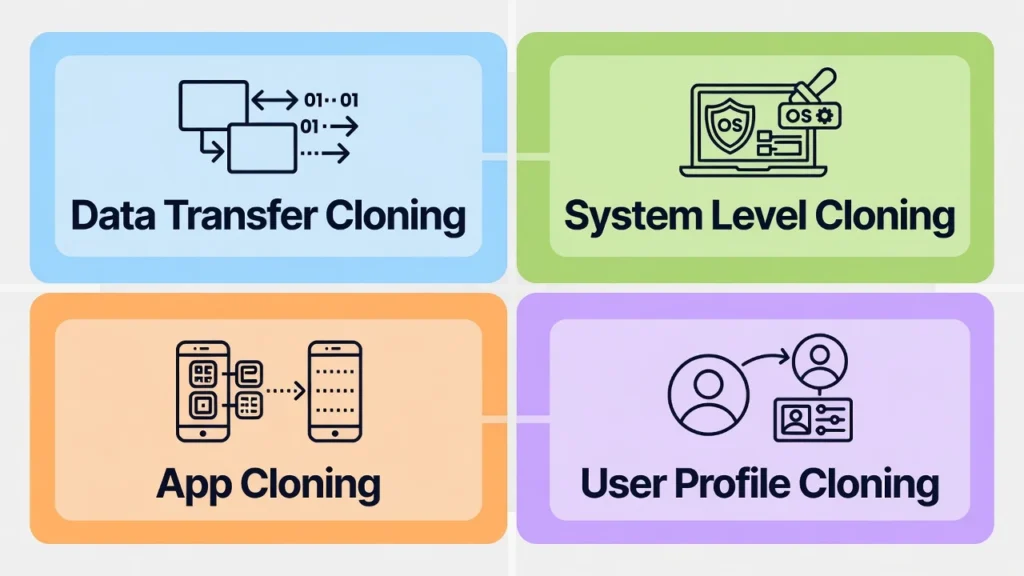
Phone cloning means copying data or digital identity from one mobile device to another. Simple enough. But the word covers four genuinely different processes that work in completely different ways and deliver completely different results.
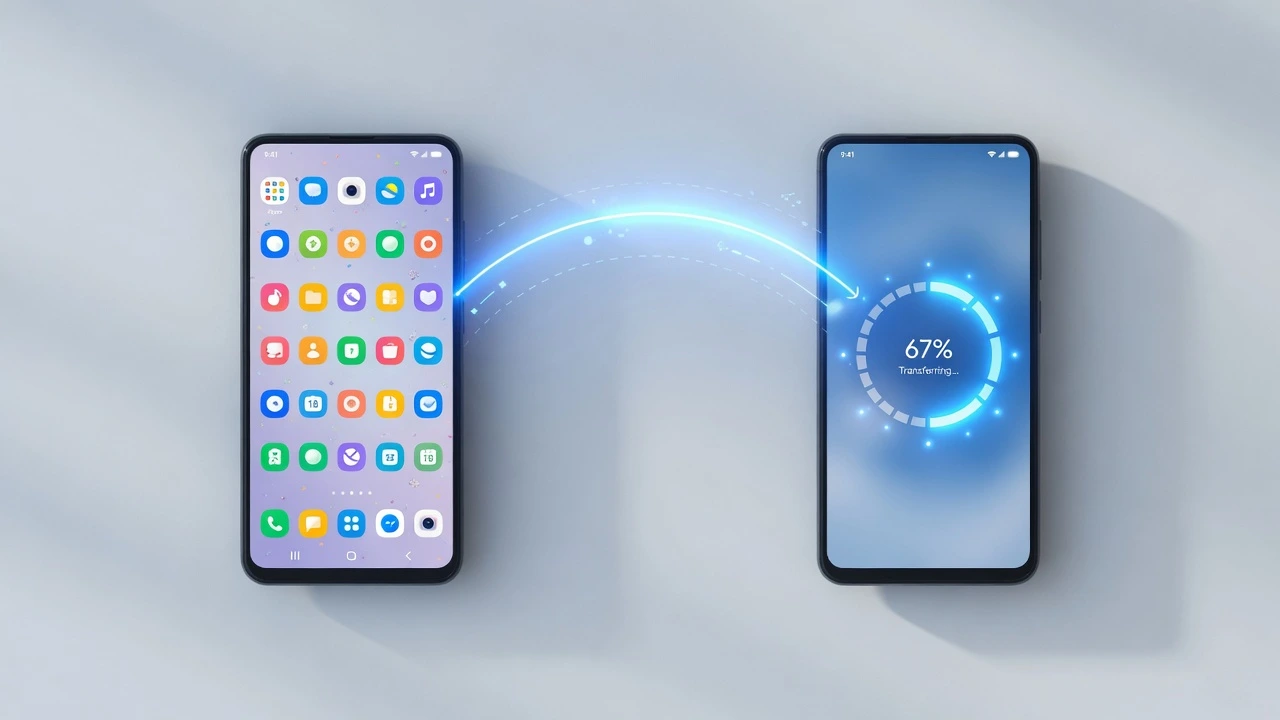
The first type and the one most people actually want is data transfer cloning. It moves your contacts, photos, apps, and settings from an old phone to a new one.
The second type is system level cloning, which creates an exact duplicate of your operating system state, including every open tab and login session.
The third is app cloning, which lets you run two instances of the same app on one phone. The fourth is user profile cloning, which creates a hidden second environment on your device for privacy
Data transfer cloning is what the overwhelming majority of people actually need. Your contacts copy over. Your photos move across. Your apps reinstall on the new device.
The key word there is reinstall they don’t transfer in their current logged-in state, they start fresh. That distinction matters more than most guides acknowledge.
System level cloning is a different animal entirely. This creates a complete image of your phone’s operating system at a specific moment in time. Every open browser tab, every active login session, every notification and configuration is captured exactly as it exists. When you restore from a system-level clone, your phone doesn’t feel like a new device it feels like the same one, picked up mid session
This is what that frustrated Reddit user meant when they said they wanted to “actually clone” their phone, not just download apps again.
App cloning is the one most people stumble onto accidentally. It lets you run two separate instances of the same application on a single phone — two WhatsApp accounts, two Instagram logins, two Gmail setups coexisting without interference. Most Android manufacturers build this feature into their settings under names like ‘Dual Apps’ or ‘Clone Apps,’ though it goes by different names depending on the brand.
User profile cloning is less common but genuinely useful for privacy. Android’s built in multi user architecture lets you create a completely separate user environment on the same physical device.
Different apps, different accounts, different wallpaper, different everything. You access it with a separate PIN or password. To anyone looking at your phone in the primary profile, the second environment is invisible
Most people end up disappointed because they want system-level cloning but only find data transfer tools. And honestly, true system cloning is incredibly complicated. It requires technical skills that most of us don’t have.
The reasons people actually want to clone a phone fall into three categories, and knowing which one applies to you changes which method you should use.
Device upgrades are the most common. You bought a new phone and want everything carried over apps in the same positions, photos intact, settings configured without spending a Saturday manually reinstalling everything from memory.
Backup protection is the second reason, and it’s more serious than people treat it.
A complete copy of your device state is your recovery option when something goes wrong a cracked screen, a failed software update, a phone that just stops turning on. Work phones with complex configurations especially need this, because recreating enterprise settings and two factor authentication setups from scratch is genuinely painful.
Device synchronization is the third. Parents setting up multiple family phones with consistent parental controls, or IT departments deploying standardized employee devices with identical app configurations and security policies.
Consumer cloning tools usually fall short here this is where enterprise mobile device management tools earn their fees.
The thing is, what you call “phone cloning” depends entirely on what you’re trying to accomplish. And that’s exactly where the confusion starts.
Data Transfer Cloning vs System Level Cloning
When you download one of those popular phone clone apps and run it, you’re getting data transfer. Not true cloning. The distinction sounds minor until you’re staring at a new phone that has your apps installed but none of your login sessions, your photos but none of your browser history, your contacts but none of your saved Wi-Fi passwords.
True system cloning captures everything as it exists at that exact moment every active session, every cached login token, every notification setting you’ve customized over months. Data transfer moves files. System cloning moves state.
Consumer apps can’t do system-level cloning. They’re not built for it. The deeper access required means unlocking your bootloader, installing custom recovery software, and accepting the real risk of bricking your device if something goes wrong. Most people find out the hard way that the ‘complete clone’ they expected is actually just a file copy with extra steps.
System level cloning is different. It captures everything exactly as it exists right now. Every notification, every login session, every customization. When you restore it, your phone wakes up like nothing happened.
The problem? True system cloning needs root access on Android, specialized knowledge, and often won’t work across different phone models. Those simple “one-tap clone” apps everyone downloads? They can’t do this level of backup and restore.
That’s why people get frustrated. They want perfect restoration but only find basic transfer tools. Understanding this difference helps set realistic expectations for what’s actually possible with consumer-friendly methods.
The Dark Side: Security Risks You Need to Know About
Unauthorized cloning is a real attack vector, and most guides treat it as an afterthought. It shouldn’t be.
When someone duplicates your phone’s unique identifiers — specifically your IMEI number or SIM card data — they don’t gain access to your contacts. They gain access to your phone number itself. Every call, every text, every two-factor authentication code that gets sent to ‘your number’ goes to their device instead.
The financial damage shows up fast. One of the earliest warning signs is a phone bill featuring international calls or premium SMS charges you never made. By the time most people notice that, the attacker has already intercepted enough banking verification codes to access accounts.
What makes this worse is that the same apps designed for legitimate phone data migration can be misused by someone with physical access to your unlocked device for just a few minutes.
SHAREit, Samsung Smart Switch and similar tools don’t know whether the person running them owns the phone. Neither does your phone. Keeping your device locked and never leaving it unattended around people you don’t fully trust isn’t paranoia it’s the minimum reasonable precaution.
The worst part? You might not even know it happened until the damage is done.
Malicious phone cloning works by copying your device’s IMEI number or your SIM card information. Once criminals have this data, they can intercept your calls and text messages. Your two-factor authentication codes go to their device instead of yours.
Think about what that means. Every bank login code, every password reset, every security verification goes straight to someone who wants to steal from you. They can drain your accounts while you’re sleeping, and you won’t know until you check your balance.
Data privacy becomes meaningless when someone else has a perfect copy of your phone’s identity running on their hardware. They see every message you receive. They can send messages that look like they came from you.
The financial impact hits first. One of the earliest warning signs is receiving a massive phone bill featuring international calls or premium data charges you never made. But by then, the cloner has probably already moved on to your banking apps and social media accounts.
And here’s what really bothers me about other guides. They act like phone cloning is this harmless consumer activity. They never mention that the same techniques people use to transfer data can be weaponized by criminals who get physical access to your unlocked phone for just a few minutes.
How to Tell If Your Phone Has Been Cloned
Phone cloning detection usually starts with your bill, not your device. Charges for international calls you never made, premium SMS messages you didn’t send, or data consumption that happened overnight when your phone was sitting untouched — these billing anomalies show up before you notice anything physically wrong with your device.
Service disruptions come next. Calls that fail in areas where you normally have full signal. Text messages arriving hours late or not at all. Battery draining faster than usual for no apparent reason. These aren’t definitive proof on their own, but when they cluster together with billing irregularities, they form a pattern worth taking seriously.
The behavioral signs are harder to ignore. When your contacts start mentioning calls or messages that came from your number but you have no record of making them, that’s when the situation crosses from suspicious to confirmed. Someone else is using your phone identity to communicate.
Check your account login activity in your banking, email, and social media apps. Most platforms log the time, location, and device type for every login. Entries from cities you’ve never visited, or timestamps from 3 AM when you were asleep, are clear indicators of compromised access — whether through cloning or another attack method.
One test worth running if you have serious suspicions: power your phone completely off.
If your contacts still receive calls or texts from your number while your device is off and confirmed not to have Wi-Fi calling enabled, something is using your phone identity independently.. These patterns show up before you notice anything wrong with your actual device.
But the billing signs are just the beginning. Unauthorized cloning affects your service in ways that seem like minor glitches at first.
Your battery might drain faster because your cloned phone is working overtime. You might lose cellular signal in places where you normally have good coverage. Text messages arrive late or sometimes not at all because they’re being routed to the cloned device first.
The really scary sign is when people start asking you about messages or calls that you never made. When your contacts receive weird texts from your number, or when someone mentions that you called them at 3 AM, that’s when you know someone else is using your phone identity.
Check your account login activity obsessively. Most banking and social media apps show you when and where your account was accessed. If you see logins from locations you’ve never visited, or at times when you were asleep, your phone might be compromised.
And here’s the detection method most people miss. Turn off your phone completely. If someone still receives calls or messages from your number while your device is powered down, that’s definitive proof of unauthorized cloning.
Why Some Popular Apps Are Actually Risky
Xender and SHAREit are legitimate tools that work exactly as advertised — which is precisely what makes them exploitable.
Both apps are built to move files quickly between devices over local wireless connections. That speed and accessibility is their value. It’s also why someone with temporary physical access to your unlocked phone can use them to copy significant amounts of your personal data in minutes, without any alarm going off.
SHAREit has over one billion downloads globally. That scale means criminals are statistically familiar with how it works. Someone who gets two minutes alone with your unlocked phone and knows what they’re doing can pair a second device and begin exporting your files before you notice anything is wrong.
Xender creates its own Wi-Fi hotspot for peer-to-peer transfers. On a trusted home network that’s fine. On public Wi Fi in a café or airport, that same connection can potentially be intercepted by other users on the same network.
Samsung Smart Switch presents a different risk. The desktop version runs on laptops and can initiate a complete device backup when your phone connects via USB. If someone convinces you to connect your phone to their computer pretending to help with something unrelated a Smart Switch backup can copy your entire device without you realizing it. This isn’t a theoretical attack. It’s a social engineering scenario that requires zero technical skill from the attacker.
A malicious person with temporary access to your unlocked phone can use these legitimate apps to clone your information to their device.
The problem isn’t the apps themselves. It’s how easily they can be misused. Phone cloner app features that make data transfer convenient for you also make unauthorized access convenient for criminals.
SHAREit has over one billion downloads. That popularity makes it a perfect cover for data theft. Someone can install it on your phone, pair it with their device, and copy your files before you even realize what happened.
Xender creates its own Wi-Fi hotspot for file sharing. But that same hotspot can be exploited by anyone else on the same network. If you use Xender on public Wi-Fi, other users might be able to access your shared data.
Even Samsung Smart Switch, which seems completely safe because it’s official, can become a security risk. If someone tricks you into connecting your phone to their laptop running the desktop version, they can clone your entire device while you think you’re just helping them with a simple file transfer.
Data privacy protection means being selective about which apps you trust with access to your files. Just because an app is popular doesn’t mean it’s secure when used carelessly.
The apps aren’t malicious by design. But they’re powerful enough that someone with bad intentions can weaponize them against you.
What You Need Before You Start Cloning Your Phone
None of that preparation list is glamorous. But skipping even one item battery, storage, permissions, stable Wi-Fi is how a two-hour transfer turns into a two-day troubleshooting session. I’ve watched people lose irreplaceable photos because their phone auto-locked mid-transfer and nobody told them that was a risk
I’ve watched people start a transfer with 15% battery left, then act surprised when their phone dies halfway through and corrupts everything. Or they begin the process without checking if they have enough storage space, then wonder why only half their photos made it over.
The preparation isn’t glamorous. But skipping it guarantees frustration.
Both devices need to be fully charged before you start. Not 70% charged. Not plugged in while transferring. Fully charged. Phone cloning drains battery faster than normal use because both devices work overtime to process and transmit your data.
Your Wi-Fi connection needs to be stable and fast. Most cloning apps transfer everything over Wi-Fi, not cellular data. If your connection is spotty, the transfer will fail or leave files corrupted. Test your Wi-Fi speed before starting, and make sure both phones stay connected to the same network.
Do not turn off your Wi-Fi connection, close the app, or disconnect either device while migration is running. This is where most people mess up. They get impatient, check other apps, or put their phone down and let it auto-lock. Any interruption can corrupt the entire transfer.
Storage space matters more than you think. Check how much data you’re copying and make sure your new phone has at least 20% more space available. The backup and restore phone process creates temporary files that need extra room.
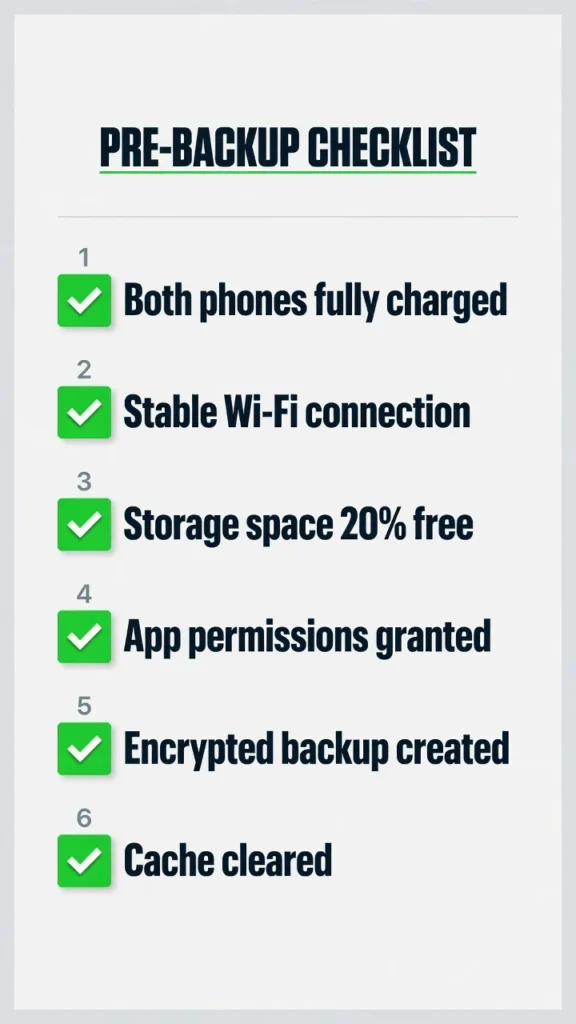
System permissions cause silent failures that drive people crazy. Both devices need proper access permissions configured before you start cloning. Go through the permission settings for your chosen app and grant everything it asks for. Don’t skip the “Allow access to files” or “Allow access to contacts” prompts.
An encrypted backup of your most critical data should exist before you attempt any transfer. If something goes wrong during cloning, you need a way to recover your essential files without starting completely over.
Clear your phone’s cache and close unnecessary apps. Background processes can interfere with data transfer and slow everything down.
That preparation checklist isn’t optional. It’s the difference between a smooth transfer and spending your weekend trying to figure out why half your stuff disappeared.
Finding Legitimate Phone Cloner Apps (Avoid the Fakes!)
The Play Store search results for phone cloning apps are a trap. The top results are almost always knockoffs apps with names like ‘Phone Clone Pro’ or ‘Super Transfer Master’ that have flashy screenshots, four star ratings from suspicious reviewer patterns and user review sections full of the same complaint repeated: transferred nothing, crashed during setup, asked for permissions that made no sense.
The real tools aren’t in the search results. They’re already on your phone.
Every major Android manufacturer pre installs official transfer software on their devices. Samsung has Smart Switch. Huawei has Phone Clone. OnePlus, Oppo, and Realme each have their own built in migration tools. The problem is none of them put a shortcut on the home screen.
They’re buried in system settings under menus with names like ‘Additional Settings,’ ‘System,’ or ‘Backup & Migrate’ depending on the brand and Android version.
I spent an hour with someone trying to transfer data off an old Vivo phone because we kept downloading Play Store apps that claimed Vivo support. None worked. The official Vivo tool was already installed, accessible through Settings > Additional Settings > Backup & Restore. One menu nobody thought to check. That’s where the real tools live on most devices.
“Transferred zero files.”
“Crashed during setup.”
“Asked for suspicious permissions.”
These fake mobile applications waste your time at best. At worst, they’re designed to harvest your personal data while pretending to help with legitimate transfers.
The real phone cloner app tools are hiding in plain sight. Samsung Smart Switch comes pre-installed on Samsung devices. Huawei Phone Clone app is built into Huawei phones. OnePlus, Oppo, and Realme devices have their own official transfer tools buried in system settings.
But here’s the problem. When people can’t find these built-in tools, they turn to the Play Store. And the Play Store search results are dominated by third-party apps that either don’t work or create security risks.
I learned this the hard way when helping someone transfer data from an old Vivo phone. We spent an hour downloading and testing apps that claimed to support Vivo transfers. None of them worked. Then I discovered the official Clone Phone tool was already installed, just hidden three menus deep in the settings.
Popular consumer apps like Xender and SHAREit can handle basic file transfers, but they’re not designed for complete phone cloning. And if you use these apps carelessly, they can create security vulnerabilities that put your data at risk.
The trick is knowing where to look for the real tools. Every major Android manufacturer includes official transfer software. You just need to know the secret path to find these hidden applications.
Official tools work better because they’re designed specifically for your phone’s hardware and software. They understand which data can transfer cleanly and which requires special handling. Third-party apps make generic assumptions that often fail.
The Secret System Settings Method
The built-in system settings method bypasses the fake app problem entirely because you’re not searching for anything the official tool is already there.
The menu path varies by manufacturer, but the general navigation follows the same logic across most Android devices. Open Settings. Scroll to ‘System’ or ‘Additional Settings’ depending on your brand.
Look for ‘Backup,’ ‘Migrate,’ or ‘Clone Phone.’ On Samsung devices, Smart Switch is accessible directly through Settings > Accounts and Backup. On OnePlus and Realme devices, it’s under Settings > Additional Settings > Clone Phone.
Huawei and Honor devices have a dedicated ‘Phone Clone’ app pre-installed that appears in the app drawer it doesn’t require any menu navigation at all.
The success rate with manufacturer tools is consistently higher than third party alternatives because they’re designed specifically for your device’s chipset, Android version and proprietary data formats.
A generic cloning app has to make assumptions about your phone’s structure. Your manufacturer’s tool was built knowing exactly what it’s working with
Inside that menu, you’ll find the official data migration tools for your specific phone brand. This path works on Oppo, Realme, OnePlus, Vivo, and most other Android devices. The exact menu names vary slightly between manufacturers, but the concept stays the same.
Why does this work when Play Store searches fail? Because phone manufacturers pre-install their official clone phone to new phone software, but they don’t always put shortcuts on your home screen. The tools exist, just hidden in system menus where casual users never look.
This discovery method eliminates the guesswork about which phone transfer app to trust. If it’s buried in your system settings, it’s legitimate. If you found it by searching the Play Store, be suspicious.
The hidden system tools also have better success rates because they’re optimized for your specific device model and Android version. No compatibility guessing required.
How to Clone Android to Android (Step-by-Step Guide)
Android to Android transfers give you more options than any other cloning scenario wireless hotspot connections, USB cable transfers, and cloud-based syncing all work, with different tradeoffs for speed, reliability, and data completeness.
Wireless transfers are the most common because they require no cables and work across different phone brands. Your old device creates a local hotspot. Your new device connects to it. The transfer app handles everything from contacts and photos to app installations.
USB cable transfers are faster and more stable than wireless for large data volumes. If you’re moving 30GB or more, a cable connection through your manufacturer’s desktop software will complete in a fraction of the time a wireless transfer would take — and with fewer interruption risks.
Google account sync handles the baseline — contacts, calendar events, and Google Photos sync automatically when you log into your Google account on the new device. But sync only covers Google-stored data. Everything local to your device, app-specific data, and settings require dedicated cloning tools on top of the Google account restoration
The process itself is straightforward once you know which method matches your specific Android devices. Phone data migration between Android phones happens through wireless connections, avoiding the need for cables or complicated computer software.
Here’s what actually happens during Android to Android cloning. Your old device creates a secure wireless hotspot. Your new device connects to that hotspot. Then the real transfer begins, moving everything from contacts and photos to app data and system settings.
Google account sync handles some of this automatically, but it only covers basic data like contacts, calendar events, and photos stored in Google Photos. Everything else requires dedicated cloning tools.
The biggest mistake people make is choosing random apps from the Play Store instead of using the manufacturer tools that come pre-installed. Official tools understand your phone’s specific hardware and software, which means better compatibility and fewer transfer failures.
Timing varies wildly based on how much data you’re moving. A basic phone with just contacts and a few photos might transfer in under ten minutes. A phone loaded with apps, videos, and years of photos could take several hours.
But here’s what no other guide tells you. The actual transfer speed depends more on your Wi-Fi connection quality than the amount of data. Wireless phone cloning requires stable internet, and any connection drops can corrupt the entire process.
Method 1: Using Built-in Manufacturer Tools
Samsung Smart Switch comes pre-installed on every Samsung device and works better than any third-party alternative I’ve tested. The app handles everything from app installation to login credentials transfer.
Open Smart Switch on your new Samsung phone. Select “Receive data” and choose “Galaxy/Android device” as your source. On your old Android phone, download Smart Switch if it’s not already installed, then select “Send data.”
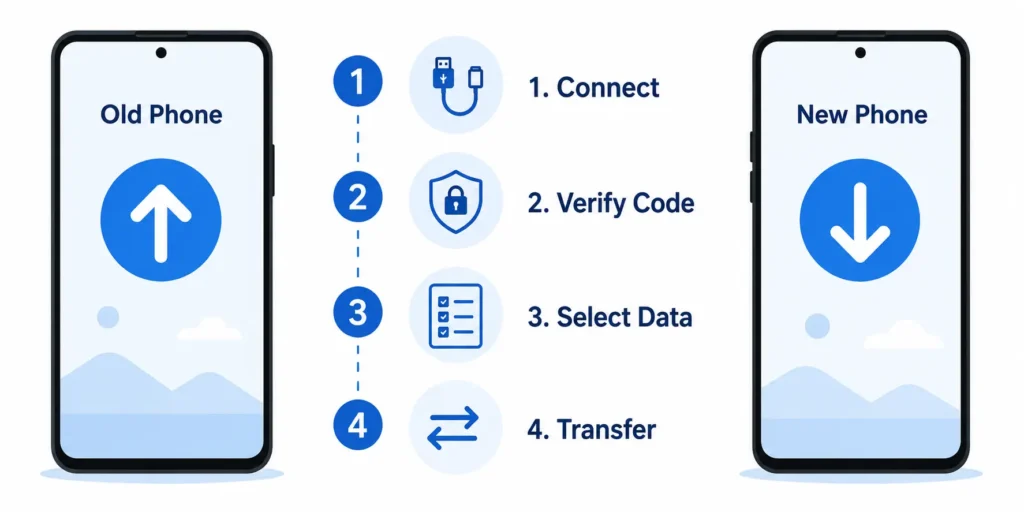
The phones will connect wirelessly and display a security code. Verify the code matches on both devices, then select which data types to transfer. Samsung Smart Switch can move apps, contacts, messages, photos, videos, call logs, and even some app-specific data.
Other manufacturers have similar tools with different names. OnePlus Clone Phone, Oppo Clone Phone, and Realme Clone Phone all work using the same basic process. These official Phone Clone app tools are hidden in system settings rather than prominently displayed on your home screen.
The success rate with manufacturer tools runs much higher than third-party options because they’re designed specifically for your device’s Android version and hardware configuration. Cross-brand transfers work too, just with slightly lower app data preservation.
Official manufacturer tools are pre-installed and more reliable than third-party alternatives because they bypass many of the permission restrictions that limit generic cloning apps.
Method 2: Third-Party Apps That Actually Work
For cross-brand Android transfers where manufacturer tools don’t support each other, a handful of third-party apps actually work consistently.
CLONEit is the most reliable third-party option I’ve found for media file transfers. It handles photos, videos, and documents faster than most alternatives and doesn’t require both devices to be from the same manufacturer.
The app creates a local Wi-Fi connection between the two phones no internet required and shows real time progress with size calculations and time estimates.
One honest limitation: CLONEit transfers files but not app data. Your apps reinstall as fresh installations without their settings or login sessions. For media-heavy phones where photos and videos represent most of your data, that trade-off is usually acceptable.
On the SHAREit recommendation from earlier the security concerns are real, and I’d avoid using it for complete phone cloning even if it technically supports file transfers. Stick to it only if CLONEit or manufacturer tools aren’t an option, and disconnect both devices from public networks before initiating any transfer.
Download EasyShare on both devices from the Play Store. Open the app and select “Phone Clone” from the bottom menu. Choose “Old Phone” on your source device and “New Phone” on your target device.
The new phone generates a QR code. Scan this code with your old phone’s camera through the EasyShare app. Both devices will show connection confirmation and start calculating available data for transfer.
Select the data types you want to move. The app shows real-time size calculations and estimated transfer times. For the 5GB demonstration, EasyShare showed a 45-minute estimate that proved accurate.
Mobile data transfer through EasyShare requires both phones to stay active and connected throughout the process. The app warns against locking screens, switching to other applications, or disconnecting from the local network during transfer.
CLONEit is another third party option that works reliably for basic file transfers. The app specializes in photos, videos, and documents rather than complete system clones. It’s faster than EasyShare for media files but doesn’t handle app data as thoroughly.
SHAREit handles large file transfers effectively but has security concerns when used carelessly. Only use SHAREit for specific file types, not complete phone cloning, and always disconnect immediately after transfers complete.
What to Expect During Transfer (Real Numbers)
Copy data from old phone operations take longer than most people expect, especially for phones with years of accumulated files and applications.
A typical smartphone with 2-3 GB of data transfers in 20-30 minutes using manufacturer tools. Phones with 5-8 GB of content require 45 minutes to 1.5 hours. Heavily loaded devices with 15+ GB can take 2-4 hours depending on file types and Wi-Fi speed.
Photos and videos transfer fastest because they’re simple file copies. App data transfers slowest because the system needs to recreate databases, preferences, and user configurations. Messages and call logs fall somewhere in between.
Phone setup transfer success rates hover around 85-90% for manufacturer tools, with the remaining 10-15% consisting of apps that require manual login or have built-in cloning restrictions. Banking apps and security-focused applications almost never transfer their logged-in states.
Games with cloud save features transfer better than games that store progress locally. Social media apps usually require re-login but preserve downloaded content. Productivity apps transfer settings but may lose cached documents.
The transfer process shows live progress with file counts and completion percentages. But these progress indicators aren’t always accurate. The final 10% often takes as long as the first 50% because system configuration happens at the end.
Don’t panic if the process seems stuck at 85% or 90% completion. That’s when the receiving phone installs apps, configures settings, and finalizes the clone. This phase requires patience because interrupting it corrupts everything.
How to Clone iPhone to iPhone (Understanding the Limits)
iPhone transfers frustrate people because the marketing around them consistently overpromises what iOS security architecture actually allows. Apple’s system is designed to prevent the kind of deep data access that makes Android system level cloning possible.
That’s not a flaw it’s intentional security design. But it means the ‘complete clone’ that third-party apps advertise on the App Store is a generous description of what actually happens.
Two methods work reliably for legitimate iPhone to iPhone data migration: iCloud backup restoration and Quick Start direct transfer. Both are built by Apple. Both work within the same iOS security constraints. And both will leave you setting up your banking apps and two factor authentication from scratch, regardless of which one you choose.
The first thing you need to understand about Apple iPhone transfers is that iOS security creates barriers that don’t exist on other platforms. Apple designed their system to prevent the kind of deep cloning that Android users take for granted.
You can move your data successfully, but you can’t create perfect system-level duplicates. The operating system simply won’t allow it. This isn’t a limitation of the cloning tools—it’s how Apple built iOS from the ground up.
There are two distinct approaches for iPhone transfers: software-based cloning and hardware-based cloning. Software methods rely on apps and cloud services to move your data. Hardware methods use direct device connections to transfer information.
Both approaches have strict built-in limitations regarding what deep system data they can actually read and extract. Banking app logins won’t transfer. Your Face ID settings reset. Third-party app configurations often disappear.
This is where marketing claims clash with reality. Clone iPhone advertisements promise “complete transfers” and “everything moves perfectly.” But iOS security architecture prevents tools from accessing encrypted user data, app-specific databases, and security credentials.
The process works best when you adjust your expectations to match what’s actually possible. Contacts, photos, and basic app installations transfer reliably. Everything else requires manual setup on your new device.
Wireless phone cloning on iOS takes longer than equivalent Android transfers because Apple forces additional security verification steps throughout the process. What looks like the system hanging is usually iOS performing background security checks.
iCloud Backup Method (Cloud-Based Transfer)
iCloud backup represents the software-based approach to iPhone data transfer. Your old phone creates an encrypted backup in Apple’s cloud storage, then your new phone downloads and restores that backup.
This method requires sufficient iCloud storage space for your entire device backup. If you’re using the free 5GB plan, you’ll need to upgrade temporarily or selectively choose which data to include in the backup.
Create a fresh backup on your old iPhone through Settings > [Your Name] > iCloud > iCloud Backup > Back Up Now. The backup process takes 30 minutes to several hours depending on your data volume and internet speed.
During new iPhone setup, select “Restore from iCloud Backup” when prompted. Sign in with the same Apple ID used for the backup. Choose your most recent backup from the list that appears.
Encrypted backup transfers more data types than standard backups, including saved passwords, Wi-Fi settings, and Health app data. Enable encryption through iTunes or Finder on your computer for more complete transfers.
The software-based approach limitations become obvious during restoration. Apps download fresh from the App Store rather than transferring their current states. You’ll need to log back into most services manually.
iCloud restoration works best for basic data like contacts, photos, calendars, and notes. App-specific data transfers inconsistently, and banking or security apps typically require complete setup from scratch.
Quick Start (Direct Device Transfer)
Quick Start iPhone represents the hardware-based approach where both devices communicate directly without using cloud storage. This method requires both iPhones to be physically close during the entire transfer process.
Turn on your new iPhone and place it next to your old iPhone. The old device will automatically detect the new iPhone and display Quick Start prompts on both screens.
Use your old iPhone’s camera to scan the animation that appears on your new iPhone’s screen. This establishes a secure direct connection between the devices for data transfer.
The hardware-based approach transfers data faster than iCloud restoration because everything moves locally through a direct wireless connection. No internet speed limitations slow down the process.
Quick Start can transfer more current data than iCloud backups because it captures your device state at transfer time rather than relying on older backup snapshots. Recently taken photos and new messages transfer more reliably.
Both devices must remain unlocked, powered on, and within close proximity throughout the transfer. Moving the phones apart or letting either device lock can interrupt the process and corrupt data.
Wireless phone cloning through Quick Start still faces the same iOS security limitations as iCloud methods. Banking apps, security credentials, and encrypted app data won’t transfer regardless of which method you choose.
Cross-Platform Cloning: Android ↔ iPhone (The Reality)
Cross-platform transfers have a deserved reputation for disappointment, and the reason is straightforward: Android and iOS don’t just use different interfaces they store data in structurally incompatible formats at the file system level.
Photos and contacts follow universal standards that translate cleanly. App data, system settings, and platform specific features are proprietary. They don’t have equivalents on the other side.
No app solves this. Move to iOS is the closest thing to an official cross platform tool and it explicitly tells you it transfers contacts, photos, messages, and basic files and stops there.
Anything stored within an app’s private data container stays behind. That means game progress, productivity app configurations, authentication states, and most in-app preferences need to be manually recreated on the new device.
The honest frame for cross-platform transfers is not ‘moving your phone’ but ‘starting fresh with your content
The fundamental problem is that Android and iOS store data completely differently. What works perfectly for device migration within the same platform becomes a translation nightmare when switching between ecosystems.
iOS security creates specific limitations not found on Android platforms. Apple designed their system to prevent deep data access that would make perfect cloning possible. Android is more open, but that openness doesn’t help when the receiving iPhone refuses to accept certain data types.
Cross platform transfers have inherent compatibility barriers that can’t be overcome through better apps or clever workarounds. The platforms speak different languages at the system level.
Think of it like trying to run Windows software on a Mac. Some things translate well. Others get lost or broken in the process. That’s exactly what happens when you attempt to clone Android to iPhone or clone iPhone to Android.
The apps that promise “seamless cross platform transfers” are stretching the truth. They can move photos, contacts, and basic files. But app data, system settings, and platform-specific features get left behind.
Clone Android to iPhone
Moving from Android to iPhone requires Apple’s “Move to iOS” app, but this tool only handles basic data categories. Photos, contacts, messages, and calendar events transfer reliably. Everything else needs manual recreation.
Download Move to iOS on your Android device during iPhone setup. The iPhone will generate a connection code that links both devices temporarily for data transfer.
Android app data almost never transfers to equivalent iOS apps. Your game progress disappears. Your productivity app configurations reset. Banking apps require complete setup from scratch on the iPhone.
WhatsApp offers its own cross platform transfer tool, but it only works in one direction and requires specific cable connections. Most other messaging apps lose chat histories completely during Android to iPhone switches.
Google services integrate better with Android than with iOS. When you switch to iPhone, expect to lose some Google Assistant functionality, default app preferences, and deeper Android system integrations.
Clone iPhone to Android
iPhone to Android transfers face different but equally frustrating limitations. Apple doesn’t provide official tools for leaving their ecosystem, forcing you to rely on Google’s “Switch to Android” guidance.
Google Drive can backup iPhone data, but the backup lacks the depth of native iPhone tools. App-specific data rarely survives the transition, and iOS-exclusive features obviously can’t transfer to Android.
iMessage conversations don’t transfer to Android messaging apps. FaceTime call histories disappear. Apple Pay configurations require complete setup with Google Pay or Samsung Pay.
The iPhone security model prevents third-party apps from accessing encrypted data that would enable deeper transfers. Banking app logins, health data, and biometric settings stay locked to your iPhone even when you’re ready to switch platforms.
For iPhone users making the switch, our complete guide on transferring phone numbers to new iPhone covers the essential steps for maintaining your primary contact method during device transitions.
Cross-platform device migration works best when you treat it as starting fresh rather than expecting perfect duplication.
What Actually Transfers vs What Doesn’t (Be Realistic)
Every cloning tool markets itself with before-and-after screenshots where the new phone looks identical to the old one. The reality is messier. Understanding which data categories transfer reliably — and which ones are blocked by design rather than by tool failure — saves you from spending hours troubleshooting something that was never going to work in the first place
Here’s the truth nobody wants to admit. Neo Backup can transfer about 90% of your data according to experienced users, but that remaining 10% includes some of the most important stuff you actually care about.
The marketing materials show pristine before-and-after screenshots where everything looks identical. Real transfers look messier. Apps reinstall fresh. Settings reset to defaults. Login sessions disappear.
iOS has strict built-in limitations regarding what deep system data cloning tools can actually read and extract. Android is more open, but even Android apps create barriers that prevent perfect duplication.
Different app categories have vastly different transfer success rates. Photos and basic files move reliably. Banking apps almost never transfer their logged-in states. Gaming apps fall somewhere in between, depending on whether they use cloud saves.
The problem is that app developers can choose to block data transfers for security reasons. Your authenticator app codes don’t migrate because that would defeat the purpose of two-factor authentication. Your banking app makes you verify your identity again because transferred login sessions could be a security risk.
Understanding these limitations helps set realistic expectations. You’re not doing something wrong if your transfers aren’t perfect. The system is designed with intentional barriers that prioritize security over convenience.
What Transfers Successfully (The Good News)
Copy contacts to new phone operations succeed almost universally across all cloning methods. Contacts represent basic structured data that every platform handles consistently.
Photos and videos transfer reliably because they’re simple files without complex dependencies. Your camera roll moves completely, including metadata like timestamps and location data when the receiving platform supports those features.
Calendar events, email account configurations, and basic system settings like ringtones transfer well through most phone data migration tools. These data types follow standard formats that work across different devices and platforms.
Music files stored locally on your device transfer completely. Streaming service playlists sometimes transfer if both devices use the same music platform, but downloaded songs from streaming services usually require re-downloading due to licensing restrictions.
Text messages and call logs transfer successfully between devices using the same operating system. Android to Android transfers preserve complete SMS histories. iPhone to iPhone transfers maintain iMessage conversations with full formatting.
WiFi passwords and network configurations transfer through manufacturer tools but often fail with third-party apps. Official Samsung Smart Switch remembers your saved networks, but generic cloning apps typically skip this data for security reasons.
Basic app installations transfer consistently, meaning your apps reinstall automatically on the new device. The apps appear on your home screen in roughly the same positions, though some manual rearrangement is usually needed.
Document files, PDFs, and productivity content transfer well when stored in accessible folders. Cloud-synced documents work better than locally stored files because cloud services handle the synchronization automatically.
What Often Fails to Transfer (The Reality Check)
App data transfer fails most frequently with security-sensitive applications that intentionally block cloning to protect user accounts.
Banking apps never transfer logged-in sessions. You’ll need to verify your identity completely, set up biometric authentication again, and reconfigure all your account preferences. This is intentional security design, not a transfer failure.
Two-factor authentication transfer almost never works because moving authenticator codes between devices would create security vulnerabilities. Google Authenticator, Authy, and similar apps require manual setup on your new device with fresh code generation.
Game progress transfers inconsistently depending on the game’s save system. Games that store progress locally often lose all data during transfers. Games with cloud saves maintain progress, but you’ll need to log back into your gaming accounts manually.
Social media app data transfers unpredictably. Instagram might preserve your logged-in session, or it might require complete re-login. Facebook, TikTok, and Twitter handle transfers differently, and their behavior changes frequently with app updates.
Encrypted backup data from apps like Signal or encrypted messaging services never transfers because decrypting this data on a new device would compromise the encryption’s purpose.
Health and fitness app data transfers sporadically. Apple Health data stays locked to iOS devices. Google Fit data moves between Android devices but not to iPhones.
If you’re switching from iPhone to Android and wondering about Apple Watch compatibility, check our detailed guide on using Apple Watch with Android phones. Fitbit and similar services require fresh app setup despite cloud synchronization
Browser bookmarks and saved passwords transfer inconsistently unless you use browser sync services like Chrome Sync or Firefox Sync. Locally stored browser data typically gets lost during transfers.
Custom keyboards, launcher configurations, and personalization settings reset to defaults. Your carefully arranged home screen widgets, notification settings, and accessibility configurations need manual recreation on the new device.
The technical limitations of consumer tools mean that perfect app data preservation requires manual backup of certain data types before attempting any transfer.
For Tech-Savvy Users: Advanced Cloning Methods
Most people asking about “actual” phone cloning want something that consumer apps simply cannot deliver. Advanced methods exist, but they require technical skills that go far beyond downloading an app from the Play Store.
True system cloning involves creating perfect copies of your device’s operating system, including every setting, every login session, and every piece of cached data. This is possible on Android through specific techniques, but the learning curve is steep.
Android rooting opens doors to system level access that normal users never see, but mastering Android rooting techniques and understanding bootloader modification procedures requires extensive technical knowledge.
The file system access needed for true cloning involves complex partition management that goes far beyond typical smartphone customization.
People who master these techniques typically spent months working through XDA Developers forum guides and recovering from failed attempts on test devices.
The payoff is real. A full NAND backup captures everything every login session, every cached token, every system state detail. But the time investment to get there reliably often exceeds the hours you’d spend manually configuring a new phone the normal way.
I’m not exaggerating about the complexity. These methods involve custom recovery tools, bootloader modifications, and deep understanding of Android’s file system architecture. One mistake can permanently damage your device.
The payoff is real though. System cloning through advanced methods creates restoration points that consumer tools can’t match. Every open browser tab, every logged-in app, every customization survives the cloning process perfectly.
But here’s what I’ve learned from people who actually use these techniques. The time investment to master advanced cloning often exceeds the time you’d spend manually setting up a new device the normal way.
Android manufacturers have made advanced cloning harder with each security update. Modern devices use encrypted partitions, verified boot processes, and hardware security modules that actively resist the deep access these techniques require.
NAND Backup for Complete System Cloning
NAND backup represents the gold standard of Android system cloning, but it requires rooted devices and custom recovery software like TWRP.
A NAND backup creates bit-for-bit copies of your device’s storage partitions, capturing everything from the bootloader to user data. This technical cloning method preserves the exact system state, including cached login tokens and temporary files.
The process requires unlocking your bootloader, installing custom recovery software, and understanding partition structures that vary between device manufacturers. Different Android phones organize their storage differently, so NAND backup procedures that work on Samsung devices might fail on OnePlus hardware.
Restoration from NAND backups works only on identical hardware running the same firmware version. You can’t restore a Galaxy S24 backup onto a Galaxy S23, and you definitely can’t restore across different brands.
Creating a full NAND backup takes hours and requires external storage with enough space for your device’s entire system image. A 128GB phone might generate backup files exceeding 100GB depending on data compression.
This system cloning approach appeals to Android enthusiasts who modify their devices frequently and need reliable restoration points before experimenting with custom ROMs or system modifications.
Built-in System Clone Features
System clone functionality exists on many Android devices as a hidden feature that creates separate user profiles on the same hardware.
This approach creates a completely isolated Android environment that shares physical hardware but maintains separate data, apps, and settings. When you unlock your phone with a secondary password, the device boots into this hidden system clone.
The secondary environment looks like a factory-fresh phone with its own app installations, user accounts, and customization settings. Your primary profile remains completely hidden when the system clone is active.
User profiles through system clone features don’t require rooting or technical modifications. The functionality is built into Android’s multi-user architecture, though manufacturers often hide the controls deep in system settings.
This method works well for privacy scenarios where you need a clean phone environment for specific situations, but it’s not true cloning in the sense of duplicating your primary setup.
Common Mistakes That Ruin Your Clone (Learn from Real Users)
I’ve seen the same phone cloning mistakes destroy hours of work and cause people to lose irreplaceable data. The worst part is that most transfer failures happen because of simple errors that take seconds to avoid.
The biggest mistake happens during the actual transfer process. Do not turn off your Wi-Fi connection, close the app, or disconnect either device while migration is running. Yet people do this constantly because they get impatient or distracted.
Here’s what typically happens. The transfer starts normally and shows steady progress for the first 30 minutes. Then someone puts their phone down and lets it auto lock. Or they switch to check messages. Or they walk too far from their Wi-Fi router and lose connection strength.
The result is corrupted data that can’t be recovered. Half your photos transfer, your contacts get scrambled, and apps install but lose all their settings.
If you end up losing important contact information during a failed transfer, you can often recover deleted phone numbers using built-in Android and iPhone recovery methods. Then you have to start completely over, assuming you can even clean up the partial mess on your new device
Phone cloning mistakes follow predictable patterns because people make the same assumptions about how the process works.
The second most common error is downloading fake apps that promise easy cloning but deliver nothing except frustration. The Google Play Store is flooded with broken apps that have convincing names like “Phone Clone Pro” or “Super Transfer Master.”
These fake apps waste your time at best. At worst, they create security vulnerabilities by requesting excessive permissions they don’t actually need for legitimate transfers. People download them because the real cloning apps are harder to find, then spend hours troubleshooting why nothing works.
Transfer failures multiply when people skip the preparation steps because they seem boring or unnecessary. Low battery levels kill transfers midway through. Insufficient storage space causes mysterious errors. Missing app permissions create silent failures where the process appears to work but actually skips critical data.
Security mistakes enable malicious cloning by attackers who exploit the same tools meant to help you. Accepting connection requests from unknown devices in public spaces opens your phone to unauthorized data access.
Using cloning apps on unsecured public Wi-Fi networks allows other users to potentially intercept your personal information.
People also underestimate timing requirements and start transfers when they don’t have enough uninterrupted time available. A 5GB transfer might need two hours, but someone starts the process 30 minutes before they need to leave for work.
When they interrupt the transfer to save time, they create cloning problems that take longer to fix than the original transfer would have taken.
The most frustrating mistake is expecting perfect results from consumer-grade tools, then blaming the app when specialized data doesn’t transfer. Banking apps don’t move their login sessions by design. Game progress disappears because developers intentionally block data transfers. These aren’t bugs or transfer failures they’re security features working exactly as intended.
Understanding these common patterns helps you avoid the mistakes that turn simple phone transfers into multi-day troubleshooting nightmares.
Frequently Asked Questions
Can I clone a cell phone without a SIM card?
Yes, you can clone a phone without a SIM card because most cloning methods use Wi-Fi for data transfer. The SIM card is only needed for cellular calls and mobile data, not for moving your photos, contacts, and apps to a new device.
What’s the difference between phone cloning and SIM swapping?
Phone cloning refers to legitimate data transfer between your own devices, while SIM swapping is a malicious attack where criminals trick your carrier into moving your number to their SIM card. SIM swapping is a serious security threat that can lead to account takeovers and financial theft.
Why do so many clone apps in the Play Store not work?
The Play Store is flooded with fake clone apps that have convincing names but broken functionality, created to harvest personal data or generate ad revenue. The real cloning tools are usually pre-installed by manufacturers and hidden in system settings rather than available through Play Store searches.
How long does it take to clone a phone?
A typical phone with 2-3 GB of data takes 20-30 minutes, while phones with 5 GB or more can require 45 minutes to 2 hours depending on your Wi-Fi speed. The actual transfer time depends more on your internet connection quality than the amount of data being moved.
How can I clone a cell phone?
You can clone a cell phone by using the official transfer app built into your phone’s settings Samsung Smart Switch, OnePlus Clone Phone, or iCloud for iPhones which moves your contacts, photos, and apps to a new device over a Wi-Fi connection in under two hours.
Can someone clone my phone without me knowing?
Yes, malicious cloning can happen if someone gets physical access to your unlocked phone for just a few minutes, or through SIM swapping attacks that don’t require touching your device. Warning signs include unexpected phone charges, duplicate text messages, or sudden loss of cellular service.