Why Your Phone Connection Matters (And What You Need to Know First)
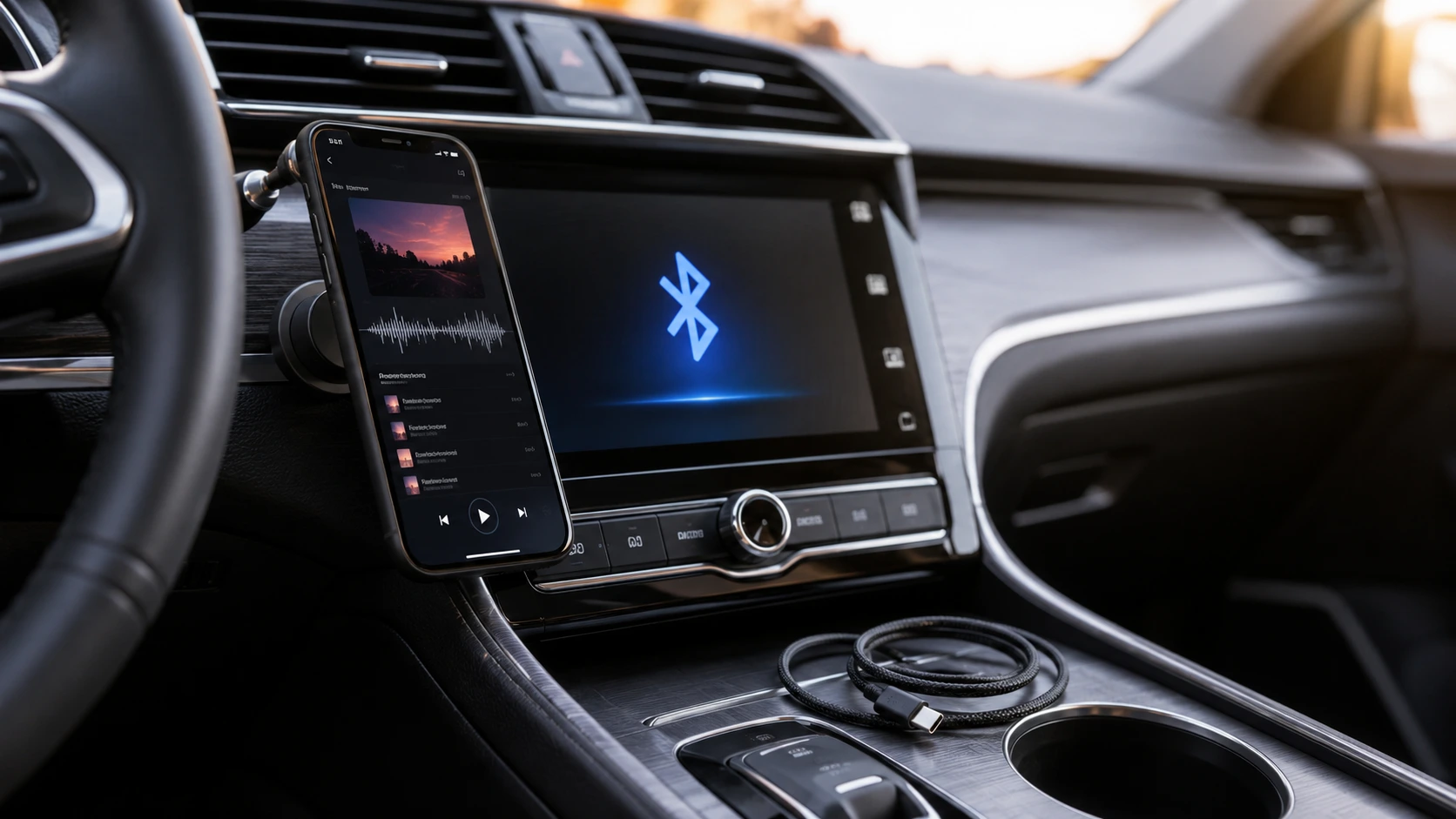
If you’ve ever typed ‘how do I connect my phone to my car’ into a search bar and ended up more confused than when you started, you’re not alone. I spent years assuming this stuff was only relevant for newer, more expensive vehicles.
Turns out I was wrong. In just two years, the share of drivers actively using phone-to-car connectivity jumped from 26% to 40% and 83% of those drivers use it regularly once it’s set up.
That’s not a niche feature anymore. That’s something the majority of drivers now expect as standard
The actual problem isn’t whether to connect your phone it’s that there’s no single process that works for every car and phone combination. A 2015 Bluetooth-only Toyota and a 2024 wireless Android Auto Nissan need completely different steps
A 2015 Toyota with basic Bluetooth needs completely different steps than a 2024 Nissan with wireless Android Auto built in. And if your car predates 2010? You’re looking at a different approach entirely one that doesn’t involve Bluetooth at all
Most guides online skip this entirely. They write for one hypothetical person with one hypothetical car. But your car might only support hands free calling through Bluetooth.
Or your brand new vehicle might have wireless connectivity locked out on the base trim something that wasn’t even an option five years ago. The specifics matter, and most guides never get there
By the time you finish reading this, one of three things will be true. Your music is playing through your car speakers and the connection is solid.
Or you know exactly why your car doesn’t support what you wanted because sometimes the limitation is baked into the hardware and no amount of troubleshooting changes that.
Or you’ve found the workaround that actually fits your specific setup, whether that’s an aux cable, an FM transmitter, or even connecting your phone to a computer for different connectivity needs.
Or you know exactly why your car doesn’t support what you wanted because sometimes the limitation is baked into the hardware and no amount of troubleshooting changes that. Or you’ve found the workaround that actually fits your specific setup, whether that’s an aux cable, an FM transmitter, or something else
Here’s what actually matters: matching the right connection method to what your specific car has and what your phone actually is. That’s it. For some people that’s Bluetooth. For others it’s a USB cable, an aux cord, or a ten-dollar adapter from the electronics drawer. The method changes. The goal stays the same
Let me show you how to make sense of all this.
Why Your Phone Connects for Calls But Not Music (The Media Audio Toggle Fix)
You paired your phone. The test call worked perfectly — audio through the speakers, crystal clear. Then you open Spotify or Apple Music and nothing comes out. The car shows connected. But the music stays on your phone speaker no matter what you try.
This is the most frustrating Bluetooth problem I see people struggle with. And here’s the thing most guides completely miss: your phone isn’t broken. Your car isn’t broken. You’re actually connected to two different audio channels at the same time, and you only enabled one of them.
Why Bluetooth Has Two Audio Channels (And Why This Matters)
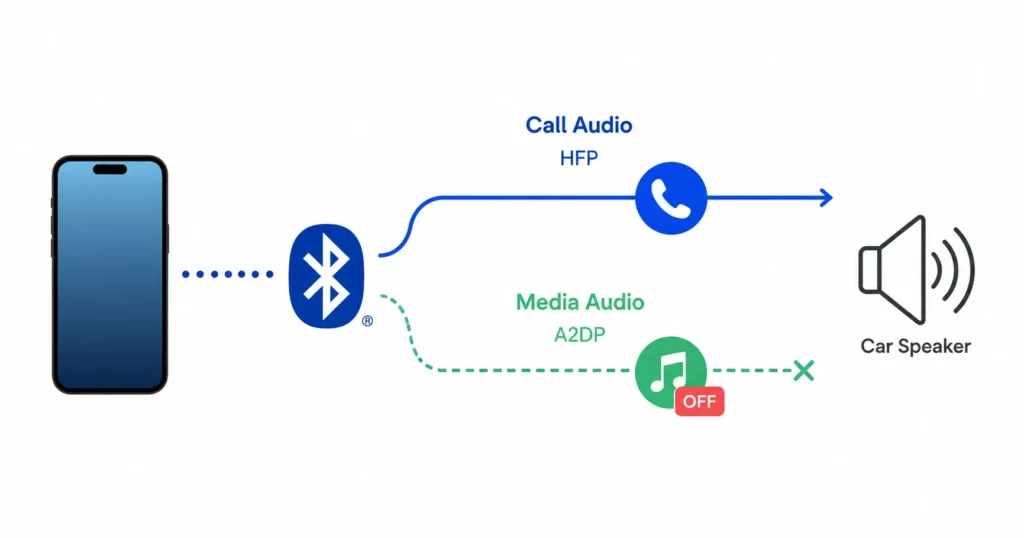
Bluetooth actually splits into two separate audio pathways the moment your phone connects to a car. One pathway handles voice calls. The other — called media audio handles everything else: music, podcasts, navigation instructions. Your car automatically enables the call pathway during pairing. The media audio pathway sits there switched off, waiting for you to turn it on separately.
Your car knows the difference. When you pair your phone, it automatically enables the call audio channel. That’s why hands-free calling works immediately. But the music channel, called media audio, requires a separate toggle that sits in your Bluetooth settings waiting for you to turn it on.
I wasted way too much time before I understood this. I’d pair my phone, test the call audio, assume everything was working, then get completely confused when Spotify wouldn’t output a single note through the speakers. The pairing wasn’t broken. It was just doing exactly what it was set up to do — and music wasn’t part of that setup
This is what most people miss: pairing your phone and enabling full Bluetooth functionality are two different actions. Pairing is the handshake. Enabling media audio is what actually makes music work.
The Fix: How to Enable Media Audio on Your Phone
The fix is in your phone’s Bluetooth settings specifically the media audio toggle that most people never know exists. The exact steps differ between iPhone and Android, but the concept is the same on both.
iOS: Enabling Media Audio
On iPhone, go to Settings and tap Bluetooth. Find your car’s name in the connected devices list then press and hold it for a second or two until a menu appears. Tapping won’t get you there. That long-press is the step most people miss
From that menu, select “Info” or the gear icon if you see one. Now look for an option that says “Media Audio.” That toggle should be right there waiting. Turn it on.
After you flip that toggle, your car should recognize that your phone is now ready to send music through the speakers. Try playing something on Apple Music or Spotify and the audio should come through your car’s system. If it doesn’t immediately, wait a few seconds and try again. Sometimes there’s a tiny delay while the connection updates.
Android: Enabling Media Audio
Android works almost identically. Go to Settings, tap Connected Devices, then Bluetooth, and find your car in the paired devices list. Press and hold on your car’s name and a menu will appear — same as iPhone
Select “Advanced” or “Settings” depending on your phone. Look for Media Audio or a checkbox that says something like “Allow media audio.” Toggle that on.
For Samsung phones specifically, you might see it labeled slightly differently like “Media Audio” or even “A2DP.” The name changes, but it’s the same toggle. Google Pixel users should see it clearly labeled as Media Audio.
Once that’s enabled, your phone is now set up to send music and podcasts through your car’s speakers. Test it with whatever music app you use. The sound should come through immediately.
What to Do If Media Audio Option Doesn’t Appear
ometimes the toggle simply doesn’t exist in your settings. That typically means one of two things: your car’s Bluetooth physically can’t handle media audio, or the pairing got stuck partway through and needs to be cleared and redone from scratch
The first possibility is that your car genuinely doesn’t support media audio through Bluetooth. This is common in older vehicles or cars that were designed to only handle call audio. Some manufacturers limited Bluetooth to hands-free calling only. It was a cost-cutting choice they made, and it can’t be fixed by toggling anything.
If this is your situation, you’ll need a different approach. Your car still works fine for calls, but you’ll need to use an alternative method for music. An auxiliary cable with a USB adapter works if your car has an aux jack. Or an FM transmitter plugs into your cigarette lighter and broadcasts to an empty radio frequency.
The second possibility is that you need to re-pair your phone from scratch. Sometimes the pairing gets stuck in a partial state where media audio never gets enabled. The fix is to forget the device completely and pair again.
Go to your phone’s Bluetooth settings and tap the “i” or gear icon next to your car’s name. Select “Forget This Device.” On your car, go to its Bluetooth settings and delete your phone from the paired devices list. Now pair them again from the beginning like it’s the first time. This usually forces the system to enable both audio channels properly.
Method 1: Basic Bluetooth Setup (The Most Universal Option)
If you’re working out how to connect your phone to your car and your vehicle was made in the last ten years, basic Bluetooth pairing is your fastest path. About 93% of modern vehicles have it built in and that number reaches back further than most people expect, covering a lot of vehicles from 2009 onward.
The process itself is simple. But one step trips up nearly everyone, and it’s the reason people end up convinced their car won’t pair at all.
The process itself isn’t complicated. But there’s one step that trips up almost everyone, and it’s the reason people end up frustrated thinking their car won’t pair with their phone at all.
Before You Begin: Checklist
Three things need to be in place before you touch anything. First, confirm your car is actually a Bluetooth enabled car check the owner’s manual or look for a Bluetooth symbol on the infotainment display.
Second, have your phone ready with Bluetooth off right now; you’ll turn it on during the process. Third, make sure your car’s engine is running or the ignition is in accessory mode so the infotainment system is powered on.
That’s it. You don’t need special cables. You don’t need an app. Just those three basics.
Step 1: Put Your Car in Pairing Mode (The Critical First Step)
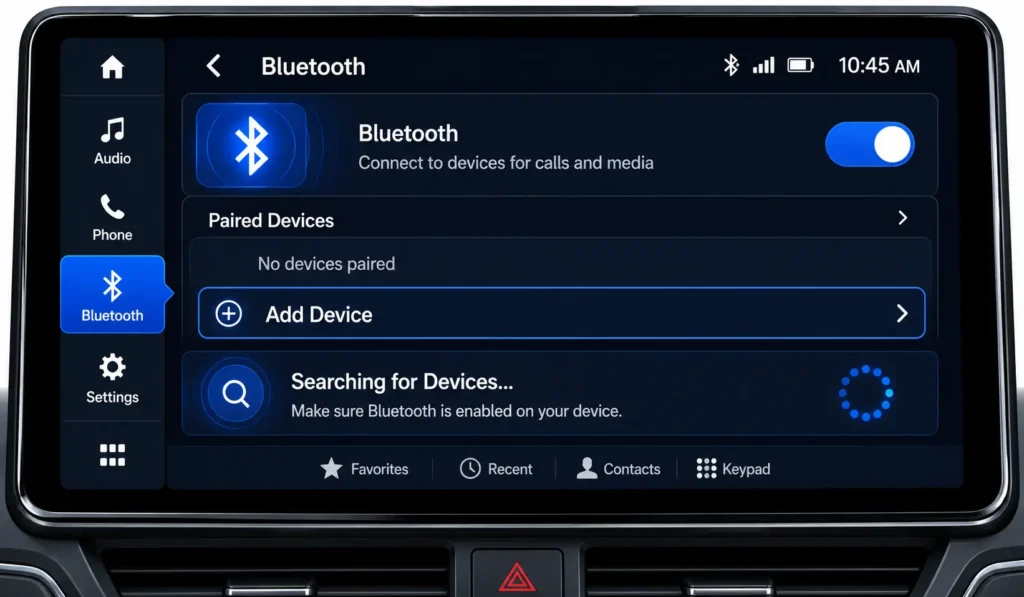
Your car doesn’t broadcast its Bluetooth signal continuously the way wireless headphones do. You have to manually put it into pairing mode and this is exactly where most guides skip over the detail that causes people to fail. Every car finds pairing mode differently, but you’re always looking for the same thing
On most vehicles, you navigate through the infotainment screen. Look for a menu labeled Bluetooth, Phone, or Connectivity. Inside that menu, find an option that says “Add Device,” “Pair New Device,” “Search Device,” or “Find Phone.”
The exact wording changes by manufacturer but the concept is identical. You’re telling your car to start listening for a phone trying to connect to it.
Some newer cars have made this faster. They have a dedicated Phone button on the dashboard or steering wheel. Press that button and the car enters pairing mode automatically.
On 2024 and 2025 vehicles, some manufacturers added a voice assistant shortcut. Long-press the voice command button on your steering wheel. Your car’s system will announce it’s in pairing mode.
The car infotainment system will usually display a message telling you it’s ready to pair, or it might show a countdown timer. That countdown is your window to complete the connection. Don’t move on to the phone yet. Get this step right first.
Step 2: Enable Bluetooth on Your Phone
With the car in pairing mode, unlock your phone and open Settings. On iPhone, go to Settings and select Bluetooth. On Android, go to Settings, then Connected Devices or Bluetooth the label varies by phone brand but it’s always in that area.
You’ll see a toggle or switch that says Bluetooth. Turn it on.
That’s all this step is. Your phone’s Bluetooth is now active and scanning for nearby devices. Don’t search yet though. Just let it sit for a moment while it starts detecting what’s around it.
Step 3: Search for and Select Your Car
Your phone’s Bluetooth settings will show available devices populating as it scans. Look for your car’s name in that list — it might say the specific model like ‘Toyota Highlander,’ or it might just show something generic like ‘Car Bluetooth’ or ‘Vehicle System.
If nothing appears after fifteen seconds, go back and double-check that your car is actually in pairing mode. The most common reason nothing shows up is the car’s pairing mode timed out or never activated in the first place.
Once your car’s name appears on your phone’s list, tap it to select it. Your phone will now attempt to connect to the car infotainment system.
Step 4: Confirm PIN Code on Both Devices
When the pairing process starts, both your phone and your car will display a PIN code. The numbers should match. This is a security measure that makes sure you’re not accidentally pairing with someone else’s car or a random device in the parking lot next to you.
Look at both screens. Verify the codes match exactly. On your phone, you’ll see a prompt asking if you want to pair. Tap “Pair” on your phone. On your car’s screen, you’ll likely see a confirmation button too. Tap that as well.
The PIN code disappears after you confirm it’s correct on both ends. This entire security step takes about ten seconds and it’s actually a good thing. It prevents someone from pairing to your car without your knowledge.
Step 5: Handle Permission Requests (Optional)
After pairing, your car may prompt you for contact sync, notification access, or call history sharing. All optional. I usually skip contact syncing unless I want to call people by name through voice commands. Call history sync is never necessary. Notification access is purely a preference call.
I usually skip contact syncing unless I’m using the car for navigation and want to call people by name through voice commands. Call history syncing is never necessary. Notification access is purely preference. You’re not breaking anything by declining any of these requests. The pairing itself is complete.
Success: What Connected Bluetooth Should Look Like
When pairing completes, your phone’s Bluetooth settings will show your car listed as Connected. The car’s infotainment display should show your phone name in its paired device list. Make a quick test call audio through the speakers means you’re in.
One thing to know upfront: music still won’t play at this stage. That’s the media audio toggle we covered earlier, and it needs to be enabled separately.
Make a quick test call to someone. The audio should come through your car’s speakers clearly. Your microphone should pick up your voice for the person on the other end.
That’s working Bluetooth connectivity. You’ve successfully paired your phone to your car.
One important thing: music still won’t play yet. That’s because of what we covered in the previous section about media audio. Your phone is connected for calls, but the music channel needs to be enabled separately. Go back and enable that media audio toggle if you want your music to come through the speakers instead of just your phone’s speaker.
Method 2: Apple CarPlay (For iPhone Users)
Apple CarPlay isn’t just Bluetooth with better audio. It mirrors selected iPhone apps Maps, Spotify, Messages, Phone directly onto your car’s display screen, all controlled from the car’s touchscreen or through Siri.
That’s a completely different experience from basic Bluetooth pairing, which just handles audio and calls. CarPlay handles full app interaction
This is completely different from basic Bluetooth pairing. With Bluetooth alone, you get audio and calls. With CarPlay, you get full app integration.
Is Your Car and iPhone Compatible with CarPlay?
Most cars built after 2016 support Apple CarPlay. Most iPhones from 2014 onward technically support it, but realistically you need an iPhone 6 or newer for a smooth experience. Check your car’s infotainment system to see if it mentions CarPlay compatibility. Your owner’s manual will tell you for certain.
If you’re unsure, look at your car’s display. Does it mention CarPlay or Apple when you boot up the system? That’s your answer right there.
Wired CarPlay Setup (USB Connection)
You’ll need a USB cable that matches both your iPhone and your car’s USB port. Newer cars use USB-C; older models use Lightning. If you’re not sure which your car has, check the physical port on the dashboard or center console before buying a cable
Locate your car’s USB port. Most vehicles have one or two USB ports built into the dashboard or center console. Plug your iPhone into the port using the appropriate cable. Within a few seconds, CarPlay should automatically appear on your car display screen.
Your iPhone might ask for permission to connect to the car’s infotainment system. Tap “Allow” or “Trust” when you see that prompt.
Once CarPlay appears on the car display screen, you’re connected. You can now tap apps like Apple Maps, Spotify, or Messages directly on your car’s touchscreen. The steering wheel buttons usually work too, and voice commands are available. Say “Hey Siri” and give a command like “Call Mom” or “Navigate to the nearest gas station.”
Here’s something most people don’t realize: after this first wired connection, your iPhone will automatically prompt you to use wireless CarPlay next time you drive. You don’t have to keep plugging in the cable forever. But you need that initial wired connection first to set things up.
Wireless CarPlay Setup (WiFi Connection)
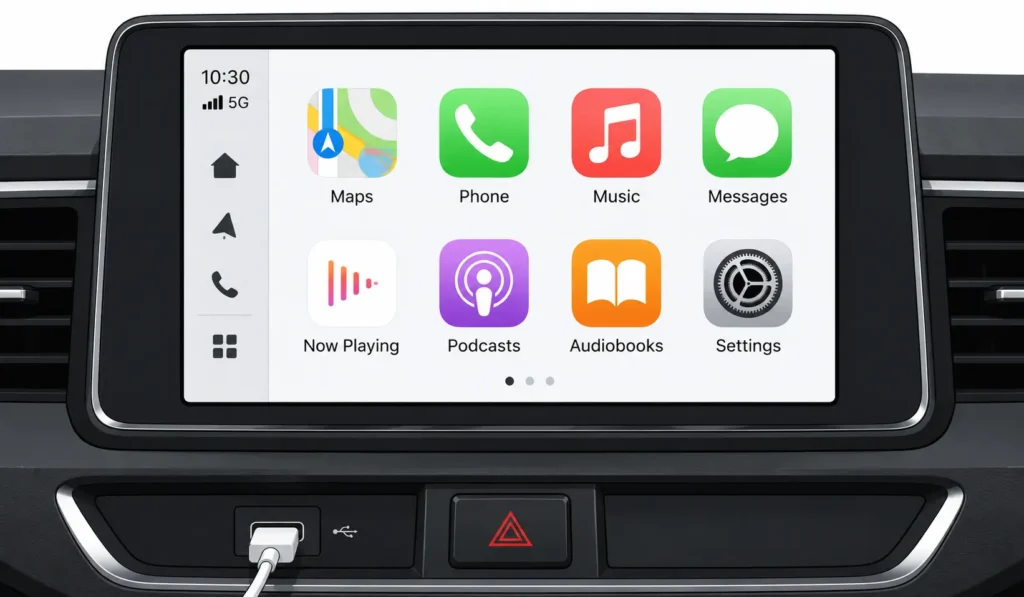
Once CarPlay is running, you’re working with a short list of apps that are actually designed for car use: Apple Maps, Google Maps, Spotify, Apple Music, Messages, and Phone.
Navigation, calls, and music all come through the car’s system. Text messages show up and you respond through voice dictation no picking up the phone. What CarPlay doesn’t do is put your whole phone screen on the car display. That’s intentional. Keeping out email and social media reduces distraction while driving.
If your car supports wireless CarPlay, the setup is straightforward after that first wired connection. Get in the car with your iPhone. Make sure Bluetooth is enabled on both your phone and the car. The car’s infotainment system should recognize your phone automatically and offer to connect wirelessly.
Tap yes on both the car display and your iPhone when prompted. Wait about ten seconds while the connection establishes. Then CarPlay appears wirelessly on your car’s display.
The beauty of wireless is you just walk up to your car with your iPhone in your pocket. CarPlay launches automatically without needing a cable. But here’s the catch: not every car has wireless capability yet. Older vehicles and even some 2024 models still require the cable. Check your car’s manual to know which method applies to your specific vehicle.
What Features Are Available in CarPlay?
CarPlay gives you access to the apps you actually use while driving. Navigation works through Apple Maps or Google Maps if you have it installed on your iPhone. Phone calls come through. Text messages show up and you can respond using voice dictation. Music streaming from Spotify, Apple Music, or whatever app you prefer plays through your car’s speakers.
Some third-party apps work through CarPlay too. The list of compatible apps grows constantly, but your car’s infotainment system will only show apps that are CarPlay compatible.
The key thing to understand is that CarPlay mirrors selected apps. It doesn’t put your entire phone screen on the car display. This is intentional. It prevents you from getting distracted by email notifications or social media while driving.
Using Siri for Hands-Free Control in CarPlay
Once CarPlay is running, press the voice command button on your steering wheel. Most cars have a dedicated button for this, usually marked with a microphone symbol. Hold it for a second and Siri activates.
Now say what you want. “Call Mom.” “Navigate to the nearest coffee shop.” “Play my road trip playlist.” “Send a message to Alex saying I’m ten minutes away.” Siri handles all of these without you touching your phone or the car’s screen.
This hands-free control is why CarPlay exists. You keep your eyes on the road and your hands on the wheel. Everything you need happens through voice commands or quick taps on a screen that’s designed for that interaction while driving.
Method 3: Android Auto (For Android Phone Users)
Android Auto does the same thing CarPlay does for iPhone users it mirrors selected Android apps onto your car’s display for navigation, calls, and music. But the setup is genuinely more complicated, because it runs on two distinct paths: wired via USB, and wireless via a combination of Bluetooth and Wi-Fi. Which path you’re on determines everything about how the setup works.
This confusion is exactly why people fail with Android Auto and think it’s broken when it’s actually just a setup misunderstanding.
Android Auto Prerequisites: Check These First
Check these four things before you touch anything else. Your Android phone needs Android 5.0 or newer for wired Android Auto; wireless requires Android 8.0 or newer.
Open the Play Store and update the Android Auto app an outdated version causes most of the connection failures people blame on their car. Make sure your vehicle actually supports Android Auto by checking the owner’s manual or the infotainment display.
And for wireless setup specifically, you need both Bluetooth and Wi-Fi active on your phone before you start not just Bluetooth.
Second, open the Google Play Store and update your Android Auto app to the latest version. This matters more than people realize. An outdated app causes frequent disconnections and setup failures.
If you’re having trouble with app management or want to change your default apps on Android for a better CarPlay experience, that’s worth setting up before connecting to your car.
Third, make sure your car actually supports Android Auto. Not every car does. Check your owner’s manual or look at your car’s infotainment display for Android Auto branding or logos.
Fourth, for wireless setup specifically, you need both Bluetooth AND Wi-Fi enabled on your phone before you start. This is the step that destroys most wireless setups. People turn off Wi-Fi to save battery and then wonder why Android Auto won’t connect wirelessly.
Wired Android Auto Setup (USB Cable)
Wired Android Auto requires Bluetooth pairing before the USB cable does anything — and that’s the step most people skip, wondering why plugging in the cable doesn’t launch Android Auto automatically. Pair your phone via Bluetooth first, confirm it shows connected on both devices, and then plug in the USB-C cable to your car’s USB port
The car and phone need that Bluetooth handshake to authenticate before anything else works.
Start by pairing your phone via Bluetooth like we covered in the basic Bluetooth section. Once Bluetooth shows as connected in both your phone and car settings, grab your USB-C cable.
Plug the USB cable into your car’s USB port. The car will recognize the connection and prompt you to enable Android Auto. Accept this prompt. Android Auto should launch on your car’s display screen within a few seconds.
Your Android phone might ask for permissions to access contacts, location, or notifications. Grant these permissions or Android Auto won’t have full functionality. Once permissions are granted, you can now control Android apps like Google Maps, Spotify, or text messaging through your car’s display screen and voice commands.
The whole process takes about two minutes once you have Bluetooth already paired. Without that Bluetooth step first, nothing happens and the USB connection appears to do nothing at all.
Wireless Android Auto Setup (Wi-Fi + Bluetooth)
Wireless Android Auto is where the setup gets more involved than most people expect. It’s not just Bluetooth.
Your phone and car establish a separate Wi-Fi connection on top of the Bluetooth link your phone connects to a temporary Wi-Fi network the car itself creates, not your home network or your phone’s hotspot.
Here’s the flow that trips people up. You establish Bluetooth pairing first. Then your phone and car create a temporary Wi-Fi network between them. Your phone connects to the car’s Wi-Fi (not your phone’s hotspot, not your home Wi-Fi, the car’s temporary network). Only after both Bluetooth and Wi-Fi are active does Android Auto launch wirelessly.
Before you start, make sure three toggles are on on your phone: Bluetooth on, Wi-Fi on, and Mobile Data on. Yes, all three. I know it seems redundant, but wireless Android Auto needs all three to establish the connection properly.
Now pair your phone via Bluetooth first. Once Bluetooth shows connected, look at your car’s display. The car will prompt you to connect to a temporary Wi-Fi network it’s hosting. Tap that prompt on your car’s screen. On your phone, open Wi-Fi settings and look for your car’s Wi-Fi network name. Connect to it.
Your phone might also prompt you to confirm the Wi-Fi connection. Accept it. Now Android Auto is launching wirelessly. Your car’s display shows the Android Auto interface and you can control everything through the car’s touchscreen or voice commands.
The beauty of wireless is you don’t need a cable every time you drive. Get in the car, your phone recognizes it, and Android Auto connects automatically. But that first setup is definitely more complex than wired because of these dual connections.
Why Wireless Android Auto Needs Both Bluetooth AND Wi-Fi
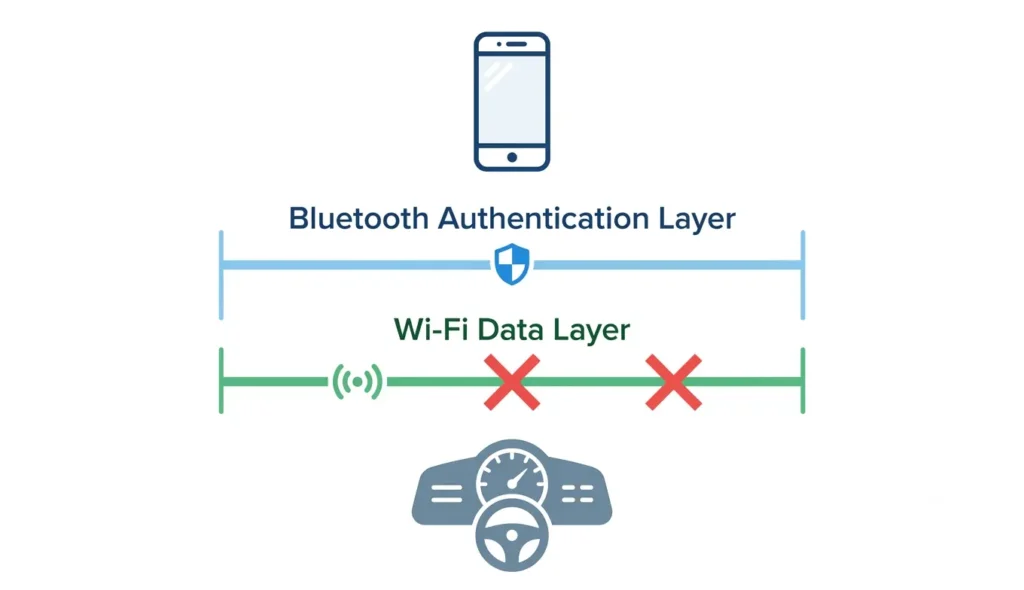
The word ‘wireless’ is what throws people. It implies Bluetooth is doing everything. But Bluetooth is just the authentication layer it proves the devices trust each other.
The actual map data, music, and messages all move over Wi-Fi because Bluetooth can’t handle that data volume reliably at car speed.
Turn off Wi-Fi and you’ve cut the data highway while leaving the security gate standing. The connection looks active but nothing actually moves
The actual app data your maps, your messages, your music flows over Wi-Fi. Bluetooth can’t handle that volume of data reliably. So the car creates a temporary Wi-Fi network, your phone connects to it, and now the data has a fast highway to travel on while Bluetooth handles the security layer underneath.
This is why turning off Wi-Fi breaks wireless Android Auto. You’ve disabled the data highway. The Bluetooth is still there, but there’s nowhere for the information to actually flow. It’s like having a secure tunnel with no road inside it.
What Features Are Available in Android Auto?
Once Android Auto is running, you get access to Google Maps and Waze for navigation. Your phone calls come through the car’s speakers. Text messages display and you can respond through voice dictation. Music apps like Spotify, YouTube Music, or Apple Music stream through your car’s audio system.
Some third-party apps work too, but only the ones that are Android Auto certified. Your car’s infotainment system will only show compatible apps in the Android Auto interface.
The core idea is the same as CarPlay: your car displays a selected set of phone apps on a car-safe interface. It’s not your full phone screen mirrored. Only apps designed for car use appear, which prevents distraction while driving.
Using Google Assistant for Hands-Free Control
Press the voice command button on your steering wheel or say “OK Google” out loud. Google Assistant activates and waits for your command.
Tell it what you want. “Navigate to the nearest gas station.” “Call Mom.” “Play my road trip playlist.” “Send a message to Alex saying I’m on the way.” Google Assistant handles all of these without you touching your phone or the car’s screen.
This hands-free control is the entire point of Android Auto. Your eyes stay on the road. Your hands stay on the wheel. Everything else happens through voice.
Method 4: Aux Cable & FM Transmitter (For Older Cars Without Bluetooth)
No Bluetooth in your car doesn’t mean no options. About 7% of vehicles on the road today still lack built-in Bluetooth, and most of those owners have been told by other guides they’re simply out of luck. They’re not.
There are two solid ways to get your phone audio into an older car audio system. One is genuinely excellent. The other is a reasonable workaround with some trade-offs you should know about before you spend any money.
Method 4A: AUX Cable + USB-C Adapter (Best Option for Sound Quality)
An aux cable phone to car connection actually sounds better than Bluetooth. Bluetooth compresses audio before sending it wirelessly. The aux cable sends the signal uncompressed, which means what comes out of your car speakers is closer to the original recording.
Bluetooth compresses audio to send it wirelessly. An AUX cable sends the signal uncompressed, which means what comes out of your car speakers is closer to the original recording.
This is the first method I’d recommend for anyone with an AUX jack in their car.
What you need is simple. A standard 3.5mm auxiliary audio cable (around one meter works well) and a USB-C to 3.5mm adapter for your phone. That’s it.
Setting it up takes about 30 seconds:
- Plug one end of the AUX cable into your car’s AUX input port
- Connect the other end to your USB-C to 3.5mm adapter
- Plug the adapter into your phone’s USB-C port
- Switch your car stereo’s input source to AUX
- Press play on your phone
No pairing. No passwords. No waiting. The connection is instant every single time you plug in.
One thing worth knowing: your phone’s volume and your car’s volume both affect the output. I usually set my phone to about 80% volume and adjust the rest from the car stereo. Going full volume on the phone first can introduce a faint hiss through the speakers.
Method 4B: FM Transmitter (For Cars Without AUX)
No AUX jack either? An FM transmitter is your last option before replacing the head unit entirely.
the device plugs into your car’s 12V cigarette lighter socket, pairs with your phone via Bluetooth, and broadcasts the audio signal to a specific FM frequency. You tune your car radio to that same frequency and the audio comes through.
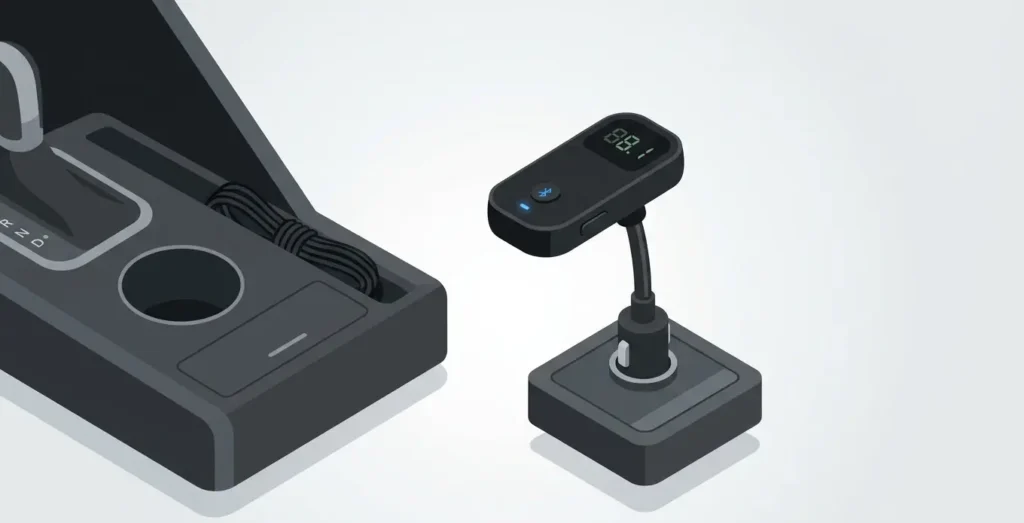
It works. But the audio quality is noticeably lower than an AUX cable connection because the signal goes through an extra wireless step before hitting your car audio system.
The bigger practical issue is frequency interference. If another radio station broadcasts near your chosen frequency, you’ll hear static or bleed-through. You need a genuinely empty frequency in your area, which can be hard to find in busy cities.
Steps to set it up:
- Plug the FM transmitter into the cigarette lighter socket
- Pair your phone to the transmitter via Bluetooth pairing
- Find an empty local FM frequency (try 88.1 or 107.9 to start)
- Set the transmitter to that frequency
- Tune your car’s FM radio dial to match exactly
AUX vs FM Transmitter: Which Should You Choose?
Most car Bluetooth problems are not hardware problems and that matters because it means most of them are fixable without spending a cent.
J.D. Power data shows Bluetooth connectivity issues rank as the second most reported problem in new vehicles, at 5.7 per 100 cars. That’s a lot of fixable problems being blamed on broken hardware
If your car has no AUX jack at all, an FM transmitter gives you streaming music in the car when nothing else will. The trade-off in quality is real but acceptable when the alternative is no audio at all.
Why Your Phone Won’t Connect: Troubleshooting the 7 Most Common Bluetooth Problems
Most car Bluetooth problems are not hardware problems. That’s the thing almost nobody tells you upfront. J.D. Power data shows Bluetooth connectivity issues are the second most reported problem in new vehicles, clocking in at 5.7 per 100 vehicles.
So if your phone isn’t connecting to your car, you’re genuinely not alone. And the fix is almost certainly something you can handle yourself in under five minutes.
Before you call a dealership or assume something is broken, work through these tiers in order.
Before You Panic: The Restart Rule (Fixes Most Problems)
Restart everything. Both the phone and the car.
Not just the phone. Not just the infotainment screen. Both. Turn your phone completely off. Cut the engine, open the door and wait about 30 seconds until the infotainment system powers down fully. Then start the car again and turn your phone back on.
This clears whatever temporary glitch caused the car Bluetooth not working situation in the first place. Bluetooth connections run on small software processes that can get stuck, and a full restart on both sides clears the stuck state. No settings change required. No re-pairing needed.
This single step fixes the majority of connection failures I’ve seen reported. Try everything else only if a full restart on both devices doesn’t solve it. If your phone has more serious issues like touch screen problems or screen display issues you’ll need to fix those first before attempting car connectivity
Tier 1 Troubleshooting: The Quick Checks
If the restart didn’t work, check these basics before going any deeper.
Is Bluetooth actually on? I know that sounds obvious. But it’s the most common answer. Open your phone’s Bluetooth settings and confirm Bluetooth is enabled. Not just airplane mode off. Bluetooth specifically toggled on.
Is the car in pairing mode? A Bluetooth enabled car won’t automatically show up as available unless its system is actively ready to pair. Check your vehicle settings menu for a Bluetooth or pairing option and make sure it’s searching.
Are both devices close enough? Bluetooth range in a car is rarely the issue since you’re sitting inside the vehicle. But if your phone is in a bag in the trunk during the initial setup, move it closer.
Is the car stereo input set to Bluetooth? This is one that genuinely catches people. Your car’s audio source might be set to radio, CD, or AUX while Bluetooth is connected but not selected as the active input. Check the car display screen and switch the source to Bluetooth.
Four checks. Takes 60 seconds. Do all four before moving on.
Tier 2 Troubleshooting: The Settings Deep Dive
Most persistent phone not connecting to car problems trace back to two things in Tier 2: the Media Audio toggle and a corrupted pairing profile. Both are fixable. Neither requires a dealership.
Check the Media Audio toggle. On Android phones especially, Bluetooth pairing splits into two separate connections: phone calls and media audio. Your phone might show as connected but only for calls, with media audio switched off. Go to your phone Bluetooth settings, tap the connected car profile, and look for a toggle labeled Media Audio. Make sure it’s on. This catches a lot of people who have “connected” phones with no sound.
Forget the device and re-pair from scratch. Open your phone Bluetooth settings, find the car in your device list, select “Forget” or “Unpair,” and delete it. Then go into your vehicle settings menu and delete the phone from the car’s saved device list too. Both sides need to forget each other. Then run the pairing process fresh like it’s the first time. A corrupted pairing profile causes more reconnection failures than most people realize.
Check for software updates on both sides. Your phone’s operating system and your car’s infotainment firmware both receive updates that fix known Bluetooth bugs. Some Samsung and Pixel Android devices have had specific Bluetooth pairing bugs that only got resolved through a system update. Go to your phone’s settings, check for any pending updates, and install them. For your car, check the manufacturer’s website or your vehicle settings menu for a firmware update option.
And if you use Android Auto or Apple CarPlay, check whether the app itself needs an update in the Play Store or App Store. An outdated app version causes its own separate connection failures.
Tier 3 Troubleshooting: The Advanced Options
If Tier 1 and Tier 2 both failed, you’re dealing with something less common but not unsolvable. There’s still at least one fix worth trying before you call a dealership
Update your car’s firmware. Not just your phone. Many car manufacturers push infotainment updates through a USB drive or over WiFi, and skipping those updates leaves known Bluetooth bugs unfixed. Search your car manufacturer’s support page with your model year and “infotainment update” to find the right file.
For Android head units specifically, there’s a fix that almost no mainstream guide covers. Some Android-based car stereo systems default to a Bluetooth pairing mode called Numeric Comparison, which requires both devices to confirm a matching number on screen. Some phones don’t handle this mode well and the pairing silently fails. You can change the Bluetooth pairing mode to Passkey Entry inside the factory settings of the head unit.
Accessing factory settings on an Android head unit typically requires entering a code into a hidden menu. Common codes are 0000, 1234, or 000000, though the exact code varies by manufacturer. Once inside, look for a Bluetooth settings section and switch the pairing mode. This is genuinely the fix for certain Android head unit and phone combinations that refuse to pair any other way.
Contact your car manufacturer’s support line. If you’ve done all of the above, the manufacturer’s tech team can sometimes push a remote diagnostic or tell you whether a known firmware bug affects your specific model and trim.
When It’s Actually a Hardware Problem
Genuine Bluetooth hardware failure is rare rarer than most people assume when they’re in the middle of a frustrating pairing session.
The giveaway is when the car’s Bluetooth won’t appear in any device’s search results even after a complete factory reset of the infotainment system. That’s a different situation than pairing failures, which almost always have a software fix
The overwhelming majority of car Bluetooth not working situations trace back to a software setting, a corrupted pairing profile, or an outdated firmware version. Hardware failure means the Bluetooth module inside the car has physically stopped working, and that typically shows up as the car’s Bluetooth not appearing at all in any device’s search results, even after a full system reset.
If you’ve worked through all three tiers above and the car’s Bluetooth still won’t show up during a fresh pairing attempt on a fully updated phone, that’s when hardware becomes a real possibility. Replacing a Bluetooth module typically costs between $200 and $600 depending on the vehicle, and that work usually goes through a dealership or an automotive electronics specialist.
But I’d exhaust every software option first. In most cases, the problem is on the phone side, not the car side. And that means the fix is free.
Some Cars Only Support Calling, Not Music: Understanding Hardware Limitations
Your car Bluetooth isn’t broken. Some cars were built to handle hands-free calling and nothing else and no amount of troubleshooting changes that, because the limitation is in the hardware itself.
Some cars were simply built to handle hands-free calling and nothing else. No amount of troubleshooting will change that, because the limitation is baked into the hardware itself.
This is not your phone’s fault. Not a settings issue. Just a manufacturer decision made years ago that you’re now living with.
How to Tell If Your Car Has Call-Only Bluetooth
The test is straightforward. Make a phone call through your car. If your voice comes through the car speakers clearly and the other person can hear you, your car’s Bluetooth is working. Now try playing music from your phone through the same Bluetooth connection. If the audio stays on your phone speaker instead of coming through the car audio system, you have call-only Bluetooth.
That’s the clearest sign. Calls work. Streaming music in car doesn’t.
To confirm, check your car’s owner manual or the manufacturer’s website and look for the specific Bluetooth profiles listed in the specs. If you see HFP listed but no mention of A2DP, that tells you everything.
What Causes Call-Only Bluetooth? The Technical Reason
Bluetooth runs on separate profiles, each one handling a different type of data. HFP Hands Free Profile handles voice calls. A2DP Advanced Audio Distribution Profile handles music and media streaming. Some manufacturers chose to install only HFP, leaving A2DP out entirely.
HFP, which stands for Hands-Free Profile, handles voice calls. A2DP, which stands for Advanced Audio Distribution Profile, handles music and media streaming.
Some car manufacturers chose to implement only HFP in their infotainment systems. BMW, Fiat, and certain Dodge models have shown up repeatedly in owner reports with exactly this limitation. The reason was usually cost or the technical complexity of the infotainment system at the time of production.
And this isn’t only an old-car problem. Even some newer vehicles ship without full media audio support. The 2025 Toyota GR Supra, for example, launched without Android Auto support at all. Hardware decisions still happen in recent model years, which is worth knowing before assuming your situation is unique.
Not a bug. Not fixable through settings.
Workarounds If Your Car Doesn’t Support Media Audio
The good news is that call-only Bluetooth doesn’t mean you’re stuck listening to the radio forever. There are real options.
If your car has an AUX jack: This is the cleanest fix. An aux cable phone to car connection bypasses Bluetooth entirely. You get uncompressed audio through the car audio system with no wireless profiles involved at all. Pick up a 3.5mm cable and a USB-C to 3.5mm adapter and you’re done.
If there’s no AUX jack either: An FM transmitter gives you a path. The transmitter pairs with your phone via Bluetooth on the phone side, then broadcasts the audio to an FM frequency your car radio picks up. Audio quality takes a hit compared to a direct cable, but streaming music in car becomes possible where it otherwise wouldn’t be.
If neither option appeals: An aftermarket car stereo unit is worth considering. A replacement head unit that fully supports A2DP Bluetooth media audio typically runs between $80 and $200 for the unit itself, plus installation. For a car you plan to keep long term, that’s often the most permanent solution.
One option I’d skip: accepting call-only and using your phone speaker for music while driving. The audio quality is poor and keeping your phone propped somewhere safe while driving creates its own problems.
Managing Multiple Phones: Pairing Limits, Switching Devices, and Clearing Old Connections
You try to pair a new phone and the car just refuses. No error message. No obvious reason. The answer in most of these situations is simple: the car’s Bluetooth memory hit its limit. Most people don’t know cars have a device limit, and the system doesn’t tell you when it’s full it just silently rejects new pairing attempts.
Car Bluetooth systems don’t have unlimited storage for device pairings. Most cars remember somewhere between 5 and 7 phones, though the exact number varies by manufacturer and model. Check your owner’s manual for the specific limit on your vehicle. Once that limit is hit, the car won’t accept a new device pairing until you free up a slot.
How Many Phones Can Your Car Remember?
Most cars store between 5 and 7 paired devices in their Bluetooth memory, though some older systems cap out at just 4. The car holds onto each phone’s pairing profile even after that phone hasn’t connected in months, which is how the memory fills up quietly without anyone noticing.
The practical problem shows up when someone in the household gets a new phone and tries to pair it. The car’s Bluetooth pairing process stalls or fails, and the new phone never shows up as connected. That’s the device limit doing exactly what it was designed to do.
Check your car’s manual or the manufacturer’s website under Bluetooth specifications to find your exact limit before you assume something is broken.
Can Multiple Phones Be Connected at the Same Time?
Most cars allow multiple phones in memory but only one actively connected at a time. Paired means the car remembers the device. Connected means it’s live right now. People confuse these two states constantly, which is why they think something is broken when a second phone won’t take over the audio.
Paired means the car remembers the phone and can reconnect to it. Connected means the phone is actively linked right now and ready to handle calls or audio. Those are two different states.
Some newer car systems allow two phones connected simultaneously, with one handling calls and a second handling media audio. But this varies significantly by make and model, and many cars still only support one active connection at a time. If your car supports dual-phone connection, your owner’s manual will say so explicitly.
How to Switch Between Paired Phones
There are three ways to do this, and which one works best depends on your car’s system.
Option 1: Use the car’s Bluetooth menu directly. Go into your vehicle’s Bluetooth settings on the infotainment screen, find the list of paired devices, and select the phone you want to make active. Most systems have a “Connect” button next to each saved device. This is the most reliable method when both phones are physically in the car.
Option 2: Turn off the first phone’s Bluetooth. When the currently connected phone drops its Bluetooth signal, many cars automatically scan for and reconnect to the next available paired device. This works well if you’re switching from your phone to a passenger’s phone and don’t want to dig through menus.
Option 3: Let the car decide by proximity. If the first phone leaves the vehicle and the second phone is already inside, some systems will automatically reconnect to the phone it can find. Not always reliable. But it does work on certain systems.
How to Delete Old Pairings When You Hit the Device Limit
This takes two steps, and most people only do one. They delete from the car but leave the phone with the old pairing intact and the phone tries to reconnect automatically the next time it’s in range, causing exactly the conflict they were trying to fix.
On the car side:
Go into your vehicle settings menu, open the Bluetooth section, and find the list of paired devices. Select the device you want to remove and choose Delete or Forget. The exact label varies by manufacturer but the option is always there. Remove any phones that no longer need access to the car.
On the phone side:
Open your phone’s Bluetooth settings, find the car’s name in your saved devices list, tap it, and select “Forget This Device” or “Unpair.” On Android the option usually appears when you tap the gear icon next to the car’s name. On iPhone it’s under the info button next to the car’s name in the Bluetooth list.
Both sides need to forget each other. If you only delete from the car but not the phone, the phone may try to reconnect automatically the next time it’s in range, which can cause unexpected pairing conflicts with whichever phone you actually want connected.
And if you’re trying to pair a new phone and it keeps failing, check the car’s device list first before assuming anything else is wrong. A full memory is the answer more often than people expect.
Safety, Legal and Best Practices: What You Need to Know Before You Drive
Everything in this guide is built around using your phone while keeping your eyes on the road. But the setup itself — the pairing, the permissions, the first CarPlay or Android Auto connection — needs to happen while you’re parked. Not at a red light. Not moving slowly through a car park. Fully stopped.
Always Set Up While Parked
Do the initial Bluetooth pairing with your engine off or while sitting still in a parked vehicle. Not at a red light. Not in a slow-moving car park. Fully parked.
Many modern cars actually prevent you from accessing certain infotainment menus while the vehicle is in motion, which is the manufacturer’s way of enforcing this. But even in cars that don’t block the screen, attempting to read pairing codes, confirm prompts, or tap through menus on the car display screen while moving is a genuine safety risk. The pairing process takes two to four minutes when done properly. It’s worth stopping to do it right.
Using Hands-Free Features Safely While Driving
Once the Bluetooth pairing is complete, hands-free calling is the correct way to use your phone while driving. That means pressing the call button on your steering wheel, letting Google Assistant or Siri dial the number by voice command, and keeping both hands on the wheel throughout the call.
The steering wheel button is the safest way to initiate a call while driving, and it’s exactly why that button exists on most modern cars. Use it.
Voice commands through Google Assistant or Siri also handle music playback, navigation requests, and message replies without you touching the screen. Say the command out loud and let the system respond. That’s the hands-free mode working as intended.
One thing worth being honest about: even hands-free calling takes some mental attention away from the road. The phone call itself is a cognitive distraction, not just a physical one. Keep calls short while driving, and if a conversation gets complicated or emotionally demanding, let it go to voicemail and pull over to call back.
Understanding App Permissions
When you first pair your phone, the car system will ask for several permissions. These prompts can feel confusing if you don’t know what each one actually does.
Contact sync permission allows your car to access your phone’s contact list and display it on the car screen. The practical benefit is that you can scroll through contacts on the infotainment display or ask Google Assistant to call someone by name without touching your phone. If you decline this permission, you’ll need to dial numbers manually or use your phone directly, which defeats the point.
Call history access lets the car display your recent calls on screen, making it easier to return a call quickly using steering wheel controls. Not required, but useful.
Notification access, which appears mainly in Android Auto setups, allows the system to read incoming message notifications aloud so you can reply by voice without picking up the phone. This is one of the more genuinely useful safety features, since it removes the urge to glance at your phone when a notification arrives.
Everything in this guide is built around using your phone while keeping your eyes on the road. But the setup itself the pairing, the permissions, the first CarPlay or Android Auto connection needs to happen while you’re parked. Not at a red light. Not moving slowly through a car park. Fully stopped.
Regional Legal Variations
Laws around phone use while driving differ significantly depending on where you live, and the trend across most countries is toward stricter enforcement.
In the UK, using a hand-held phone while driving carries a fine and penalty points on your licence, and the law applies even when stationary in traffic. Hands-free mode is the legal way to use a phone while driving in the UK, but drivers are still expected to remain in full control of the vehicle.
In the US, laws vary significantly by state. Some states ban hand-held phone use entirely while others allow it with restrictions.
The National Highway Traffic Safety Administration provides current distracted driving laws for all 50 states, which is the most reliable way to check your specific state’s hands-free requirements rather than assuming what’s legal in your area.
Australia, Canada, and most of Europe have similar hand-held bans in place, with hands-free calling as the accepted legal alternative.
The general rule that applies almost everywhere: if you’re holding your phone while the vehicle is moving, you’re likely breaking the law. Set everything up before you drive and use the hands-free features your car already has.
Quick Recap: Choose Your Method in 60 Seconds
Here’s the fastest way to find your specific setup. Two questions get you to the right method in under a minute.Here’s the fastest way to figure that out.
Method Decision Tree
Start here and follow the path that matches your setup.
Do you have an iPhone?
If your car was built in 2016 or later and supports Apple CarPlay, use the wireless CarPlay method. That’s the cleanest option for iPhone users with compatible vehicles. If your car has Bluetooth but no CarPlay support, connect your iPhone through standard Bluetooth pairing and remember to enable Media Audio in your phone’s Bluetooth settings after the initial connection.
If your car has neither Bluetooth nor CarPlay, use an aux cable phone to car connection with a Lightning to 3.5mm adapter.
Do you have an Android phone?
If your car was built in 2016 or later and supports Android Auto, use the wireless Android Auto method for the best integration. Most newer cars with a Bluetooth enabled car system support this. If your car has Bluetooth but no Android Auto, connect Android to car through standard Bluetooth pairing. The process is the same as iPhone but check that Media Audio toggle after pairing, because that’s where Android users hit problems most often.
If your car lacks Bluetooth entirely, an AUX cable with a USB-C to 3.5mm adapter is your path forward.
What if your car is older and has no AUX jack at all?
An FM transmitter is your workaround. Audio quality won’t match a wired connection, but it gets phone audio through your car speakers when nothing else will. The transmitter plugs into your cigarette lighter, pairs with your phone via Bluetooth, and broadcasts to an FM frequency your radio picks up.
One quick note for 2024 and beyond: Wireless methods through Apple CarPlay and Android Auto are becoming standard in most new vehicles. If you’re buying or leasing a new car, check that the trim level you’re considering includes these features before you sign anything. Base models sometimes skip them to keep the price down.
Still Having Issues? The Troubleshooting Quick Links
If your phone connects but you’re getting one of these specific problems, here’s where to look for the fix.
Phone connected but no music plays: This is the Media Audio toggle issue. Go back to the troubleshooting section under Tier 2 and check that Media Audio is enabled in your phone’s Bluetooth settings for the car profile.
Phone won’t pair at all: Start with the full restart method in the troubleshooting section. Turn off both the phone and the car completely, wait 30 seconds, restart both, and try pairing fresh. If that doesn’t work, check whether your car’s device memory is full and delete an old pairing to make room.
Connection keeps dropping randomly: Check for software updates on both your phone and your car’s infotainment system. Outdated firmware on either side causes intermittent disconnections more than any other single issue.
Car Bluetooth not working after trying everything: If you’ve worked through all three tiers of troubleshooting and the car’s Bluetooth still won’t show up in any phone’s search results, you’re likely dealing with a hardware failure. That section covers when to call the dealership and what replacement typically costs.
Phone pairs for calls but not music: Your car might have call-only Bluetooth with no A2DP media audio support. Check the section on hardware limitations to confirm, and if that’s the case, the AUX cable or FM transmitter workarounds are your best options.
Most problems solve faster than people expect once you’re looking at the right fix for the specific issue.
Frequently Asked Questions
Why Does My Phone Connect for Calls But Not Music?
Your Media Audio toggle is turned off in your phone’s Bluetooth settings. Go to your phone’s Bluetooth menu, tap the connected car profile, and enable Media Audio to fix it.
Can I Use Wireless Android Auto if My Car Doesn’t Support It?
No. Wireless Android Auto requires specific hardware built into your car, and you can’t add it through software or settings. If your car doesn’t support wireless Android Auto, use a USB cable instead for wired Android Auto.
Why Can’t My Phone Find My Car When Searching for Bluetooth?
Your car needs to be in pairing mode first before your phone can see it. Go to your car’s Bluetooth settings, select “Add Device” or “Pair New Phone,” and then search from your phone.
What Do I Do If My Phone Keeps Disconnecting from My Car?
Restart both the phone and the car completely, then forget the device on both sides and re-pair from scratch. If that doesn’t work, check for software updates on your phone and your car’s infotainment system.
How Many Phones Can I Connect to My Car at Once?
Most cars can remember 5 to 7 paired phones but only one can be actively connected for calls at a time. Switch between phones manually in your car’s Bluetooth menu or by turning off the first phone’s Bluetooth.
How Do I Connect My Phone to My Car if I Don’t Know What Features My Car Has?
If you’re asking “how do I connect my phone to my car” but don’t know your car’s capabilities, start by checking if your car has a touchscreen with Apple CarPlay or Android Auto symbols, then look for Bluetooth in your car’s settings menu and finally check for an AUX input port.
Once you identify what your car supports, use the matching connection method for the best results.