What Are Default Apps and Why Change Them?
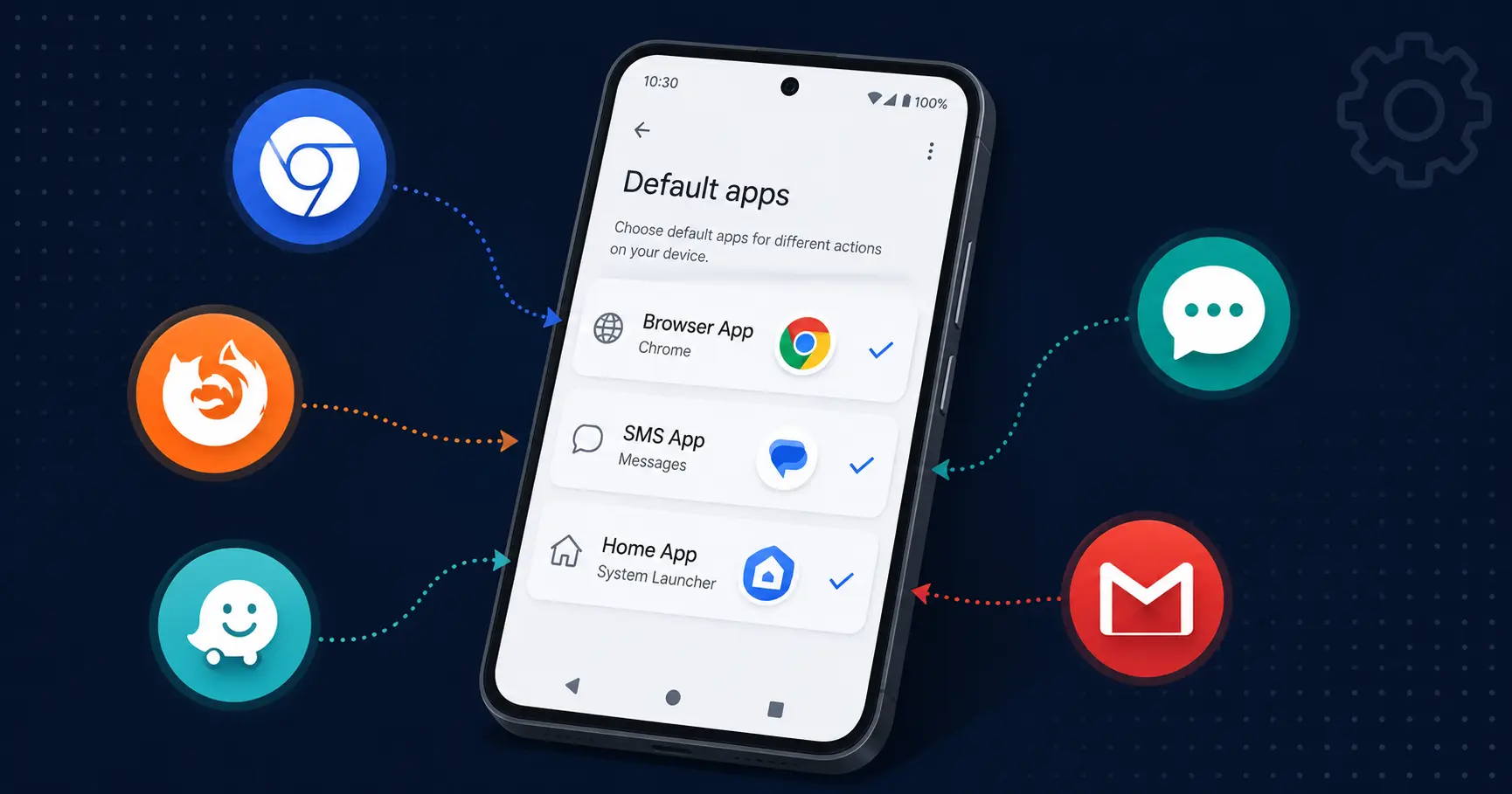
Your Android phone makes decisions for you every single day without asking. Which browser opens that link. Which app reads your texts. Which service handles your navigation. Those silent choices are called default apps and most people have no idea they can change every single one of them
Tap a web link your phone picks a browser. Get a text a specific app opens it. You never chose those apps. Your phone just decided, based on whatever the manufacturer installed and configured before the device ever reached your hands
This is probably the most common frustration I deal with. Someone bought a new Samsung, every link opens in Samsung Internet, and they genuinely believe Chrome just does not work on their phone. Texts pile into some app they never downloaded. Nobody told them this was changeable.
Every single one of those choices is yours to change. The controls are sitting in your Settings app right now. Most people just never look there
Browser switching is the first thing most people ask me about. Their phone came loaded with Samsung Internet Browser, but they use Google Chrome on every other device they own. Switching that default takes about fifteen seconds, and after that, every link on their phone opens exactly where they expect it to
Messaging is the second most common request. Someone downloads Google Messages for RCS support or better group chats, then keeps getting dumped back into whatever basic SMS app the manufacturer installed. You can fix that in about thirty seconds once you know where to look.
Beyond browser and messaging, the next most popular switches are the phone dialer and navigation. People replace the stock dialer with Truecaller to get caller ID on unknown numbers, or swap Google Maps for Waze when they want better traffic routing.
All of it runs through the same app preferences android controls the same settings menu, the same basic process.
Here is the thing manufacturers do not advertise: you are not obligated to use a single app they pre-installed. Samsung ships with Samsung Internet. Google ships with Chrome. Xiaomi ships with whatever Mi Browser is doing that week. Some of those choices are fine. Some of them are genuinely bad for the average user, and you have every right to swap them out
Most people stumble into these settings by accident. They install a new app, tap a link, and suddenly get a popup asking which app to use. That popup is not a glitch. That is Android actually asking you what you want which is the system working exactly the way it should.
But you do not have to wait for that popup. You can walk into your Settings app right now and change any default you want. The controls are there. They always were. Most people just needed someone to point at them.
How to Change Default Apps on Android The Universal Method
The fastest path to change default apps on Android runs through Settings, then Apps, then Default Apps or Choose Default Apps depending on your phone’s brand. This path works on virtually every Android device I have tested. Menu labels shift slightly between manufacturers, but the destination is always the same.
Samsung, Google Pixel, OnePlus, Sony they all land in roughly the same place when you follow this path through the android settings menu. The labels change. The structure underneath does not.
The process takes less than a minute once you know where to look. But finding that first menu can be tricky if you have never done it before.
Step 1: Open Settings and Find Apps
Open the Settings app the gear icon on your home screen or in your app drawer. Scroll until you see Apps or Apps & notifications. The exact label depends on your Android version, but it is always in Settings somewhere. Tap it.
This is where most people get tripped up the first time. Every manufacturer positions the Apps section differently. On some phones it sits near the top of the settings list. On others you are scrolling past battery, display, and sound settings before you find it.
This is where most people get confused the first time. Every phone manufacturer puts the Apps section in a slightly different spot in their settings menu, but it is always there somewhere. On some phones it appears near the top of the settings list. On others you need to scroll down past battery and display options.
Step 2: Access Default Apps Menu
Inside Apps, look for Default apps or Choose default apps near the top of the screen. That single menu controls how Android handles files, links, calls, texts, and almost every other automatic action on your phone.
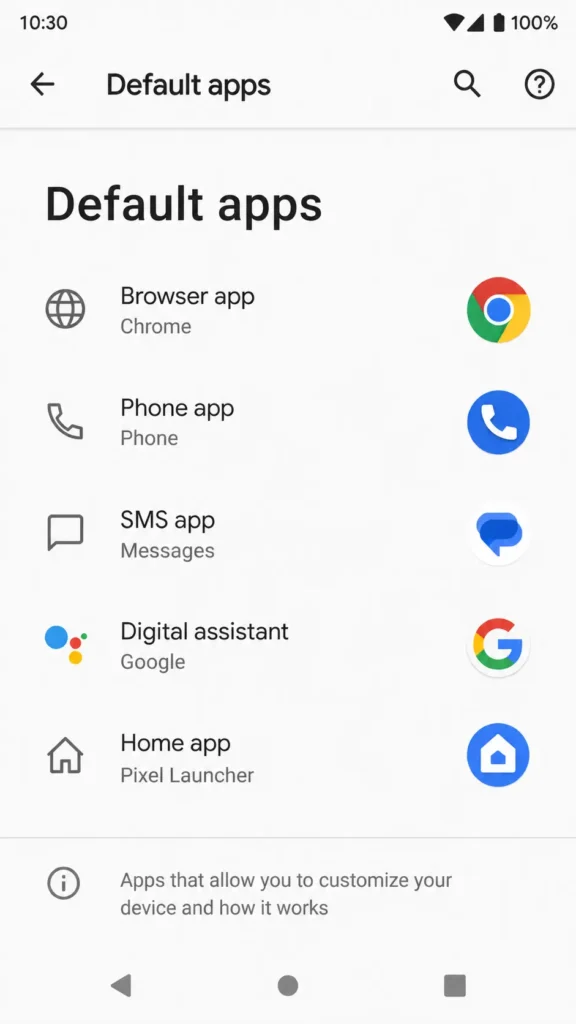
When you tap it, you see a list of categories Browser app, Phone app, SMS app, and others each showing which app currently owns that function. This is the default apps list android you want. Everything starts here
When you tap this option, you will see a list of categories like Browser app, Phone app, SMS app, and others. Each category shows which app currently handles that function.
Some phones show five or six main categories here. Others might show more depending on what apps you have installed. This default apps list android screen is where the real magic happens.
Step 3: Select and Change Your Preferred App
Tap the category you want to change. Your phone shows every compatible app you have installed for that function just the ones that can actually handle that job.
Here is what that looks like in practice. Tap Browser app and you might see Samsung Internet Browser sitting there as the current default. Tap Google Chrome instead. That is it. Android switches immediately no restart, no confirmation screen, nothing else to do.
The always open with android behavior kicks in right away. Next link you tap goes straight to Chrome
The change happens instantly. No restart required. No confirmation popup. Android starts using your new choice right away for all future actions that need a browser.
This is exactly what I mean when I talk about preferred apps android settings. You pick what you prefer, and Android remembers that choice until you decide to change it again.
The same process works for every category. SMS app, phone dialer, email, maps, and others all change the same way. Tap the category, pick your preferred app from the list, and you are done.
The always open with android behavior starts working immediately. When you tap a web link, it opens in your chosen browser. When someone calls, your chosen phone app handles it.
How to Change Default Apps on Samsung, Xiaomi, and Other Android Brands
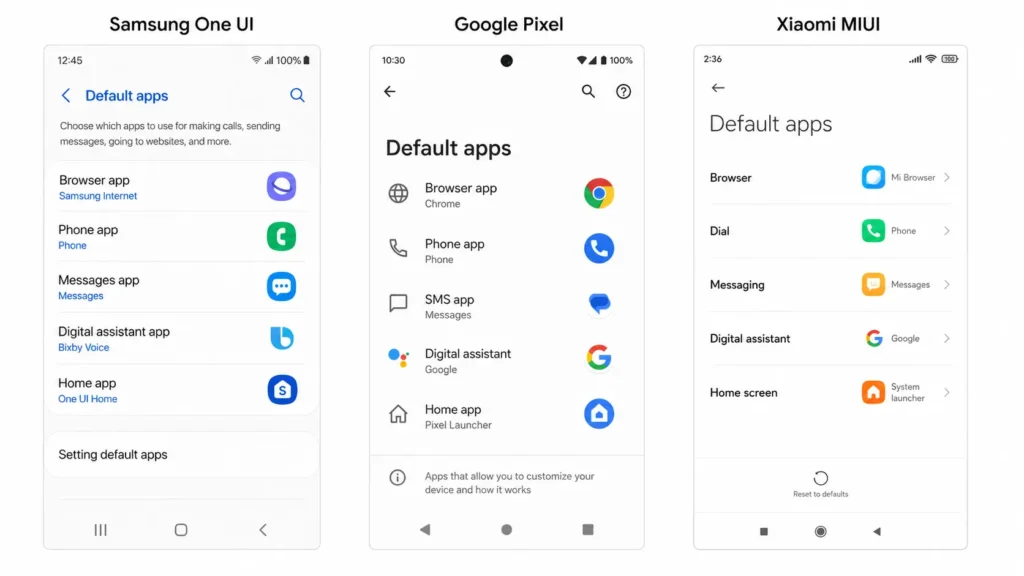
Every phone manufacturer has opinions about where settings should live, and none of them agree with each other. The basic steps for changing default apps are identical across brands. But finding those steps on a Xiaomi device versus a Samsung Galaxy versus a Google Pixel can feel like three completely different phones.
The basic steps are the same, but the exact menu locations change depending on whether you have a Samsung Galaxy, Xiaomi device, or Google Pixel.
I have set up default apps on hundreds of different Android phones over the years. Every manufacturer thinks they know better than Google where these settings should live.
The good news is that once you know each manufacturer UI pattern, you can find these controls quickly on any phone. But the first time you pick up a new brand, you might spend ten minutes hunting for something that should take thirty seconds.
Samsung Galaxy Devices (One UI)
Samsung One UI default apps live in the same Apps section as stock Android, but Samsung has a habit of renaming menu options and shuffling them between One UI versions. What was one tap deep last year might be two taps deep after an update.
Once inside the Apps menu, look for “Choose default apps” near the top of the screen. Samsung usually puts this option right below the app list, but sometimes they move it around between One UI updates.
The fastest shortcut on Samsung Galaxy phones: tap the search icon at the top right corner of Settings and type ‘default apps.’ Samsung’s search function cuts straight through every menu reorganization and drops you directly on the setting you need. I use this more than the manual path on Samsung devices
This search method works on every Samsung device I have tested. The search function cuts through Samsung’s menu reorganization and takes you straight to the setting you need. I use this shortcut more often than scrolling through Samsung’s settings menu.
Samsung One UI also groups some default app categories differently than other manufacturers. They sometimes combine browser and link handling into one section, or split messaging defaults into separate categories for SMS and chat apps.
Xiaomi / Redmi Devices (MIUI)
Xiaomi hides their default app settings behind an extra step that most people never find. Open Settings, then tap Apps, then look for “Manage apps” near the top.
Here is where Xiaomi gets tricky. Inside Manage apps, you need to tap the three dots icon in the top right corner of the screen. From that dropdown menu, select “Other settings” to reach the real MIUI settings menu.
Once you tap Other settings, you will finally see “Default apps” listed at the top. This is where Xiaomi actually lets you control your android app defaults and change default launcher android behavior.
I have watched people give up at the Manage apps screen more times than I can count. They expect the default controls to be visible immediately, tap around for thirty seconds, then assume the setting does not exist on Xiaomi phones. It exists. Xiaomi just buried it behind a three-dot menu for reasons that genuinely make no sense to me.
The MIUI interface also renames things. What other manufacturers call Browser app shows up as Opening links or Web browser in Xiaomi settings. Different label, same function but if you do not know that going in, it is easy to walk right past the setting you need
The MIUI interface also uses different names for some categories. What other manufacturers call “Browser app” might show up as “Opening links” or “Web browser” in MIUI settings. Same function, different labels.
Google Pixel (Stock Android)
Google Pixel devices run the cleanest version of Android, and their default app settings follow the standard path exactly. Settings, then Apps, then “Default apps” right at the top of the menu.
Stock android default apps on Google Pixel phones show the most categories and options. Google does not hide or reorganize anything, so you get access to every default app control that Android supports.
The Pixel interface also explains each category more clearly than manufacturer customizations. Instead of just showing “Phone app,” Google Pixel devices might show “Phone app (for making calls)” to help you understand what each setting actually controls.
Consistency is what I appreciate most about how Google Pixel handles this. A Pixel 6, Pixel 7, and Pixel 8 all show the exact same default apps menu. Same labels. Same depth. Same structure. Other manufacturers push updates that quietly rearrange their settings menus — Google does not do that, at least not to any degree that matters.
Stock android default apps on Pixel also expose more categories than most manufacturer versions. Google does not hide anything. You get every control Android supports, presented clearly, without needing to hunt.
This makes Google Pixel the easiest Android brand for finding default app controls. No hidden menus, no extra steps, no renamed categories.
How to Change File Specific Default Apps (Beyond the Basic Categories)
PDF files, images, and document files do not show up in the main default apps list. That trips people up every time. They go to Default Apps, scroll through Browser, Phone, SMS, and a handful of others and find nothing for PDF or images. So they assume those file types cannot be changed
Android actually has a separate system for file type association that works differently from the six basic app categories.
I run into this confusion constantly. Someone downloads a new PDF reader or photo editor, then gets frustrated when files still open in the old app. They check the default apps menu and do not see PDF or image categories listed anywhere.
Android actually handles file specific defaults through individual app settings, not through the central default apps menu. Each app that can open files has its own android link opening settings section usually called Opening links or Open by default tucked inside its individual app settings page.
This android link opening settings system controls what Android calls “supported links android” behavior. When you tap a PDF file, Android checks which apps have claimed the right to handle PDF files, then either opens your preferred app or asks you to choose.
Using the “Opening Links” Method
To change which app handles specific file types, you work backwards from whatever app currently opens those files. Go to Settings, then Apps, then find the current handler — whatever app is grabbing those files right now.
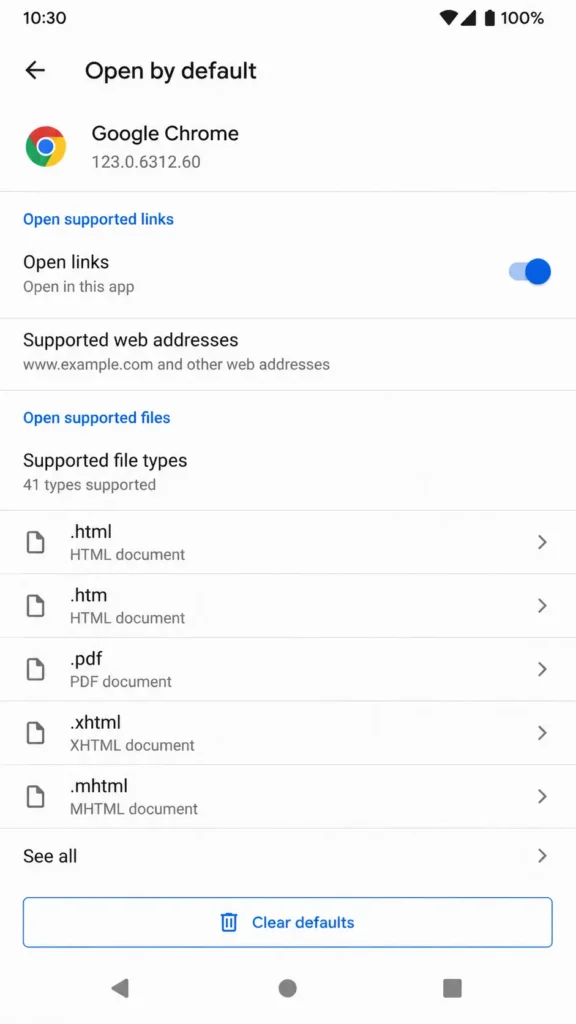
Inside that app’s settings, look for Opening links, Open by default, or Set as default depending on your Android version. This is where the app intent system actually lives, not in the central Default Apps menu.
Tap Open by default and you see exactly which file types and link patterns that app has claimed. To pull that claim back, tap Clear defaults at the bottom of the screen.
After that, the next time you tap a file of that type, Android stops opening it automatically and asks you instead. That is the open with option android dialog. Pick your preferred app and choose Always — and that is your new default set.
Once you clear those defaults, the next time you tap a file of that type, Android will pop up the open with option android dialog. You can pick a different app and choose “Always” to set your new preference.
This method works for any file type. PDF files, image files, document files, even specific web link patterns. But you have to clear the old app’s claim first before Android will let you pick a new one.
Managing Specific File Types (PDF, Images, Documents)
Here is what this looks like with PDF files specifically. Your phone is opening every PDF in some generic document viewer maybe it came pre-installed, maybe you never even noticed the app name. You want default PDF app android to point at Adobe Reader instead
First, find whatever app currently opens your PDFs. Maybe it is called “File Manager” or “Documents” or something generic. Go to that app’s settings and clear its default PDF app android association using the method above.
Now when you tap any PDF file, Android shows you all compatible apps and asks which one to use. Pick Adobe Reader and tap “Always” to change app association android behavior permanently.
The same process works for images, documents, spreadsheets, and any other file type. You clear the old app’s claim, then set the new app’s claim when Android asks.
Some file types get claimed by multiple apps at the same time, which is where this gets messy. A photo file might be claimed by Gallery, Google Photos, and a third party editor all simultaneously. You might have to clear defaults on two or three apps before Android stops auto opening and shows you a choice.
That is by design. The change app association android system allows multiple apps to compete for the same file types. More options for the user but only once you know how to clear the old claims first
But this is exactly how Android was designed to work. The file type association system gives you complete control once you know where to find these controls.
Change Default Apps by Category (Messaging, Browser, Email, Maps)
Four categories get changed more than everything else put together: messaging, browser, email and maps. These are the apps that run in the background of every interaction on your phone every link, every text, every directions request.
The stock versions that ship on most phones are functional. They are not always good. Manufacturers pick apps that create the fewest support calls, not the apps that offer the best experience.
I help people change these specific categories constantly because the stock apps that come with phones are usually basic versions. Manufacturers pick safe, simple apps that work for everyone, but they rarely pick the best apps available.
The process is identical for all four categories. You go to Default Apps in your settings, tap the category you want to change, then pick your preferred app from the list that appears.
But each category has its own considerations and popular alternatives that are worth knowing about.
Messaging Apps (WhatsApp, Telegram, Signal)
One important clarification before you change this setting: the default messaging app android category controls SMS and MMS text messages only — not internet-based messaging apps like WhatsApp, Telegram, or Signal. Those apps handle their own notifications and do not go through Android’s default system.
What you are actually changing here is which app opens when someone sends you a regular phone number text, or when you tap a number to compose a new message.
Most people want to switch from the basic messaging app that came with their phone to Google Messages for better features, or to a privacy-focused option like Signal for encrypted texts.
Tap SMS app or Messaging app in the default apps menu and every compatible messaging app on your phone appears in the list. Pick Google Messages or Signal or whichever one you prefer. Android reroutes every future text through that app immediately the next message that arrives opens in it, and the next number you tap to compose goes through it too
The change happens instantly. Your next incoming text will open in the new app, and when you tap someone’s phone number to send a text, your new messaging app will open instead of the old one.
Browser Apps (Chrome, Firefox, Edge)
Your default browser android setting affects every web link on your entire phone — emails, texts, social media taps, search results, everything funnels through it. That one change has more daily impact than any other default you will set.
People usually switch for sync. If you have Firefox with all your saved bookmarks and passwords on your laptop, setting Firefox as your default browser android keeps that data available on your phone without importing anything manually. Same goes for Chrome users who want access to their saved passwords across devices.
Samsung phones usually come with Samsung Internet Browser set as default. Google phones come with Chrome. But you can switch to Firefox for better privacy controls, Microsoft Edge if you use Windows computers, or any other browser you have installed.
If you’re not sure which browser offers the features you need, this comprehensive comparison of Android browsers breaks down privacy features, sync capabilities, and performance differences between all major options.
The browser category shows every web browser app on your phone. When you pick a new browser and tap it, that browser immediately becomes your default for all web links. You do not need to restart your phone or change any other settings.
Most people switch browsers for sync reasons. If you use Firefox on your computer, setting Firefox as your phone’s default browser keeps your bookmarks and passwords synchronized across devices.
The same logic applies to default email app android and default maps app android choices. Pick the apps that match what you use on other devices, and everything stays connected.
What to Do When Your Phone Won’t Let You Change Default Apps
Android does not always cooperate when you try to switch defaults. You go to Default Apps, tap a new app, it appears selected and then the next link you open still goes to the old app. The setting looks changed. The behavior did not change.
This usually happens when an app has claimed multiple file types or when system restrictions block certain changes.
I see this problem constantly when people try to switch from one app to another but the old app keeps opening everything. The default apps menu shows the new app selected, but tapping files or links still opens the old app.
Android is not broken when this happens. The old app has probably claimed defaults through multiple pathways, and you need to clear those claims before the new app can take over properly.
The “Clear Defaults” Reset Method
The fastest way to fix stuck defaults is to clear the old app’s claims completely, then let Android ask you to choose again. Go to Settings, then Apps, then find the app that currently opens the files you want to change.
Inside that app’s settings, look for “Open by default” or “Set as default” depending on your Android version. Tap that option and you will see exactly which file types and actions that app currently handles.
At the bottom of that screen, tap “Clear defaults.” This tells Android to forget that the app ever claimed those file types, which resets the whole system for those actions.
Now when you tap a file or link that the old app used to handle, Android will pop up a selection dialog asking which app you want to use. Pick your preferred app and tap “Always” to reset default apps android behavior permanently.
This clear defaults android method works for any app category. Browser defaults, messaging defaults, file associations, and even launcher defaults can all be reset this way when the normal default apps menu stops working properly.
System App Limitations and Workarounds
Some defaults cannot be changed, and that is worth knowing before you spend twenty minutes trying. Core system functions — the phone dialer on carrier-locked devices, emergency services, certain security features — are locked at the manufacturer or carrier level and no setting in Android will override them.
Carrier-installed apps are the worst offenders. They install themselves as defaults, lock the setting, and hide the option to change it entirely. When you run into this, check if your phone manufacturer’s app store offers an alternative. Samsung Galaxy Store and Xiaomi GetApps occasionally list system-level apps that can legitimately replace locked defaults where Play Store apps cannot.
If you cannot find the Apps section at all, type ‘default apps’ into the Settings search bar. That cuts through system app restrictions on navigation and gets you to whatever controls are available on your device.
Carrier-installed apps also sometimes lock themselves as defaults and hide the option to change them. This protects carrier services but limits your control over those functions. If your phone is acting sluggish during these changes or draining battery faster than normal, these proven fixes for fast battery drain can help restore your device’s performance after making multiple app changes
When you run into locked defaults, check if your phone manufacturer offers alternative apps through their app store. Samsung Galaxy Store, Xiaomi GetApps, and other manufacturer stores sometimes have replacement apps that can override system restrictions.
You can also use the search function in Settings if you cannot find the Apps section easily. Type “default apps” in the settings search bar and Android will show you the exact path to reach those controls, even when manufacturers move them around.
The app permissions android system occasionally blocks changes when an app lacks proper integration code, but clearing defaults usually forces Android to show all compatible options again.
Common Mistakes People Make When Changing Default Apps
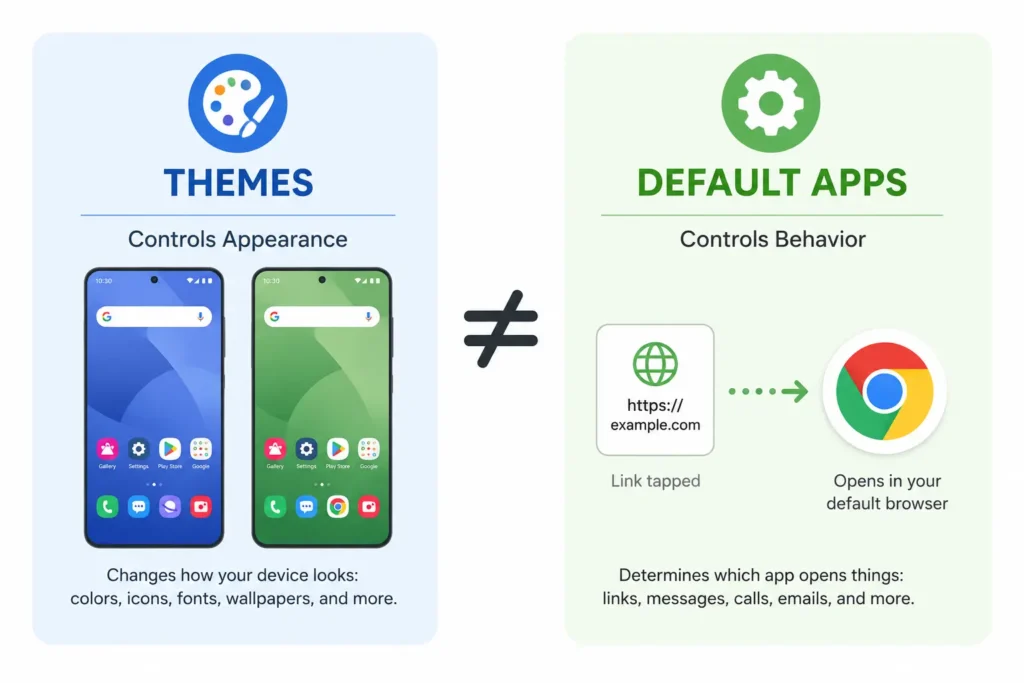
The most common mistake I see is people confusing visual themes with default app behavior. It happens more often than you would think, and the reason is simple: Android manufacturers use the word ‘default’ in both places.
Themes control how apps look. Default app settings control how apps behave. These are completely separate systems buried under similar-sounding menu names.
I have watched people accidentally reset their entire phone’s visual theme to factory settings while trying to fix their browser default. The browser still opens in Samsung Internet. Their home screen now looks like a stock device from two years ago. Two problems instead of one.
The second biggest mistake is checking only the main Default Apps menu and not looking inside individual app settings. People change their default browser, then get confused when PDFs still open in the wrong app because PDF file associations live in a completely different part of Android’s settings, not in the main Default Apps list.
They want to change which app handles their text messages, but they end up in the Theme Store resetting their wallpapers and icons instead.
This confusion happens because both themes and app defaults use the word “default” in their settings. People search for “default apps” and find theme options that mention “default icons” or “default appearance,” then spend twenty minutes in the wrong menu entirely.
Theme settings control how your apps look. App default settings control how your apps behave. Completely different functions, but Android manufacturers do not make this distinction clear enough in their menu labels.
When you change default app behavior through the proper settings menu, your apps keep the same visual appearance but handle different actions. When you change themes, your apps might look different but still behave exactly the same way as before.
I have watched people reset their entire phone’s visual theme back to factory settings thinking they were fixing their browser defaults. The browser problem never gets solved, and now their home screen looks completely different too.
The second biggest mistake is only checking the main default apps categories and never looking at individual app settings for file associations. People change their default browser successfully, but then get confused when PDF files still open in the old app.
PDF files, image files, and document files often get claimed through separate pathways that do not show up in the main default apps menu. You have to check the “Opening links” or “Open by default” settings inside each app to see what file types that app has claimed.
When you want to change default launcher android behavior or any other specific app function, always start in the Default Apps section of Settings, not in theme stores or appearance settings.
Those are two completely different systems that happen to use similar words.
Which Default Apps Should You Change First?
Most people spend time on the wrong things — changing the camera default or file manager when their browser and messaging app are still driving them crazy fifty times a day.
Start with browser. Every link on your entire phone runs through that one setting. Get that right first. Then messaging, because text conversations happen throughout the day and the right app genuinely changes how you use your phone.
I tell people to set their preferred apps android based on usage frequency. How often does your browser open in a day? Probably twenty to thirty times, counting every tap across every app. How often does your file manager open? Maybe twice a week.
Home screen launchers rank third Nova Launcher or Microsoft Launcher can completely transform the phone’s appearance, but that is personal preference, not a functional improvement like browser or messaging.
Email and maps can wait. Unless you use navigation constantly, changing those defaults is a low-priority swap that will not change much about your daily experience.
Start with your browser, then messaging, then consider a launcher if you want visual changes.
Your browser default makes the biggest difference because every link you tap anywhere on your phone goes through that app. Whether the link comes from email, text messages, social media, or search results, your browser choice affects dozens of interactions daily.
I always tell people to set their preferred apps android based on usage frequency first. Browser gets used constantly, so switching from a basic browser to Chrome or Firefox immediately improves your web experience across every other app on your phone.
Messaging comes second because text conversations happen throughout the day. Switching from a basic SMS app to Google Messages gives you better group chat features, message reactions, and cross-device syncing that actually matters for daily communication.
Home screen launchers rank third on my list for how to set preferred apps because launcher changes are purely visual. Nova Launcher, Microsoft Launcher, or Action Launcher can completely transform your phone’s appearance and organization, but the impact depends on how much you care about customization.
Email and maps defaults matter less unless you use those apps heavily. Most people check email a few times per day and use navigation occasionally, so those changes provide smaller daily improvements compared to browser and messaging switches.
Skip changing defaults for apps you rarely use. Camera, calendar, and file manager defaults only matter if you have specific feature needs that the stock apps do not handle.Advanced Default App Management and Third-Party Solutions
If Android’s built-in default controls feel too limited, there are third-party options worth knowing about — and one in particular that solves a problem the stock system cannot.
LinkSheet came up repeatedly in Reddit discussions about android link opening settings, and the reason is specific. When you want different apps to handle different types of links from the same domain — work links in one browser, personal links in another, social media links opening in dedicated apps — Android’s built-in always-open-with system cannot do that. LinkSheet inserts itself as the default handler and routes each link based on rules you define.
For most people, that level of control is overkill. But if you run multiple browsers or have specific workflow needs, it solves a real problem.
For people who change default apps android settings across multiple phones maybe you replace devices every year, or you set up phones for family members I recommend keeping a written list of your preferred defaults. When you get a new phone, that list cuts setup time significantly instead of spending twenty minutes hunting through settings to remember what you changed last time.
LinkSheet caught my attention from Reddit discussions because it solves a specific problem that advanced users face. When you want different apps to handle different types of links from the same domain, Android’s built-in system falls short. LinkSheet acts as an intermediary that analyzes each link and routes it to the appropriate app based on rules you create.
This becomes valuable when you have multiple browsers installed for different purposes. Maybe you want work-related links to open in one browser while personal links open in another. Or you want social media links to open in dedicated apps but regular web links to open in your main browser.
The app works by inserting itself as the default handler for web links, then presenting you with intelligent choices based on the specific URL pattern. This gives you much finer control than Android’s basic “always open with this app” system.
For people who manage default apps android behavior across multiple devices, I recommend documenting your preferred settings. When you set up a new phone or switch manufacturers, having a list of your custom defaults saves time during the initial setup process.
Advanced users also benefit from understanding that some manufacturers provide additional default controls through their own app stores. Samsung Galaxy Store and Xiaomi GetApps sometimes offer system-level apps that can override defaults in ways that regular Play Store apps cannot.
Which gives you more control than most people ever need.
Quick Recap: Master Your Android Default Apps
If I had to boil everything in this guide down to the four things worth remembering:
The universal path is Settings, then Apps, then Default Apps. That works on roughly 90% of Android phones without any tricks.
Samsung users: search ‘default apps’ in Settings if you cannot find the menu manually. Xiaomi users: three-dot menu in Manage apps, then Other settings. Those two shortcuts save real time.
When the main Default Apps menu does not have what you need — PDF files, image files, specific document types — go into the individual app’s settings and use Opening links or Open by default to clear the old claim first.
Clear defaults is the fix when settings look right but behavior has not changed.
And themes are appearance. Default apps are behavior. Not the same thing, no matter how similar the menu names look
Start with the universal path: Settings, Apps, then Default Apps or Choose Default Apps. This works on 90% of Android phones without any special tricks or manufacturer-specific navigation.
When that method does not work, remember the manufacturer shortcuts. Samsung users can search “default apps” in settings. Xiaomi and Redmi users need the three-dot menu in Manage apps to reach “Other settings.” These shortcuts save time when manufacturers bury the android app settings in unexpected locations.
For file-specific defaults that do not show up in the main categories, go to the individual app settings and use “Opening links” or “Open by default” to clear existing claims. This forces Android to ask you which app to use next time.
The “Clear defaults” troubleshooting method fixes stuck settings when apps refuse to change despite your selections in the default apps menu.
Change your browser first since that affects every link you tap. Messaging comes second for daily communication improvements.
And remember that themes control appearance while default apps control behavior. Completely different systems that happen to use similar menu names.
Frequently Asked Questions About Changing Default Apps
Why can’t I change default apps for certain file types?
Android separates app category defaults from file-specific associations, and many file types are not listed in the main default apps menu. Go to the individual app’s settings and tap “Opening links” or “Open by default” to clear file associations, then Android will ask which app to use next time.
How do I reset all my default apps back to original settings?
Find each app in Settings > Apps, tap “Open by default,” then select “Clear defaults” to reset individual apps to ask you again. For a complete reset, you can factory reset your phone, but this erases all data and returns every setting to manufacturer defaults.
Why can’t I change certain default apps on Android?
Phone manufacturers customize Android’s interface and move settings to different locations than stock Android. Samsung users can search “default apps” in settings, while Xiaomi users need to tap the three-dot menu in Manage apps to find “Other settings” where default controls actually live.
What’s the difference between changing themes and changing default apps
Themes control how your apps look visually, while default apps control which apps handle specific actions when you tap files or links. These are completely separate systems, so changing themes will not affect how to change default apps android behavior, and changing defaults will not affect your phone’s appearance.
Do I need to install alternative apps before changing defaults?
Yes, you must install alternative apps from the Play Store before they appear in your default app options. Android can only switch defaults between apps that are actually installed on your device, so download Firefox, Google Messages, or other alternatives first before trying to change defaults.