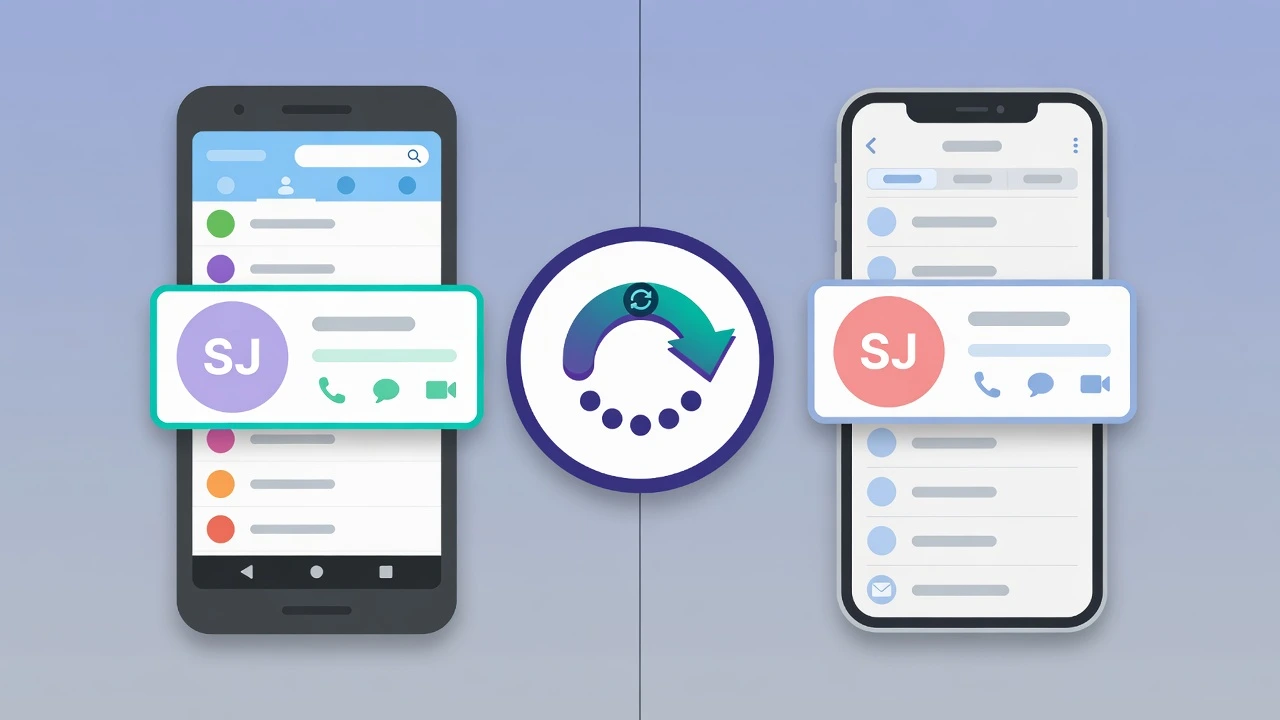
Where Does a Deleted Phone Number Actually Go?
If you’re trying to figure out how can I recover a deleted phone number, the answer starts before you touch any app or setting.
Where the contact was stored when you deleted it that single fact decides whether you get it back in 30 seconds or spend an hour chasing a number that’s already gone.
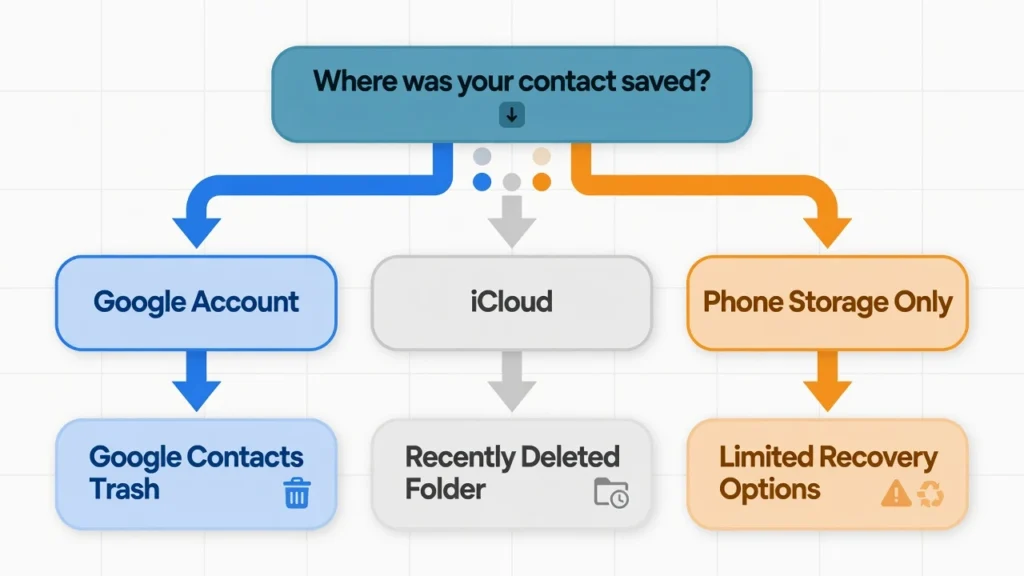
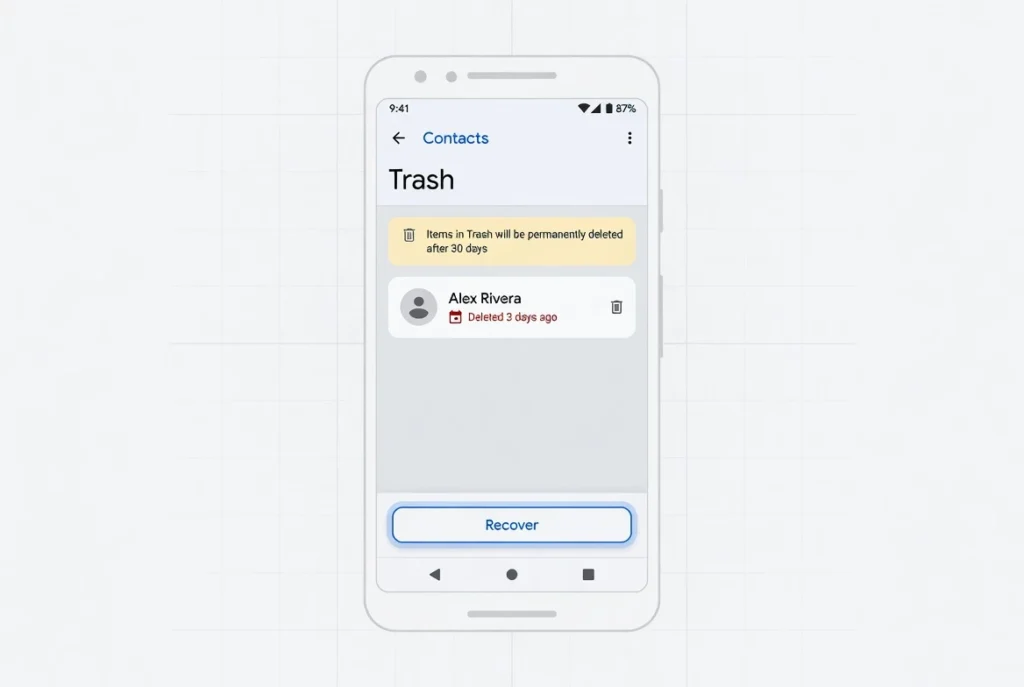
On Android, a deleted contact doesn’t disappear the moment you tap delete. Google Contacts moves it to a trash folder, where it sits for 30 days before the system permanently erases it. Same logic as Gmail trash. The contact is hidden, not destroyed.
iPhone handles this the same way on iOS 16 and newer. There’s a Recently Deleted folder inside the Contacts app. Same 30-day window. Same automatic wipe when that window closes.
But here’s the scenario that catches people completely off guard.
If that contact was saved only to your phone’s local storage — never synced to Google, never linked to iCloud — there’s no trash folder. No 30-day window. No cloud copy sitting somewhere waiting to be restored. The accidentally deleted contact is gone from your device, and the standard phone number recovery methods people find in most guides won’t apply to your situation.
I ran into this exact problem with a client whose Samsung was set to save contacts to ‘Phone’ storage instead of their Google account. Three years of contacts. No sync. No backup. The deletion was permanent before they even knew it had happened.
So the first thing to check before you try anything else is where your contacts were actually stored. Google account? iCloud? Or phone storage only? That answer tells you which recovery path to follow and which ones to skip entirely.
How to Restore Deleted Contacts from Your Google Account (Android)
For most Android users, this is where recovery actually happens. And when it works, it works fast.
If your contacts were syncing to your Google account before the deletion, the deleted number recovery Android path is about as simple as it gets. Google holds those removed contacts in a trash bin for exactly 30 days — same backend logic as Gmail. You can pull any of them back out before that window closes, no technical knowledge required.
I’ve walked through this restore contacts android process on devices running everything from Android 10 to Android 14, across Samsung, Pixel, and OnePlus hardware. When sync was active, every contact came back. No exceptions in my experience.
What most step-by-step guides leave out is what happens right after you hit Recover.
The contacts app doesn’t refresh instantly. On some phones it takes two minutes. On others it can sit there looking unchanged for up to ten minutes while the sync quietly finishes in the background. If you start tapping around, reinstalling the app, or restarting before that window closes, you can interrupt the sync and create a second problem on top of the first.
Wait. Give it ten minutes. Then check.
The other thing worth knowing: you don’t need the phone in your hand to do any of this. The full recovery process works from any web browser. If your phone is broken, lost, or just not with you right now, you can restore phone book entries that were backed up to Google from a laptop or desktop just as easily.
Finding the Trash Bin in Google Contacts (Mobile and Desktop)
On your Android phone, open the Contacts app and tap the Organize tab at the bottom of the screen. If you don’t see an Organize tab, your app version may label it differently look for a three line menu icon or a More option instead.
Inside Organize, you’ll find an option called Bin or Trash. The label depends on which version of Google Contacts your phone is running. Tap it and you’ll see a dated list of every contact you deleted in the last 30 days, with the exact removal date next to each entry.
To bring back a single contact, tap the entry and hit Recover. To restore your entire deleted list at once, tap the three dots in the top right corner, choose Select All, and then tap Recover.
Now here’s where people lose patience and accidentally make things worse.
After tapping Recover, the contacts app won’t update immediately. The google contacts restore process is running in the background, but the screen won’t reflect it right away. Force close the app completely go to your recent apps screen, swipe Contacts away then reopen it. Even after that, give it up to ten minutes before assuming something went wrong. The contact sync is pulling data from Google’s servers and the speed depends on your connection and how many contacts you’re restoring.
If you’re working from a computer, go to contacts.google.com in any browser and sign in with the same Google account your phone uses. Click Trash in the left sidebar. The process is identical select what you want, click Recover but the desktop version loads faster, shows more entries at once, and the restored contacts appear in your phone’s list within minutes rather than requiring a manual app refresh.
Using the Undo Changes Feature to Roll Back Deletions
The Undo Changes feature in Google Contacts is the one most Android guides skip entirely, and it’s genuinely more useful than the trash bin when you’ve wiped out a large batch of contacts at once.
Here’s how it works. Google Contacts keeps a snapshot of your contact list at different points in time, and Undo Changes lets you roll the entire list back to any of those snapshots. You can go as far back as 30 days. This feature only exists on the desktop version you won’t find it in the mobile app so open contacts.google.com in a browser, click the Settings gear icon in the top right, and choose Undo Changes.
You’ll see preset timeframe options: 10 minutes ago, 1 hour ago, yesterday, and 1 week ago. If the deletion happened longer than a week back, choose Custom and enter the specific date and time from before the deletion occurred. Set it to a moment you know your full contact list was still intact.
Hit Confirm. Google reverts the entire list to that earlier snapshot.
I pull up this method specifically when someone deleted a batch of contacts and can’t reconstruct which ones are gone often people who reset a phone or mass-imported duplicates and then tried to clean things up too aggressively. The trash bin works for targeted individual recovery, but when you need to undo contact list damage in bulk, Undo Changes gets there faster.
One hard limitation to understand before you use it: this rolls back everything. If you added five new contacts in the days after the original deletion, those five disappear when you revert. You’re restoring a snapshot, not selectively recovering entries.
That’s the reason I check the trash bin first. If the specific contact you need is sitting there, recover it individually and leave Undo Changes alone.
How to Get Back a Deleted Number on iPhone
iPhone contact recovery runs on completely different logic than Android, and the method depends on whether your contacts were syncing to iCloud or to a Google account before the deletion happened.
If iCloud was active, there’s a toggle sequence in Settings that takes under a minute and forces your iPhone to dump its current local contact state and pull everything back from iCloud’s archived copy.
It sounds almost too simple when you read the steps. But it consistently works because of how iOS handles contact sync conflicts between local storage and the cloud.
If your iPhone contacts were linked to a Google account which is common for people who switched from Android and never migrated their contacts to Apple’s system you can recover contacts on iPhone by accessing your Google account through Safari and re importing the entries from there.
I’ve taken both methods through real scenarios. The iCloud toggle catches people off guard because Apple doesn’t advertise it as a recovery tool.
It’s just how the merge function works when you re enable a cloud service that already has data stored against your account. The restore happens during the merge, and most people never realize they stumbled into a recovery method
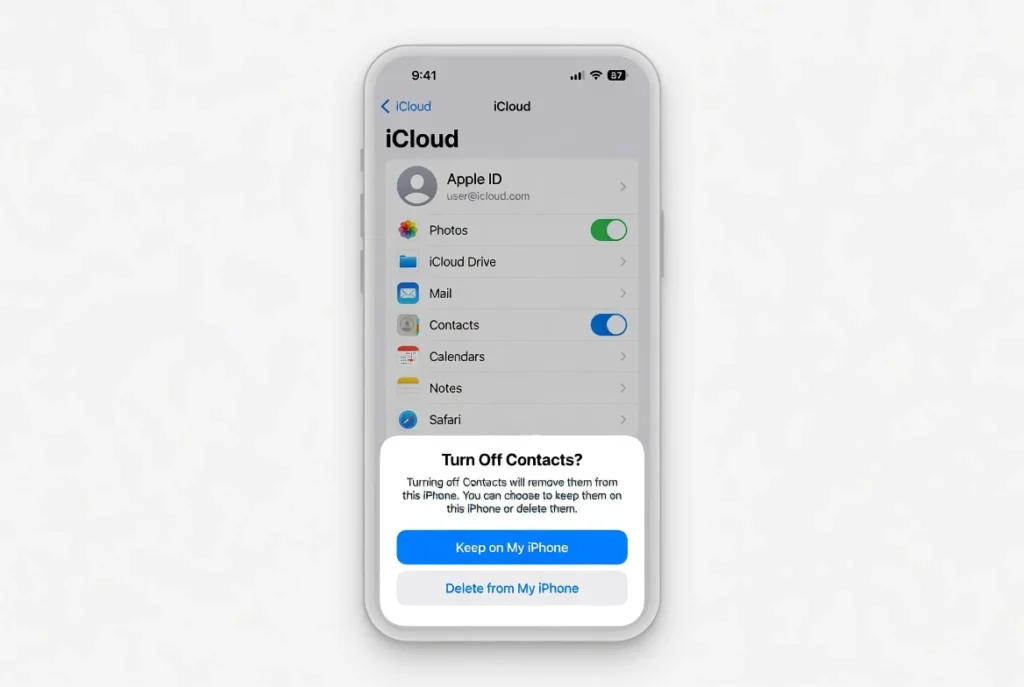
The iCloud Toggle-and-Merge Trick (30 Seconds to Fix)
Open Settings and tap your name at the top to reach your Apple ID screen.
Tap iCloud. Find the toggle next to Contacts and turn it off.
A popup will appear asking what you want to do with the contacts currently on your iPhone. Choose Keep on My iPhone. This is the critical step it tells iOS to preserve your local contact list rather than wiping it when you disconnect from iCloud.
Now turn the Contacts toggle back on. A second popup will ask whether you want to merge the contacts on your iPhone with iCloud. Tap Merge.
Give it two to five minutes. Despite what some guides suggest, iCloud contact sync after a forced merge doesn’t complete in ten seconds. Your phone is comparing your local contact list against Apple’s server-side copy and pulling in any entries that exist in iCloud but are missing locally. The time it takes depends on your internet connection and how many contacts are involved.
Any contact that was present in iCloud before you deleted it locally will reappear in your list once the sync finishes.
This works because iCloud Contacts sync which is separate from iCloud Backup maintains its own copy of your contact database on Apple’s servers. When you force a merge, your iPhone treats the server copy as authoritative and fills in anything that’s missing locally.
I’ve used this method to bring back contacts deleted three weeks prior, as long as the sync had been active before the deletion and the 30-day server window hadn’t closed.
Recovering iPhone Contacts Through Your Google Account
If your iPhone was syncing contacts to a Google account rather than iCloud, the path back is different but equally reliable.
Open Safari on your iPhone and go to contacts.google.com. Sign in with the Google account your phone was using for contact sync. If your iPhone was pulling contacts from Google, the deleted entry is almost certainly still sitting in Google’s system even though it vanished from your phone’s contact list.
Once you find the contact, you’ve got two ways to bring it back. The quick option: tap the contact, copy the number, and add it manually as a new contact on your iPhone. The cleaner option: tap the three dots next to the contact name, choose Export, and save the vCard file. Open the Files app on your iPhone, find the downloaded .vcf file, tap it, and iOS will prompt you to add the contact directly into your phone’s contact list.
I use this google contacts restore path as the primary fallback for iPhone users whose iCloud sync was never turned on. This comes up constantly with people who moved from Android — their contacts were always tied to their Google account, their iPhone was configured to pull from Google at setup, and when a contact goes missing the natural instinct is to look in iCloud, which has nothing. The number isn’t gone. It’s on Google’s servers. The phone just stopped reflecting it locally.
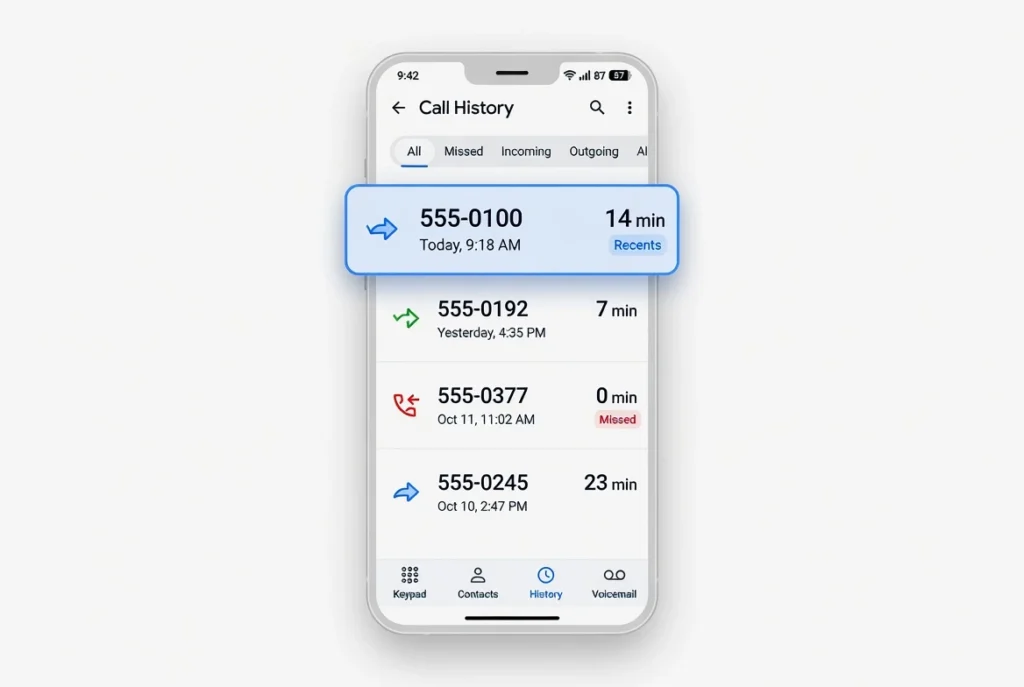
How to Recover a Number That Was Never Saved — Check Your Call History
This scenario is more common than the standard contact recovery guides account for, and it breaks every method that depends on a contact card ever having existed.
Picture this: someone calls you, you have a good conversation, you mean to save the number, and life gets in the way. The number sits in your call log for a few days.
Then you clear your history or your phone clears it automatically and the number is gone. No contact card. No backup. Nothing in the trash folder, because the trash folder only covers the contacts app, not call history.
Recovery apps fail completely in this situation because there was never a contact entry to recover. The number existed only as a call log record in a separate part of your phone’s database.
But the number isn’t necessarily gone for good.
Call log entries live in two places most people never think to check: a hidden recycle bin inside your phone dialer app (if your phone model has one), and your mobile carrier’s server side call records. Your carrier logs every single call at the network level.
That log doesn’t disappear when you clear your phone. And getting to it requires nothing more technical than downloading your carrier’s app
Check Your Phone Dialer’s Built-In Recycle Bin First
Some Android phones have a recycle bin inside the dialer app itself not the contacts app, but the actual phone dialer and most users have no idea it’s there.
Open your Phone app and tap the three dots in the top right corner. Look for an option labeled Recycle Bin or Recently Deleted. Not every Android device has this. Samsung phones include it. Certain Xiaomi and Oppo models do as well. Stock Android the version that ships on Pixel phones doesn’t.
If the option is there, tap it. You’ll see every call log entry you deleted in the last 30 days, complete with the date, time, and the full number. If your phone screen is damaged and you can’t navigate properly, you might need to extract data from your damaged Android phone using alternative methods first
Tap any entry and choose Restore to send it back to your main call history.
This is the fastest way to recover a number from call log when your device supports it the whole process takes under a minute. If your phone model doesn’t have the feature, the carrier method below gets you to the same result through a different route
Pull Your Call Records from Your Carrier’s App
Every phone carrier logs call activity at the network level, and those records sit on the carrier’s servers not your phone. Wiping your call history locally doesn’t touch them.
Download your carrier’s official app. In the US, that’s the Verizon app, T-Mobile app, or AT&T app. In India, it’s MyJio, Airtel Thanks, or the Vi App. Every major carrier worldwide maintains one.
Log in with your account credentials and navigate to the section labeled Call History, Usage Details, or Check Statements the exact wording varies by carrier, but the feature exists on every major provider.
You’ll see a log of every call made and received on your account. Most carriers display at least 30 days of records. Some go back 60 or 90 days.
A few international carriers limit it to 14 days, so check yours as early as possible. Each entry shows the full number, date, time, and call duration.
Filter by the date range when you remember speaking to the person and scroll through until you find the specific call. The number will be right there in the record.
One practical note: if you’re looking for a number from a call that went through a third-party VoIP app like WhatsApp or Telegram, it won’t appear in your carrier records because those calls route over the internet, not the cellular network. Carrier logs only capture standard phone calls.
How to Get a Deleted Number Back When You Have No Backup
No Google sync. No iCloud. No backup of any kind. This is the situation where people come to me after trying every standard method and hitting a wall.
Sometimes this happens after a factory reset on a locked Android phone where contacts weren’t properly backed up beforehand.
Here’s what I tell them: the contact data on the device is almost certainly gone.
Phone storage deletion on modern flash hardware is close to permanent once a few days have passed and TRIM has done its job. Recovery software marketed for this scenario has a very low success rate without rooting the phone, and even then it’s unreliable.
But phone storage is not the only place a number might exist.
Three alternative sources are worth checking before you give up: your SIM card may have older contacts written directly to the chip from years ago, your message history contains phone numbers attached to every thread even when the contact card is deleted and Facebook Messenger may be holding an archived copy of the contact from a background sync that happened without you ever noticing
Check Your SIM Card for Saved Numbers
SIM cards can hold contacts directly on the chip, and this is a feature that was standard on phones from the early and mid-2000s. If you’ve been carrying the same SIM card for several years and added contacts before cloud sync was the default, some of those numbers may still be sitting on the chip even if they never made it into your Google or iCloud account.
On Android, open the Contacts app, tap the three dots, and look for Settings or Manage Contacts. You’ll find an option called Import from SIM or SIM card contacts. Tap it, and if anything is stored there it will appear as a list you can selectively import back to your phone.
On iPhone, go to Settings, scroll to Contacts, and tap Import SIM Contacts. iOS pulls everything from the SIM automatically into your main contacts list.
One thing to know about this method: SIM cards have a hard storage limit, typically around 250 contacts, and they store only names and numbers no email addresses, no notes, no profile photos.
So you’re looking for basic number and name entries from older contacts, not recently added ones. Still worth checking, especially if you’re dealing with a number you may have had in your phone for five or more years
Search Your Message History and Email for the Contact
A text message thread holds the sender’s phone number regardless of whether their contact card still exists on your phone. When you delete a contact, the SMS thread doesn’t get deleted with it — the conversation stays, and the number is still right there at the top.
Open your Messages app and scroll through your conversations. If you’ve ever texted the person, look for a thread that’s showing a raw phone number instead of a name — that’s what deleted contacts look like in most messaging apps once the contact card is gone. Tap the number at the top of that thread and save it as a new contact.
Same logic applies to WhatsApp and Telegram. Open the app, find the chat, tap the contact name or number at the top of the conversation, and their full phone number will be visible in the contact info screen.
Email is another source most people overlook. Search your inbox for the person’s name and scan any older threads. A lot of people include their phone number in their email signature, or they typed it directly into the body of a message at some point.
I’ve pulled numbers this way out of Gmail threads that were three or four years old just searched the name, found the thread, found the number in the signature block.
Check Facebook Messenger — It May Have Archived the Contact
Facebook Messenger used to automatically sync with your phone’s contact list when you first gave it permissions and for people who installed Messenger before 2018, that sync may have run for years, storing copies of your contacts on Facebook’s servers without any visible indication it was doing so.
Meta restricted and then disabled automatic contact sync in 2018 and again in further privacy updates. But if you granted Messenger contact permissions before that and never revoked them, there’s a chance your contacts were archived in Facebook’s system and are still sitting there.
To check: open Messenger, use the search bar to look for the person’s name. If a conversation thread exists, tap their profile picture or name. Their phone number may be listed in the contact details section if Messenger pulled it from your phone during an earlier sync or if they had it linked to their Facebook account.
This method has a narrower window than most people assume. It applies specifically to contacts you had in your phone before the contact sync restrictions took effect, and only if Messenger had permission to access your contacts in the first place. But for older contacts people you knew before 2018 it’s worth checking
Can You Still Recover a Contact Deleted More Than 30 Days Ago?
Once 30 days pass, the standard cloud recovery paths close. Google’s trash empties automatically. Apple’s Recently Deleted folder clears. What’s left is a narrower set of options, and it’s worth being honest about how narrow.
The main obstacle on the device side is TRIM technology. Modern phones use flash storage with TRIM commands that actively wipe deleted data cells during idle time not all at once, but gradually.
Recovery software that works on traditional hard drives struggles badly with flash storage because the data that was recoverable right after deletion gets progressively overwritten. The longer the wait, the less any recovery app can find.
I’ve watched people spend hours with data recovery tools on phones where the deletion happened six weeks prior. In nearly every case where sync had never been enabled, nothing came back. The tools aren’t broken the storage has already been cleaned by the time people try them.
If your contacts were ever synced to Google, Google Takeout at takeout.google.com is still the most reliable option at this stage. Download the .vcf archive directly from Google’s servers. What’s there is what’s recoverable.
For rooted Android phones, device-level tools like deep recovery applications that access raw flash storage can sometimes surface data within the first week or two after deletion but they require root access and their success rate drops sharply after the first few days. Without root, those tools won’t function at the storage level where recoverable data might still exist
The Google Takeout Method — A Powerful Backup Most People Miss ⭐
Google Takeout is the recovery method that almost never gets mentioned in standard guides, and it’s genuinely different from the trash bin approach because it pulls data directly from Google’s underlying server infrastructure rather than from the contact list interface your phone displays.
The distinction matters. When you delete a contact and it disappears from the Google Contacts trash after 30 days, it’s gone from the interface. But the Takeout export draws from a deeper layer of Google’s account data. In some cases — particularly when sync history is intact — contacts that have already aged out of the visible trash have appeared in a Takeout export.
Here’s how to run it. Go to takeout.google.com. The first screen shows every Google service selected by default. Click Deselect All at the top first — skipping this step initiates a download of your entire Google account history, which can be enormous.
After deselecting everything, check only the Contacts box. Confirm the format shows vCard in the dropdown next to it. Click Next Step and choose your delivery method. Google will prepare the export and send you a download link by email. Depending on your account size, this can take anywhere from a few minutes to several hours so don’t expect this to be instant.
Extract the zip file on your computer. Inside, you’ll find a file called All Contacts.vcf. This file contains every contact that was ever synced to your Google account.
To import: open the Google Contacts app on your phone, go to the Fix & Manage tab, tap Import from File, and select the .vcf file. Your contact list will update as the import runs.
One realistic expectation to set: Google Takeout won’t reliably recover contacts deleted more than 30 days ago in most cases. What it does do is pull every contact that exists in your Google account’s data layer, which can surface entries that weren’t visible in the standard interface. It’s the last cloud-based option to try before accepting the loss
Three Mistakes That Make Contact Recovery Much Harder ⭐
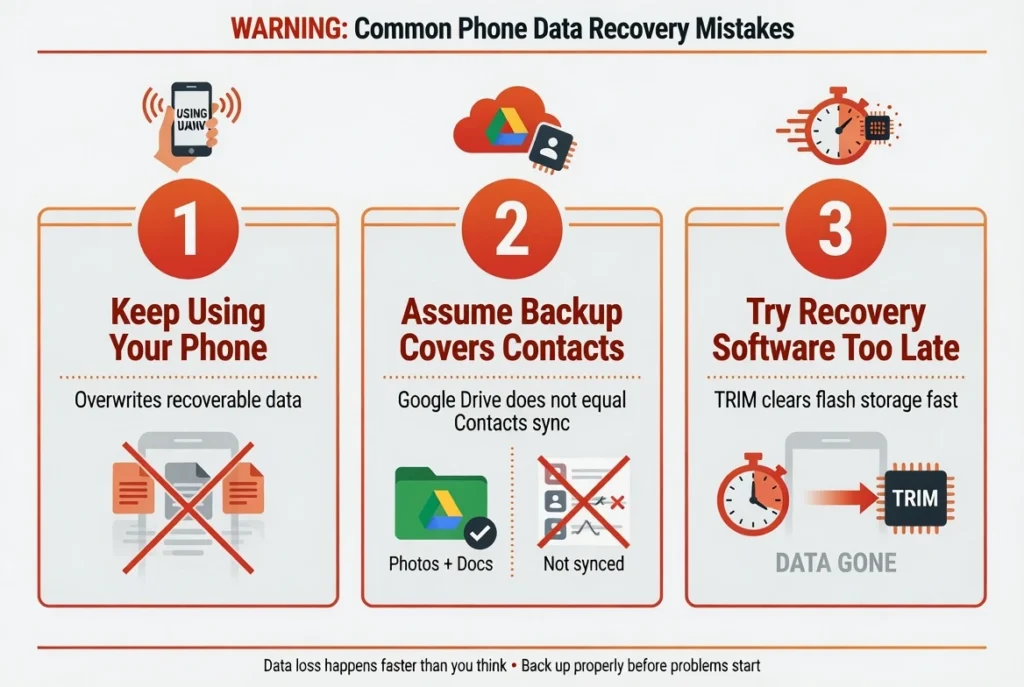
The three things that kill recovery chances most often aren’t technical failures. They’re decisions people make in the minutes and hours after realizing a contact is gone.
Mistake 1: Continuing to use the phone after deletion
Every action that writes data to your phone’s storage — taking a photo, downloading an app, receiving a large text thread — potentially overwrites the storage cells where your deleted contact data existed. Once those cells are overwritten, no recovery tool can bring the data back. If you realize a contact is gone and device-level recovery might be your only option, minimize phone use until you’ve tried the cloud-based methods first and confirmed they won’t work.
Mistake 2: Assuming “backup enabled” includes contacts
This is the one that catches people the most consistently, and it’s a reasonable assumption to make. You see Google Drive backup is turned on, you assume everything is protected.
The problem is that Google Drive backup and Google Contacts sync are entirely separate systems with separate settings. Your photos, apps, and call history might be backing up to Drive while your contacts are stored locally only never touched by either backup system.
The fastest way to verify: go to contacts.google.com from any browser. If your contacts are not showing there, they were never syncing to Google’s contact servers, regardless of what the backup settings page says.
Mistake 3: Trying recovery software weeks after the deletion
Unlike a traditional hard drive which marks deleted data as “available space” but leaves the actual data intact until something overwrites it phone flash storage uses TRIM to proactively clean deleted data cells during idle periods. By the time most people download a data recovery app, the recoverable data is already gone.
If device level software recovery is your plan, it needs to happen within hours of the deletion, not days or weeks later
How to Make Sure You Never Lose a Phone Number Again
Most people assume their contacts are protected without ever confirming it. They see a backup notification or a green sync indicator and take it as proof. It usually isn’t.
Set Up Google Contacts Sync on Android
Go to Settings → Accounts → Google → Account sync. The path varies slightly by phone model — on Samsung it may be under Settings → Accounts and Backup → Manage Accounts — but the option is there. Make sure the Contacts toggle is on. Then verify it actually worked by opening contacts.google.com in a browser and checking that your contacts are visible there. The sync settings page saying “on” does not guarantee the contacts are in Google’s system. The contacts.google.com check does.
Enable iCloud Contacts on iPhone
Open Settings, tap your name at the top, tap iCloud, and toggle Contacts to on. When prompted, choose Merge to keep your existing contacts and add them to iCloud. Contact synchronization runs automatically after that — but confirm by signing into icloud.com and checking that your contacts appear there.
Use a Dedicated Call Log Backup App
Standard cloud backup services — Google Drive, iCloud — do not archive call log history. If recovering an unsaved number from a call is ever a scenario you want to handle, you need a separate solution. Apps designed specifically for call log backup will export your call history to cloud storage, including numbers you never saved as contacts. Check the privacy policy and user reviews of any app you choose before granting it contact and call log permissions.
Export Your Contacts Manually Every Few Months
In the Google Contacts app, go to Fix & Manage → Export. Save the .vcf file to your Google Drive or email it to yourself. This takes two minutes and gives you a local backup that exists completely independently of sync status. Do it quarterly. It’s the lowest-effort insurance policy that works even when sync silently fails.
Set up all four methods right now. And if you’re getting a new iPhone, check out ourcomplete guide on transferring phone numbers to your new iPhone to ensure nothing gets lost in the transition
Frequently Asked Questions
How long do deleted contacts stay in the Google Contacts trash?
Exactly 30 days. After that, Google’s servers permanently delete them and the standard recovery methods no longer apply. The trash empties automatically you don’t get a warning.
My contacts didn’t come back after I clicked Recover. What’s happening?
Google Contacts sync doesn’t update your phone instantly after a recovery. The process runs in the background and can take anywhere from two to ten minutes.
Force-close the Contacts app, reopen it, and wait. If nothing appears after ten minutes, check that your phone has an active internet connection and that Google sync isn’t paused under Settings → Accounts.
Can I recover a number I never saved as a contact?
Yes — but through a different process than contact recovery. Check your phone dialer’s recycle bin first (Samsung and some other brands include one). If that doesn’t have it, download your mobile carrier’s app and look under Call History or Usage Details. Carriers log every call at the server level for at least 30 days, and the number will be there.
Can I recover contacts deleted more than 30 days ago?
Potentially, if they were synced to Google. Try Google Takeout at takeout.google.com — download a full contact archive as a .vcf file and import it through the Google Contacts app. If the contacts were never synced to any cloud service, check your SIM card and message history as alternative sources.
Does turning on Google Drive backup protect my contacts?
No. Google Drive backup and Google Contacts sync are separate systems. You need to enable contact sync specifically — go to Settings → Accounts → Google → Account sync and confirm Contacts is toggled on. Then verify at contacts.google.com that your contacts are actually visible there
Do data recovery apps work for deleted phone contacts?
Rarely, and only in a narrow window right after deletion. Phone flash storage uses TRIM to actively clear deleted data cells during idle periods, which means the recoverable data disappears faster than on a traditional hard drive. Cloud-based recovery methods should always be exhausted first. If you’re asking how can I recover a deleted phone number after those options have failed, local device recovery tools require root access and have a low success rate even immediately after deletion.