What It Means When Your Phone Doesn’t Ring While Calling Someone
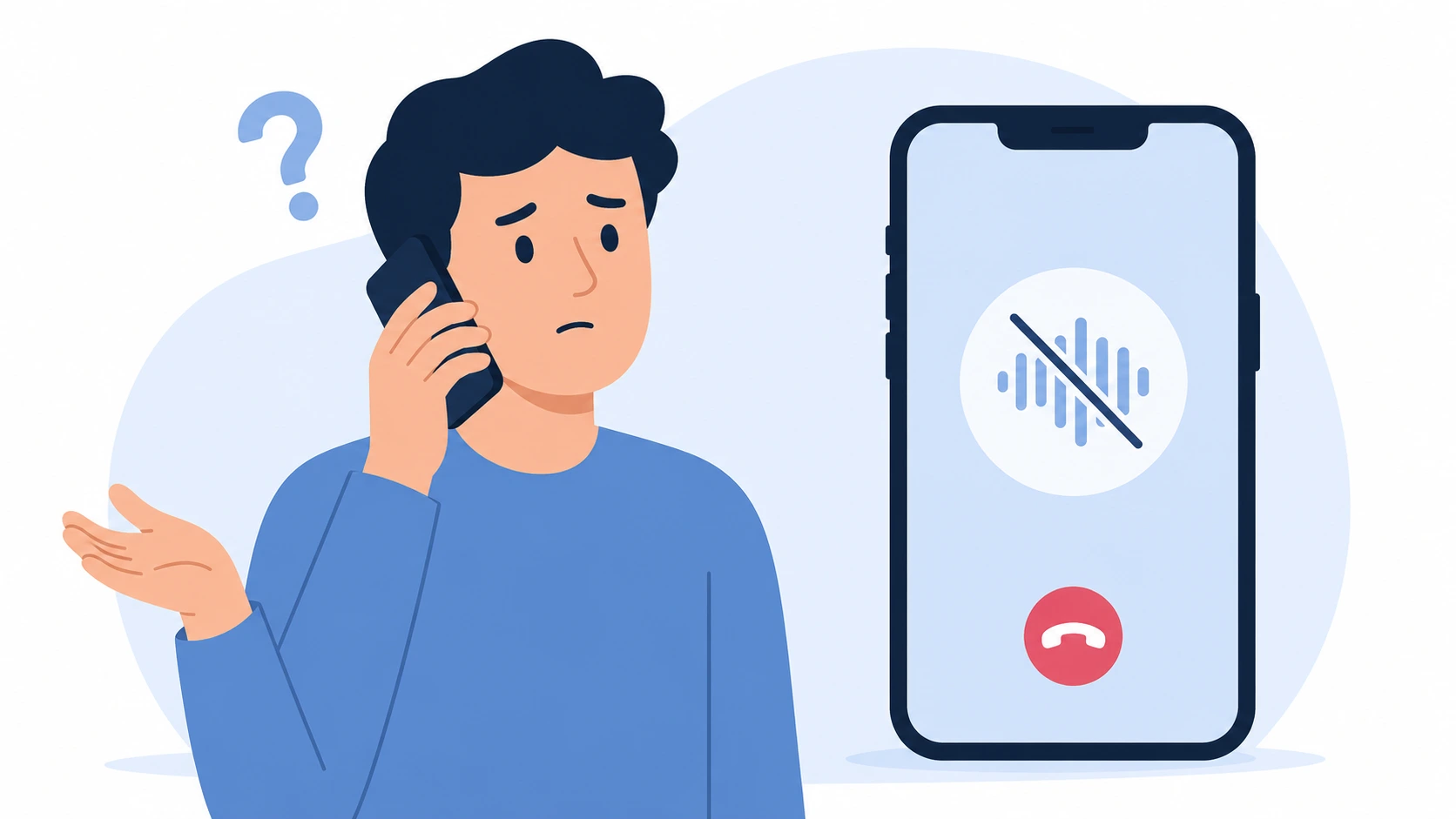
If you placed a call and heard nothing but silence instead of ringing, the first thing to know is that your phone is most likely working fine.
The real question why is my phone not ringing when I call someone almost always comes down to a single missing audio signal called the ringback tone. That tone is what your network generates to confirm the call is routing correctly. It has nothing to do with what the recipient’s phone is doing. They could be hearing a full ring on their end while your screen shows an active call and you hear nothing.
I’ve had calls where I sat through 10 full seconds of dead silence, assumed the call dropped, and then someone picks up with a casual ‘Hello?’ as if nothing happened. Their phone rang perfectly. Mine just never played the ringback confirmation. That’s more common than it sounds.
The silence doesn’t mean the call failed. What actually happened is that your network stalled while trying to send back the ringback confirmation a completely separate signal from the voice channel carrying the actual call. Those two things travel differently.
The voice data still gets through. The ringback audio doesn’t always make it, especially when your cellular signal is weak or the tower handshake hiccups. So the call connects on the other end. You just never heard the signal confirming it
Some people immediately suspect a dead speaker. But once the person picks up and you hear their voice clearly, that rules out hardware entirely. The missing ringback tone is a network signal problem, not a phone problem. Two different things.
The VoIP call vs cellular call distinction matters here too. If you’re calling through WhatsApp, Messenger, Signal, or any other internet based app rather than your regular carrier, you might hear nothing at all during the connecting phase.
These apps don’t route audio through the same system that generates ringback tones. Some generate a substitute sound. Most just leave you in silence until the other person answers or until the call times out and you’re left wondering if it ever rang
And here’s the part that confuses most people: you call the same person twice in a row. First call, dead silence. Second call, normal ringing. Nothing changed on your end. That kind of inconsistency almost always points to a network handshake problem between your phone and the tower not a blocked number, not a broken phone.
What Different Sounds (or Silence) Actually Mean When You Call
Most people guess what these sounds mean and guessing wrong sends you troubleshooting the wrong phone entirely
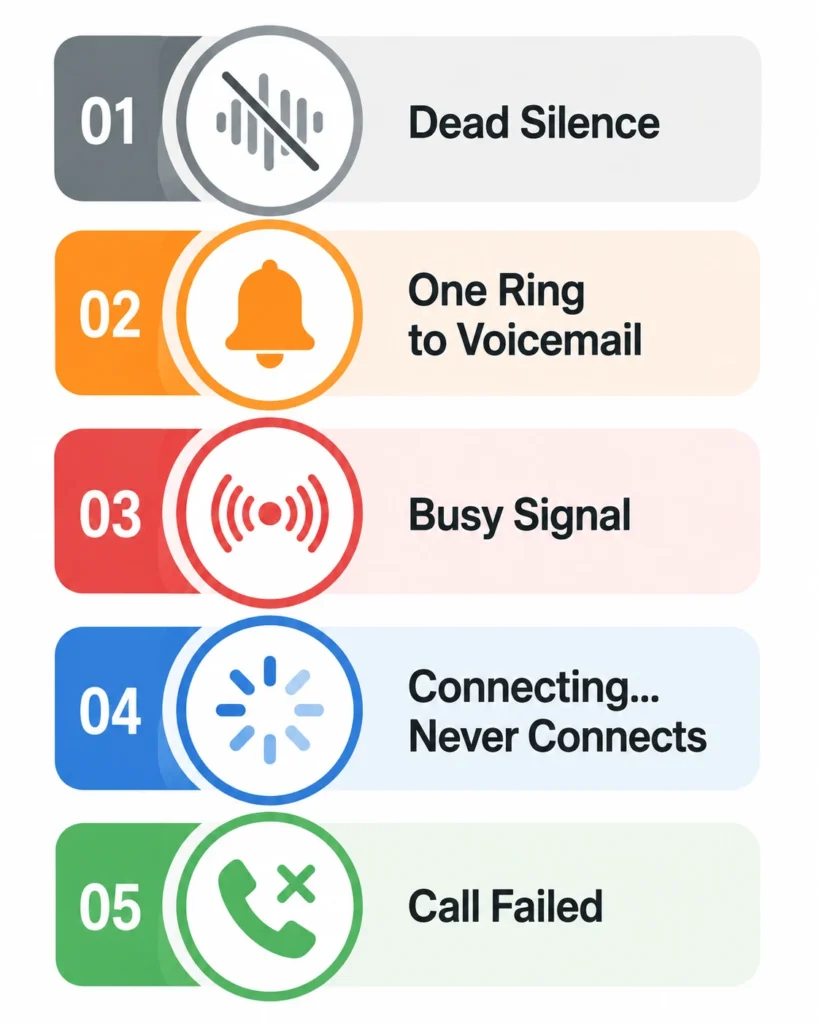
You think something broke on your end when the network just couldn’t locate their device. Every sound you hear during an outgoing call the silence, the single beep, the busy tone, that ‘connecting…’ message that just sits there each one is telling you something specific.
And getting it wrong means you spend time troubleshooting the wrong end of the call entirely.
Here’s what each sound actually indicates.
Complete Silence (No Ringback Tone at All)
Dead silence on an outgoing call most often means the network stalled before it could send back the ringback confirmation not that the call failed. The other person’s phone could be ringing fine on their end.
Before you assume anything about their phone, check your in call volume by pressing the volume buttons while a call is actively connecting. If the on screen label says ‘call volume’ and the bar is near zero, that’s your entire explanation right there.
If volume is fine, you’re looking at a brief network handshake failure. Not a blocked number. Not a broken phone
I’ve sat through 15 seconds of dead air and then someone picks up like nothing was wrong. Their phone rang. Mine stayed silent. That’s a network issue, not a blocked number.
Sometimes your phone’s volume settings cause this too, but only if you turned call volume down specifically. Check your in-call volume by pressing the volume buttons during an active call, not just from the home screen.
One Ring, Then Straight to Voicemail
One ring then straight to voicemail narrows it to three possibilities: their phone is off, they’re in Airplane Mode, or your number is blocked.
The tricky part is that blocked number behavior, a powered off phone and Airplane Mode can all sound nearly identical on your end. The key difference is the voicemail greeting. If you hear their actual recorded voice or a personal message, blocking is unlikely.
If you land on the carrier’s default ‘the person you are calling is not available’ recording, that’s the pattern associated with a blocked number
But phone off and blocked can sound identical. Both go to voicemail after a single ring. Both might play the same generic message. The only real way to know is if you can reach them through text or another method.
Airplane Mode does the exact same thing. The network can’t locate their device, so the call goes to voicemail immediately. One ring on your end, then done.
Busy Signal or Fast Busy Tone
A busy signal means one thing: the recipient is already on a call. Nothing on your end is broken.
A fast busy tone the kind that cycles faster than a standard busy signal means the same thing with slightly different routing. One edge case worth knowing: some carriers send a busy style signal if there’s an account level block or international routing issue on their end.
That’s genuinely rare. If it’s a domestic call to someone you’ve reached before, assume their line is simply occupied.
“Call Failed” or “Connecting…” That Never Connects
When you see “call failed” or watch “connecting” sit there for 30 seconds before timing out, the network can’t locate the recipient’s phone at all. Their device isn’t registered with any tower in range.
This happens when someone’s phone is completely off, when they’re in a dead zone with zero service, or when there’s a carrier routing issue that prevents the call from reaching their network.
Sometimes your weak signal causes this too. If your phone can’t maintain a stable connection long enough to complete the call setup, the call fails before it even starts ringing. Try toggling Airplane Mode on and off to force your phone to reconnect, or move to a different location with better signal.
Network issues between carriers cause this occasionally. Your carrier and their carrier can’t agree on how to route the call, so the connection just hangs. That’s rare but it happens.
Is the Problem on Your End or Theirs? Quick Diagnosis
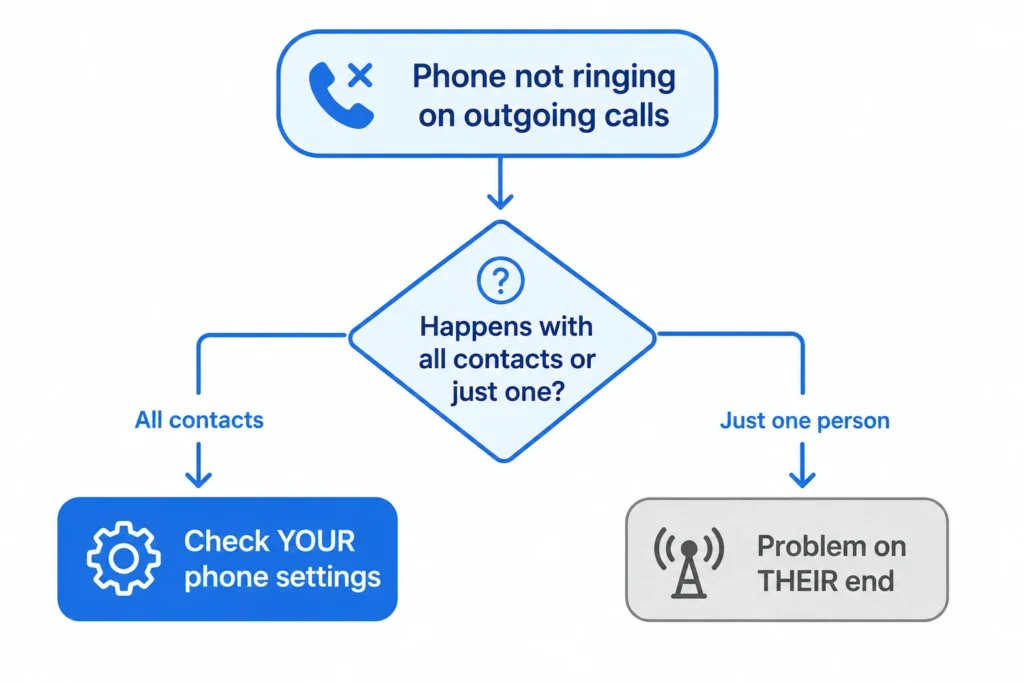
The first question I always ask when troubleshooting an outgoing call not ringing is simple: does this happen with every number you call, or just one specific person?
That one question cuts the problem in half immediately.
If your phone not ringing when you call happens with every single contact, the issue is almost certainly on your end. Your phone settings, your network connection, or your carrier account. Those are the three places to look. Not the other person’s phone, not their settings. Yours.
But if the silence only happens with one person, or two people, the problem is almost definitely on their end. Their phone is off, they’re in Airplane Mode, their carrier is having issues, or something else is happening with their specific device or line. Your phone is working fine.
Here’s the next question I ask: is the result the same every time you call them, or does it change?
Consistent silence every single call points to something permanent on their end. Blocked numbers behave consistently. A disconnected line behaves consistently. But if one call goes through fine and the next one is completely silent, that’s a network issue, not a blocking situation. Networks are unpredictable. They drop handshakes, lose routing paths, and recover on their own. That inconsistency is actually a sign your phone is healthy.
The third check is the simplest. Ask someone else to call that same number from their phone. If their call connects normally and yours doesn’t, you’ve isolated a troubleshoot phone call issue that’s specific to your account or device. That narrows it down fast.
Not random. Not mysterious. Just three questions that tell you exactly where to start fixing.
Reasons the Other Person’s Phone Might Be Causing the Silence
The silence on your end doesn’t always mean something is wrong with your phone. Sometimes your device is working exactly as it should and every fix you apply to it will accomplish nothing because the problem is entirely on the recipient’s side.
Here’s what each recipient-side cause actually sounds like when you’re the one placing the call
Here are the most common recipient-side causes, and what each one actually sounds like from your end.
Their Phone Is Off or in Airplane Mode
When the recipient’s phone is completely off or in Airplane Mode, their device stops communicating with any cell tower entirely. The network can’t locate their phone, so your call gets redirected immediately.
From your end, you’ll usually hear one short ring and then voicemail. Sometimes you get zero rings and land straight on voicemail. Either way, there’s nothing wrong with your phone. The recipient phone is simply unreachable, and the network has nowhere to send your call.
Nothing you do from your side fixes this. Wait and try again later.
They Have Do Not Disturb or Focus Mode Enabled
Do Not Disturb mode silences incoming calls on the recipient’s device without the caller knowing. Their phone receives the call signal but suppresses the ring entirely, so your call either drops to voicemail quickly or sits silently before timing out.
The tricky part is that Do Not Disturb mode has exceptions. Most phones let users create an allowed contacts list, so someone with DND active might still receive calls from their spouse or their boss but not from you. This is why you might reach the same person sometimes but not other times. It’s not random. Their Focus Mode settings are filtering you out.
And if they have scheduled DND that runs overnight or during work hours, every call you place during that window behaves identically. One ring. Voicemail. Every time.
Your Number Is Blocked
Accidental blocking is real and happens more than you’d think someone dismisses what looks like a spam call, taps the wrong option, and a legitimate contact is blocked without either person knowing. If you suspect it, send a text. If that goes through fine, blocking probably isn’t the issue.
That difference matters. If you hear their actual recorded voice saying their name or a personal message, your number is probably not blocked. But if you get the carrier’s default “the person you are calling is unavailable” message, blocking is a real possibility.
Accidental blocking happens more than people realize. Someone dismisses what they think is a spam call, hits the wrong button, and blocks a real contact without knowing it. If you suspect this, try reaching out through a different method like a text message to see if communication goes through.
There’s no fix on your end for a blocked number. That’s entirely the recipient’s side.
They’re Using a VoIP or Internet-Based Calling App
This one catches people off guard. If the recipient primarily uses WhatsApp calls, Signal, Google Voice, or any other internet-based calling app, calling their regular cellular number might not reach them the way you expect.
A VoIP call vs cellular call works on completely different infrastructure. Internet calls route through data networks. Cellular calls route through carrier towers. If someone mostly uses a VoIP app and rarely answers their cellular line, your cellular call might ring their phone without them ever noticing, because all their attention is on the app.
The reverse happens too. Sometimes people give out a Google Voice number or similar VoIP number, and if their internet goes down or their data is off, calling that number produces silence or an immediate failure. Their cellular phone is right there in their hand. But the VoIP line is effectively dead.
Their Carrier or Network Has a Temporary Issue
Carrier network issues are more common than the carriers themselves will usually tell you. Tower maintenance, congestion during peak hours, and inter carrier routing glitches can all cause a call to fail silently both phones working fine, no obvious explanation on either end.
When this is the cause, you’ll typically see ‘call failed’ or watch the call die after a second or two without any ringback tone. The carrier signal just couldn’t complete the path.
Give it a few minutes and try again. Carrier-side issues usually clear up on their own without you doing anything.
When this is the cause, you’ll usually see “call failed” or watch the call drop after a few seconds without any ringback tone. The carrier signal couldn’t complete the path from your network to theirs.
Try again in a few minutes. Most carrier-side issues resolve on their own within a short window.
Settings on Your Phone That Can Block the Ringback Tone
Before you spend time adjusting the recipient’s side of things, check your own phone settings for calls first.
There are four specific things on your device that can kill the ringback tone and three of them are settings most people have never touched.
Ruling these out takes less than two minutes and either solves the problem immediately or tells you definitively that the issue is somewhere else.
The most obvious one is call volume. Not your ringer volume. Your actual in-call volume, which is a separate setting that most people never touch until something breaks. Press the volume buttons while a call is actively connecting and watch the on-screen label. If it says “call volume” and the bar is near zero, that’s your answer. The ringback tone was playing the whole time. You just couldn’t hear it.
Next, check your phone settings for calls and look at whether call forwarding is accidentally enabled. This catches people completely off guard. If call forwarding got switched on somewhere in your settings, your outgoing call might be routing through a different line or number before it connects, which creates silence or a delayed connection that feels like nothing is happening. Turning call forwarding off usually fixes this instantly.
A dialer app malfunction is less obvious but real. Corrupted cache data inside your phone’s default dialer app can interfere with how calls initialize, sometimes producing a silent or broken connection even when your network signal is strong. Clearing the dialer app’s cache through your phone’s app settings takes about 30 seconds and has fixed this problem more times than I can count.
And one people rarely think about: your network connection quality affects the ringback tone on your end specifically. A weak or unstable signal on your side can cause your phone to place the call but fail to receive the audio confirmation back from the network. Switching between Wi-Fi calling and cellular, or toggling Airplane Mode to force a fresh connection, often brings the ringback tone back immediately.
Not a long checklist. But each item on it is specific and worth trying before spending time troubleshooting the wrong end of the call.
How to Fix iPhone When You Don’t Hear Ringing on Outgoing Calls
If your iPhone is not ringing on outgoing calls, work through these steps in order. Start from the top. Most people fix the problem somewhere between Step 1 and Step 5, so don’t skip ahead assuming your issue is more complicated than it is.
Step 1: Check Your Volume and Ringer Settings
Open Control Center by swiping down from the top right corner of your iPhone screen, then look at the volume slider. If the slider is low or at zero, drag it up and try your call again.
Then go to Settings > Sounds & Haptics and check two things. First, make sure the Ringtone and Alerts slider is not all the way to the left. Second, tap Ringtone and verify that an actual ringtone track is selected. A phone call settings issue I see constantly is the ringtone being set to None, which means your iPhone plays nothing even when a call connects.
Step 2: Make Sure the Ring/Silent Switch Is Not On
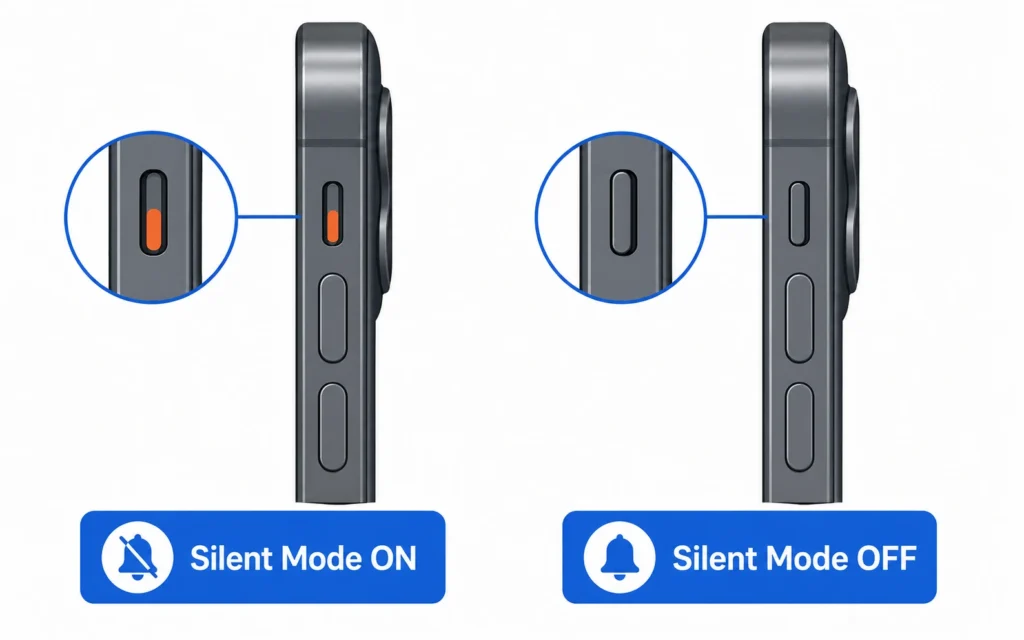
Look at the left side of your iPhone, just above the volume buttons. There’s a small physical switch there. If you can see an orange strip inside the slot, your iPhone is locked in Silent Mode.
Flip that switch upward toward the screen until the orange color disappears completely. Your screen will briefly show a “Silent Mode Off” banner confirming the change. This is the most commonly overlooked hardware setting when someone reports their iPhone going quiet during calls. Not a software bug. A switch they bumped without realizing it.
Step 3: Toggle Airplane Mode On and Off
Swipe down from the top right to open Control Center and tap the Airplane Mode icon to turn it on. Wait about 10 seconds, then tap it again to turn it off.
Toggling Airplane Mode forces your iPhone to drop its current network connection and re-establish a fresh one with the nearest tower. When a network stall is causing the missing ringback tone on outgoing calls, this fix works fast. Sometimes within the very next call you place.
Step 4: Restart Your iPhone
Open Control Center, long-press the power icon in the top corner, then swipe the slider to shut the iPhone down. Wait 30 seconds before pressing the Side button to turn it back on.
A standard restart clears temporary software glitches that accumulate during normal use and can interfere with how the phone app initializes a call. If your fix phone ringing problem only started recently and nothing in your settings looks wrong, a restart is often all that’s needed.
Step 5: Turn Your Cellular Line Off and Back On
Go to Settings > Cellular, then find your active carrier line listed under the SIM section. Tap the toggle to turn the line off completely.
Wait until your signal indicator shows No Signal at the top of the screen. Then toggle the line back on. This forces your iPhone to re-register your phone number with your carrier’s network from scratch, which clears connection issues that persist even after a normal restart. This step comes directly from real troubleshooting experience with eSIM and physical SIM problems, and it works when the standard restart doesn’t.
Step 6: Enable Wi-Fi Calling
Go to Settings, scroll down and tap Apps, then find and tap Phone from the list. Look for the Wi-Fi Calling option and toggle it on. Confirm on the pop-up that appears.
Wi-Fi Calling reroutes your outgoing calls through your internet connection instead of relying on your cellular signal. If a weak carrier signal is the reason your calls go silent while connecting, enabling Wi-Fi Calling often resolves the issue immediately, especially indoors or in areas where your carrier network coverage is inconsistent.
Step 7: Check Your Announce Calls Setting
Go to Settings > Phone > Announce Calls. If the setting reads Never, Headphones Only, or Headphones & Car, change it to Always.
This setting controls whether your iPhone forces an audible alert when a call connects. When set incorrectly, your iPhone can receive and place calls silently without triggering any sound at all. Most people have never opened this setting. That’s exactly why it causes confusion.
Step 8: Reset Network Settings
Go to Settings > General > Transfer or Reset iPhone > Reset > Reset Network Settings. Enter your passcode if prompted, then confirm.
To fix a phone ringing problem caused by deep network configuration errors, this step is one of the most effective options available before contacting your carrier.
When the phone ringing problem runs deeper than a simple restart can reach corrupted network configurations, bad cellular parameters this is the step that actually clears it
Step 9: Try a Forced Hardware Restart
Press and quickly release the Volume Up button. Then press and quickly release the Volume Down button. Then press and hold the Side button firmly.
Keep holding the Side button even when the “slide to power off” screen appears. Keep holding it through the black screen. Only release when the white Apple logo appears.
This forced restart sequence clears system level memory and crashes that a standard power-off cannot reach. If you’re also dealing with a completely black iPhone screen, this same forced restart often fixes both issues
If your iPhone’s phone app has been silently crashing during call setup, this is what fixes it. The sequence is specific and the order matters.
Step 10: Contact Your Carrier Support
If every step above produced no change, the problem is almost certainly on your carrier’s end rather than your device. Visit your carrier’s store or call their support line directly.
Ask them specifically to reset or “bounce” your line, which means they push a fresh registration of your phone number through their network system on the backend. This is a known fix for outgoing calls that go silent, and it’s something only your carrier can do. If you’re on an MVNO like Google Fi, Mint Mobile, or a similar budget carrier, mention that specifically. MVNOs sometimes have routing issues that their support team can resolve in minutes once they know the exact problem.
How to Fix Android Phone When You Don’t Hear Ringing on Outgoing Calls
Android troubleshooting is slightly more complicated than iPhone because the menu names shift depending on your brand. Samsung calls things differently than a Google Pixel, and OnePlus has its own layout again. The steps below use the most common menu names, but if a path doesn’t match exactly what you see, search the setting name directly in your phone’s Settings search bar and it will find it.
Work through these in order. Don’t jump to Step 7 because it sounds more advanced. The fix is usually somewhere in the first four steps.
Step 1: Check Ringer Volume and Sound Profile
The quickest check is the notification shade. Swipe down from the top of your screen twice to fully expand it, then look at the speaker icon in your quick settings. If it shows Mute or Vibrate instead of Sound, tap it until Sound is active.
For a more thorough check, go to Settings > Sounds and vibration > Volume. Find the Ringtone slider and drag it all the way to the right. Silent mode enabled by accident is the single most common reason an Android phone goes completely quiet, and it’s the one people check last instead of first.
Step 2: Turn Off Do Not Disturb Mode
Go to Settings > Notifications > Do not disturb and check the toggle at the top. If Do Not Disturb mode is on, switch it off completely.
Do Not Disturb on Android blocks both incoming and outgoing call audio in some configurations. What makes this tricky is that scheduled Do Not Disturb can turn itself back on automatically, so even if you disabled it yesterday, your phone may have re-enabled it on a timer overnight.
Step 3: Turn Off Airplane Mode
Open Settings > Connections > Airplane mode and make sure the toggle is set to Off.
Airplane mode cuts all cellular communication entirely. If Airplane mode is on, your outgoing calls will either fail immediately or connect silently because your phone has no active network link to route audio through. This one is easy to check and takes five seconds to rule out.
Step 4: Disconnect Bluetooth Devices
Go to Settings > Connections > Bluetooth and toggle Bluetooth off entirely, or disconnect any paired devices individually.
This is the one that surprises people most. Your Android phone might be technically placing the call and playing the ringback tone perfectly, but routing that audio to a Bluetooth speaker or earbuds sitting across the room or tucked in a bag. You hear nothing. The call is going through fine. The audio is just going somewhere you can’t hear it. Turning Bluetooth off immediately redirects all call audio back to your phone’s earpiece.
Step 5: Restart Your Phone
Press and hold the physical power button, then tap Restart or Reboot from the menu that appears. Let the phone fully shut down and come back up before testing a call.
A restart clears background software glitches that silently interfere with how your dialer app initializes outgoing calls. If your phone is also freezing or hanging frequently, that’s often related to the same underlying software issues.
If your Android phone not ringing problem appeared suddenly without any settings change, a restart resolves it more often than not.
Step 6: Enable VoLTE for Your SIM Cards
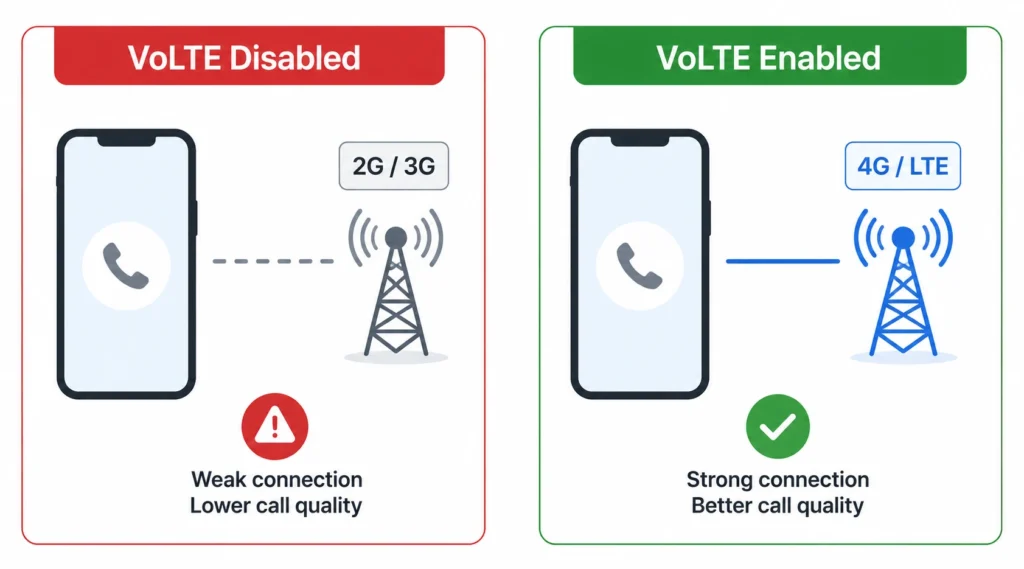
Go to Settings > SIM cards and mobile networks, select SIM 1, and find the Use VoLTE toggle. Make sure it is switched on. If you have a second SIM card, go back and repeat for SIM 2.
VoLTE stands for Voice over LTE, and it’s the technology that routes phone calls over your 4G or 5G data network instead of older 2G and 3G voice bands.
Most modern carriers have reduced or eliminated their older voice infrastructure, which means that if VoLTE is disabled on your Android phone, outgoing calls may fail silently or drop immediately after dialing. This setting being off is a carrier network issue that most troubleshooting guides never mention. But it’s a real one.
Step 7: Clear Data for the Phone App and Phone Services
Go to Settings > Apps > Manage Apps, then use the search bar to find the app called Phone. Tap it, select Force Stop, and confirm. Then tap Clear Data and select Clear All Data.
Before you close out, go to App permissions inside that same screen and check that every permission listed shows Allow. If any permission is set to Denied, tap it and switch it to Allow. Denied permissions can prevent the dialer app from accessing your microphone or network, which causes silent call failures.
Then go back to your app list and search for Phone Services. Repeat the exact same process: Force Stop, then Clear All Data. Corrupted data inside your default dialer app is a real cause of Android phones not connecting calls properly, and clearing it doesn’t delete your contacts or call history.
Step 8: Reset App Preferences (Android System-Wide Fix)
Open Settings > Apps > See all apps. Tap the three-dot menu icon in the top right corner and select Reset app preferences. Confirm when the pop-up asks you to.
Resetting app preferences restores all default permissions and notification settings across every app on your phone without uninstalling anything. When a system update or app change accidentally removes the Phone app’s default status or notification access, your calls can go through silently without triggering any audio alert. This fix addresses that at the system level in one step.
Step 9: Reset Mobile Network Settings
On Samsung: go to Settings > General management > Reset > Reset mobile network settings > select your SIM > tap Reset settings > enter your PIN and confirm.
On other Android devices: go to Settings > Connection and sharing, then look for Reset Wi-Fi, mobile networks, and Bluetooth. Select your SIM card when prompted, then tap Reset Settings and confirm with your PIN.
If you can’t find the menu using that path, type “Reset” into your Settings search bar and it will appear directly. Resetting mobile network settings clears corrupted cellular configurations without touching your photos, messages, or apps. After the reset finishes, restart your phone before testing a call.
Step 10 (Samsung Only): Check “Mute All Sounds” in Accessibility
Go to Settings > Accessibility > Hearing enhancements, then look for the toggle labeled Mute all sounds. If it is on, turn it off immediately.
This is a Samsung-specific accessibility setting that overrides every other volume control on the device. When Mute all sounds is active, your Samsung phone produces absolutely zero audio regardless of your ringer volume, DND status, or any other setting. It bypasses everything. I’ve seen people spend hours adjusting every other setting on their phone while this single toggle sat quietly overriding all of it. Check it before you try anything more complicated.
Step 11: Check Your Prepaid Plan Balance and Validity
If you’re on a prepaid plan, open your carrier’s app or dial your carrier’s balance check code and verify that your account is still active and has not expired.
When a prepaid plan runs out of balance or reaches its validity expiration date, your network operator blocks both outgoing and incoming call services on their end immediately. Your phone looks completely normal. Signal bars show fine. But no calls go through. This happens without any warning notification on your device, which makes it genuinely confusing if you don’t think to check your account balance first.
Step 12: Contact Your Carrier (Especially If You’re on an MVNO)
If every step above has produced no change, contact your carrier directly. Visit a store or call their support line and tell them your outgoing calls are connecting silently and you’ve already completed device-level troubleshooting.
Ask them specifically to reset your line registration on their network, sometimes called bouncing the line. This is a backend reset your carrier performs on their end that re-registers your phone number with their network infrastructure. If you’re on an MVNO like Google Fi, Mint Mobile, Cricket, or any budget carrier, mention that specifically. MVNOs route calls through host carrier networks, and routing misconfigurations on the MVNO side can produce persistent silent call issues that no amount of device troubleshooting will fix. The carrier has to correct it from their end.
The Unique Problem: Your Phone Rings But the Call Screen Doesn’t Appear
This one is strange and genuinely frustrating. Your phone plays the ringtone. You can hear it ringing. But when you look at the screen, there’s no incoming call interface at all. No Answer button. No Decline button. Just your normal home screen or whatever app you were using.
Then a few seconds later, you get a notification that says you missed a call. The call log shows the number. The phone clearly received the call and knew it was ringing. But the actual call screen that lets you answer never appeared.
This is an Android-specific bug that happens when the Phone app’s notification permissions get disabled or when the app’s cached data becomes corrupted. The dialer app is still functioning in the background and logging the call, but the notification system that’s supposed to trigger the full-screen incoming call interface stops working. So the phone rings, you hear it, and you have no way to pick up.
I’ve seen this happen after Android system updates, after installing certain third-party caller ID apps, and sometimes for no obvious reason at all. What makes it so confusing is that outgoing calls still work fine. The Phone app itself isn’t broken. Just the incoming call UI is silently failing to display.
Here’s how to fix it.
How to Fix This on Android
First, re-enable the Phone app’s notification permissions. Go to Settings > Apps & notifications > See all apps, then scroll down and tap Phone. Tap Notifications and make sure the Show notifications toggle at the top is turned ON. If this is off, the incoming call screen will never appear even though your phone technically receives the call.
Next, clear the Phone app’s cache and storage. While you’re still in the Phone app settings screen, tap Storage. Tap Clear Cache first, then tap Clear Storage or Clear Data and confirm. This removes corrupted temporary files that can block the call interface from loading. Don’t worry, clearing storage here does not delete your contacts or call history. Those are stored separately.
Finally, reset app preferences across your entire Android system. Go back to Settings > Apps > See all apps. Tap the three-dot menu icon in the top right corner and select Reset app preferences. Confirm when prompted. This restores default notification and permission settings for all apps, which fixes cases where a system update or another app accidentally disabled the Phone app’s ability to display full-screen alerts.
Restart your phone after completing all three steps. Test by having someone call you. The incoming call screen with Answer and Decline buttons should now appear normally.
If Someone Calls You and Your Phone Doesn’t Ring (Incoming Call Issues)
A portion of people searching why is my phone not ringing when I call someone are actually dealing with the reverse situation their phone doesn’t ring when someone calls them. The symptoms are different and so are the fixes
The causes are usually volume, silent mode, Do Not Disturb, or a setting that’s blocking specific callers without you realizing it. Here are the three most common culprits.
Check the Ring/Silent Switch (iPhone)
Look at the left side of your iPhone, just above the volume buttons. If you see an orange strip inside the small switch slot, your iPhone is in silent mode.
Flip the switch upward toward the screen until the orange color disappears. This is the single most common reason an iPhone stops ringing for incoming calls, and it’s a physical switch that’s easy to bump in your pocket or bag without noticing.
Turn Off “Silence Unknown Callers” (iPhone and Android)
On iPhone, go to Settings > Phone > Silence Unknown Callers and toggle it off. This setting silences any call from a number not saved in your contacts, which includes your doctor, dentist, delivery drivers, and basically anyone legitimate calling you for the first time. It’s overly aggressive and causes missed calls constantly.
Android has similar features depending on your phone brand. Search for “block” or “spam” in Settings and check what’s enabled.
Make Sure Vibrate and Haptics Are Enabled
On iPhone, open Settings > Sounds & Haptics and turn on both Play Haptics in Ring Mode and Play Haptics in Silent Mode.
On Android, go to Settings > Sounds and vibration and enable Vibrate on ring. If your phone vibrates but does not ring audibly, check your ringer volume separately from media volume.
Carrier and Network Issues That Cause Call Silence
Sometimes the problem has nothing to do with your phone at all. The carrier network issue is entirely on the service provider’s side, and no amount of device troubleshooting will fix it. Here’s when that’s the case.
MVNO vs Major Carrier: Why Budget Carriers Have More Issues
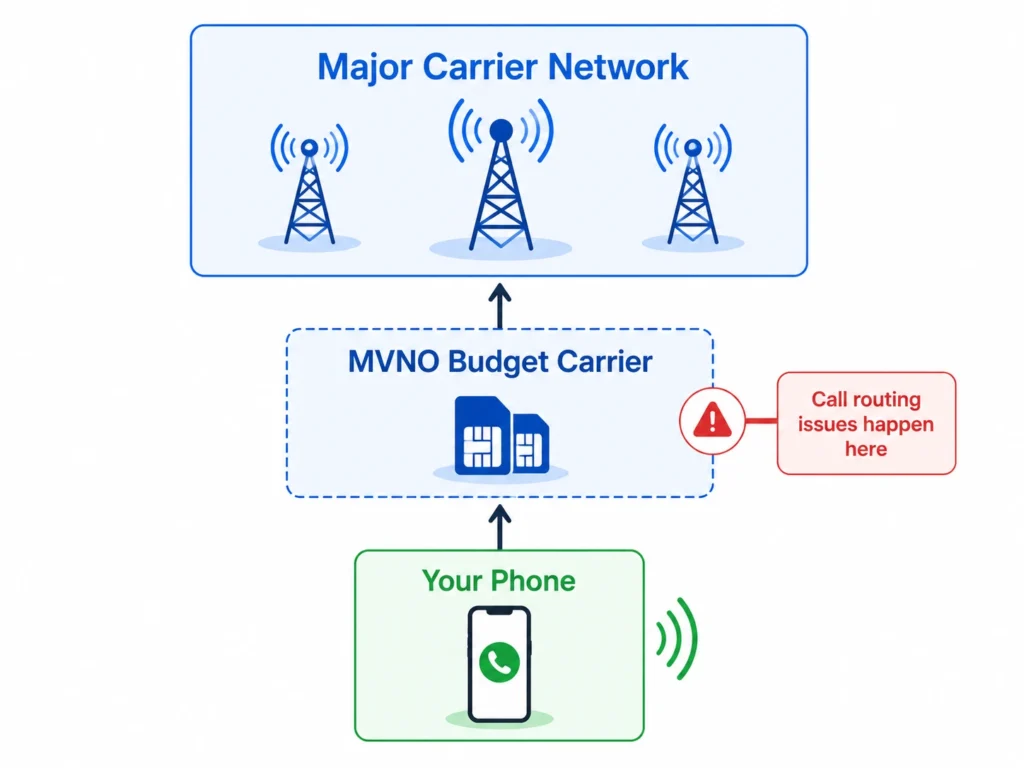
MVNOs like Google Fi, Mint Mobile, Cricket, and Visible lease network access from major carriers like Verizon, AT&T, and T-Mobile. Because they rent service instead of owning infrastructure, call routing can be less reliable. Intermittent connection problems are more common on MVNOs, and the carrier signal priority is sometimes lower during network congestion.
What “Bouncing the Line” Means
When you call carrier support and ask them to “bounce the line,” they reset your network registration on their backend. This clears routing glitches and forces your phone to re-establish its connection to the nearest tower. Ask for this specifically if you’re on an MVNO and calls randomly go silent.
Delayed Voicemail Notifications (Carrier-Side Bug)
“Late voicemail notifications arriving hours or even a full day after someone called are a carrier routing issue, not a phone problem. Your device received nothing because the carrier’s voicemail system failed to push the notification through.
Calling your own number from a different phone to check for missed voicemails is a reliable workaround while you wait for support to fix it. When you contact them, ask specifically to reset your voicemail service
Frequently Asked Questions
Why is my phone not ringing when I call someone?
This usually means your network connection stalled, your call volume is too low, or the recipient’s phone is off, in Do Not Disturb mode, or blocking your number. Check your in-call volume first by pressing the volume buttons during a call, then toggle Airplane Mode on and off to refresh your connection.
How do I know if someone blocked my number?
If you hear one ring then land on a generic carrier voicemail message instead of their personalized greeting, you’re likely blocked. But phone off and Do Not Disturb can produce the same result, so you can’t know with complete certainty without asking them directly.
Why does my call go straight to voicemail without ringing?
The recipient’s phone is either off, in Airplane Mode, has Do Not Disturb active, or your number is blocked. Their carrier could also be routing calls to voicemail due to a network issue or they may have call forwarding enabled to send all calls directly there.
Why does this happen sometimes but not every time?
Intermittent issues when your phone is not ringing when you call someone are almost always network related, like temporary tower congestion, weak signal during call setup, or a handoff glitch as you move between cell towers. Your Phone app’s background restrictions can also cause this if battery optimization is limiting the app’s ability to maintain stable connections.
Why does this happen with some people but not others?
If why is my phone not ringing when I call someone only affects specific contacts, they likely have Do Not Disturb enabled with allowed contact exceptions that don’t include you. Check if you have “Silence Unknown Callers” turned on, which blocks anyone not saved in your contacts including legitimate callers like doctors and businesses.