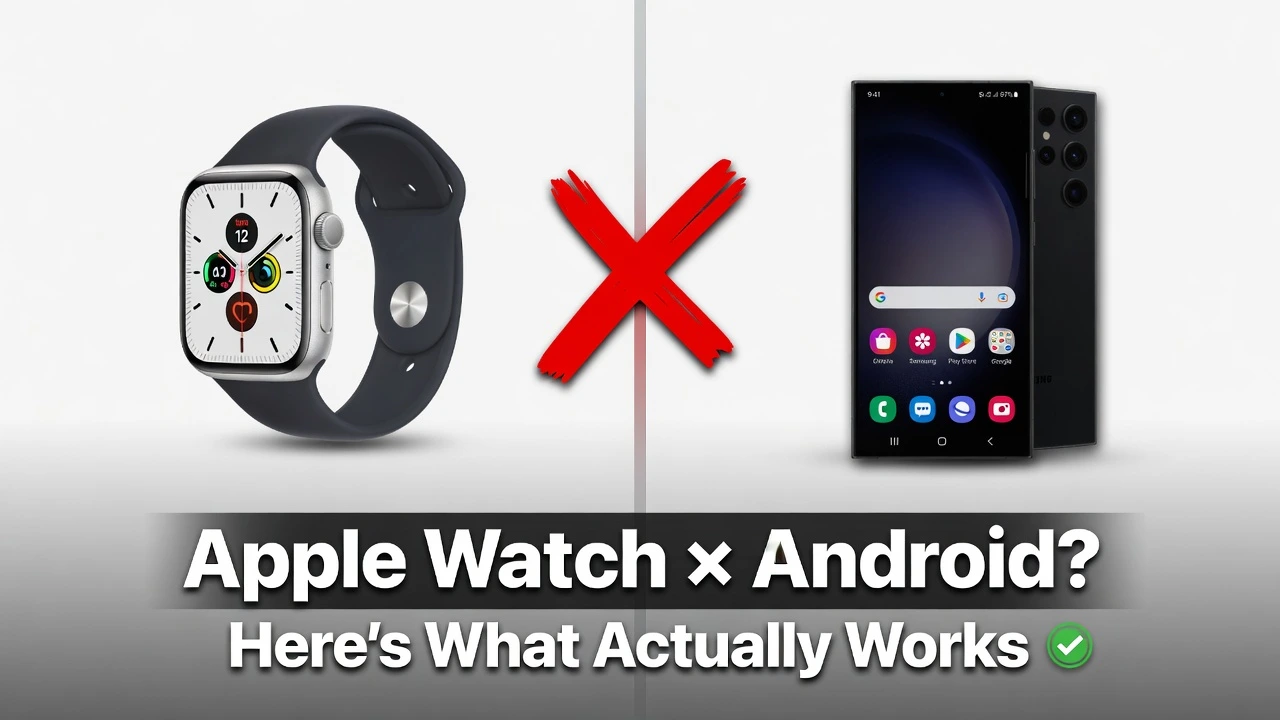
Can You Use an Apple Watch With an Android Phone? (The Direct Answer)
The short answer is no not really. Your Apple Watch and Android phone won’t naturally connect, sync data, or work together the way Apple and Google designed their ecosystems to function.
But before you close this article thinking it’s impossible, here’s the honest truth: while native compatibility doesn’t exist, several workarounds do allow you to use them side-by-side. The key question isn’t whether you can it’s whether you should.
When we talk about whether you can use an Apple Watch with an Android phone, we need to distinguish between two very different things: pairing and coexisting. The devices won’t communicate. They won’t sync. But you can technically use them together in limited ways.
As one Apple Watch user explained after testing this extensively: “While they do not connect to each other, you can still wear and use an Apple Watch independently alongside your Android phone.” That’s the reality.
Think of it this way: using an Apple Watch with Android is like wearing a traditional wristwatch (like a Casio) while carrying an Android phone.
The watch works, it tracks time and fitness, but your phone and watch live in completely separate worlds. As another tester confirmed:
The Apple Watch will act essentially like a traditional, non connected watch since the data from the watch cannot sync back to your Android device.”
For most people, the answer to whether an Apple Watch works with Android is simply: not well enough to recommend it.
The smartphone and smartwatch compatibility is so limited that you’re better off buying a smartwatch designed for Android.
But if you’re determined to make it work, or you already own both devices, we’ve outlined every possible method below and we’ll be honest about what each one actually costs you.
Why Your Apple Watch and Android Phone Won’t Naturally Connect
The incompatibility between Apple Watch and Android isn’t a bug—it’s by design. To understand why these two devices refuse to work together, you need to know how they’re built differently at their core. Apple deliberately engineered the Apple Watch to communicate only with iPhones, using proprietary technology that Android simply can’t understand. It’s not laziness. It’s strategy.
There are three layers to this incompatibility: the hardware level, the software level, and the business level. Understanding all three explains why no simple software update will ever fix this problem.
The Bluetooth Problem: Why Android Can’t Find Your Apple Watch
Your first instinct might be: “Both devices have Bluetooth. Why can’t they just connect?” The answer reveals how deeply Apple locked down their ecosystem.
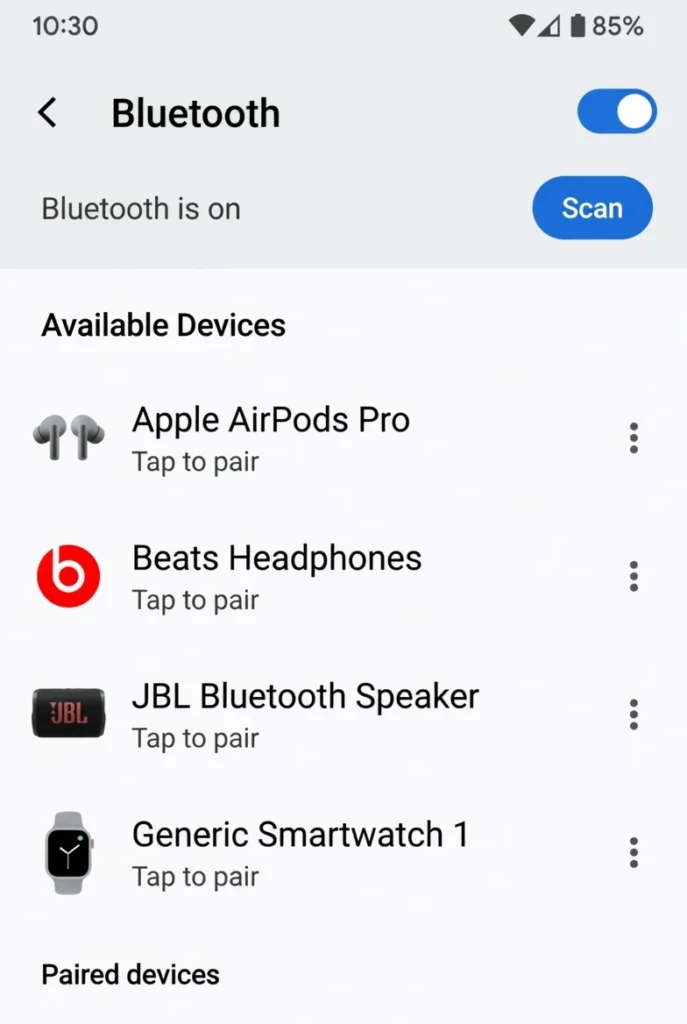
When someone tested this with an actual Apple Watch and Android phone, they discovered something telling. They opened the Android phone’s Bluetooth settings, went to scan for nearby devices, and looked for the Apple Watch. The Apple Watch’s name completely failed to appear in the list of available nearby Bluetooth devices on the Android phone—not even as an option.
This isn’t a fluke. It’s the result of Apple using custom Bluetooth protocols that are proprietary to iOS. As one tech reviewer explained it: “Apple uses custom protocols that are like a secret club—if you don’t have the iOS membership card, you’re not getting in.”
Here’s what’s happening under the hood: Apple Watch communicates using a modified Bluetooth handshake process that only iOS devices recognize. When an Apple Watch broadcasts its availability to pair, it essentially says, “I’m looking for an iOS device.” Android’s Bluetooth stack receives the signal but doesn’t understand the proprietary handshake request. It’s like trying to unlock a door with a key that doesn’t fit—the lock isn’t broken, but your key was never designed for it.
This is the Apple Watch pairing requirements in action. The watch literally won’t attempt to pair with non-iOS devices. Android’s Bluetooth implementation follows standard protocols, but Apple’s modification sits on top of those standards, creating an incompatible layer that only Apple devices understand.
Result: Your Android phone’s Bluetooth scanner will show dozens of other
devices headphones, speakers, fitness trackers but the Apple Watch
remains invisible.
This Apple Watch pairing limitation is similar to other cross-device
compatibility issues Android users face.
If you’ve experienced similar
problems with smartphone connectivity, you might appreciate our guide on
How to Transfer Phone Number to New iPhone which covers
the seamless data transfer that iPhone users enjoy within their ecosystem
something Android users don’t get when trying to pair with Apple devices
The iOS Framework Problem: Why Apps Don’t Work
Even if you somehow got past the Bluetooth barrier, you’d hit a second wall: the software architecture itself.
Here’s the critical issue: Apple Watch features rely on iOS frameworks that have no Android equivalent. When Apple designed watchOS, they didn’t build it as an independent operating system. Instead, they built it as an extension of iOS meaning many watch features actually run code that executes on the iPhone, not the watch itself.
The core frameworks that power Apple Watch include HealthKit, WatchKit, and Core Data. These are Apple exclusive technologies that don’t exist on Android. A
ccording to those who’ve tested the limits: “Critical Apple Watch features rely on iOS frameworks like HealthKit, WatchKit, and Core Data that have no Android equivalents. It’s like trying to run Windows software on a Mac—the fundamental architecture is different, making true compatibility impossible.”
What does this mean in practice? When your Apple Watch tracks your heart rate and sends it to your iPhone, it’s not just syncing data. It’s using HealthKit, an iOS framework, to process that data in a way that Android doesn’t support.
When you get a notification on your wrist, the Apple Watch isn’t pulling that notification directly from your phone it’s using proprietary Apple protocols built on iOS infrastructure.
An Android phone running watchOS would need to:
- Implement HealthKit functionality (hundreds of hours of development)
- Implement WatchKit compatibility (entire framework rewrite)
- Implement Core Data syncing (another proprietary Apple framework)
- Map thousands of iOS APIs to Android equivalents
Apple hasn’t done this because they have zero incentive to. And no third-party developer can do it without Apple’s cooperation, which they won’t provide.
Apple’s Walled Garden Strategy (And Why It Exists)
This incompatibility isn’t accidental. It’s deliberate business strategy.
Apple makes more money on iPhones than on any other product. The Apple Watch’s primary function—from Apple’s perspective—isn’t to be a great smartwatch. It’s to be an iPhone accessory that makes iPhone users happier and less likely to switch to Android. If Apple allowed Apple Watch to work with Android, they’d be removing one of the major incentives for Android users to switch ecosystems.
From Quora discussions with people who understand Apple’s business model: “Because the main aim of Apple is to confine its products to its manufactured products only. […] In this way, Apple secures its user base.”
The strategy is elegant: If you want the best smartwatch experience, you need to use an iPhone. If you want to use Apple Watch with your current phone, you need to buy an iPhone. If you already bought an Apple Watch and want to switch to Android, you’ll lose that investment. Each of these friction points drives iPhone sales.
Apple has publicly stated they investigated Android compatibility “for three years” before deciding it “wasn’t doable because of technical limitations.” Most tech experts dismiss this claim. The technical limitations are real, but they’re self-imposed. Apple could add Android support if they wanted to—it would just require massive development effort and would hurt iPhone sales.
So the incompatibility you’re experiencing isn’t a technical problem waiting for a solution. It’s a business model working exactly as intended.
The iOS Framework Problem: Why Apps Don’t Work
Here is where the incompatibility goes deeper than Bluetooth.
Even if you somehow forced Android to recognize your Apple Watch over Bluetooth, the apps still would not work. The reason comes down to the frameworks Apple Watch relies on to function.
Apple Watch is built on three core iOS frameworks: HealthKit, WatchKit, and Core Data. HealthKit manages all health and fitness data — your heart rate readings, sleep analysis, workout history, and calorie tracking. WatchKit controls how apps communicate between your watch and your phone. Core Data handles the storage and syncing of that information in real time.
None of these frameworks exist on Android. There are no Android equivalents. Google has its own health and data systems, but Apple Watch was never designed to speak that language.
Think of it this way. Trying to run Apple Watch apps on an Android phone is like trying to run Windows software on a Mac. The file exists. The hardware is capable. But the underlying architecture is fundamentally different, and without the right foundation, nothing runs.
This is why third-party apps on the Play Store that claim to connect Apple Watch to Android simply do not work. They cannot replicate what iOS frameworks do. They are either misleading or outright scams.
watchOS itself is an iOS-dependent operating system. Without an iPhone running iOS as its backbone, the watch loses access to the very systems that make it more than a step counter.
Apple’s Walled Garden Strategy (And Why It Exists)
The incompatibility between Apple Watch and Android is not a technical accident. It is a deliberate business decision.
Apple’s entire product strategy is built around keeping customers inside its ecosystem. When you buy an Apple Watch, you are far more likely to buy an iPhone, subscribe to iCloud, use Apple Pay, and eventually buy a Mac. Each product reinforces the others. That is enormously profitable, and restricting Apple Watch to iPhone only is a core part of making that ecosystem sticky.
A Quora discussion puts it plainly: Apple’s goal is to confine its products to its own manufactured hardware. The incompatibility is not a flaw — it is the feature.
This strategy attracted serious regulatory attention. The United States Department of Justice named Apple Watch’s Android incompatibility as part of its antitrust case against Apple. Apple’s defense was that cross-platform support was not technically feasible. Most independent analysts were unconvinced.
Whether you find this frustrating or reasonable depends on your perspective. What matters for you as a consumer is knowing this incompatibility will not be fixed anytime soon. Cross-platform smartwatch compatibility is not on Apple’s roadmap and probably never will be.
The Feature Loss Reality: What Stops Working With Android
Let’s be direct about this. Before you commit to any workaround, you need to see exactly what you are giving up.
Most articles that cover Apple Watch and Android compatibility give you a vague list of “things that might not work.” That is not good enough when you are deciding whether to spend $400 on a cellular Apple Watch or commit hours to a technical setup. You need a clear picture of what functions, what partially functions, and what is completely dead — depending on which method you use.
The table below is built from two sources: video testing from real users who actually attempted these setups, and the official Apple Support documentation pulled from Apple’s own website. Nothing here is guesswork.
One thing worth noting before you read it. The phrase “Apple Watch limited functionality Android” gets thrown around casually online, but the reality is more specific than that. Some features work perfectly in standalone mode. Others are completely gone regardless of which workaround you try. And a handful land in a frustrating middle ground where they technically exist but behave unreliably.
Here is what the testing actually showed.
What still works no matter what: If you have a cellular Apple Watch and an active LTE plan, you can still place and receive phone calls directly from your wrist. Your heart rate monitor, step counter, and workout tracking all function normally because those sensors run independently of your phone. Time, date, and weather also work fine in standalone mode.
What disappears immediately: Traditional messaging stops working entirely in standalone mode. Siri is unavailable across every method — no exceptions. Apple Pay is gone. The App Store cannot be accessed. Media controls that would normally let you adjust volume or skip tracks on your phone become completely non-functional. As one video tester noted, the Apple Watch in this configuration “cannot control media playback, adjust volume, or skip music tracks playing from your Android device.”
What surprises most people: Software updates are blocked. You cannot update watchOS while the watch is operating without an iPhone. Skip enough updates and certain apps will eventually stop working altogether. This is ongoing maintenance most people do not factor into their decision upfront.
Apple Watch Feature Comparison: What Works With Android
| Feature | Standalone Only | With Merge App | With iPhone Server | Family Setup |
|---|---|---|---|---|
| COMMUNICATION | ||||
| Phone Calls (Cellular) | ✅ | ✅ | ✅ | ❌ |
| Text Messages (SMS) | ❌ | ⚠️ Limited | ✅ | ❌ |
| iMessage | ❌ | ❌ | ✅ via BlueBubble | ❌ |
| App Notifications | ❌ | ✅ | ✅ | ⚠️ Limited |
| HEALTH & FITNESS | ||||
| Heart Rate Monitor | ✅ | ✅ | ✅ | ✅ |
| Step Counter | ✅ | ✅ | ✅ | ✅ |
| Workout Tracking | ✅ | ✅ | ✅ | ✅ |
| ECG | ❌ | ❌ | ❌ | ❌ |
| Blood Oxygen | ❌ | ❌ | ❌ | ❌ |
| Sleep Tracking | ❌ | ⚠️ | ⚠️ | ❌ |
| Respiratory Rate | ❌ | ❌ | ❌ | ❌ |
| Health Data Sync | ❌ | ⚠️ | ⚠️ | ❌ |
| SMARTWATCH FEATURES | ||||
| Siri | ❌ | ❌ | ❌ | ❌ |
| Apple Pay | ❌ | ❌ | ❌ | ❌ |
| App Store Access | ❌ | ❌ | ❌ | ❌ |
| Media Controls | ❌ | ❌ | ❌ | ❌ |
| Time and Date | ✅ | ✅ | ✅ | ✅ |
| Weather | ✅ | ✅ | ✅ | ✅ |
| MAINTENANCE | ||||
| watchOS Updates | ❌ | ❌ | ❌ | Possible |
| App Updates | ❌ | ⚠️ Manual | ⚠️ Manual | ❌ |
| Requires iPhone | ❌ | ❌ | ✅ | ✅ |
A few things stand out when you look at this table honestly.
The health features situation is particularly striking. Basic sensors heart rate, steps, workout survive every method. But the advanced health tracking features that many people actually buy Apple Watch fo ECG, blood oxygen, respiratory rate are gone across the board. No workaround recovers them. If health monitoring is your main reason for wanting Apple Watch, none of these methods give you what you are paying for.
The Siri row is also telling. Every column shows a red X. There is no configuration, no workaround, no level of technical complexity that brings Siri back when Apple Watch is running without iPhone. It is simply off.
The iPhone Server method gives you the most functionality by a significant margin notifications, messaging and even iMessage through BlueBubble. But it also requires maintaining a secondary iPhone running continuously at home, which has its own costs and complications. We cover that setup in detail in the next section.
How to Connect Apple Watch to Android (The Workarounds Explained)
If you have already decided you want to make this work, this section is for you.
There are four real methods for using an Apple Watch with an Android phone, ordered from simplest to most technically demanding. Each one has honest pros, cons, costs, and a clear difficulty rating so you can pick the one that matches your situation.
One thing to understand before you start: none of these are true Apple Watch Android phone pairing in the native sense.
Apple Watch will never fully sync with Android the way it does with iPhone. What these methods do is work around that limitation to recover as much functionality as possible. How much you recover depends entirely on which method you choose and how much effort you are willing to put in.
Read through all four before committing. The right method depends on what you actually want the watch to do.
Method 1: The Cellular SIM Swap (Easiest, Most Limited
Best for: People who already own a cellular Apple Watch and primarily want calls and fitness tracking
Cost: $0 upfront if you own the devices $10/month for LTE cellular plan
This is the starting point for anyone trying to use Apple Watch cellular with Android. It does not require any third
party apps, secondary devices, or technical knowledge beyond basic watch setup. The trade off is that you are essentially using the Apple Watch as a standalone device a very expensive fitness tracker that can make phone calls.
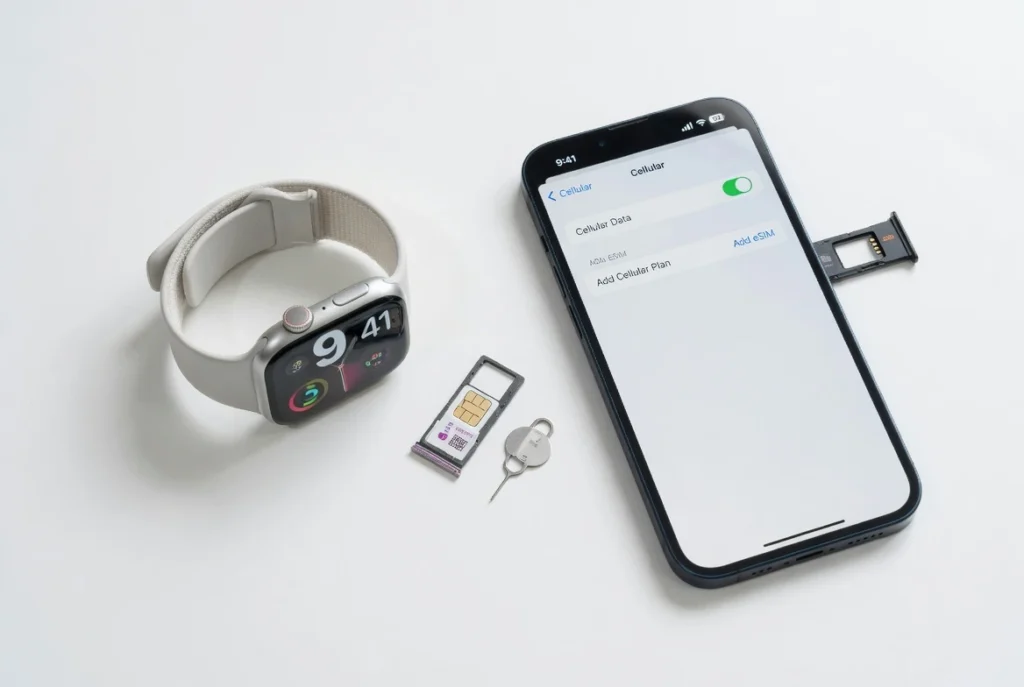
What you need before you start:
- An Apple Watch with cellular/LTE (GPS-only models will not work for this without cellular, the watch becomes nearly useless when separated from iPhone)
- An active iPhone temporarily borrowed, family member’s, or your old one with your Apple ID
- A cellular plan that supports Apple Watch LTE (check with your carrier)
Setup steps (based on Video 1’s documented process):
- Pair the Apple Watch to an iPhone using your Apple ID. This is not optional first time setup requires an iPhone. There is no way around this step.
- During setup, activate the cellular plan on the watch through your carrier’s app or Settings on iPhone.
- Once fully set up and activated, power down both the iPhone and the Apple Watch completely.
- Power the Apple Watch back on without the iPhone nearby.
- The watch will now operate on its own cellular connection independently.
- Set your Android phone aside. The watch runs on its own LTE connection from this point.
What works with this method:
- Phone calls directly from the watch via LTE
- Heart rate monitoring
- Step counting and basic workout tracking
- Time, date, alarms
- Standalone music playback (if music is synced to watch storage)
What does not work:
- Text messages or notifications from your Android phone
- Siri
- App sync of any kind
- watchOS software updates you must re-pair to iPhone temporarily to update
- Any app that requires active connection to a phone
The honest assessment: This method turns a $400+ smartwatch into a fitness tracker with calling capability. If that is what you need — specifically wrist-based calling when away from your phone, plus workout tracking — it works reliably. If you expected more than that, you will be disappointed quickly.
Important note on updates: If you skip watchOS updates for too long, certain apps may stop functioning. To update, you will need to re-pair the watch to an iPhone temporarily, run the update, then repeat the setup process. Factor this into your ongoing maintenance plan.
Method 2: The Merge App Solution (Moderate Difficulty, Better Features)
Best for: People who want notifications and some health data syncing without maintaining a secondary iPhone
Cost: Merge app subscription (varies — check current pricing) + $10/month cellular plan
The Merge app is a third-party solution specifically built to bridge Apple Watch and Android by acting as a relay between the two devices. It is the closest thing to a purpose-built apple watch android workaround you can install without maintaining complex hardware at home.
What Merge actually does:
Merge installs on your Android phone and communicates with your Apple Watch over your cellular connection. It pushes app notifications from your Android phone to your watch, relays some health data, and allows basic two-way interaction. It is not a native connection — it is a relay system — which means it works well for some things and unreliably for others.
What you need before you start:
- Cellular Apple Watch (already set up with iPhone using Method 1 steps above)
- Android phone with the Merge app installed
- Active Merge subscription
- Cellular plan on the watch
Setup steps (simplified):
- Complete the initial Apple Watch setup on iPhone first (same as Method 1 Step 1)
- Activate cellular on the watch
- Download and install Merge on your Android phone
- Create your Merge account and follow the in-app pairing instructions
- Grant notification access permissions on Android when prompted
- Configure which app notifications you want forwarded to the watch
What works with this method:
- App notifications from Android pushed to watch
- Basic health data relay (heart rate, steps)
- Cellular calls from watch
- Some fitness tracking sync
What does not work:
- Full app store access on watch
- watchOS software updates
- Native iMessage or SMS through Android number
- Full health data sync to Android health apps
- Media controls for Android phone
Reliability reality check: User reports suggest Merge works well for notification forwarding but health data sync can be inconsistent. One Reddit user noted they “managed to get most features working” but flagged that reliability varies by Android phone model and carrier setup. Do not expect it to work perfectly out of the box on day one.
The honest assessment: Merge is the right choice if you want more than the bare SIM swap setup but are not ready to maintain a secondary iPhone at home. It adds meaningful notification functionality at the cost of a monthly subscription. Whether that subscription cost is worth it depends on how much you value seeing Android notifications on your wrist.
Method 3: The iPhone Notification Server (Advanced, Most Features Without BlueBubble)
Best for: Power users who want maximum notification and messaging functionality and are willing to maintain secondary hardware
Cost: Used iPhone $150–$300 + $10/month cellular plan + optional Tasker app $3
This method requires you to keep a secondary iPhone running at home permanently. That iPhone acts as a relay server it stays connected to your Apple Watch via iCloud and forwards everything to your watch over cellular. Your Android phone never directly communicates with the watch. The iPhone at home does all the heavy lifting invisibly.
It sounds complicated. It is moderately complicated. But it works better than any other method for people who want real notification and messaging functionality.
What you need before you start:
- Secondary iPhone (an iPhone 6s or newer works fine does not need to be current generation)
- That iPhone must stay plugged into power and connected to Wi-Fi at home permanently
- Cellular Apple Watch with active LTE plan
- Android phone with hotspot capability
- Optional: Tasker app ($3) for automating hotspot toggling to save battery
The core concept:
Your Apple Watch pairs to the secondary iPhone at home via iCloud. When you leave the house, the watch switches to cellular. Your Android phone’s hotspot can be used to extend the iPhone’s iCloud relay reach when you are out of cellular range. The iPhone at home mirrors the apps you use on Android — WhatsApp, Telegram, Gmail — so notifications from those apps hit the iPhone, which passes them to the watch.
Setup steps:
- Set up Apple Watch on the secondary iPhone using your Apple ID
- Activate cellular on the watch
- Install on the iPhone every app you use on your Android phone WhatsApp, Gmail, Slack, whatever you need notifications from
- Log into each app on the iPhone using the same accounts as your Android phone
- Leave the iPhone plugged in at home, connected to Wi-Fi, with screen off
- On your Android phone, enable Wi-Fi hotspot
- Optional: Use Tasker to automate hotspot activation so it only runs when needed, preserving your Android battery life
- Your watch will receive notifications relayed through the iPhone via iCloud over cellular
What works with this method:
- Full app notifications from any app mirrored on the iPhone
- Cellular calls from watch
- Some messaging (WhatsApp, Telegram, third-party apps)
- Basic health data captured on watch
- Better reliability than Merge for notifications
What does not work:
- iMessage (requires BlueBubble see Method 4)
- watchOS updates still require re-pairing process
- App Store access on watch
- Full health data sync to Android
- Works best at home range — reliability drops when far from iPhone’s Wi-Fi
Cost reality: A used iPhone 6s in working condition costs $50–$150. A used iPhone 8 or SE costs $100–$200. Add $10/month for the watch’s cellular plan and $3 one-time for Tasker. First year total: roughly $200–$400 depending on which used iPhone you buy.
The honest assessment: This is the best method for most serious users who want notifications working properly. The ongoing maintenance keeping the iPhone powered, keeping apps logged in, occasionally troubleshooting when something stops syncing is real but manageable. If you travel frequently and move far from your home Wi-Fi network often, expect some reliability gaps.
Method 4: BlueBubble + iPhone Server + iMessage (Expert Level)
Best for: Power users who want iMessage on Android through Apple Watch and are comfortable with Mac/server setup
Cost: Used iPhone $150–$300 + Used Mac Mini $80–$300 + $10/month cellular plan = $240–$610 minimum upfront
This is the maximum functionality configuration. It builds on Method 3 but adds a BlueBubble server running on a Mac Mini at home, which allows iMessage — Apple’s proprietary messaging system — to route through your setup and appear on your Android phone and Apple Watch.
If that sentence felt overwhelming, this method is probably not for you. That is not a judgment — it is practical advice. This setup requires comfort with macOS, server configuration, and ongoing technical maintenance. It breaks occasionally and requires troubleshooting when it does.
But if you are committed to making every possible feature work, this is as close as you will get without actually owning an iPhone as your primary phone.
What you need before you start:
- Secondary iPhone (iPhone 6s or newer)
- Mac Mini — even an older budget model works (M1 Mac Mini costs $300–$400 new, older Intel models $80–$200 used)
- The Mac Mini must run 24/7 at home — it is your server
- Windows PC or any computer for the 30-minute initial BlueBubble configuration
- Cellular Apple Watch with active LTE plan
- Carrier that supports number sharing: T Mobile Digits, Verizon Number Share, or AT&T NumberSync
Setup overview (simplified full setup is its own separate guide):
- Complete Method 3 setup first iPhone at home, apps mirrored, watch paired
- Install BlueBubble on your Mac Mini following the official BlueBubble documentation
- Configure your carrier’s number sharing so your Android number routes through the iPhone’s iMessage
- Connect BlueBubble to your iPhone’s iMessage account
- Install the BlueBubble Android app on your phone
- Configure Tasker on Android for hotspot automation (same as Method 3)
- Mirror all relevant apps on the iPhone as before
What works with this method:
- iMessage delivered to Android phone AND Apple Watch
- SMS through Android number
- Full app notifications from mirrored apps
- Cellular calls from watch
- Health data captured on watch
- WhatsApp, Telegram, and third-party messaging apps
What still does not work even at this level:
- App Store access on watch
- watchOS updates without re-pairing
- Full health sync to Android health ecosystem
- Siri
Cost reality check: Used iPhone ($150–$300) + used Mac Mini ($80–$300) + cellular plan ($10/month) = $230–$600 upfront plus $120/year ongoing. For context, a brand new Samsung Galaxy Watch costs $300–$400 with zero ongoing costs beyond the watch itself. This method only makes financial sense if you already own most of these devices.
The honest assessment: This is impressive engineering for what it accomplishes. The fact that you can get iMessage working on Android through an Apple Watch via a home server is genuinely remarkable. But remarkable does not mean practical for most people. The setup takes several hours. It breaks when Apple updates things. It requires a Mac running permanently. Only pursue this if you already own the hardware and genuinely cannot imagine switching away from iMessage.
Troubleshooting: When Calls and Messages Stop Working
Even when your setup is working correctly, things occasionally break. This is the most common failure point and how to fix it.
The most common problem: Calls or messages that were working suddenly stop appearing on your Apple Watch. The watch shows connected but nothing comes through.
Why this happens: Apple Watch firmware updates and iOS updates on the secondary iPhone can disrupt the pairing relationship. When Apple pushes a major update, the communication between watch and iPhone sometimes resets partially not completely, but enough to break notification relay or cellular calling.
The fix (from Video 1’s documented troubleshooting process):
- Insert your SIM card back into an iPhone temporarily
- Re-pair the Apple Watch to that iPhone
- Allow any pending watchOS firmware updates to install completely
- Once updated, unpair the watch from iPhone
- Repeat your original setup process from the beginning
This sounds tedious because it is. But it is a known issue with every workaround method, not just one. The more complex your setup, the more often you may need to go through this process after major Apple software updates.
Prevention tips:
- Keep your secondary iPhone updated to the latest iOS an outdated iPhone can cause relay failures
- Do not ignore watchOS update prompts for too long the longer you delay, the more likely something breaks
- If using Method 3 or 4, check that the iPhone at home is still powered and connected to Wi-Fi after any power outage or internet disruption
When to re-pair proactively: Any time Apple releases a major watchOS version not a minor patch, but a full version update like watchOS 10 to watchOS 11 treat it as a planned maintenance event. Re-pair, update and re setup before problems force you to.
The Family Setup Workaround (Limited but Possible)
If you are buying an Apple Watch for an Android user and you really want to make it work, Family Setup is basically the only official door Apple leaves half open.
It is not real Apple Watch Android compatibility, but in some gift situations it is just good enough to get by. I see it as a workaround for specific families, not a general solution anyone should rely on.
Family Setup lets you set up an Apple Watch for someone who does not have their own iPhone, like a child or an elderly parent. The watch is tied to your iPhone during setup and management, but that person wears it and uses it day to day.
Technically you can run an Apple Watch without iPhone ownership on their side, but the watch still lives inside your Apple ecosystem behind the scenes. So if you hoped for full Apple Watch Android compatibility, this will probably feel like a compromise more than a win.
To use Family Setup, you need a cellular Apple Watch model and an iPhone with your own Apple ID to configure it.
During setup, you choose Set Up for a Family Member in the Watch app, assign the watch to their Apple ID profile and enable cellular so it can work away from your phone. From there, the watch behaves like a managed device, almost like a kid’s phone on training wheels.
The big catch is what you lose. In Family Setup mode, Apple disables ECG, Blood Oxygen, Sleep tracking, respiratory rate, irregular heart rhythm notifications, Cycle Tracking and the Medications app.
On the app side, Family Setup users also miss out on the Remote app, News, Home, Shortcuts, Podcasts, and a few other extras that make the watch feel smart for power users.
You still get basic health features like heart rate and steps, along with simple fitness tracking and calling or messaging through cellular. In practice, the watch turns into a simple watch with a step counter, some rings to close, and basic calling, not a full health and wellness device.
If someone types apple watch without iphone into Google hoping for a full experience on Android, Family Setup is not that answer.
It is more like the safety version of the watch that Apple designed for kids and parents, not for tech fans trying to avoid buying an iPhone.
What Family Setup Is (And What It Costs in Features)
From my point of view, Family Setup feels like Apple saying “yes, but only on our terms.” For the person wearing the watch, it works, yet the features are clearly trimmed down to the basics.
Family Setup is a mode where one iPhone owner manages multiple Apple Watches for other family members.
The other person does not need their own iPhone, which is why many people mention it when talking about buying Apple Watch for Android user scenarios.
You still need an iPhone for setup, updates, and most of the management, but day to day use happens on the wrist. That is the key detail a lot of people miss when they hear they can use an Apple Watch without iPhone ownership for the wearer.
The requirements are strict. You must use a cellular Apple Watch so the family member can make calls, use messages, and share their location when they are away from your iPhone.
You also need an iPhone with the latest iOS, your own Apple ID, and Family Sharing configured. Once you turn on Family Setup, you assign the watch to that person, set contact permissions, location sharing and any downtime rules if it is for a child.
The feature cut list is where the trade offs become obvious. Apple Watch in Family Setup mode does not support ECG, Blood Oxygen, Sleep tracking, respiratory rate, irregular heart rhythm notifications, Cycle Tracking, or Medications.
I have seen many people surprised by this, especially when they buy a newer watch expecting advanced health tools for a parent and then discover those sensors are basically switched off. On top of that, apps like Remote, News, Home, Shortcuts, and Podcasts are not available, so a lot of the smart home and media control appeal disappears.
What you are left with is a watch that tracks steps, basic workouts, heart rate, and handles simple communication, which may be enough but is nowhere near the full experience Apple shows in ads.
If someone is searching for Apple Watch limited functionality Android style workarounds, this is as close as the official path gets. It is controlled, stripped down, and aimed at safety and oversight, not at squeezing every feature out of the hardware.
When Family Setup Makes Sense (Gift Buyers)
I only recommend Family Setup in a few clear gift situations. Outside those, the trade-offs usually annoy people more than they help.
If you are buying Apple Watch for Android user parents or grandparents who are not very technical, Family Setup can work well.
For an elderly parent, the main needs are usually calling, fall detection, location sharing, and a simple way to reach family, not blood oxygen graphs and advanced sleep data.
In that case, losing ECG and other advanced metrics hurts less than the peace of mind you gain from easy contact and safety alerts.
I have seen families treat the watch like a wearable phone for emergencies, which fits exactly how Apple Watch Family Setup is designed.
For kids, the story is similar. Parents get location sharing, Schooltime mode, and limits on contacts, while the child gets basic fitness tracking, calling, and messages without the distraction of a full phone.
Apple Watch in this setup becomes a first device for communication and activity, not a full smartphone. That trade makes sense if you want independence without handing over a full iPhone.
The last group where Family Setup makes some sense is non‑tech‑savvy relatives you are gradually moving into the Apple world.
I have seen people in forums say they found it easier to move aging parents onto iPhones because they were simpler for support and troubleshooting than juggling Android plus Apple Watch limitations.
In those families, the watch almost becomes the stepping stone that nudges everyone into the same ecosystem, which makes every future device decision much less painful.
If you are thinking about this workaround, what type of person are you actually buying the Apple Watch for: an older parent, a child, or a tech‑interested adult who just prefers Android?
The Real Cost: What This Actually Costs You
Most people see an Apple Watch price tag and stop there. The real cost of buying Apple Watch for Android user scenarios includes hidden monthly fees, extra hardware, and a lot of troubleshooting time that no one talks about up front.
When you add everything up, a Galaxy Watch or other Android watch often ends up cheaper and far simpler than any Apple workaround.
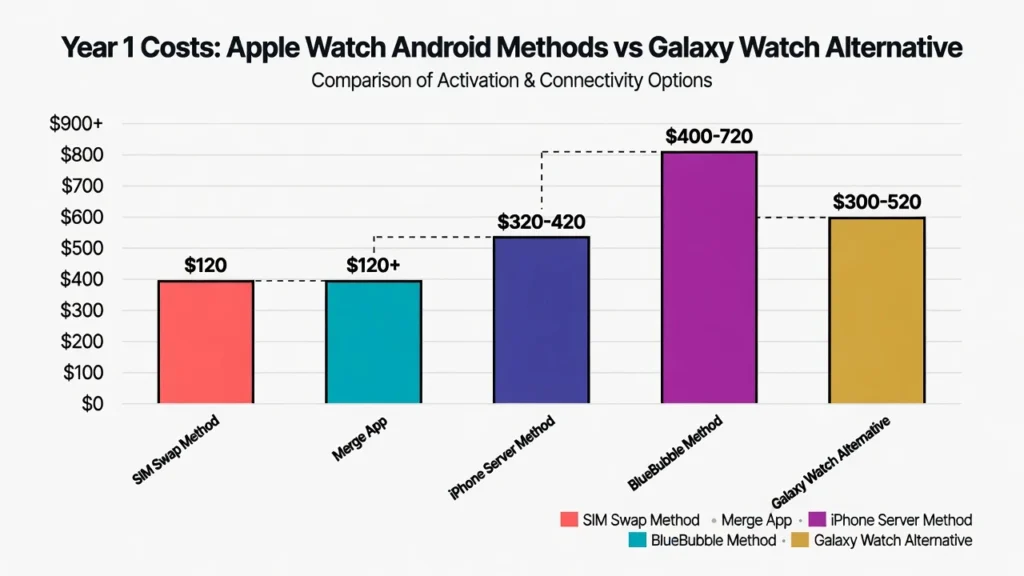
Cost Breakdown by Method
Here is the money picture I see when I map out each option, including cellular plans and secondhand hardware.
| Method | Upfront Cost | Monthly Cost | Year 1 Total |
|---|---|---|---|
| SIM swap (cellular watch, existing iPhone) | $0 | $10 LTE | $120 |
| SIM swap (buy cellular Apple Watch) | $400+ | $10 LTE | $520+ |
| Merge app (watch you already own) | ~$10–$30 subscription | $10 LTE + app fee | $120+ |
| iPhone server (used iPhone) | $200–$300 used iPhone | $10 LTE | $320–$420 |
| BlueBubble (iPhone + Mac Mini) | $280–$600 iPhone + Mac Mini | $10 LTE | $400–$720 |
| Galaxy Watch (best Apple Watch alternative Android) | $300–$400 | $0–$10 | $300–$520 |
For most people, buying a $300 Galaxy Watch is cheaper and simpler than any workaround.
I keep seeing the same pattern: the up front number looks fine, but the monthly LTE plan and extra hardware quietly push the total higher every month.
If you already own a cellular Apple Watch and just swap SIMs, your upfront cost is near zero, but you still pay about $10 a month for LTE. That becomes $120 in the first year before you even count any app subscriptions or hardware fixes.
Buying a cellular Apple Watch from scratch adds at least $400 up front, plus the $10 monthly plan, which pushes the first year to $520 or more. That number jumps quickly if you pick a newer model or a band you like.
The iPhone server method needs a used iPhone for around $200 to $300, plus the same $10 LTE fee, so year one lands between $320 and $420. You also need a place to keep that phone running 24/7.
BlueBubble is the most expensive route. You need an iPhone and a Mac Mini, which together run $280 to $600 up front, plus the monthly LTE plan, so the first year can hit $400 to $720.
When you compare all of this to the best Apple Watch alternative Android options like the Galaxy Watch, $300 to $400 up front and often no extra monthly fee, the difference is clear.
The Hidden Costs Nobody Mentions
The sticker price is only part of the story. The real expenses creep in after you buy the watch and start using it.
Cellular Apple Watch plans are not cheap. That $10/month LTE fee adds up to $120 a year, and some carriers charge more.
A used iPhone may need a new battery or minor repairs within the first year. That can be $50 to $100 you did not plan for.
A Mac Mini running BlueBubble 24/7 uses electricity and takes up space. That is a real cost if you care about your power bill or desk clutter.
Merge app subscriptions add another small monthly or yearly fee on top of the LTE plan.
And then there is your time. Every time a workaround breaks, you spend
hours debugging, resetting, or reading forums. That time has value,
especially if you are not excited about fixing tech for fun.
In fact, Android users dealing with Apple Watch incompatibility often face
similar troubleshooting frustrations to those dealing with other device
problems. If you’ve ever struggled with technical issues on Android, our
article on How to Reset Android Phone When Locked shows
just how complex Android troubleshooting can be and Apple Watch workarounds
add another layer of complexity on top of that.
That last part is what most people skip in their budget. And it is usually the part that makes the biggest difference in whether you keep the setup or give up.
When This Actually Makes Sense (And When It Doesn’t)
Using an Apple Watch with Android only makes sense in a few very specific situations. Most people are better off buying an Android watch and enjoying something that just works, with normal smartwatch cross-platform support instead of constant hacks.
Scenario 1: “I Already Own Both Devices” (Workaround Makes Sense)
If you already paid for an Apple Watch and you already have access to an iPhone, I would at least try a workaround before spending more money. That sunk cost on the watch, often $400 or more for a cellular model, is hard to ignore when you start looking at replacement options.
In this situation, using a SIM swap or a Merge-style bridge app is really about squeezing value out of what you already own. You are not paying twice for a second smartwatch, you are just accepting a bit of extra setup pain to keep using the Apple Watch alongside your Android phone. I have seen plenty of people do this because throwing away a good Apple Watch feels worse than living with imperfect Apple Watch Android compatibility for a while.
If the setup breaks now and then, it is annoying, but at least you are not staring at another $300 to $400 for a new watch on top of everything else. In that position, I would test Method 1 or Method 2 first and only move to a new watch if the problems become constant.
Scenario 2: “I’m Thinking About Buying Apple Watch” (Don’t Do It)
If you are still shopping and you mainly use Android, buying an Apple Watch for an Android user almost never pays off. You would be paying Apple prices for a watch that only works properly inside an ecosystem you are not actually using every day.
Every workaround costs money and time, and both add up faster than you expect. You pay for LTE, you pay with hours of debugging, and you still live with missing features or random disconnects. Meanwhile, the best Apple Watch alternative on Android, like a Galaxy Watch or Pixel Watch, is designed to pair cleanly with Android and give you the full feature set.
A Galaxy Watch 6 or Galaxy Watch Ultra usually sits around the $300 to $400 range and gives you smooth pairing, full notifications, and deep integration with your phone. In that situation, buying an Apple Watch and running it through a workaround is basically paying more money for a worse experience.
Scenario 3: “I Want to Buy Apple Watch for Someone with Android” (Reconsider the Gift)
This is the case that leads to the most “I learned this the hard way” stories. If you are buying a gift and the person uses Android, I would avoid Apple Watch unless you already know they enjoy tinkering and playing with workarounds.
Family Setup looks like a neat answer on paper, but the feature cuts are heavy for many adults, especially the health tracking tools people assume they are getting. On top of that, the recipient might feel pushed toward an iPhone just to use the gift properly, which can turn a nice idea into pressure they never asked for.
I have seen the same story play out many times: someone buys an Apple Watch, discovers their partner’s Android phone cannot talk to it, and ends up buying an iPhone a few days later just to make the watch usable. In a lot of homes, a Galaxy Watch or Pixel Watch would have been the safer, happier gift because the person can use all the features from day one.
There is one clear exception I keep in mind. If you are already planning to move an elderly parent onto an iPhone because it is easier for you to support, pairing that new iPhone with an Apple Watch can be a great combo for safety and simple communication. In that case, the real gift is the whole ecosystem, not just the watch.
Scenario 4: “I’m Switching from iPhone to Android Soon” (Plan Ahead)
If you are about to leave iPhone for Android, the smartest move is to decide what happens to your Apple Watch before you switch. This is where a little planning saves you from a lot of frustration.
If you love your Apple Watch and you are not ready to give it up, keep the old iPhone at home as a base station. The phone can live on Wi‑Fi, handle updates and settings, and you can still wear the watch with limited features while it stays paired on the Apple side in the background. It is not perfect, but it softens the blow if you are attached to that specific watch.
If you feel ready to move on, selling the Apple Watch and putting that money toward the best Apple Watch alternative on Android, like a Galaxy Watch, often feels cleaner. You get native support, full notifications, and you avoid hunting for strange bridge apps just to keep things alive.
Whatever you do, do not switch phones first and only then start worrying about the watch. Smartwatch cross-platform support is still patchy, and going in without a plan is exactly how people end up with an expensive gadget sitting dead in a drawer.
Best Smartwatch for Android Users (When Apple Watch Doesn’t Make Sense)
If you use Android every day, the best smartwatch for Android users is almost always a native Android-compatible smartwatch, not an Apple Watch running through workarounds. You get cleaner setup, better stability, and far fewer annoying surprises over time.
An android compatible smartwatch lets you pair, sync notifications, and update apps directly from your phone without hacks or extra devices. Once you step back from the Apple Watch idea, there are several options that cover different needs and budgets really well.
Samsung Galaxy Watch (Best Overall for Android)
When someone asks me what to buy instead of an Apple Watch for Android, the Samsung Galaxy Watch is usually my first answer. It is the one watch that feels closest to Apple Watch in polish, but built for Android from the start.
The Samsung Galaxy Watch on Android gives you smooth pairing, deep system integration, and strong app support. Battery life is usually around two to three days, which is already a big upgrade if you are used to charging an Apple Watch every night.
I like that I can sleep with it on, track my rest, and still have enough battery to get through the next day.
If you’re switching to Galaxy Watch from iPhone, you’ll notice immediately
how much smoother the experience is when devices actually work together.
For anyone making that transition, our guide on Remove Apps from
Samsung Phone helps you clean up bloatware that often
comes pre-installed — giving you the clean, optimized Galaxy experience
you deserve
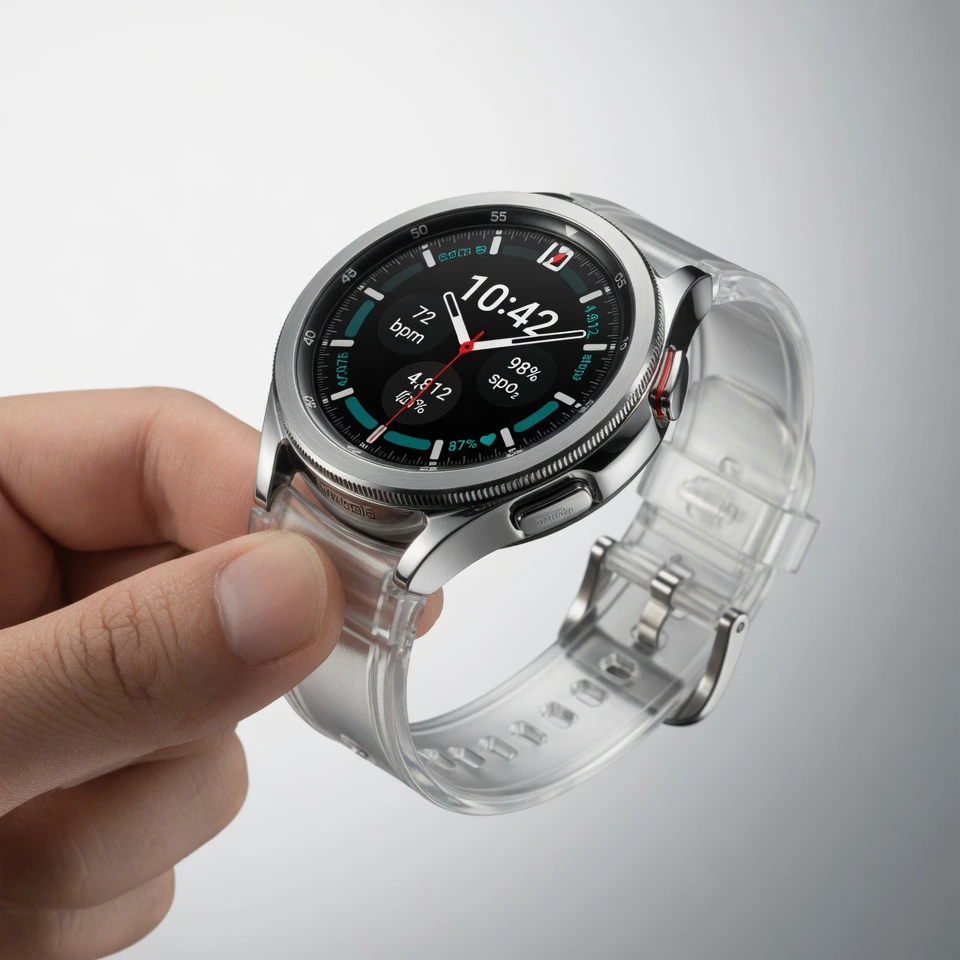
The rotating bezel is a small thing on paper, but in daily use it makes navigation feel precise and satisfying. I find it easier to scroll with the bezel than with a tiny crown or swiping at a small screen. Samsung Health adds useful tools like sleep tracking, stress tracking, and even food logging if you want to go that far.
The price typically lands around the mid to high three hundreds depending on model and sales. It works with almost any Android phone, but you get a bit of extra polish with Samsung phones. The main drawbacks are that Bixby is not as sharp as a good voice assistant should be and some people find the design less “fashion” than Apple Watch. For most Android users, though, this is the best Apple Watch alternative on Android right now.
Google Pixel Watch (Best for Google Integration)
If you live in Google services all day, the Pixel Watch feels like the natural choice. It is a Wear OS smartwatch for Android that leans hard into Google’s own apps and tools.
Google Assistant on the Pixel Watch feels like the main character. I like being able to ask for the weather, control smart home devices, or set reminders without touching my phone. Google Calendar, Gmail, and Google Pay all feel native on the watch, so you are not fighting weird third party apps to do basic things.
The Pixel Watch works with any reasonably recent Android phone, and it fits best if you already use a Pixel or love clean Google design. Battery life is the weak point here, often around one to two days, so this is not the choice if you hate charging. On the fitness side, Fitbit integration gives you good activity and health tracking, but it still trails the Galaxy Watch in raw flexibility.
I usually recommend the Pixel Watch to people who say “I use Google for everything and I care more about Assistant and apps than crazy battery life.” If that sounds like you, this is the Wear OS smartwatch for Android that will feel most natural.
Garmin Venu 3 (Best for Fitness and Athletes)
If your main goal is training, not notifications, the Garmin Venu 3 is in a different league. It is less of a tiny phone on your wrist and more of a serious training tool that happens to show your messages.
Battery life is where Garmin Venu 3 wins immediately, often stretching five to seven days on a single charge. That kind of battery changes how you use a watch. You stop thinking about chargers and start thinking more about the data it gathers over time.
Garmin focuses on metrics that matter to athletes: VO2 max, training load, recovery advice, heart rate during workouts, and very strong GPS that holds up even in dense areas or trails. It works with both Android and iPhone, so you get real smartwatch cross-platform support here, which is rare at this level.
The trade off is that Garmin feels less “smart” in the traditional sense. The watch face looks a bit more serious, the app ecosystem is smaller, and the notification experience is simpler than a Galaxy or Pixel Watch. I usually point Garmin Venu 3 at runners, cyclists, and gym fans who care more about accurate data and long battery than fancy app animations.
Fitbit Sense 2 (Best Budget Health Option)
If you care more about health than about full smartwatch features, Fitbit Sense 2 is a strong budget-friendly pick. It covers the basics well without asking you to spend flagship money.
Fitbit Sense 2 works with both Android and iPhone, so you can switch phones later without replacing the watch. Battery life often lands around four to six days, which makes it easy to wear it day and night for health tracking. The watch focuses on stress monitoring, heart rate, sleep insights, and daily readiness more than on third party apps.
You do lose some of the “smart” features you get on a Galaxy or Pixel Watch. Notifications are simpler, app choices are limited, and the interface feels more locked down. I usually recommend Fitbit Sense 2 to people who say “I mostly want to track sleep, steps, and stress, and I do not care if the watch cannot run a ton of apps.”
Smartwatch Comparison Table
Here is a quick side by side look to help you decide faster.
| Watch | Price range | Battery life | Best for | Main pros | Main cons |
|---|---|---|---|---|---|
| Galaxy Watch (latest gen) | $299–$399 | 2–3 days | Android ecosystem | Strong design, rotating bezel, rich health | Bixby weak, style not for everyone |
| Pixel Watch (latest gen) | $349–$449 | 1–2 days | Google lovers | Great Assistant, clean Wear OS, Google apps | Short battery, fewer extras than Galaxy |
| Garmin Venu 3 | $449–$499 | 5–7 days | Athletes and fitness | Long battery, deep metrics, strong GPS | Less “smart,” more serious look |
| Fitbit Sense 2 | $199–$299 | 4–6 days | Health-focused users | Affordable, good health tracking, simple | Limited apps, basic notifications |
| Apple Watch with workaround | $400+ plus fees | Under 1 day | Existing owners only | Familiar if you know Apple already | Complex setup, poor Android integration |
When I look at all of these together, the pattern is clear. If you already own an Apple Watch and an iPhone, workarounds can make sense for a while. If you are starting fresh on Android, though, picking a native android compatible smartwatch like a Galaxy Watch, Pixel Watch, Garmin, or Fitbit will almost always give you a better life with less stress.
If you tell me whether you care more about battery, fitness, or smart features, I can suggest one specific model that fits you best.
Should You Buy an Apple Watch as a Gift for an Android User? (Gift Buyer’s Guide)
If you are buying Apple Watch for Android user friends or family, the honest answer in most cases is no. The gift often turns into extra costs, awkward workarounds, or pressure on them to change phones just to use what you bought.
This section is not about judging your idea. Your intentions are good. My goal here is to help you avoid a gift that backfires and point you toward options they can actually enjoy from day one.
The Short Answer: No, Don’t Buy Apple Watch for Android Users (Usually)
If your loved one uses an Android phone and has not clearly said they want to mess with Apple Watch workarounds, this is a risky gift. You are not just buying a watch, you are indirectly asking them to step into the Apple world without warning.
In practice, one of three things usually happens. They either feel pushed to buy an iPhone to unlock the full experience, they accept a very limited setup that does not match what they see in Apple ads, or you become the unpaid tech support person trying to keep everything in sync. None of those outcomes is what you had in mind when you started shopping.
Buying an Apple Watch for an Android user can also quietly commit you to more money than you expect. If they decide the only way to make it work is to get an iPhone, that is another big purchase stacked on top of your gift. If they choose not to, the watch may end up in a drawer, which feels bad for both sides.
There is one big exception. If they have already talked about wanting an Apple Watch, understand that it is not built for Android, and still say “I am okay living with the workarounds,” then it might be safe to consider it. Even then, I like to “test their commitment” with a real conversation before I spend that much.
Real Story: When an Apple Watch Gift Failed
I have seen the same story pop up over and over again in forums. It usually starts with something like this: “They do not work together. Learned this one the hard way. My husband wanted an Apple Watch, so I obliged and gave him one. His Android phone was completely unable to communicate with the watch, so a few days later, we bought an iPhone.”
That short story captures the whole problem in one hit. The person giving the gift did everything right from a kindness point of view. They listened, they bought what was requested, and they paid real money for it. But the tech reality did not match the idea in their heads.
The result was that the gift turned into a chain reaction of spending. The watch alone was not enough, so now the family also had to buy an iPhone to make the Apple Watch truly usable. That is a big jump from “nice surprise” to “expensive ecosystem shift” for something that started as a birthday or holiday present.
Better Gift Alternatives (When They Use Android)
If your goal is simple buy a smartwatch that works well with their Android phone there are safer and smarter options that feel great as gifts. These are the ones I reach for first.
If they like feature rich gadgets and a modern look, a Galaxy Watch 8 is usually the best apple watch alternative android for most people. It works cleanly with Android, has strong health tracking and does not require any phone switch. They can take it out of the box, pair it and start using it that same day without extra gear.
If they love Google services, the Pixel Watch 3 fits better. It ties in nicely with Google Assistant, Gmail, Calendar and other apps they probably use all the time. This is a nice choice for someone who already uses a Pixel phone or loves the “pure Google” style.
If they are into running, cycling, or serious training, a Garmin Venu 3 is a very thoughtful gift. It focuses on metrics, long battery life and strong GPS instead of flashy animations. That is perfect for the friend who talks about step counts, pace, and recovery more than watch faces.
If your budget is lower or you know they care more about health than full smartwatch features, a Fitbit is a solid pick. Devices like Fitbit Sense focus on stress, sleep, and daily activity and still work smoothly with Android. The person gets something useful and easy to wear without you overspending.
When I buy tech gifts, I try to match the watch to their lifestyle rather than forcing them toward my favorite brand. Asking yourself “What do they actually do every day?” usually leads you to the right Android compatible smartwatch far more reliably than just buying the most expensive one.
The Exception: When an Apple Watch Gift Does Make Sense
There are a few rare situations where buying Apple Watch for Android user friends or family can still be the right move. You just have to be brutally honest about the trade offs.
The first case is when they have already said, clearly and more than once, “I want an Apple Watch even though I use Android, and I am okay with the workarounds or switching phones later.” In that situation the gift is not surprising them with a new ecosystem, it is supporting a choice they already made in their head.
The second case is when they are already planning to switch to an iPhone soon. Maybe they told you they are tired of their current Android phone and saving for an iPhone. In that scenario, an Apple Watch can be a fun “starter” gift if you know the phone change is actually coming, not just a vague idea.
The third case is more family focused. If you are buying for an elderly parent and you can afford to give them both an iPhone and an Apple Watch, that bundle can be thoughtful. You get better location sharing, calling, and health alerts, and you can manage the setup for them.
Family Setup also fits here if you are ready to take on the maintenance. You use your iPhone to set up the watch for a child or older parent, you keep it updated, and you handle issues when things go wrong. That only works if you are truly willing to be the tech support person for the long haul.
Before you click buy on an Apple Watch for an Android user, ask yourself one last question. Am I giving them a gift they can enjoy right away, or am I handing them a project they have to manage for months?
Understanding Apple’s Ecosystem Lock-In (Why This Situation Exists)
If you feel annoyed that Apple Watch does not properly support Android, you are not imagining it or missing a hidden setting. This is a direct result of Apple ecosystem lock-in, and the company has built that pattern on purpose over many years.
Apple Watch is designed as an extension of the iPhone, not as a neutral, cross-platform smartwatch. That is why cross-platform smartwatch compatibility feels normal with many Android watches but almost impossible with Apple Watch. To understand your current frustration, it helps to see the business logic behind it.
Apple’s Intentional Strategy (It’s Not an Accident)
From a business point of view, Apple’s choice is simple. An iPhone owner who also buys an Apple Watch, AirPods, and maybe a MacBook is worth far more to Apple than someone who just buys a single product once. So Apple has a strong financial reason to keep those devices tightly connected to each other and closed off to competitors.
Apple has even explored making Apple Watch work with Android in internal projects and then walked away from that idea when it became clear it would weaken the pull of the iPhone. That lines up with the very common explanation I keep seeing from people who follow the company closely: the main aim is to keep Apple products talking mostly to each other so users feel “locked in” and less likely to switch.
For users who are all-in on Apple, this Apple ecosystem lock-in can feel convenient. Everything syncs, features are polished, and you rarely fight compatibility issues. For people trying to use Apple Watch with Android, the same strategy shows up as missing support, blocked pairing, and a sense that you are being pushed out rather than welcomed in. Both experiences are real; they just sit on opposite sides of the same design choice.
The DoJ Investigation (What Apple Claims)
This approach has attracted more than just frustrated users on forums. In 2024, the United States Department of Justice filed an antitrust lawsuit against Apple, arguing that the company is using its ecosystem to unfairly block competition in the smartphone and connected device markets. Apple Watch appears in that case as one of the examples of how the company ties extra products tightly to the iPhone.
In that legal context, Apple has argued that bringing full Apple Watch support to Android is not realistic because of technical limitations. At the same time, public reporting suggests the company spent years exploring Android support and then cancelled it for business reasons once it was nearly ready. That gap between “technical limitation” and “business decision” is exactly why regulators are skeptical and why this case exists at all.
The lawsuit is still ongoing, so there is no final ruling yet on what Apple must change, if anything. For now, it simply reinforces what many users already feel: the lack of cross-platform smartwatch compatibility on Apple’s side is less about what is possible and more about what is profitable. And that is why, as an Android user, you keep running into hard walls instead of simple, friendly pairing screens.
The Bottom Line: What You Should Actually Do
If you came here wondering can you use an Apple Watch with an Android phone, the short answer is yes with workarounds, but for most people it is not worth the hassle. In real daily use, the best Apple Watch alternative on Android is almost always a native Android compatible smartwatch that pairs cleanly and stays stable over time
Here is how I’d break it down based on where you are right now.
If You Already Own Both Devices
If you already have an Apple Watch and an iPhone, but your daily phone is now Android, I would at least try to squeeze some value out of the setup before you give up on it. Start with the simplest Apple Watch Android workaround instead of buying something new on day one.
First, test the SIM swap style method or a Merge style bridge app if you are comfortable experimenting and paying a bit for plans or subscriptions.
Go in knowing you will have limited features and occasional breakage. If after a few weeks you are more annoyed than happy, I would sell the Apple Watch and use that cash toward a Galaxy Watch or Pixel Watch instead of forcing yourself to live with a setup you dislike
If You’re Thinking About Buying Apple Watch
“If you are still in the research phase, mainly use Android, and are wondering does apple watch work with android in a normal way, I would not buy an Apple Watch on its own. For most people, that only makes sense if you are truly ready to buy and keep an iPhone alongside it.
In real use, a Galaxy Watch, Pixel Watch, or Garmin almost always gives better value and less stress because those watches are built to talk to Android first.
You get proper pairing, cleaner notifications and no odd “middle” devices humming away on a shelf just to keep things alive.
If you are not willing to commit to an iPhone, spend your money on the best Apple Watch alternative Android that matches how you actually use your phone
If You Want to Gift an Apple Watch
If you are buying for someone else and thinking about buying Apple Watch for Android user friends or family, pause and ask one hard question: do they want the Apple Watch brand more than they want something that just works with their phone.
If the answer is no or “I’m not sure,” then a Galaxy Watch, Pixel Watch, Garmin, or Fitbit will usually be a better gift.
The recipient gets to enjoy it right away without changing phones or learning workarounds or paying extra for an iPhone later. If the answer is a very clear yes and they understand the limits, be ready to help them either move to an iPhone or live with the ongoing compromises
If You’re Committed to Making This Work
If you are the type who actually enjoys tinkering and you are fully committed, then treat this whole Apple Watch Android workaround as a hobby project, not a simple plug and play purchase. Use a SIM swap style method for basic calls and texts, or set up an iPhone server plus tools like BlueBubble if you want to get closer to full Apple Watch features without iPhone in your pocket.
You should be ready to spend somewhere in the low hundreds of dollars on extra hardware like a used iPhone or Mac and accept regular troubleshooting as part of the deal. If that sounds fun to you, go for it. If you feel tired just reading about it, that is your real answer.
The Real Talk
“The fact that you are even reading a long guide about this already tells me something important. You are trying to force a setup that Apple deliberately made incompatible instead of getting normal smartwatch cross-platform support that just works out of the box.
If you care more about your time, your money, and your sanity than about a specific logo on your wrist, the safest move is boring and clear. Buy a smartwatch that was built for your ecosystem, not against it and stop fighting a battle the hardware never wanted you to win.
FAQ: Common Questions About Apple Watch and Android
Do I need an iPhone to set up an Apple Watch?
Yes, you need an iPhone with your Apple ID to initially set up any Apple Watch. You can borrow a friend’s iPhone for the first pairing, but the watch locks to your Apple ID and cannot be moved to another account without erasing it.
Can I use a GPS-only Apple Watch without an iPhone?
Technically yes, but it is nearly useless without an iPhone. A GPS-only Apple Watch loses internet and most features when separated from an iPhone, leaving you with only basic step counting and no notifications or messaging.
Can I update watchOS on Apple Watch with an Android phone?
No, you cannot update watchOS while using Apple Watch with an Android phone. You must temporarily re-pair the watch to an iPhone to install updates, or risk apps eventually stopping work.
How do I get iMessage on my Android phone with Apple Watch?
The only real way is through an advanced BlueBubble server setup using a Mac that runs 24/7, which is costly and complex. For most people, the practical answer is to accept that iMessage on Android with Apple Watch is not realistic.
Why doesn’t my Apple Watch show up on Android Bluetooth?
Apple Watch uses a proprietary Bluetooth pairing protocol that only works with iOS devices. It will never appear in your Android phone’s Bluetooth scanning list because Apple locked pairing to iPhone by design.