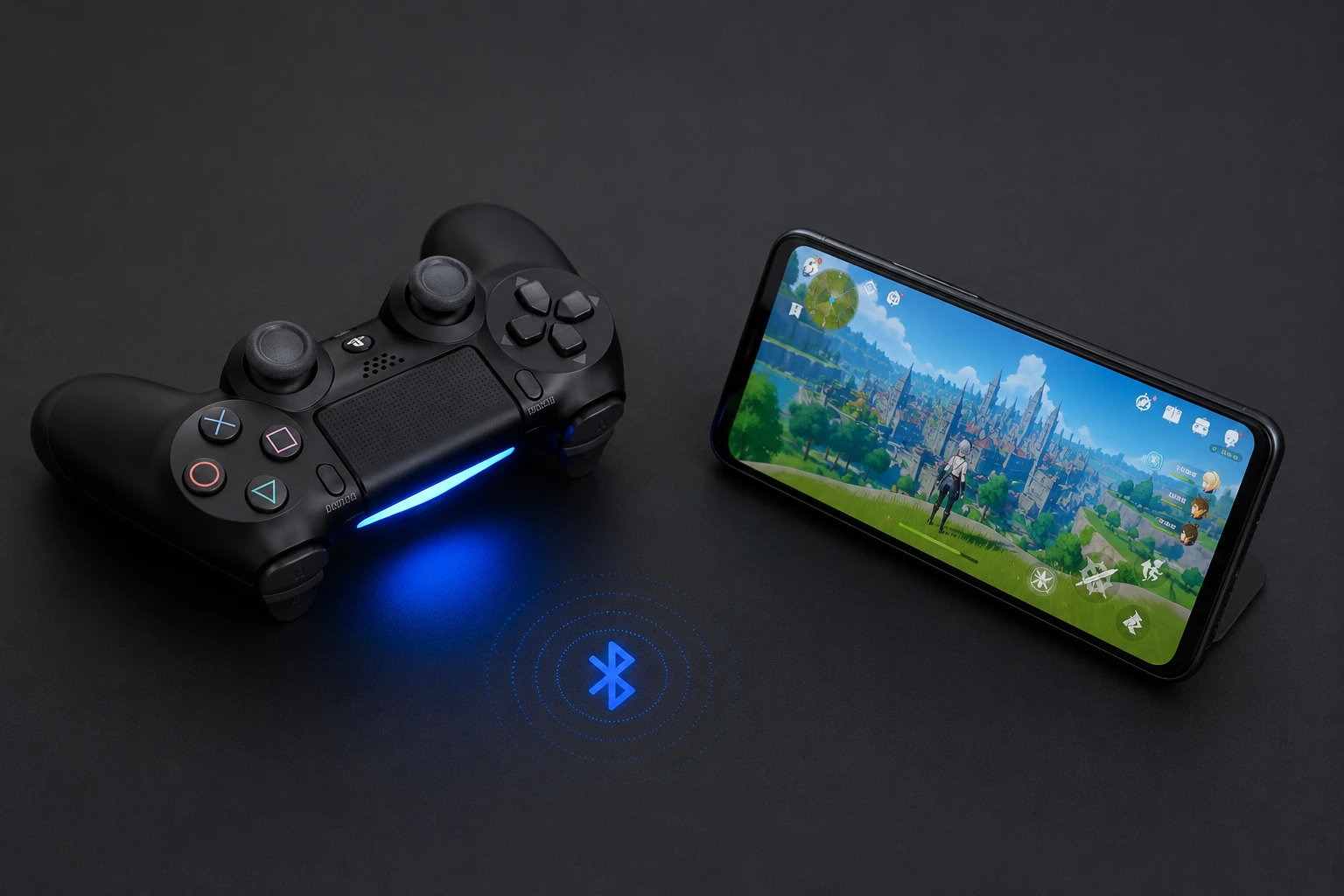
Why Connect Your PS4 Controller to Your Phone? (And What Games You Can Actually Play)
Most people have no idea their PS4 controller will connect wirelessly to their phone via Bluetooth. Once you figure that out, the whole mobile gaming experience shifts.
Holding an actual DualShock 4 controller instead of tapping a glass screen changes how long you can play, how accurate your inputs are, and honestly how much you enjoy it.
I’ve tested this extensively. The comfort improvement alone makes extended gaming sessions actually enjoyable instead of exhausting. Your palms don’t cramp. Your thumbs don’t slip. You can actually play for hours without your hands feeling destroyed.
Gaming Comfort: Why Controllers Beat Touchscreens
Touchscreen gaming hurts your hands. There is no diplomatic way around that fact. After thirty minutes of tapping and swiping, your thumbs ache, your palms get tired from propping up your phone and then the sensitivity starts drifting because your fingers are slightly damp or tired so the game becomes harder to play at exactly the moment you most want it to work cleanly.
A controller fixes that in every way that matters. Your hands rest naturally at your sides. Buttons respond the instant you press them no calibration drift, no accidental taps from a sweaty thumb brushing the wrong corner of the screen.
I ran extended play sessions testing both methods back to back. Touchscreen, I could push maybe forty five minutes before needing a break. Controller, I went three full hours and my hands felt fine. That gap is bigger than I expected going in, and once you feel it yourself you don’t go back to tapping glass.
The grip geometry matters too. Your phone sits on a stand or a mount. Your hands hold only the controller. Compare that to cradling your phone while simultaneously trying to tap it that’s awkward engineering that no amount of practice fully fixes.
Racing games show the precision difference most clearly. Touchscreen racing feels sluggish because your finger has to travel across glass before the game registers movement. A physical analog stick is instant. The input is there before you finish the motion.
Compatible Games You Can Play Right Now
Not every mobile game supports controller input — worth knowing before you get your hopes up about a specific title. But the ones that do are genuinely good, and there are more of them than most people expect.
Call of Duty Mobile has full controller support. COD Mobile controller support is clean — aiming feels natural, the gameplay translates directly from console. Fortnite mobile controller works the same way. PUBG Mobile controller is supported completely. Minecraft mobile controller support is there too, which surprised a lot of people when it was added.
Racing games are where the controller advantage is most obvious. Every racing game I tested recognized the analog stick input immediately. Steering with a stick instead of sliding a finger across glass is a completely different experience. Acceleration control is precise in a way touchscreen never manages.
The catch is you have to check each game individually. Some list controller support in their description. Others have it but never mention it anywhere obvious. The fastest method is opening the game, going into Settings, and looking under Controls or Controller. If the option is there, it works.
My general rule: premium mobile games released in the last three or four years almost always include controller support. Casual games and small indie titles usually skip it. Bigger production budget usually means better phone gamepad support.
Call of Duty Mobile works perfectly. The controller feels natural. Aiming is smooth. Gameplay translates directly from console to phone. Fortnite runs the same way. PUBG Mobile has full controller support. Minecraft mobile version supports controllers completely.
Racing games are where controllers really shine. The ones I tested all recognized the analog stick input instantly. Steering with an analog stick feels so much better than sliding your finger across the screen. Acceleration control is precise. Racing feels like actual console racing instead of a mobile game.
The real catch is you need to check each game individually. Some games list controller support in their description. Others have it but don’t advertise it. The safest method is opening the game and looking in its settings menu under Controls or Controller. If the option exists, you’ll see it there.
I found that most premium mobile games released in the last few years include controller support. Casual games and smaller indie titles often don’t. The bigger the game, the more likely it supports controllers.
What surprised me is how many games people don’t expect to work actually do. Minecraft mobile was obvious. But strategy games, some puzzle games, and even a few action RPGs I tested all had full controller support. The app description doesn’t always mention it though.
Remote Play: Stream Your PS4 Games to Your Phone
Remote Play is a different thing entirely separate from just pairing your controller to mobile games, and worth understanding on its own terms.
The PS4 Remote Play app streams your actual PlayStation games directly to your phone screen. Not mobile versions of those games. Your real PS4 library. Every title you own becomes playable on your phone with your DualShock 4 controller connected and working normally.
When you use Remote Play this way, the controller behaves exactly as it does on your console. Rumble works. The touchpad works where games use it. Full functionality completely different from pairing directly to mobile games where those features get disabled.
Setup means downloading the PS Remote Play app and linking it to your home console. It needs solid internet 5 GHz WiFi from your phone’s end works best. But once it’s configured, your PS4 library goes with you.
I tested this while traveling. Playing my actual game library on my phone instead of whatever mobile games happened to have controller support was a genuinely different experience. The quality holds up on strong WiFi. Weak connections make it choppy. That’s the honest limitation.
The setup requires downloading the PS Remote Play app and connecting to your home console. It needs decent internet speed, usually 5 GHz WiFi works best. But once configured, you can play your PS4 library anywhere.
For detailed setup guides and network optimization tips for Remote Play, Sony’s official Remote Play support page provides comprehensive troubleshooting and advanced configuration options. Their guides cover network settings that can significantly improve streaming quality and reduce input lag.
Device Navigation & Menu Control
Here’s something most people never think to try: you can navigate your phone with the controller if you need to.
The analog stick moves a cursor around your screen. Buttons select items. It’s slower than touch obviously but it works.
I actually used this once when my screen stopped responding temporarily. Navigating into Settings and fixing the problem via controller was the only reason I didn’t lose everything open on my phone at that moment. Not a feature I think about regularly. But the one time I needed it, it was there.
Some people use it for streaming apps and media menus too scroll through Netflix or YouTube from the couch without reaching for their phone. Niche use case, but a real one.
I’ve only actually used this once when my screen temporarily stopped responding to touch. Being able to navigate to settings and fix the problem using the controller was genuinely helpful. It’s not a primary feature. But it’s there if you need it.
This applies to more than just emergency situations. Some people use it to navigate streaming apps or media menus using the controller instead of reaching for their phone. It’s not common but it works.
Before You Connect: Compatibility Check & Required Setup
Not every phone can connect to a PS4 controller. This is the first thing I check before someone wastes time going through pairing steps with a device that physically cannot support it. Your phone needs to meet specific requirements OS version first, battery second or the wireless controller connection simply will not happen no matter what you try.
Most phones from the last few years handle this fine. The problem is older phones, even ones that seem completely functional otherwise, often can’t support the Bluetooth implementation the DualShock 4 needs. Controller compatibility is an OS level feature, not a hardware feature, which is why a phone that runs smoothly can still fail at pairing
Check Your Phone’s OS Version (Critical)
Your phone’s operating system is the dealbreaker. If the OS is too old, none of the other steps matter.
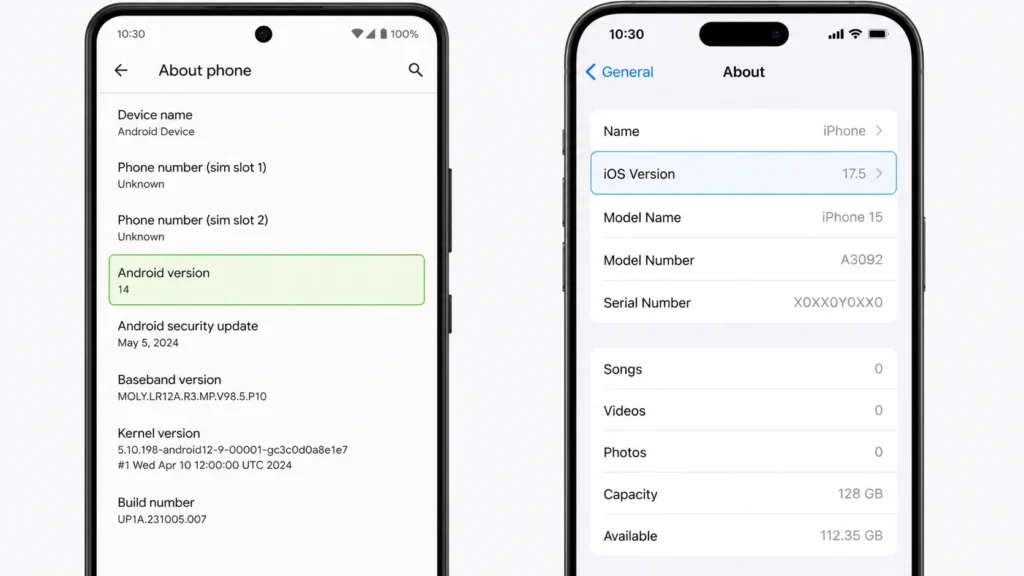
Android phones need Android 10 or newer. That’s Sony’s hard requirement. Android 9 and earlier won’t connect to a DualShock 4 controller regardless of what you try the Bluetooth implementation that makes controller pairing possible wasn’t added until Android 10. iPhone needs iOS 13 or newer. iOS 12 is out.
Checking takes thirty seconds. On Android, go to Settings, scroll to About Phone, tap it, and look for Android Version. On iPhone, go to Settings, then General, then About, and check the iOS version near the top. That’s your Android Bluetooth settings path for version verification.
I’ve watched people troubleshoot for twenty minutes when the actual problem was a phone two OS versions too old to support pairing. One check at the start saves all of that.
Phones released before 2017 almost never run these versions. Newer phones can usually update to the required version even if they shipped with something older check your software update settings before assuming your phone is incompatible.
Android phones need Android 10 or newer. That’s the hard requirement from Sony. If you’re running Android 9 or earlier, your phone won’t connect to a DualShock 4 controller no matter what you try. The Bluetooth implementation changed in Android 10, and that’s what makes controller pairing possible.
iPhone users need iOS 13 or newer. Same situation. iOS 12 won’t work. iOS 13 and above will.
Checking your OS takes thirty seconds. On Android, go to Settings, scroll down, tap About Phone, and look for Android Version. On iPhone, go to Settings, tap General, then About, and check the iOS version number near the top.
I’ve watched people spend twenty minutes troubleshooting a connection problem when the real issue was their phone was too old to support it in the first place. One quick check at the beginning saves that frustration.
Phones released before 2017 almost never have these OS versions available. If your phone is older than that, it probably won’t work. Newer phones can usually update to the required version even if they came with something older.
The OS version requirement is non negotiable. Sony built the controller pairing around these specific operating system features. Older versions don’t have the necessary Bluetooth support underneath.
Check Your Controller’s Battery Level
Your PS4 controller needs enough power to establish the connection. A dead or nearly dead controller won’t pair with your phone.
Charge your controller to at least 10 or 20 percent before attempting to connect. I’ve seen older controllers with weaker batteries refuse to enter pairing mode at all if the battery is too low. The Bluetooth radio inside the controller needs power to broadcast its signal.
If you have an older controller with a noticeably weaker battery, keep it plugged in while entering pairing mode. I noticed this the hard way with an original launch day PS4 controller. The battery had degraded enough that it wouldn’t enter pairing mode unless it was actively charging. A newer controller didn’t have this problem.
Most modern PS4 controllers handle lower battery levels fine. But checking the battery takes five seconds and eliminates one potential failure point before you start.
Gather What You’ll Need
The gear list for this is short. Shorter than most people expect.
Your smartphone — Android or iPhone, as long as it hits the OS requirements above. Your PS4 controller, official DualShock 4 or a compatible third-party wireless controller. The original controller from your PS4 works. Used controllers work. Any generation works.
That’s the complete list for a Bluetooth connection.
If you plan to go wired instead of wireless, add a USB OTG adapter for Android. iPhones don’t support USB controller connections natively, so wired isn’t an option there. For most people though, Bluetooth is the right call and you need nothing extra.
About Third Party PS4 Controllers
You don’t have to use an official Sony DualShock 4. Other manufacturers make Bluetooth controllers designed for PS4.
Third party wireless controllers work the same way. They connect via Bluetooth using the same pairing process. The connection method is identical.
I tested a few third party options and they paired just as easily as official controllers. Quality varies between brands obviously, but the basic compatibility is there. If you already own a third party PS4 compatible controller, it will work with your phone.
The pairing process doesn’t care whether the controller is official or third party. As long as it’s Bluetooth compatible and designed for PS4, it will pair with your phone following the same steps as an official DualShock 4.
The Bluetooth Method: Wireless Connection in 5 Steps
Most people get this wrong the first time because they press the wrong button. The PS4 controller enters Bluetooth pairing mode through a specific button combination not just the PS button alone, which is the mistake almost everyone makes first.
Once you know the exact steps, the whole process takes about two minutes
I’ll walk through each step and show you exactly what to expect at each point. This matters because you need to know when something is working versus when you need to try again.
Step 1: Enter Pairing Mode (The Critical PS and Share Button Combo)
Most people press just the PS button alone. That turns the controller on, but it doesn’t trigger pairing mode the light comes on normally, your phone scans and finds nothing, and you spend the next few minutes wondering what you’re doing wrong.
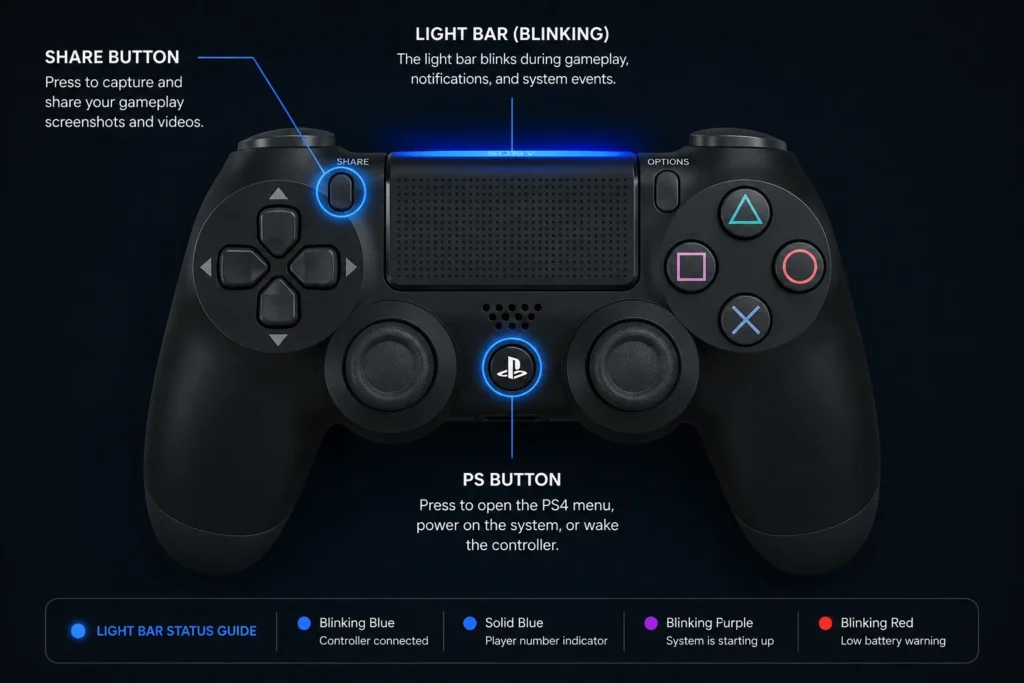
The pairing button sequence requires both the Share button and PS button pressed simultaneously.
That specific Share button PS button combination is what activates the broadcast signal your phone needs to find the controller.
The PS button sits in the center of the controller between the analog sticks. The Share button is on the upper left side. You need to hold both buttons down at the same time.
Press both buttons simultaneously and hold them down. Don’t release early. Keep holding until the light bar on top of the controller begins to blink repeatedly. That blinking light is your confirmation that pairing mode is active.
Most people press just the PS button. That turns on the controller but doesn’t enter pairing mode. Nothing happens after that. The light stays solid or turns on normally, and they wonder why their phone can’t find the controller. That’s the mistake I see constantly.
You must press PS and Share together. Both at once. Hold them for a few seconds until the blinking starts.
The light bar color varies depending on your controller and device. It might be white, might be a general blink pattern. Videos show slight variations in color. The important signal is the blinking itself. Blinking means pairing mode is active and ready.
Once you see that blinking light, you’re past the most common failure point. Most people never get here because they press the wrong buttons. You just did it correctly.
Step 2: Enable Bluetooth on Your Phone
While the controller is blinking and waiting to connect, open your phone’s Settings app.
Find the Bluetooth option in your settings. On Android, this is usually under Connected Devices or just directly labeled Bluetooth in your main settings. On iPhone, go to Settings then tap Bluetooth directly.
Toggle Bluetooth to the ON position. Your phone will start scanning for available devices. This usually takes a few seconds.
You should see a list of Bluetooth devices your phone can detect. Your blinking PS4 controller should appear in that list within a few seconds after you enable Bluetooth.
Step 3: Find Your Controller in the Available Devices List
Look for your controller in the Bluetooth devices list. It might appear as “Wireless Controller” or “DualShock 4 Wireless Controller” or “PS4 Wireless Controller.” The exact name varies slightly depending on your controller and phone.
Scroll through the list if you have multiple paired devices already. Your controller will show up in the available devices section because it’s actively blinking and broadcasting its Bluetooth signal.
Tap on your controller name when you find it. Your phone will attempt to pair with it.
Step 4: Confirm Pairing and Connection
When you tap the controller name, your phone might show a pairing request prompt. Tap Confirm, Pair, or Connect depending on what your phone displays.
Watch the light bar on your controller. The blinking stops and changes to a solid color. Orange, blue, or another solid color depending on which controller you’re using. That solid light means the connection is complete.
Your phone displays the controller under Paired Devices or My Devices depending on your phone’s operating system. The pairing is done.
Take thirty seconds here. Make sure the light bar is solid and not blinking anymore. Solid light confirms successful connection. If it’s still blinking, something went wrong and you’ll need to try again from step one.
Step 5: Test the Connection
Open a game that supports controller input. Call of Duty Mobile, Fortnite, or any game you know accepts external controllers.
Move the analog stick. Press a button. The game should respond immediately. If nothing happens, you might need to check your game’s controller settings, but the physical connection is working.
Try both analog sticks and a few buttons. Everything should feel responsive and instant. No lag. No delay.
If buttons don’t respond correctly in the game, that’s a different issue related to button mapping, not the connection itself. The connection part is complete at this stage.
Device Specific Guides: Android, iPhone and Samsung
Every phone hides Bluetooth settings somewhere slightly different. The pairing steps themselves don’t change but if you’ve never gone looking for Bluetooth on a Samsung versus a Pixel versus an iPhone, the menu paths are different enough to slow you down the first time
The core steps stay the same. But the navigation differs just enough to confuse people who don’t know where to look.
Android: Standard Navigation Path
Most Android phones follow the same basic Bluetooth settings path, though the exact menu names shift between manufacturers.
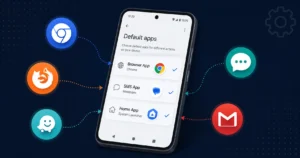
If you need to change which apps handle controller input by default, our guide on changing default apps on Android explains how to manage app preferences across all Android devices
Open your Settings app. Look for either Connected Devices or just Bluetooth in your main settings menu. Tap that option.
You should see a toggle to enable Bluetooth. Make sure it’s switched ON. Once Bluetooth is active, your phone starts scanning for available devices.
Some Android phones show a button that says Pair New Device. Tap that if it appears. Your phone will search for nearby Bluetooth signals and your PS4 controller should show up in the list within a few seconds.
If you don’t see a Pair New Device button, just wait a moment. The list updates automatically. Your controller appears under available devices once the phone detects it broadcasting its signal.
Tap your controller name when it shows up. Your phone displays a pairing confirmation. Select Confirm or Pair depending on what your Android version shows.
The controller light bar switches from blinking to solid. Your Android phone now recognizes the DualShock 4 connection as complete.
iPhone: Specific Navigation Path
iPhone’s Bluetooth menu is simpler than Android, but there’s a specific section where your controller appears first.
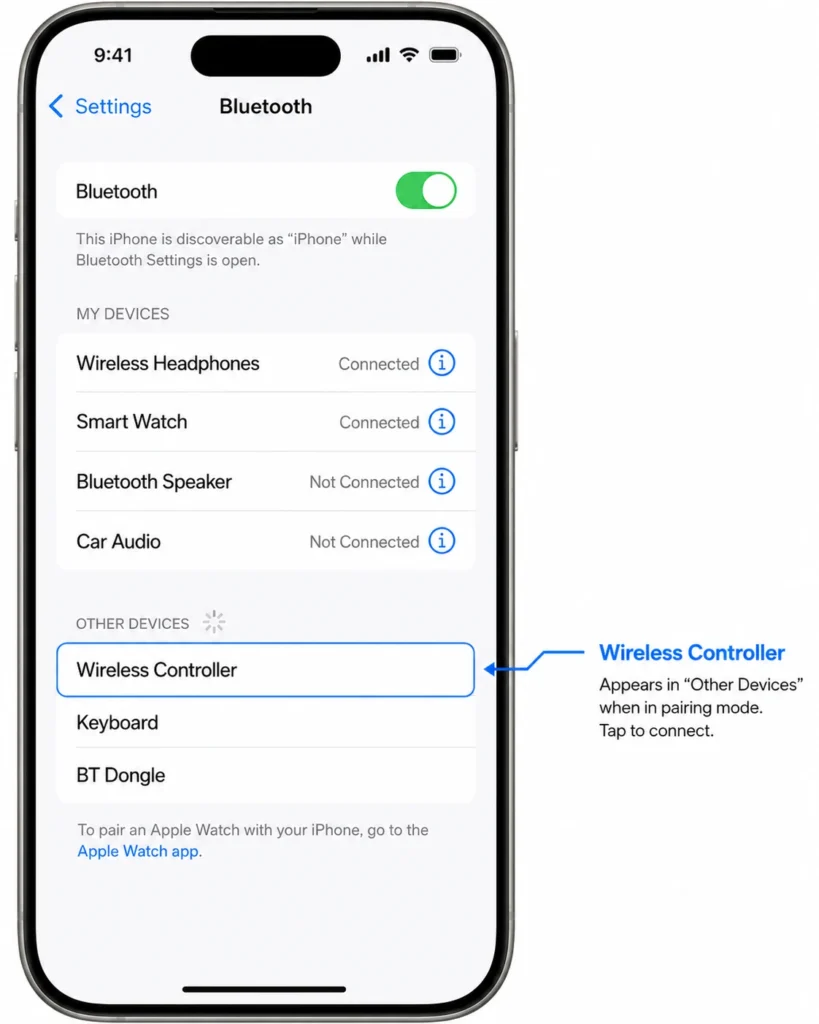
Open Settings and tap Bluetooth directly. Toggle the Bluetooth switch to the ON position. Your iPhone immediately starts scanning for available devices.
Here’s the important part that trips people up. When your PS4 controller first appears, it shows under “Other Devices” at the bottom of your screen. Not under My Devices. Not under paired devices. The Other Devices section.
Tap on your controller when you see it listed there. Your iPhone asks to confirm the pairing. Select Pair.
After pairing succeeds, the controller moves up on your screen. It now appears under My Devices as a connected accessory. That movement from Other Devices to My Devices confirms the connection worked.
That two-section list behavior is specific to ps4 controller iOS pairing Android keeps everything in one running list, but Apple separates discovered devices from confirmed paired ones. The movement from Other Devices to My Devices is your confirmation it worked
iPhones show this distinction between undiscovered and paired devices. Once you know where to look, it’s obvious.
Samsung Phone: Swipe Navigation
Samsung phones have a unique way to access Bluetooth settings that trips up people used to other Android devices.
From your Samsung home screen, swipe UP from the bottom of the screen. This opens your app drawer. Look for the Settings app and tap it.
Once Settings opens, scroll down and find Connections. This menu grouping is specific to Samsung phones. Tap it.
Inside Connections, you’ll see Bluetooth. Tap that option to open Samsung’s Bluetooth settings menu.
Toggle the Bluetooth switch to ON. Your Samsung phone scans for available devices.
Look for Wireless Controller in the available devices list. Tap it to begin pairing.
Your Samsung phone shows a pairing request. Confirm it. The controller light bar changes from blinking to solid blue, indicating successful connection.
I’ve noticed Samsung devices are more consistent with this specific navigation path compared to other Android manufacturers. The Connections menu is the Samsung specific difference you need to remember.
Google Pixel and Other Android Phones
Google Pixel phones use standard Android navigation without Samsung’s custom menus.
Open Settings and find either Bluetooth or Connected Devices depending on your Pixel version. Tap that option.
Toggle Bluetooth ON. Your Pixel immediately scans for available devices.
You’ll see a Pair New Device button or your controller will appear directly in the available devices list.
Tap your PS4 controller when it appears. Confirm the pairing. The connection completes just like on other Android phones.
Other Android devices from manufacturers like OnePlus, Motorola, or others typically follow this same standard path. Settings, then Bluetooth, then scan and select your controller.
USB OTG Wired Connection: When You Need a Cable
Bluetooth isn’t your only option. If your phone’s Bluetooth is acting up, if you want zero-latency input for competitive gaming, or if you just want a guaranteed connection without any pairing process, a wired USB OTG connection works.
One thing to understand going in: wired solves the connection problem. It does not solve the button mapping problem. I tested the ps4 controller usb phone connection the same way I tested Bluetooth same games, same sessions and the button layout issues were exactly identical. The game developers’ default mobile layouts are built into the software, not the connection type. Cable doesn’t change that.
So if you switched to wired hoping to escape remapping headaches, you didn’t find what you were looking for. USB OTG fixes wireless issues only.
When to Use USB-OTG Instead of Bluetooth
Your phone’s Bluetooth is disabled or broken. That’s the most common reason to switch to wired.
Some competitive players prefer wired connections because they eliminate any potential wireless lag. The latency is genuinely zero when you’re physically connected.
Rare phones without Bluetooth support exist, though almost every modern phone has it. If yours somehow doesn’t, USB-OTG is your only option.
Most of the time though, Bluetooth works fine. Wired connection is a backup plan, not the first choice.
What You’ll Need
You need two things. An OTG adapter and a USB cable.
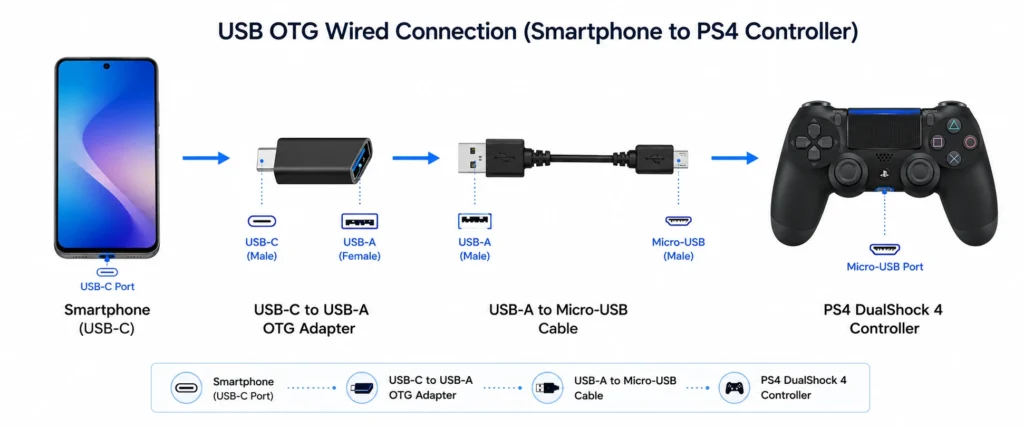
The OTG adapter converts your phone’s USB-C port into a standard USB-A port. You can buy one online for five to fifteen dollars. It’s a small adapter, not complicated.
Mobile game developers have a real problem to solve. Phones don’t have standardized controllers the way consoles do, so when a developer builds controller support into a mobile game they’re building a layout that tries to work for everyone which means it works perfectly for almost no one. Console development teams spend months tuning button layouts because they know exactly what hardware they’re targeting. Mobile developers make one general layout and move on.
I tested this across multiple games. Every single one had at least one thing in the default mapping that felt off. Not broken just designed for a theoretical average user rather than for how I actually play. Which is normal, and it’s fixable
That’s actually everything required.
Steps to Connect via USB-OTG
Remove your phone case if it’s thick. Some cases block the USB port and prevent the adapter from fitting properly.
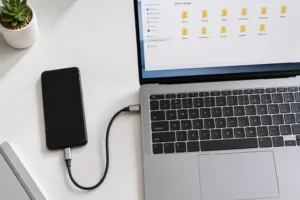
If you’re having broader connectivity issues, check our guide on how to connect your phone to computer for additional USB troubleshooting techniques that apply to controller connections too.
Plug the OTG adapter into your phone’s USB-C port at the bottom.
Connect your PS4 controller to the OTG adapter using the micro USB cable. The cable plugs directly into the back of the controller.
Your phone recognizes the controller immediately. This is plug and play. No setup needed. No pairing mode. The phone detects it the instant the cable connects.
Open a game. The controller works right away.
This entire process takes about thirty seconds and has zero complexity compared to Bluetooth pairing mode. But the tradeoff is you’re physically tethered to your phone by a cable.
Important Limitation: Button Mapping Issues Persist
Here’s what people assume. Going wired fixes the button problems. It doesn’t.
I tested both methods. Bluetooth and USB-OTG. The button mapping issues are exactly the same. Your game still receives incorrect button inputs by default.
Why? Because the problem isn’t the connection type. The problem is the game developer’s default layout for mobile devices. Whether you’re connected via Bluetooth or USB cable doesn’t change that.
You still need to remap the buttons inside the game’s settings. That part is unavoidable no matter which connection method you choose.
So if you switched to wired hoping to escape the mapping issue, you didn’t gain what you were looking for. The USB-OTG method solves Bluetooth problems only. It doesn’t solve game compatibility problems.
That’s the difference people miss. Wired connection offers real advantages like eliminating wireless lag and guaranteeing discovery. But it’s not a universal fix for everything.
Why Your Buttons Don’t Work Right (And How to Fix It)
Your PS4 controller connects perfectly. You launch a game. Then the buttons feel completely wrong. A button you expected to be jump is actually aim. The layout doesn’t match anything you’re used to.
This isn’t your controller breaking. This is the game’s default button mapping, and it’s frustrating on purpose.
Mobile game developers set up controller layouts differently than console versions. Call of Duty Mobile’s default mapping is a perfect example. The button placement feels awkward compared to how it works on PS4. That’s not a bug. That’s just how the mobile version was designed.
And it’s fixable.
Why Default Mapping Feels Wrong
Game developers have a problem. Mobile phones don’t have standardized controllers like consoles do. When they build controller support, they have to guess at a layout that works for most people.
Their guess is usually wrong for you specifically.
Console games spend months tuning button layouts because they know exactly what hardware they’re supporting. Mobile games make a one-size-fits-most layout that works okay for some people and feels terrible for others.
The DualShock 4 layout on your phone won’t match what you remember from playing on your PS4. Buttons are in different spots. Shoulder button functions shift. Aiming might be mapped to a different trigger.
This is completely normal. I tested multiple games. Every single one had some aspect of the default mapping that felt off. None of them were broken. They were just designed differently than console versions.
How to Fix: Remap Buttons in Game Settings
The solution is straightforward. Open your game.
Go to Settings or Options. Look for a section called Controller, Controls, or Buttons. These menu names vary by game, but one of those labels will get you there.
Inside that menu, find Remap or Customize. Tap it.
Now you see all your buttons listed. Assign each button to whatever feels natural for you. Jump to whichever button you want. Aim to wherever makes sense. Build your own layout.
Save the settings and launch a game. Test it. If something still feels off, go back and swap it around again.
Not every game has customization options. Some older mobile games or casual titles skip controller remapping entirely. But the major games all support it. This is worth checking before you assume a game won’t let you customize.
Games with Customizable Mapping
Call of Duty Mobile has full remapping. You can adjust every single button.
Fortnite gives you complete customization. Roblox games vary, but most let you remap. PUBG Mobile supports control customization. Minecraft has remapping options too.
Casual games and puzzle games often skip this feature. Racing games usually have it because button layout matters so much for racing.
Check the settings menu first. If the Controller or Controls option exists, remapping exists. You just have to find it.
And here’s what I learned testing this. The remapping is almost always buried in settings where new players miss it. The games don’t advertise it. They just put it in the menu and hope people find it. Most people don’t look deep enough.
COD Mobile controller support includes full remapping — every button. Fortnite gives you the same. The pattern holds for most major titles. The games that skip it are usually casual or older mobile games without significant controller user bases.
Check Settings first. If a Controls or Controller option exists in that menu, remapping is there. Most people never find it because it sits two or three menus deep and nothing in the game tells you it exists.
Controller Won’t Show Up? Here’s Why (And How to Fix Each Problem)
That reset option on the back of the controller the small hole near the left shoulder button, a paperclip to press it, three to five seconds wipes all stored pairing data.
Every time I’ve seen a controller not detected situation that nothing else solved, this fixed it. You re pair from scratch afterward, but you’re starting with clean connection data instead of whatever corrupted state caused the problem
The controller worked fine yesterday. Today it won’t even show up in the Bluetooth list. And then they give up after trying the first obvious thing that doesn’t work.
The problem is that controller pairing failures have specific causes. Most troubleshooting guides throw generic advice at you instead of helping you identify what’s actually broken. I’m going to walk through each symptom and its real fix.
Problem: Controller Doesn’t Appear in Bluetooth List
This is the most common issue. Your phone’s Bluetooth is on. The controller should be there. But the list is empty or shows other devices except the one you need.
Fix 1: Controller Battery is Too Low
Check your controller’s battery first. Even if it turns on, a weak battery won’t power the Bluetooth radio properly.
I learned this the hard way when I spent twenty minutes troubleshooting a controller that had just enough juice to light up but not enough to broadcast. Charge your controller to at least 10 or 20 percent before trying to pair it.
If you have an older controller with a battery that’s starting to wear out, you might need to keep it plugged in while entering pairing mode. The charging cable gives it the extra power boost the Bluetooth radio needs.
Fix 2: Controller Exited Pairing Mode (2-Minute Timeout)
Here’s something most guides don’t mention. Pairing mode times out after about two to three minutes. That blinking light bar isn’t going to blink forever.
I watch people hold those buttons once, then spend five minutes digging through their phone’s Bluetooth settings. By the time they look for the controller, it’s already stopped broadcasting. The light bar goes solid or turns off completely.
Solution is simple. Hold the PS button and Share button again to restart pairing mode. The controller needs to be actively looking for connections when your phone scans for it.
Fix 3: Pairing Mode Light Isn’t Actually Blinking
This happens more than you’d think. You press the PS button alone instead of PS button plus Share button. Or you press them one after the other instead of simultaneously.
Look at your controller’s light bar carefully. It should be blinking rapidly in a specific pattern. If it’s solid, if it’s off, or if it’s doing something else, you’re not in pairing mode.
Start over. Hold both the PS button and Share button at exactly the same time. Keep holding until you see that fast blinking pattern.
Fix 4: Force Bluetooth Scan
Sometimes your phone’s Bluetooth gets stuck showing an old device list. Toggle your phone’s Bluetooth completely off. Wait five full seconds. Toggle it back on.
This forces a fresh scan instead of showing cached results. I use this technique when I know a device should be there but the phone isn’t seeing it. Works most of the time.
Fix 5: Restart Phone Bluetooth
If toggling doesn’t work, restart your phone’s entire Bluetooth system. Go into Bluetooth settings and turn it off. Then restart your phone completely. For more comprehensive phone restart and reset techniques, see our guide on how to reset Android phone when locked which covers advanced restart methods.
This clears any stuck processes or corrupted device lists that might be blocking discovery.
Problem: Controller Was Found But Won’t Actually Connect
Your controller shows up in the device list. You tap “Pair” or “Connect” and nothing happens. Or it tries to connect then fails immediately.
Tap the connection button and watch for popup messages. Some phones show a pairing request that you need to accept manually. Look for “OK,” “Accept,” or “Allow” buttons that might appear.
If the pairing fails completely, forget the device from your phone’s Bluetooth list and start fresh. Sometimes the phone has conflicting connection data from a previous pairing attempt.
Problem: Connected But Buttons Don’t Work
This isn’t actually a connection problem. The controller connected successfully. The issue is button mapping.
Most games don’t automatically recognize PS4 controllers on phones. You need to remap the controls inside each game’s settings menu. This is normal behavior, not a bug.
Check the game’s control options or settings menu. Look for controller configuration, button mapping, or input settings.
Problem: Controller Keeps Disconnecting
If your controller connects but drops out repeatedly, check these three things first.
Battery drain is the most common cause. Even if the controller shows connected, a dying battery will cause random disconnections. Charge it fully and test again.
Distance matters too. Bluetooth has limited range. Stay within about thirty feet of your phone. Walls and other electronics can interfere with the signal.
Sometimes other Bluetooth devices cause interference. Turn off other Bluetooth accessories temporarily to see if that stops the disconnections.
Advanced Fix: Reset Controller
When everything else fails, reset the controller to factory defaults. There’s a small reset button on the back of your controller near the left shoulder button.
Use a paperclip to press the tiny button inside that hole. Hold it down for three to five seconds. This wipes all stored connection data and forces the controller to start fresh.
You’ll need to re-pair the controller after a reset. But this fixes corrupted pairing data that can cause persistent connection problems.
Most troubleshooting articles never mention this reset option. It’s your last resort when standard fixes don’t work. I’ve seen it solve connection issues that seemed impossible to fix any other way.
The key to fixing controller problems is matching your exact symptom to the right solution. Don’t just try random fixes and hope something works. Identify what’s actually broken first.
After Using Your Controller on Your Phone: How to Reconnect to Your PS4
I see this question posted constantly. You successfully connected your PS4 controller to your phone. Games worked perfectly. But now you want to go back to playing on your console and the controller won’t reconnect wirelessly.
You press the PS button expecting it to just work. Nothing happens. The controller sits there doing absolutely nothing while your PS4 waits for a connection that will never come.
This isn’t a bug. And your controller isn’t broken. There’s a specific reason this happens that most people don’t understand.
Why It Happens: Bluetooth Pairing Limitation
Your PS4 controller can only remember one active Bluetooth pairing at a time. When you paired the controller to your phone, that became its new active connection.
The controller is still “remembering” your phone’s Bluetooth address. Even though your phone might be in another room or turned off completely, the controller thinks that’s where it belongs now.
This is exactly how Bluetooth pairing works for most devices. One active connection per device. Your controller doesn’t know you want to switch back to your PS4 because it’s still looking for your phone.
Wireless reconnection to your PS4 won’t work until you clear this pairing limitation. The PS4 is sending connection signals, but your controller is ignoring them because it’s already “paired” to something else.
The Solution: USB Re-Pairing to Your PS4
There are two ways to reconnect your controller to PS4 after using it with your phone. The USB method works every time. The wireless method takes longer but doesn’t need a cable.
Option A: USB Cable Method (Recommended)
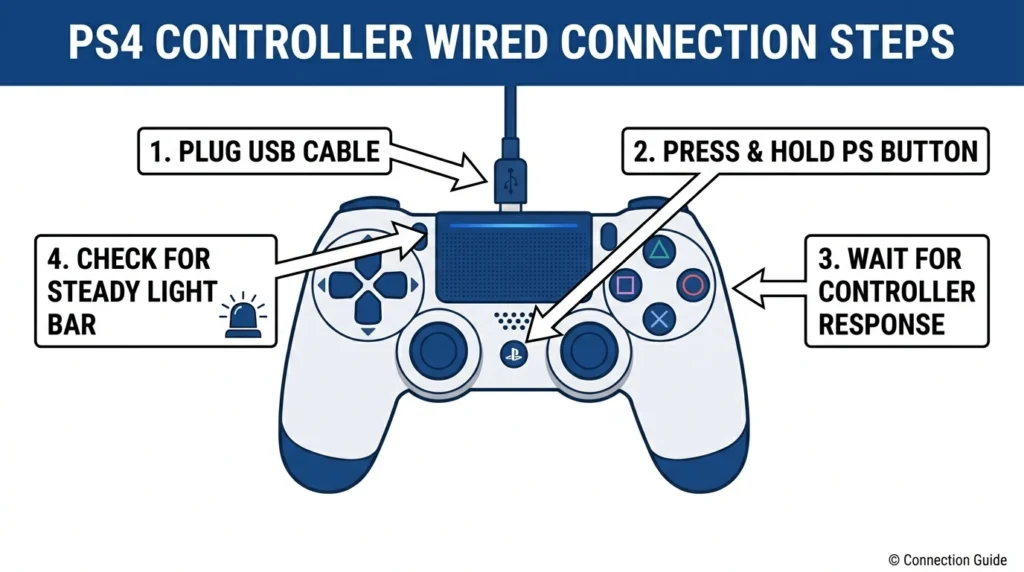
Connect your PS4 controller directly to your PS4 console using the USB cable that came with the controller. Any micro-USB cable works if you can’t find the original.
Press the PS button on your controller once it’s plugged in. Your PS4 console will recognize the controller immediately and establish a new Bluetooth pairing automatically.
Remove the USB cable. Your controller is now paired wirelessly to your PS4 again.
This method overrides whatever Bluetooth pairing was stored before. Takes about ten seconds total.
Option B: Bluetooth Pairing Mode Reset
Navigate to your PS4 home screen and go to Settings, then Devices, then Bluetooth Devices. Find your controller in the list of paired devices and delete it completely.
Put your PS4 controller into pairing mode by holding the PS button and Share button simultaneously until the light bar starts blinking rapidly. Your PS4 will discover the controller as a new device and pair with it.
This method works but takes longer than the USB approach. Sometimes you need to try the pairing process twice if your PS4 doesn’t find the controller immediately.
How to Avoid This Problem in Future
Turn off your phone’s Bluetooth before trying to reconnect your controller to PS4. This prevents the controller from getting confused about which device it should connect to.
Or just use the USB cable method every time you switch back to your PS4. It’s faster than trying to troubleshoot wireless connection issues.
The USB re-pairing trick works because wired connections always override Bluetooth pairings. Your PS4 sees the controller as directly connected and automatically sets up a new wireless pairing when you unplug the cable.
What Doesn’t Work (And Why That’s Actually Fine)
Several PS4 controller features stop working when you connect to your phone. Sony deliberately disables these features on non-PlayStation devices. But here’s the thing most people don’t realize until they actually start gaming: you won’t miss them.
Several PS4 controller features go dark when you pair to your phone. Sony disables them intentionally on non-PlayStation devices. Other guides skip this topic. I’m not going to, because knowing exactly what doesn’t work before you start prevents the kind of frustration that makes people think something is broken when it isn’t.”
Touchpad section closing: “Most mobile games don’t use touchpad input anyway — developers would need to specifically program it, and almost none bother when the phone already handles touch directly.”
Ending section: “Mobile games don’t expect any of these features. They were designed around touch controls first, with buttons as an upgrade. The precision analog sticks, the responsive buttons, the ergonomic grip those are the things that matter for mobile gaming, and all of them work exactly as they should.
Disabled Features
Touchpad: NOT Supported on Phone
The touch-sensitive pad on top of your PS4 controller becomes completely non-functional on mobile devices. Tap it, swipe it, press it. Nothing happens.
Most mobile games don’t use touchpad controls anyway. Game developers would need to specifically program touchpad support, and almost none of them bother since touchscreens already handle touch input.
This is a deliberate Sony limitation for non-Sony devices. Not a technical bug.
Rumble/Vibration: NOT Supported on Phone
Your controller’s vibration motor stays completely silent when connected to your phone. Even games that would normally trigger rumble feedback won’t make the controller shake at all.
This happens even if your phone supports haptic feedback through its own vibration motor. Sony disables the controller’s rumble specifically when paired to non-PlayStation devices.
Individual game developers could theoretically re-enable rumble through custom programming. But they rarely do because it requires extra work for a feature most mobile players don’t expect.
Most mobile games weren’t designed with controller rumble in mind anyway. Touch-based games don’t need vibration feedback.
Motion Sensors: NOT Supported on Phone
The accelerometer and gyroscope inside your PS4 controller stop working completely on mobile devices. Games that use motion controls for steering, aiming, or balance won’t detect controller movement.
You’ll need to use analog sticks or buttons instead for any game that would normally use motion controls. Not ideal, but most mobile games stick to traditional button controls anyway.
Light Bar Color Change: NOT Supported
Your controller’s light bar won’t change colors based on game events or player status. The light stays whatever color it was when you paired the controller.
It still blinks to show connection status and battery level. Just no game-interactive color changes like you’d see on a PlayStation console.
Headphone Jack: NOT Supported
You can’t plug headphones into your PS4 controller’s audio jack and expect to hear game sound through them. The audio routing doesn’t work on mobile devices.
Use your phone’s built-in speaker or plug headphones directly into your phone instead.
Why This Doesn’t Matter
Mobile games don’t expect any of these disabled features. Touch controls, button mapping, and analog sticks work perfectly. The core gaming experience stays completely intact.
I’ve played dozens of mobile games with my PS4 controller. Never once did I think “this would be better if the touchpad worked” or “I really need rumble feedback here.” The features that actually matter for mobile gaming all function normally.
These limitations matter much more on PlayStation consoles than on phones. Mobile gaming focuses on different types of gameplay that don’t rely on advanced controller features.
Your PS4 controller still gives you precise analog control, responsive buttons, and proper gaming ergonomics. Which is exactly what mobile gaming needs.
Level Up Your Setup: Gaming Optimization Hacks
The optimization that matters most is keeping your processor focused on the game. Close background apps first. Enable performance mode if your phone has one. Lower graphics settings before assuming controller lag is a hardware issue choppy frames cause input lag regardless of how your controller is connected.
I learned these optimizations after my phone died halfway through a boss fight. Twice. Now I set up properly before long gaming sessions and never run into battery or comfort issues.
Wireless Charging Stand Setup
Position your phone on a wireless charging stand while gaming with your PS4 controller. This creates a perfect TV-like viewing angle and prevents your phone battery from draining completely during extended play sessions.
The setup mimics console gaming where your display sits at eye level instead of you hunching over a device in your hands. Your neck will thank you after a two-hour gaming session.
Most phones from 2020 onward support wireless charging. The charging stand keeps your phone powered while you play, so you never have to choose between gaming and preserving battery life.
This setup only works if you’re playing games that don’t require touch controls. Perfect for controller-only games like racing or platformers.
Controller Battery Management
Check your PS4 controller battery before starting any serious gaming session. Controller battery typically lasts six to eight hours depending on how much you use the analog sticks and buttons.
Turn off your controller completely when you’re not actively gaming. Hold the PS button down until the light bar turns off. Don’t just set the controller down and let it stay connected.
Enable automatic controller standby in your phone’s Bluetooth settings if available. Most Android phones have this feature buried in the advanced Bluetooth options. The controller will disconnect automatically after a few minutes of inactivity.
I keep a micro-USB cable nearby during long gaming sessions. Controller battery indicators aren’t always accurate, and nothing ruins a game like the controller dying during important moments.
Minimize Button Vibration for Battery Savings
Turn off or reduce button feedback vibration in your phone settings. Look for Settings, then Accessibility, then Vibration or Haptic Feedback options.
Button vibration drains both your phone battery and your controller battery faster than you’d expect. The constant small vibrations add up over time, especially in action games with frequent button presses.
Some competitive players disable vibration completely for slightly faster response times. Personal preference, but worth testing if you notice input lag during fast-paced games.
Game Specific Performance Tips
Close all background apps before starting your gaming session. Too many running apps cause frame rate drops and input lag that make precise controller movements feel sluggish.
Use your phone’s performance mode or game mode if available. Most Android phones since 2020 include a gaming optimization mode that prioritizes processing power for games and reduces background activity.
Lower graphics settings in games if you experience any lag or stuttering. Controller responsiveness depends on consistent frame rates, not pretty graphics. Better to have smooth gameplay with lower visual quality than beautiful graphics with choppy controls.
The optimization that matters most is keeping your phone’s processor focused on the game instead of juggling multiple tasks. Everything else is secondary to consistent performance.
Beyond DualShock 4: PS5 Controller & Third-Party Options
People keep asking me about PS5 controllers and cheaper alternatives. Short answer: they work, but with different trade-offs than you might expect.
The PS5 DualSense controller actually has worse mobile compatibility than the older DualShock 4. Which sounds backwards until you understand why.
PS5 DualSense Controller on Phone
Yes, the PS5 DualSense controller connects to phones running Android 12 or newer and recent iOS versions. Connection method is identical to the DualShock 4: hold the PS button and Share button until the light bar blinks rapidly.
But here’s the catch. Those fancy DualSense features that make PS5 games feel amazing? They don’t work on phones.
Adaptive triggers stay completely static. No resistance changes, no trigger feedback effects. Just regular triggers like any other controller.
Haptic feedback gets severely limited compared to what the DualSense can do on PS5. Your phone might register basic vibration, but none of the nuanced tactile effects that make the controller special.
The DualShock 4 actually provides better mobile gaming compatibility because it has fewer advanced features that can break or get disabled on non-Sony devices.
Third-Party PS4 Controllers
Any Bluetooth-compatible controller designed for PS4 will connect to your phone using the same pairing process. Quality varies wildly between brands and price points.
Button mapping issues apply to third-party controllers just like official Sony controllers. Don’t expect plug-and-play compatibility with mobile games.
Third-party controllers typically cost between $18 and $40 compared to $60 for official Sony controllers. Sometimes the savings are worth it. Sometimes you get what you pay for.
I won’t recommend specific brands because controller quality changes frequently as manufacturers cut costs or improve designs.
PS Remote Play: Play Your Console Games on Any Phone
The experience isn’t identical to your TV setup. Input lag is the main difference how noticeable it is depends entirely on your internet speed at both ends.
For single player games, most people adjust within a few minutes and stop noticing it. Competitive online games are a different story; the delay is real enough to affect timing in fast paced multiplayer.
This is completely different from the mobile gaming we talked about earlier. When you use PS Remote Play, your PS4 controller regains all its functionality. Rumble works. The touchpad works. Motion controls work. Everything that’s disabled for regular mobile games becomes available again.
What is PS Remote Play?
PS Remote Play is Sony’s official app that turns your phone into a portable PlayStation. The app streams video and audio from your PS4 or PS5 console to your phone over the internet.
Your console stays at home running the actual game. Your phone receives the video stream and sends your controller inputs back to the console. It’s like having a really long wireless connection to your PlayStation.
The game library is unlimited because you’re accessing your actual console. Every PS4 game you own becomes playable on your phone. Every PS5 game works too if you have a PS5. No compatibility lists to check. No mobile versions required.
You need an internet connection for this to work. WiFi is recommended because streaming video uses significant bandwidth. Your console needs to be connected to the internet too, either plugged in at home or in rest mode.
Installing PS Remote Play
The app is free on both platforms. No subscription required.
Android users can download PS Remote Play from the Google Play Store. Search for “PS Remote Play” and look for the official Sony app. Your phone needs Android 10 or newer.
iPhone users find the same app in the Apple App Store. iOS 15 or newer is required. The app works on iPads too if you want a larger screen.
Download and install just like any other app. The setup happens inside the app after installation.
How to Use PS Remote Play
Open the PS Remote Play app on your phone. The first time you’ll need to sign in with your PlayStation Network account. This is the same account you use on your console.
The app searches for your console automatically. If your PS4 or PS5 is turned on and connected to the internet, it should appear in the console list. Tap your console to connect.
Streaming begins immediately. You’ll see your PlayStation home screen on your phone. Navigate using your connected PS4 controller exactly like you would at home.
Launch any game from your library. The game runs on your console but displays on your phone. Controller input feels natural because it’s the same controller you use on the console normally.
Important Requirements and Limitations
Your internet speed matters significantly. Sony recommends at least 5 Mbps upload speed from your home internet where the console sits. 5 GHz WiFi works better than 2.4 GHz for your phone connection.
Your console must be in rest mode or turned on for Remote Play to work. The app can wake up a console in rest mode remotely, but it can’t turn on a completely powered off console.
Distance from home doesn’t matter as long as both locations have good internet. I’ve used Remote Play from hotels, airports, and other cities successfully. The quality depends entirely on both internet connections.
Battery drain happens faster during Remote Play than regular mobile gaming. Your phone processes video constantly while streaming. Keep a charger available for longer gaming sessions.
The experience isn’t identical to playing directly on your TV. There’s slight input lag depending on internet speed. For single player games this barely matters. For competitive online games you might notice the delay.
Frequently Asked Questions
Does my phone need any special setup beyond normal Bluetooth?
No. Standard Bluetooth support is all that’s required when learning how to connect ps4 controller to phone. Most phones since 2017 have built-in support; just pair and go without any additional apps.
Can I use the PS4 controller to navigate my phone’s main menu (like SMS, email, etc.)?
Yes, you can use the analog stick and D-pad to navigate phone menus after connecting your controller. It’s slower than touchscreen but useful if your screen is damaged or unresponsive.
Will my older/original PS4 controller work, or only the newer ones?
All DualShock 4 controllers work regardless of age, from original 2014 models through current versions. Battery strength may weaken over time, but the steps for how to connect ps4 controller to phone remain identical.
How far away can my phone be from the controller before it disconnects?
Typical Bluetooth range is about 30 feet with no obstacles between devices. Walls and other wireless devices reduce this range, so keep your phone and controller in the same room for reliable gaming.
Can I use two PS4 controllers with one phone for multiplayer games?
Android phones can recognize up to 4 controllers if the game supports multiple inputs. iPhone support depends on the specific game’s multiplayer settings and developer implementation.