What Does It Mean When iPhone Screen Is Black But Phone Is On?
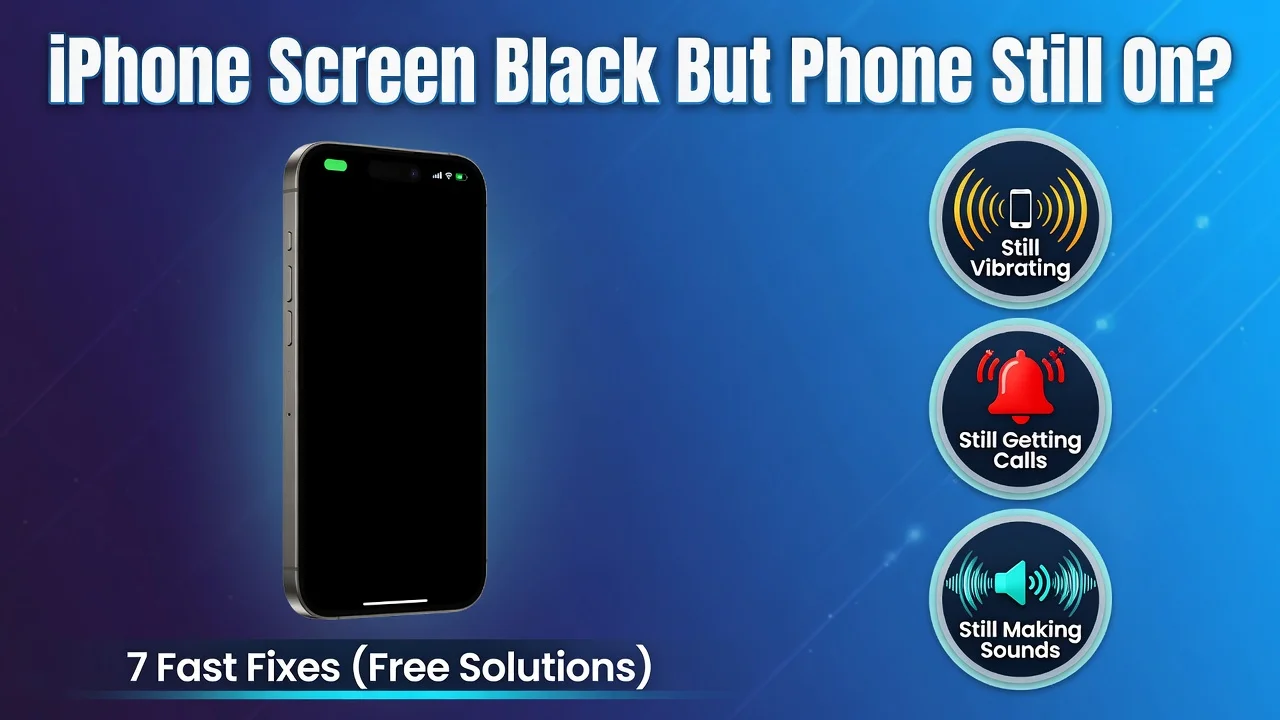
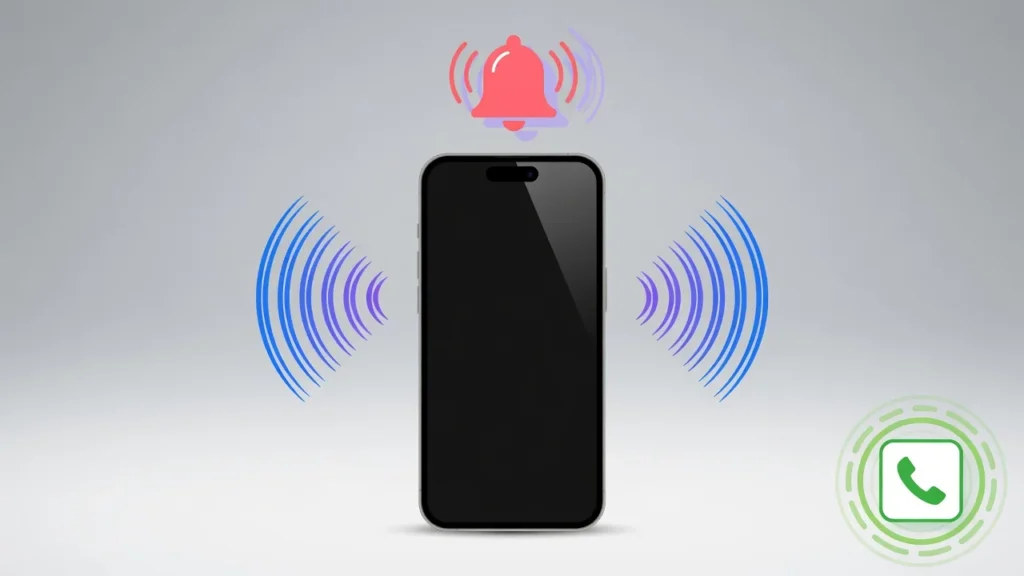
You grab your iPhone and the screen is entirely black! The phone is definitely alive however. You can hear the notification dings, it vibrates when you receive a call and you can hear it ring. I can personally attest that the waiting time between a phone that works and a black screen is so uncomfortable.
If you’re seeing a black screen on your iPhone while the phone is on, it hasn’t died. If the iPhone screen is black, but the phone is on, it’s not dead. Typically it’s a software problem that prevents the display from turning on, and rarely a hardware problem with the screen itself. This is NOT the same as an iPhone that will not turn on at all, or an iPhone that will turn on but won’t vibrate, or an iPhone that will turn on but won’t beep. In either case, it is one of the most easily addressed issues in the iPhone verse.
I have gone through hundreds of forum threads and support posts about this exact situation. This is exactly what one Reddit user said: Their phone had dings and vibrations, but the screen didn’t show anything. The phone is OK to use. The display will not. This article is here to remedy that.
This is what to look for if you are on the right page. If the phone is actually powered off, it will not vibrate, ring or make sounds. If you’re experiencing any of those symptoms, then you have a dead screen on your iPhone, but there’s nothing wrong with the iPhone itself. This means the fixes below are most likely applicable to you.
Even when the iPhone is completely charged and functioning perfectly, it can go completely black as a result of firmware bugs. This is usually seen following iOS updates or when the system suffers software crash. Most of these cases can be resolved at home, without any problem, and for free in less than 2 minutes.
Follow the following fixes, in order, and you’ll be back online in no time.
Try This 5-Second Siri Fix First (Works for Brightness Issues)
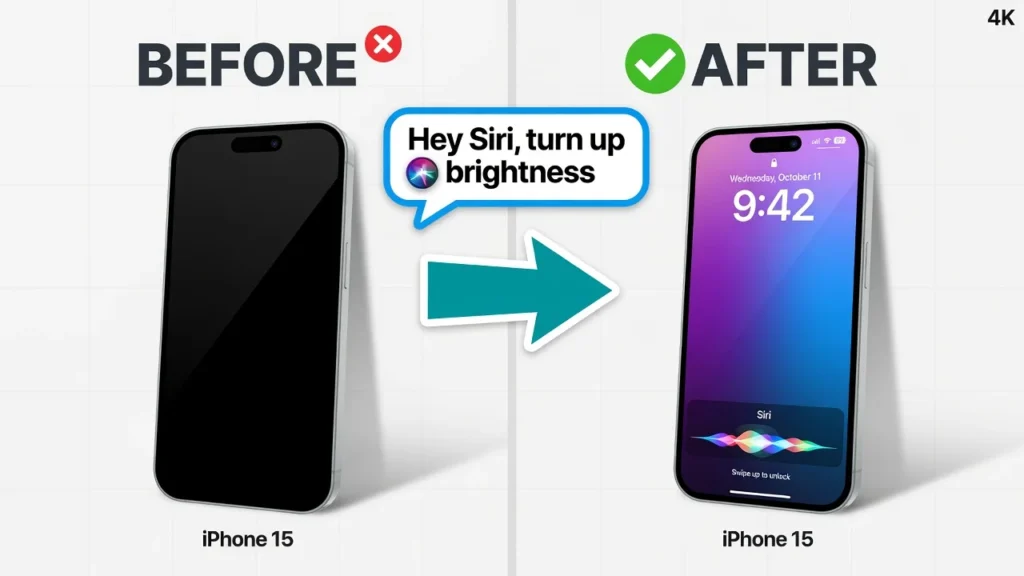
Ask Siri for help first! Speak: “Hey Siri, increase the brightness of my phone.”
This seems too easy, but it really does help in one particular scenario that is easy to get wrong. If your screen became dark because you had accidentally pushed the brightness control all the way down to zero, then your screen is on, but you can’t see anything on it. You don’t need to look at the screen at all to make Siri correct.
EyeShot300 shared this solution on Reddit saying it worked for them. After both wiped the phone and accidentally set it to the lowest setting, their screen was completely dark. With one command, it was right back.
If Siri speaks up, and your brightness comes back up, you’re done. If Siri doesn’t respond in any way, there is something else wrong and you’ll need to go to the next fixes.
The Dark Room Diagnostic Test
This is a quick test to do before taking the worst case scenario. Go to the darkest room possible, close the blinds, turn off all of the lights and attempt to turn on the screen of your iPhone.
Even if you can just barely see the slightest glimmer of the home screen or lock screen, your display is working. The iPhone brightness adjustments were probably accidentally shifted to zero. This is determined by the dark room test which eliminates all other light sources in the environment.
If the screen is still black in total darkness, the problem is more complex than just adjusting the brightness setting and you should proceed to the fixes below.
Why Is My iPhone Screen Black But the Phone Is Still On? (7 Causes)
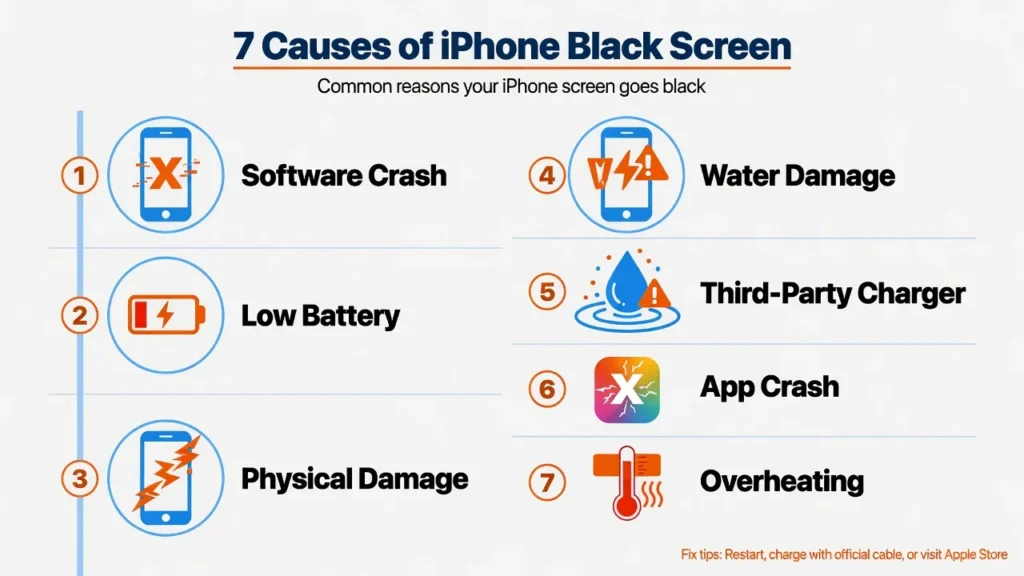
If you know what causes fits you’ll be able to get the right solution without wasting time on something that won’t work. In the past I have observed this issue originating from seven different sources. These are the things you’ll see for sure.
Software Crash or iOS Update Bug
Most often it is a software crash, which is also known as the “iPhone black screen of death.” Everything is working fine, but the computer goes to a freeze or a critical error, and the screen goes off. In some instances the phone enters a boot loop and restarts continuously without completing the display boot.
One of the most frequent triggers is iOS updates. Incompleteness of a firmware update, or a bug, can cause the display to go dark on the next boot up. Unfortunately, the iPhone 14 Pro was known for a recurring firmware bug, which led to black screen problems for many users. It was an issue that Apple officially admitted to in a support document, and that they’ve corrected with a software patch – meaning it was a problem that affected many devices, not just a limited number of hardware failures.
If you noticed your screen go blank after installing an iOS update, then it’s nearly sure your screen crashed due to software issues.
Critically Low or Degraded Battery
If the battery gets to a low level, the system turns off the display, because it’s trying to save power to run other parts of the system. The screen is still dark but the phone is vibrating or sounding for a short while due to them using small amounts of power.
This is more likely to happen to older iPhones that have poor battery health. Battery health below 80% has drastic impact on usable capacity. The phone can be appearing to be at a critical level just because the percentage shown seems to be ok. The first step would be to charge your iPhone before even trying to restart it.
Physical Damage (Drops)
If the iPhone drops, the internal iPhone screen connector (ribbon cable connecting the screen to the logic board) may become dislodged. If this connection is lost, the display remains dark but the phone works perfectly. This is one of the most common hardware-related problems and can usually be resolved by a technician without the need for a complete screen replacement
Water Damage
Water damage is different to drop damage. The moisture causes corrosion of the display components or short-circuits the connections, which means the iPhone screen connector cannot communicate with the rest of the system. The screen is blank and all other functions remain on. When it comes to water damage, there is a specific way to react to it and it can get worse if you don’t do it right. Refer to the section below for more details.
Third-Party Charger Issues
An incompatible cable or charger may lead to unexpected software crashes. Sometimes these chargers do not supply the same amount of power, and the iPhone treats it as a failure and shuts down the display. If you have also noticed your phone not charging properly even with different cables, the charger itself may be the root cause. The safest choice is always an original Apple cable or an MFi approved one.
App Crash
This is because a single crashing application can “freeze” the screen on the iPhone without the phone being turned off. Typically this occurs with applications that load large graphics or run very heavily in the background. The calls and notifications are still being received as the functions work at the system level and are independent of the crashed application. A crashing app is likely to cause the crash, if your screen flashes before turning black.
Overheating
The iPhones automatically turn down or turn off the screen when the internal temperature exceeds the limit. It is not a fault, it is a built in protection feature. Overheating may be the cause if your phone was in direct sunlight, left in a hot car or used for an extended period of time with a demanding app. Do not do anything until the phone has cooled down in a shaded place for 10-15 minutes.
OLED Display Failure
The most recent iPhone models also have a hardware problem with the OLED display screen; it could become dark during operation, but the phone will remain functional. It’s not a loose connector problem. When an OLED panel fails, it usually does so over time, making the display dim, showing bright spots or dead areas on your iPhone screen, or displaying distorted parts before it goes completely black. This cause is nearly always a repair job for the professional screen repair man and screen replacement.
Force Restart Your iPhone (Fixes 90% of Cases in 30 Seconds)
Restarting the force, also known as hard reset on iPhone, is the most effective and easiest solution to a black screen, and it works with most of the cases. This does not reset to make it a new factory. If you restart the force, none of your data will be lost. It simply resets the operating system, erasing the program malfunction that kept the screen dark.
Repeat this sequence up to five times, before trying other solutions. The first time it may not work but the second or third time it works.
For iPhone 8 and Newer (iPhone 16, 15, 14, 13, 12, 11, X, 8)
This is for all the Face ID iPhones. Follow each step carefully and in order.
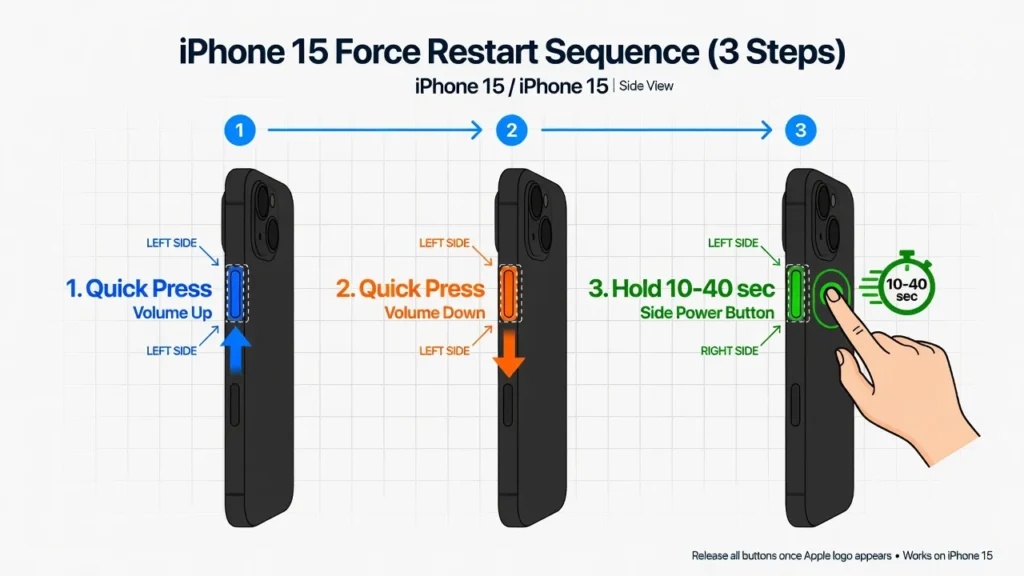
Step 1: Press and Quickly Release Volume Up
Tap the volume up key on the left side of your iPhone and then tap it back down. Don’t “push” it. This should be a press and release, similar to when you press a key. On the other hand, follow these steps to adjust the volume back up:
Step 2: Press and Quickly Release Volume Down
After pressing volume up, press volume down and release as soon as. Again, do not hold it.
Step 3: Press and Hold the Side Button Until the Apple Logo Appears
Then, hold the right side button down. Keep holding it. If the screen remains blank, don’t release it. Keep holding.
It takes between 10 and 40 seconds in severe cases, so don’t surrender early. Hold that side button down until you see the Apple logo or hear a vibration or chime, indicating that the computer is rebooting.
Here’s an important note: avoid pressing the volume buttons along with the side button simultaneously. The Emergency SOS feature is not desired here, it is triggered by pressing the volume down and side buttons together. The sequence of buttons should be performed in one step.
For iPhone 7 and 7 Plus
Hold down the volume down button and the power button simultaneously. Hold both for the appearance of the apple logo. This model has a different sequence due to the solid-state Home Button.
For iPhone 6s and Earlier
Hold down the Home Button and the power button (top or side) at the same time. Wait until the Apple logo comes on screen before releasing them.
What If I Do Not See the Apple Logo? (It May Still Be Working)
The force restart could still be happening even when the screen is black. The Apple logo may be trying to display on the screen but it cannot be displayed if the screen is damaged or has a malfunction.
While holding down the side button, listen carefully. If you hear a vibration or a charging chime after 15-30 seconds, the force restart was successful and your iPhone is restarting. There might simply be a “reboot” problem, or there may be a different type of screen problem.
If you hear any vibration, wait a minute before deciding that the restart was unsuccessful.
Common Mistakes That Waste Your Time
Let’s look at the most frequently made mistakes by people trying to do a force restart:
Wait for up to 40 seconds before giving up, which is a more reasonable time.
Wait for up to 40 seconds before giving up, which is more reasonable.
Pressing two volume and side buttons at once, rather than one after another
Using only one attempt, rather than as many as five attempts
Pressing volume up rather than the side button in the last step Double press Home Button and side button on newer iPhone models (no Home Buttons)
Charge for 30 Minutes, Then Try Force Restart
If it doesn’t restart right away, your iPhone might just be too drained to restart. When the battery has made it through a complete discharge cycle, the system may not be able to restart due to a very low battery voltage, hence an iPhone frozen screen or black display is not uncommon even if the button sequence is performed correctly.
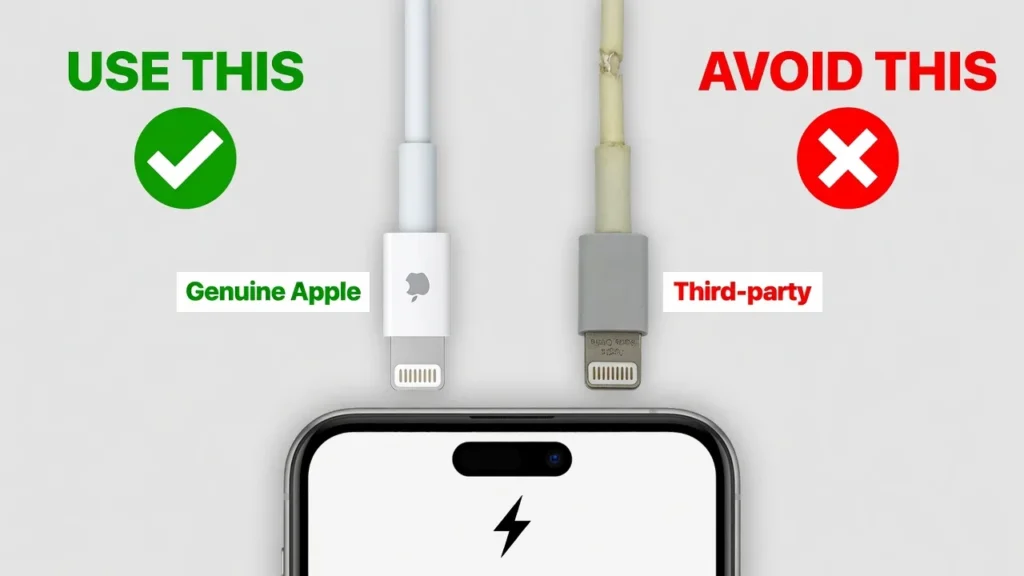
Connect the iPhone to a charger with the original Apple cable or a MFI cable. If you have any generic cable at hand, put it aside. You can be sure that generic chargers are a cause of black screen and may not charge properly.
Even if the screen remains black throughout, leave plugged in for a full 30 minutes. The phone might be charging while in use and without showing anything on the display. Avoid attempting to restart it during this time period. Just let it charge.
After 30 mins, try the force restart with the phone still plugged in. Often, incoming power combined with the restart command will work where the restart command alone will not.
Before you start the timer, quickly test your charger and outlet by plugging in another device. If it’s not working, then the problem is most likely a faulty outlet or damaged cable, so let’s rule that out first.
Advanced Fixes When Force Restart Does Not Work
After 5 force restarts and a 30-minute charge cycle, if the black screen on the iPhone still hasn’t fixed it, it’s time to consider more advanced solutions. These include turning your computer on and in some cases, entering a diagnostic mode into the device. These are still free and not something that needs professional assistance.
Recovery Mode via Computer (Finder or iTunes)
This mode allows a computer with Finder or iTunes to back up the iPhone. Use a USB cable to connect iPhone to Mac or PC. On the Mac, with macOS Catalina or later, launch Finder. On the older Macs or Windows, open up iTunes.
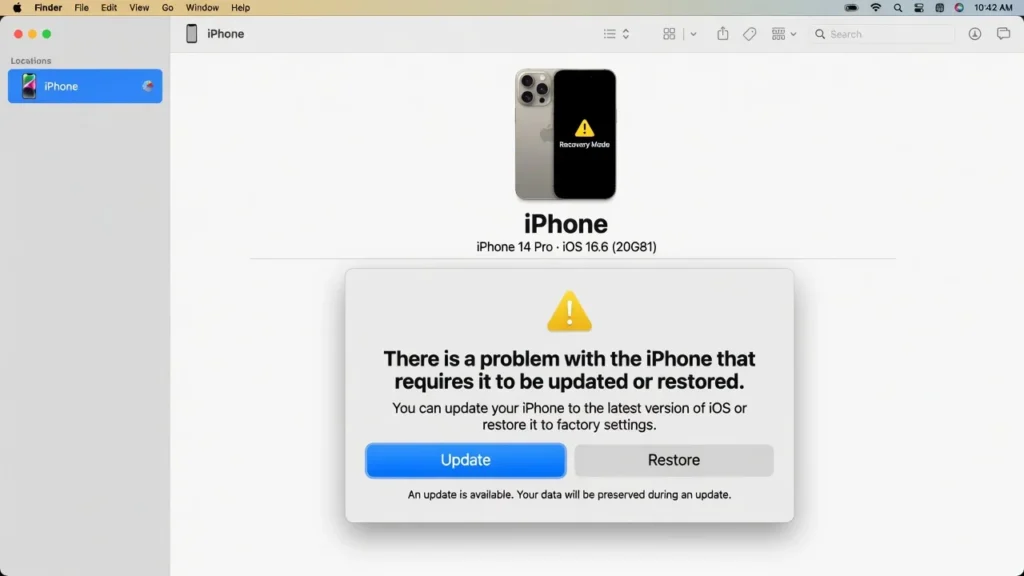
When it’s plugged in, try the force restart procedure on your iPhone while it’s plugged into the computer. This is usually helpful when the standalone force restart is not, as the computer can generate a firm power supply, and it can communicate with the iPhone’s recovery system.
If the phone goes into recovery mode, Finder or iTunes will recognize it and will provide you with an update or restore option. Select Update first, which will preserve your data. Only restore if update fails.
File integrity check: This utility is used to verify that the files in the system have not been corrupted.File integrity check: This utility verifies whether the files in the system are corrupted.
Free Windows Software Fix: 3uTools Firmware Refresh (No Data Loss)
For Mac users, you will have to use Finder. I have been using 3uTools to update the firmware of some devices, and it is a simple process; but always download from the official 3uTools website and never from third party download mirrors.
Connect your iPhone, look for “Repair Firmware” or “flash” and make sure to choose “Retain User’s Data” before continuing. The firmware update only takes 10 minutes and fixes most software bugs, without affecting your personal data.
Force Quit the Crashing App
When the screen flashes up or flashes some of the screen and then goes dark, this could be due to an app crashing. For face ID iPhones, hold until you see a flash and then move up from the bottom of the screen, pause at the middle of the screen, and then swipe up on any app cards you see. With an iPhone that has a Home Button, double click the Home Button when the phone flashes and swipe apps away to close them.
If no flashes at all are seen on the screen then skip this step and proceed to Recovery Mode.
Water Damaged iPhone: Screen Black But Phone Turns On
You have a water damaged phone that starts up, but the screen is black – that’s a different type of issue than a software glitch. Dealing with water damage on an iPhone is a different type of situation that needs a specific approach—wrong first action can make the damage much harder to do.
What to Do Immediately After Water Exposure
Avoid charging your iPhone right after it has been in water. Flooding a wet device with electricity may cause additional damage to internal parts. If possible, turn off the phone.
To flush any water out, gently tap it against your palm, charging port down. If you have any silica gel packets, place them in the iPhone case or container. Do not use the rice method because it doesn’t work well and may cause dust to enter the charging port.
Don’t charge or use the phone for 48 hours or more before it dries.
Can Force Restart Fix Water Damage?
Sometimes, yes. If the water was able to enter and briefly break the connection to the display, a force restart can re-seat the display connection on the computer digitally, restoring the display. After the 48-hour drying period, it is worth a try. If the screen will not turn on after drying and hard reset, the water damage has harmed hardware elements and will require expert repair.
Unconventional Fixes That Sometimes Work (Physical Methods)
I am being honest with you, these are the remedies you have to fall back on when all software fixes have been exhausted and the phone can’t be seen to be physically damaged. Don’t do these on a cracked-screen or water damaged phone, as it may cause further damage. Sometimes, it’s because the display connector is a little loose and will sit back inside the phone without being physically opened with a physical method.
The Gentle Tap Method
Gently but firmly tap the back of the iPhone, preferably close to the camera. The display connector is located in the top part of the phone, and sometimes tapping it carefully will make it re-align itself with the rest of the phone.
Another option is to rest the phone on a soft surface and strike the back with your palm. The aim is to get the internal components, if slightly misaligned, to seat properly, not enough to damage them.
The Refrigerator Method (Last Resort)
To be honest: This method seldom works, and there is a potential for condensation too. Use it only as a last resort, not as a normal troubleshooting procedure.
Keep the iPhone in a sealed bag to keep it dry and then refrigerate (not freezer) for approximately 15-20 minutes. The concept of the method is to cause the metal parts to contract slightly from temperature changes, thereby re-seating the connections that may have shifted.
Only use after software fixes and “the tap method” have been used, and place the phone in a sealed bag before bringing it into contact with cold air.
Is It Hardware or Software? How to Tell the Difference
It is best to understand if your black screen on iPhone is a software issue or a hardware problem before incurring any repair costs. This distinction is important as it will help you know if you can solve the iPhone display problem or if you require professional assistance.
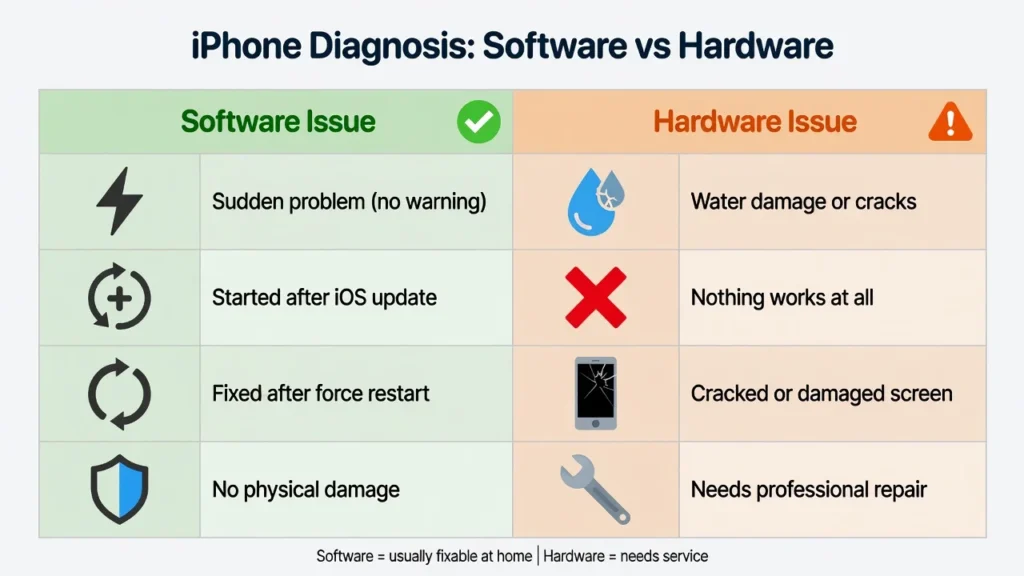
Software Issue Signs
Almost all software related black screens exhibit at least one of these features. No physical damage to the phone, and the problem came up all of a sudden. It occurred immediately following iOS update or application installation. The iPhone can take calls or play audio when you touch the areas where the buttons go, but has no visual response. The screen on the iPhone does not react visually, but the device still rings when called, plays audio, or vibrates when you push where buttons should be. Try to force restart, as it will eventually succeed (even if a number of times).
If you have any of these are applicable to you, then you are almost certainly suffering from a software glitch and not hardware failure.
Hardware Issue Signs
If a black screen is the result of a hardware issue, it’s a different story. The problem started after dropping the phone or exposing it to water. Nothing works, including connecting to a computer via Finder or iTunes. The display is physically damaged, e.g., cracks around the top edge, where the display connector is located. Sometimes, the screen displays a smaller picture, bright spots or dead areas on your iPhone screen, or unusual colours before going completely black.
The two most frequent hardware reasons include OLED screen failure and a loose display connector. Sometimes the technician can solve the problem without replacing the entire screen, since it is a disconnected connector. When an OLED screen fails, the only solution is to replace the screen.
When DIY Fails: Professional Repair Costs and What to Expect
If you’ve already gone through all the repairs in this article and it still comes up blank, it would be wise to seek further professional repair. I would like to provide you with a good image of the iPhone repair expense and what is involved in the repair process, so you can come in ready.
For me, people who have to pay to replace their screen say they wish they had tried the force restart more times before they made an appointment. Before buying any fixes, be sure that you’ve fully explored all free ones.
How Much Does iPhone Screen Replacement Cost?
The price for replacing an iPhone screens can differ depending on the model and location. As of 2026, the Apple Store will charge you between $279 to $379 based on the model you have, without AppleCare+ coverage. This price is subject to change; please check the current price on apple.com/support before booking. But the bottom line, for AppleCare+ subscribers, screen repair costs come down to $29, which is a big difference and may be something to consider.
A third party repair shop will usually charge $100-$250 to replace the screen. Not all of them are created equal, but find retailers that employ OEM or like display panels and have a written warranty for repairs.
Apple’s pricing is very real, as one Redditor who experienced it firsthand noted that the repair cost of replacing the screen was much more than they had anticipated as it was out-of-warranty. The majority of black screen problems are software-related and can be fixed easily and at no cost. If you have tried all of these, then you can go ahead with paid repair.
For some of its iPhone models, Apple has a Self Repair Program that enables the repairable purchase of genuine parts, allowing self-repair of the device. Before you have to go to an apple repair shop, look through apple.com/self-service-repair to see if your model might be eligible for repair.
Apple Store vs Third-Party Repair
When you call Apple Support or bring in to any Apple Store or Apple Authorized Service Provider, you’ll get genuine parts and keep your existing warranty. Always use this first if your iPhone is still under warranty or has AppleCare+.
Third party repair may be quicker and cheaper, but it can invalidate your warranty and can cause Apple to send an “non-genuine part” message to the iOS Settings. If you check out the reputation of the third party shops on phones that are out of warranty, it can be a viable choice.
Your Data Is Safer Than You Think: Backup Options When Screen Is Black
When the screen goes blank on your iPhone, most people are most concerned with losing their photos, their messages and their personal data. I want to talk about this now, because more often than not that fear is just silly.
Will Force Restart Delete My Data?
Absolutely not. During a force restart, no data will be deleted. It’s just a method to refresh when operating system get stuck. All your pictures, messages, contacts, apps and personal data are left completely intact.
You can’t clear or remove your data even if you try multiple times with force restart. When performed properly, Recovery Mode software updates preserve your data as well. The full restore through Recovery Mode is always offered independently and explicitly; it eradicates the device.
How to Back Up Without Seeing the Screen
Note that if the iPhone device was previously connected to a trusted computer, it can still be backed up without screen access. Plug in the phone using the USB cable and launch Finder or iTunes. The backup will take place without seeking confirmation on iPhone if the computer has been trusted by the device in the past.
iCloud might also be an automatic backup from the previous time you have connected your phone to the Wi-Fi and charging station. After your screen is repaired, you can review the most recent date of your iCloud backup in Settings and your Apple ID.
How to Prevent iPhone Black Screen Issues (5 Prevention Tips)
After you’ve got your screen back, these five habits will help to lessen the risk of it happening again.
Charge using an original Apple cable or an MFI certified cable each time. I think the one thing that has saved more iPhones in my experience is by just switching to an Apple cable. Some of the most frequently occurring causes of software crashes and black screens are generic chargers.
Don’t regularly leave your battery empty. If you notice why your battery drains so fast, addressing it early will prevent the deeper degradation that leads to display shut off events and black screen issues.
Go to Settings, Battery, Battery Health to check battery health. If the battery health is below 80% consider replacing the battery. One of the best ways to prevent black screen events and sudden shutdowns is having a healthy battery.
Keep iOS updated. Bug fixes for display and screen behaviour are listed in Apple’s release notes for each version of iOS. Apple does a lot of patching for known issues that cause a black screen on certain devices, such as the iPhone 14 Pro. Keeping up to date is one of the best preventive measures you can take.
Use a case which covers the edges and corners. The majority of damage to most displays begins with a corner drop, and a protective case that is good at absorbing the impact will not interrupt internal connections.
Conclusion: Most iPhone Black Screens Are Fixable : Start Here
If your iPhone screen is black but phone is on, try the following procedure and you will be back to your phone in minutes.
First, the Siri brightness trick. If this fails, repeat the force restart procedure no more than five times. If the force restart doesn’t work, charge for 30 minutes with the Apple cable, and force restart again when charging. If that does not help, go to a computer and try to update or go into Recovery Mode using Finder or iTunes software.
Most cases of black screen (90%) are software bugs which can be fixed for free with the methods above. Only a minority are hardware failures in which the machine needs the attention of a professional repairer. Read this guide from top to bottom and don’t spend a dime before you read it.
Frequently Asked Questions
Will force restarting my iPhone delete my photos, apps, and data?
No, force restart will not delete any of your data. It’s totally safe and just refreshes the running system when it is “hung up. Your photos, messages, apps and all personal files are as they were. Even when you use advanced fix such as Recovery Mode, it can update system software, if you choose to update rather than to restore, without losing any data.
How long should I hold the side button when force restarting my iPhone?
Press the side button for 10-20 seconds until you see the Apple logo screen appear. In the more serious cases, this may take up to 40 seconds, do not give up too soon. Continue to hold if it appears that nothing is happening on the screen. The Apple logo will appear on the screen and you can feel a vibration one will know it works if the restart cycle has started.
Can I fix an iPhone black screen without going to the Apple Store?
Yes. 90% of the time, when your iPhone screen is black but the phone is on, it is a software problem that you can fix on your own, and for free, in less than two minutes. In most cases you can force restart, try that first and then proceed to reset if necessary. Next, use Siri’s brightness and charge-and-restart options. Only 10% of cases are hardware failure which requires professional repair. Always try the free fixes before considering paid repair.
Why does my iPhone 14 Pro screen keep going black?
Many users had experienced black screen problems with the iPhone 14 Pro due to a firmware bug. This bug was officially admitted by Apple and the company released a software update to fix it, ruling out any hardware defect. A force restart is an immediate remedy. If you want a “permanent” solution, maintain your iOS up to date because Apple has issued patches to fix this particular bug. If you’re already running the newest available operating system for iOS and it continues to happen, reach out to Apple Support to see what you have to choose from.
How much does iPhone screen replacement cost?
Generally, the price of replacing the iPhone screen is the same at the Apple store, ranging from $279 to $379 (without Apple Care +). AppleCare+ will cost $29 to replace the screen. The average price that a third party repair shop charges for this repair is approximately $100 to $250, depending on the model. The prices are subject to change depending on the model and year of the apple; please refer to the apple website for up to date pricing information. Before spending any money on a repair, attempt all the free software repairs in this article as most black screen problems are not screen replacements, but software issues.
What should I do if my iPhone screen went black after a software update?
If you see a black screen after updating your iOS version, it is most likely a firmware issue or an incomplete update, and not caused by damage to the device. Begin at the force restart sequence. If it doesn’t, plug in your iPhone to a computer and try to update it again or place the phone in Recovery Mode via Finder or iTunes. This is a problem that more often than not is not hardware-related, so before you spend any money on replacing your screen, try these free screen replacement software:
Can the “Hey Siri, turn up brightness” trick really fix a black screen?
Yes, but in one particular scenario. If the screen went black when the brightness was reduced to the bottom of the menu, then the screen is on but nothing is visible. Say “Hey Siri, turn up the brightness on my phone” to instantly voice control the brightness setting on your phone. If Siri responds, your screen should immediately become visible again. If Siri doesn’t work at all, there is another problem and the force restart method is required.
How many times should I try force restart before giving up?
Attempt the force restart sequence up to five times and if it does not work, proceed to other solutions. The first time the attempt may fail and a second attempt may succeed. Be sure to hold the side button down for 20 seconds or more, depending on the duration necessary to hear a sound. If five attempts are unsuccessful, proceed to charging for 30 minutes and repeat, or plug in to a computer and go into Recovery Mode.